

Analyzing Classful IPv4 Networks
INTERNOLD NETWORKS CCNA LIVE WEBCLASS (INCLW)
Analyzing Classful IPv4 Networks
Contents
Analyzing Classful IPv4 Networks
When operating a network, you often start investigating a problem based on an IP address and mask. Based on the IP address alone, you should be able to determine several facts about the Class A, B, or C network in which the IP address resides. These facts can be useful when troubleshooting some networking problems.
This lesson lists the key facts about classful IP networks and explains how to discover these facts. Following that, this lesson lists some practice problems. Before moving to the next lesson, you should practice until you can consistently determine all these facts, quickly and confidently, based on an IP address.
Classful Network Concepts
Imagine that you have a job interview for your first IT job. As part of the interview, you’re given an IPv4 address and mask: 10.4.5.99, 255.255.255.0. What can you tell the interviewer about the classful network (in this case, the Class A network) in which the IP address resides?
This section, the first of two major sections in this lesson, reviews the concepts of classful IP networks (in other words, Class A, B, and C networks). In particular, this lesson examines how to begin with a single IP address and then determine the following facts:
- Class (A, B, or C)
- Default mask
- Number of network octets/bits
- Number of host octets/bits
- Number of host addresses in the network
- Network ID
- Network broadcast address
- First and last usable address in the network
IPv4 Network Classes and Related Facts
IP version 4 (IPv4) defines five address classes. Three of the classes, Classes A, B, and C, consist of unicast IP addresses. Unicast addresses identify a single host or interface so that the address uniquely identifies the device. Class D addresses serve as multicast addresses, so that one packet sent to a Class D multicast IPv4 address can actually be delivered to multiple hosts. Finally, Class E addresses were originally intended for experimentation, but were changed to simply be reserved for future use. The class can be identified based on the value of the first octet of the address, as shown in Table 1.

Table 1: IPv4 Address Classes Based on First Octet Values
After you identify the class as either A, B, or C, many other related facts can be derived just through memorization. Table 2 lists that information for reference and later study; each of these concepts is described in this lesson.

Table 2: Key Facts for Classes A, B, and C
At times, some people today look back and wonder, “Are there 128 class A networks, with two reserved networks, or are there truly only 126 class A networks?” Frankly, the difference is unimportant, and the wording is just two ways to state the same idea. The important fact to know is that Class A network 0.0.0.0 and network 127.0.0.0 are reserved. In fact, they have been reserved since the creation of Class A networks, as listed in RFC 791 (published in 1981).
Although it may be a bit of a tangent, what is more interesting today is that over time, other newer RFCs have also reserved small pieces of the Class A, B, and C address space. So, tables like Table 2, with the count of the numbers of Class A, B, and C networks, are a good place to get a sense of the size of the number; however, the number of reserved networks does change slightly over time (albeit slowly) based on these other reserved address ranges.
NOTE: If you are interested in seeing all the reserved IPv4 address ranges, just do an Internet search on “IANA IPv4 special-purpose address registry.”
The Number and Size of the Class A, B, and C Networks
Table 2 lists the range of Class A, B, and C network numbers; however, some key points can be lost just referencing a table of information. This section examines the Class A, B, and C network numbers, focusing on the more important points and the exceptions and unusual cases.
First, the number of networks from each class significantly differs. Only 126 Class A networks exist: network 1.0.0.0, 2.0.0.0, 3.0.0.0, and so on, up through network 126.0.0.0. However, 16,384 Class B networks exist, with more than 2 million Class C networks.
Next, note that the size of networks from each class also significantly differs. Each Class A network is relatively large—over 16 million host IP addresses per network—so they were originally intended to be used by the largest companies and organizations. Class B networks are smaller, with over 65,000 hosts per network. Finally, Class C networks, intended for small organizations, have 254 hosts in each network. Figure 1 summarizes those facts.

Figure 1: Numbers and Sizes of Class A, B, and C Networks
Address Formats
In some cases, an engineer might need to think about a Class A, B, or C network as if the network has not been subdivided through the subnetting process. In such a case, the addresses in the classful network have a structure with two parts: the network part (sometimes called the prefix) and the host part. Then, comparing any two IP addresses in one network, the following observations can be made:
- The addresses in the same network have the same values in the network part.
- The addresses in the same network have different values in the host part.
For example, in Class A network 10.0.0.0, by definition, the network part consists of the first octet. As a result, all addresses have an equal value in the network part, namely a 10 in the first octet. If you then compare any two addresses in the network, the addresses have a different value in the last three octets (the host octets). For example, IP addresses 10.1.1.1 and 10.1.1.2 have the same value (10) in the network part, but different values in the host part.
Figure 2 shows the format and sizes (in number of bits) of the network and host parts of IP addresses in Class A, B, and C networks, before any subnetting has been applied.

Figure 2: Sizes (Bits) of the Network and Host Parts of Unsubnetted Classful Networks
Default Masks
Although we humans can easily understand the concepts behind Figure 2, computers prefer numbers. To communicate those same ideas to computers, each network class has an associated default mask that defines the size of the network and host parts of an unsubnetted Class A, B, and C network. To do so, the mask lists binary 1s for the bits considered to be in the network part and binary 0s for the bits considered to be in the host part.
For example, Class A network 10.0.0.0 has a network part of the first single octet (8 bits) and a host part of last three octets (24 bits). As a result, the Class A default mask is 255.0.0.0, which in binary is
11111111 00000000 00000000 00000000
Figure 3 shows default masks for each network class, both in binary and dotted-decimal format.

Figure 3: Default Masks for Classes A, B, and C
NOTE: Decimal 255 converts to the binary value 11111111. Decimal 0, converted to 8-bit binary, is 00000000. See “Numeric Reference Tables,” for a conversion table.
Number of Hosts per Network
Calculating the number of hosts per network requires some basic binary math. First, consider a case where you have a single binary digit. How many unique values are there? There are, of course, two values: 0 and 1. With 2 bits, you can make four combinations: 00, 01, 10, and 11. As it turns out, the total combination of unique values you can make with N bits is 2N.
Host addresses—the IP addresses assigned to hosts—must be unique. The host bits exist for the purpose of giving each host a unique IP address by virtue of having a different value in the host part of the addresses. So, with H host bits, 2H unique combinations exist.
However, the number of hosts in a network is not 2H; instead, it is 2H – 2. Each network reserves two numbers that would have otherwise been useful as host addresses, but have instead been reserved for special use: one for the network ID and one for the network broadcast address. As a result, the formula to calculate the number of host addresses per Class A, B, or C network is
2H – 2
where H is the number of host bits.
Deriving the Network ID and Related Numbers
Each classful network has four key numbers that describe the network. You can derive these four numbers if you start with just one IP address in the network. The numbers are as follows:
- Network number
- First (numerically lowest) usable address
- Last (numerically highest) usable address
- Network broadcast address
First, consider both the network number and first usable IP address. The network number, also called the network ID or network address, identifies the network. By definition, the network number is the numerically lowest number in the network. However, to prevent any ambiguity, the people that made up IP addressing added the restriction that the network number cannot be assigned as an IP address. So, the lowest number in the network is the network ID. Then, the first (numerically lowest) host IP address is one larger than the network number.
Next, consider the network broadcast address along with the last (numerically highest) usable IP address. The TCP/IP RFCs define a network broadcast address as a special address in each network. This broadcast address could be used as the destination address in a packet, and the routers would forward a copy of that one packet to all hosts in that classful network. Numerically, a network broadcast address is always the highest (last) number in the network. As a result, the highest (last) number usable as an IP address is the address that is simply one less than the network broadcast address.
Simply put, if you can find the network number and network broadcast address, finding the first and last usable IP addresses in the network is easy. For the exam, you should be able to find all four values with ease; the process is as follows:
Step 1. Determine the class (A, B, or C) based on the first octet.
Step 2. Mentally divide the network and host octets based on the class.
Step 3. To find the network number, change the IP address’s host octets to 0.
Step 4. To find the first address, add 1 to the fourth octet of the network ID.
Step 5. To find the broadcast address, change the network ID’s host octets to 255.
Step 6. To find the last address, subtract 1 from the fourth octet of the network broadcast address.
The written process actually looks harder than it is. Figure 4 shows an example of the process, using Class A IP address 10.17.18.21, with the circled numbers matching the process.

Figure 4: Example of Deriving the Network ID and Other Values from 10.17.18.21
Figure 4 shows the identification of the class as Class A (Step 1) and the number of network/host octets as 1 and 3, respectively. So, to find the network ID at Step 3, the figure copies only the first octet, setting the last three (host) octets to 0. At Step 4, just copy the network ID and add 1 to the fourth octet. Similarly, to find the broadcast address at Step 5, copy the network octets, but set the host octets to 255. Then, at Step 6, subtract 1 from the fourth octet to find the last (numerically highest) usable IP address.
Just to show an alternative example, consider IP address 172.16.8.9. Figure 5 shows the process applied to this IP address.

Figure 5: Example Deriving the Network ID and Other Values from 172.16.8.9
Figure 5 shows the identification of the class as Class B (Step 1) and the number of network/host octets as 2 and 2, respectively. So, to find the network ID at Step 3, the figure copies only the first two octets, setting the last two (host) octets to 0. Similarly, Step 5 shows the same action, but with the last two (host) octets being set to 255.
Unusual Network IDs and Network Broadcast Addresses
Some of the more unusual numbers in and around the range of Class A, B, and C network numbers can cause some confusion. This section lists some examples of numbers that make many people make the wrong assumptions about the meaning of the number.
For Class A, the first odd fact is that the range of values in the first octet omits the numbers 0 and 127. As it turns out, what would be Class A network 0.0.0.0 was originally reserved for some broadcasting requirements, so all addresses that begin with 0 in the first octet are reserved. What would be Class A network 127.0.0.0 is still reserved because of a special address used in software testing, called the loopback address (127.0.0.1).
For Class B (and C), some of the network numbers can look odd, particularly if you fall into a habit of thinking that 0s at the end means the number is a network ID, and 255s at the end means it’s a network broadcast address. First, Class B network numbers range from 128.0.0.0 to 191.255.0.0, for a total of 214 networks. However, even the very first (lowest number) Class B network number (128.0.0.0) looks a little like a Class A network number, because it ends with three 0s. However, the first octet is 128, making it a Class B network with a two-octet network part (128.0).
For another Class B example, the high end of the Class B range also might look strange at first glance (191.255.0.0), but this is indeed the numerically highest of the valid Class B network numbers. This network’s broadcast address, 191.255.255.255, might look a little like a Class A broadcast address because of the three 255s at the end, but it is indeed the broadcast address of a Class B network.
Similarly to Class B networks, some of the valid Class C network numbers do look strange. For example, Class C network 192.0.0.0 looks a little like a Class A network because of the last three octets being 0, but because it is a Class C network, it consists of all addresses that begin with three octets equal to 192.0.0. Similarly, Class C network 223.255.255.0, another valid Class C network, consists of all addresses that begin with 223.255.255.
Practice with Classful Networks
As with all areas of IP addressing and subnetting, you need to practice to be ready for the CCENT and CCNA Routing and Switching exams. You should practice some while reading this lesson to make sure that you understand the processes. At that point, you can use your notes and this course as a reference, with a goal of understanding the process. After that, keep practicing this and all the other subnetting processes. Before you take the exam, you should be able to always get the right answer, and with speed. Table 3 summarizes the key concepts and suggestions for this two-phase approach.

Table 3: Keep-Reading and Take-Exam Goals for This Lesson’s Topics
Practice Deriving Key Facts Based on an IP Address
Practice finding the various facts that can be derived from an IP address, as discussed throughout this lesson. To do so, complete Table 4.

Table 4: Practice Problems: Find the Network ID and Network Broadcast
The answers are listed in the section “Answers to Earlier Practice Problems,” later in this lesson.
Practice Remembering the Details of Address Classes
Tables 1 and 2, shown earlier in this lesson, summarized some key information about IPv4 address classes. Tables 5 and 6 show sparse versions of these same tables. To practice recalling those key facts, particularly the range of values in the first octet that identifies the address class, complete these tables. Then, refer to Tables 1 and 2 to check your answers. Repeat this process until you can recall all the information in the tables.

Table 5: Sparse Study Table Version of Table 1

Table 6: Sparse Study Table Version of Table 2

INCLW01 Week 2 Practice Quiz
INTERNOLD NETWORKS CCNA LIVE WEBCLASS (INCLW)
week 2 practice quiz

Read the question carefully and choose the best answer(s).
Note: This is a mini-quiz of 10 questions per attempt. Always click 'Try Again' to get a new sets of questions.

Miscellaneous LAN Topics
INTERNOLD NETWORKS CCNA LIVE WEBCLASS (INCLW)
Miscellaneous LAN Topics
Contents
Miscellaneous LAN Topics
Between this book and the ICND1 100-105 Cert Guide, 14 chapters have been devoted to topics specific to LANs. This chapter is the last of those chapters. This chapter completes the LAN-specific discussion with a few small topics that just do not fit neatly in the other chapters.
The chapter begins with three security topics. The first section addresses IEEE 802.1x, which defines a mechanism to secure user access to a LAN by requiring the user to supply a username and password before a switch allows the device’s sent frames into the LAN. This tool helps secure the network against attackers gaining access to the network. The second section, “AAA Authentication,” discusses network device security, protecting router and switch CLI access by requiring username/password login with an external authentication server. The third section, “DHCP Snooping,” explores how switches can prevent security attacks that take advantage of DHCP messages and functions. By watching DHCP messages, noticing when they are used in abnormal ways not normally done with DHCP, DHCP can prevent attacks by simply filtering certain DHCP messages.
The final of the four major sections in this chapter looks at two similar design tools that make multiple switches act like one switch: switch stacking and chassis aggregation. Switch stacking allows a set of similar switches that sit near to each other (in the same wiring closet, typically in the same part of the same rack) to be cabled together and then act like a single switch. Using a switch stack greatly reduces the amount of work to manage the switch, and it reduces the overhead of control and management protocols used in the network. Switch chassis aggregation has many of the same benefits, but is supported more often as a distribution or core switch feature, with switch stacking as a more typical access layer switch feature.
All four sections of this chapter have a matching exam topic that uses the verb “describe,” so this chapter touches on the basic descriptions of a tool, rather than deep configuration. A few of the topics will show some configuration as a means to describe the topic, but the chapter is meant to help you come away with an understanding of the fundamentals, rather than an ability to configure the features.
Securing Access with IEEE 802.1x
In some enterprise LANs, the LAN is built with cables run to each desk, in every cubicle and every office. When you move to a new space, all you have to do is connect a short patch cable from your PC to the RJ-45 socket on the wall and you are connected to the network. Once booted, your PC can send packets anywhere in the network. Security? That happens mostly at the devices you try to access, for instance, when you log in to a server.
That previous paragraph is true of how many networks work. That attitude views the network as an open highway between the endpoints in the network, and the network is there to create connectivity, with high availability, and to make it easy to connect your device. Those goals are worthy goals. However, making the LAN accessible to anyone, so that anyone can attempt to connect to servers in the network, allows attackers to connect and then try and break in to the security that protects the server. That approach may be too insecure. For instance, any attacker who could gain physical access could plug in his laptop and start running tools to try to exploit all those servers attached to the internal network.
Today, many companies secure access to the network. Sure, they begin by creating basic connectivity: cabling the LAN and connecting cables to all the desks at all the cubicles and offices. All those ports physically work. But a user cannot just plug in her PC and start working; she must go through a security process before the LAN switch will allow the user to send any other messages in the network.
Switches can use IEEE standard 802.1x to secure access to LAN ports. To set up the feature, the LAN switches must be configured to enable 802.1x. Additionally, the IT staff must implement an authentication, authorization, and accounting (AAA) server. The AAA server (commonly pronounced “triple A” server) will keep the usernames and passwords, and when the user supplies that information, it is the AAA server that determines if what the user typed was correct or not.
Once implemented, the LAN switch acts as an 802.1x authenticator, as shown in Figure 6-1. As an 802.1x authenticator, a switch can be configured to enable some ports for 802.1x, most likely the access ports connected to end users. Enabling a port for 802.1x defines that when the port first comes up, the switch filters all incoming traffic (other than 802.1x traffic). 802.1x must first authenticate the user that uses that device.

Switch as 802.1x Authenticator, with AAA Server, and PC Not Yet Connected
Note that the switch usually configures access ports that connect to end users with 802.1x, but does not enable 802.1x on ports connected to IT-controlled devices, such as trunk ports, or ports connected in parts of the network that are physically more secure.
The 802.1x authentication process works like the flow in Figure 6-2. Once the PC connects and the port comes up, the switch uses 802.1x messages to ask the PC to supply a username/password. The PC user must then supply that information. For that process to work, the end-user device must be using an 802.1x client called a supplicant; many OSs include an 802.1x supplicant, so it may just be seen as a part of the OS settings.

Generic 802.1x Authentication Flows
At Steps 3 and 4 in Figure 6-2, the switch authenticates the user, to find out if the username and password combination is legitimate. The switch, acting as 802.1x authenticator, asks the AAA server if the supplied username and password combo is correct, with the AAA server answering back. If the username and password were correct, then the switch authorizes the port. Once authorized, the switch no longer filters incoming messages on that port. If the username/password check shows that the username/password was incorrect, or the process fails for any reason, the port remains in an unauthorized state. The user can continue to retry the attempt.
Figure 6-3 rounds out this topic by showing an example of one key protocol used by 802.1x: Extensible Authentication Protocol (EAP). The switch (the authenticator) uses RADIUS between itself and the AAA server, which itself uses IP and UDP. However, 802.1x, an Ethernet protocol, does not use IP or UDP. But 802.1x wants to exchange some authentication information all the way to the RADIUS AAA server. The solution is to use EAP, as shown in Figure 6-3.

EAP and Radius Protocol Flows with 802.1x
As shown in the figure, the EAP message flows from the supplicant to the authentication server, just in different types of messages. The flow from the supplicant (the end-user device) to the switch transports the EAP message directly in an Ethernet frame with an encapsulation called EAP over LAN (EAPoL). The flow from the authenticator (switch) to the authentication server flows in an IP packet. In fact, it looks much like a normal message used by the RADIUS protocol (RFC 2865). The RADIUS protocol works as a UDP application, with an IP and UDP header, as shown in the figure.
Now that you have heard some of the details and terminology, this list summarizes the entire process:
A AAA server must be configured with usernames and passwords.
Each LAN switch must be enabled for 802.1x, to enable the switch as an authenticator, to configure the IP address of the AAA server, and to enable 802.1x on the required ports.
Users must know a username/password combination that exists on the AAA server, or they will not be able to access the network from any device.
AAA Authentication
The ICND1 100-105 Cert Guide discusses many details about device management, in particular how to secure network devices. However, all those device security methods shown in the ICND1 half of the CCNA R&S exam topics use locally configured information to secure the login to the networking device.
Using locally configured usernames and passwords configured on the switch causes some administrative headaches. For instance, every switch and router needs the configuration for all users who might need to log in to the devices. Good security practices tell us to change our passwords regularly, but logging in to hundreds of devices to change passwords is a large task, so often, the passwords remain unchanged for long periods.
A better option would be to use an external AAA server. The AAA server centralizes and secures all the username/password pairs. The switches and routers still need some local security configuration to refer to the AAA server, but the username/password exist centrally, greatly reducing the administrative effort, and increasing the chance that passwords are changed regularly and are more secure. It is also easier to track which users logged in to which devices and when, and to revoke access as people leave their current job.
This short section discusses the basics of how networking devices can use a AAA server.
AAA Login Process
First, to use AAA, the site would need to install and configure a AAA server, such as the Cisco Access Control Server (ACS). Cisco ACS is AAA software that you can install on your own server (physical or virtual).
The networking devices would each then need new configuration to tell the device to start using the AAA server. That configuration would point to the IP address of the AAA server, and define which AAA protocol to use: either TACACS+ or RADIUS. The configuration includes details about TCP (TACACS+) or UDP (RADIUS) ports to use.
When using a AAA server for authentication, the switch (or router) simply sends a message to the AAA server asking whether the username and password are allowed, and the AAA server replies. Figure 6-4 shows an example, with the user first supplying his username/password, the switch asking the AAA server, and the server replying to the switch stating that the username/password is valid.

Basic Authentication Process with an External AAA Server
TACACS+ and RADIUS Protocols
While Figure 6-4 shows the general idea, note that the information flows with a couple of different protocols. On the left, the connection between the user and the switch or router uses Telnet or SSH. On the right, the switch and AAA server typically use either the RADIUS or TACACS+ protocol, both of which encrypt the passwords as they traverse the network.
The AAA server can also provide authorization and accounting features as well. For instance, for networking devices, IOS can be configured so that each user can be allowed to use only a specific subset of CLI commands. So, instead of having basically two levels of authority—user mode and privileged mode—each device can configure a custom set of command authority settings per user. Alternately, those details can be centrally configured at the AAA server, rather than configuring the details at each device. As a result, different users can be allowed to use different subsets of the commands, but as identified through requests to the AAA server, rather than repetitive laborious configuration on every device. (Note that TACACS+ supports this particular command authorization function, whereas RADIUS does not.)
Table 6-2 lists some basic comparison points between TACACS+ and RADIUS.

Comparisons Between TACACS+ and RADIUS
AAA Configuration Examples
Learning how to configure a router or switch to use a AAA server can be difficult. AAA requires that you learn several new commands. Besides all that, enabling AAA actually changes the rules used on a router for login authentication—for instance, you cannot just add a login command on the console line anymore after you have enabled AAA.
The exam topics use the phrase “describe” regarding AAA features, rather than configure, verify, or troubleshoot. However, to understand AAA on switches or routers, it helps to work through an example configuration. This next topic focuses on the big ideas behind a AAA configuration, instead of worrying about working through all the parameters, verifying the results, or memorizing a checklist of commands. The goal is to help you see how AAA on a switch or router changes login security.
NOTE: Throughout this book and the ICND1 Cert Guide, the login security details work the same on both routers and switches, with the exception that switches do not have an auxiliary port, whereas routers often do. But the configuration works the same on both routers and switches, so when this section mentions a switch for login security, the same concept applies to routers as well.
Everything you learned about switch login security for ICND1 in the ICND1 Cert Guide assumed an unstated default global command: no aaa new-model. That is, you had not yet added the aaa new-model global command to the configuration. Configuring AAA requires the aaa new-model command, and this single global command changes how that switch does login security.
The aaa new-model global command enables AAA services in the local switch (or router). It even enables new commands, commands that would not have been accepted before, and that would not have shown up when getting help with a question mark from the CLI. The aaa new-model command also changes some default login authentication settings. So, think of this command as the dividing line between using the original simple ways of login security versus a more advanced method.
After configuring the aaa new-model command on a switch, you need to define each AAA server, plus configure one or more groups of AAA servers aptly named a AAA group. For each AAA server, configure its IP address and a key, and optionally the TCP or UDP port number used, as seen in the middle part of Figure 6-5. Then you create a server group for each group of AAA servers to group one or more AAA servers, as seen in the bottom of Figure 6-5. (Other configuration settings will then refer to the AAA server group rather than the AAA server.)

Enabling AAA and Defining AAA Servers and Groups
The configuration concepts in Figure 6-5 still have not completed the task of configuring AAA authentication. IOS uses the following additional logic to connect the rest of the logic:
IOS does login authentication for the console, vty, and aux port, by default, based on the setting of the aaa authentication login default global command.
The aaa authentication login default method1 method2... global command lists different authentication methods, including referencing a AAA group to be used (as shown at the bottom of Figure 6-5).
The methods include: a defined AAA group of AAA servers; local, meaning a locally configured list of usernames/passwords; or line, meaning to use the password defined by the password line subcommand.
Basically, when you want to use AAA for login authentication on the console or vty lines, the most straightforward option uses the aaa authentication login default command. As Figure 6-6 shows with this command, it lists multiple authentication methods. The switch tries the first method, and if that method returns a definitive answer, the process is done. However, if that method is not available (for instance, none of the AAA servers is reachable over the IP network), IOS on the local device moves on to the next method.

Default Login Authentication Rules
The idea of defining at least a couple of methods for login authentication makes good sense. For instance, the first method could be a AAA group so that each engineer logs in to each device with that engineer’s unique username and password. However, you would not want the engineer to fail to log in just because the IP network is having problems and the AAA servers cannot send packets back to the switch. So, using a backup login method (a second method listed in the command) makes good sense.
Figure 6-7 shows three sample commands for perspective. All three commands reference the same AAA group (WO-AAA-Group). The command labeled with a 1 in the figure takes a shortsighted approach, using only one authentication method with the AAA group. Command 2 in the figure uses two authentication methods: one with AAA and a second method (local). (This command’s local keyword refers to the list of local username commands as configured on the local switch.) Command 3 in the figure again uses a AAA group as the first method, followed by the keyword login, which tells IOS to use the password line subcommand.

Examples of AAA Login Authentication Method Combinations
DHCP Snooping
To understand the kinds of risks that exist in modern networks, you have to first understand the rules. Then you have to think about how an attacker might take advantage of those rules in different ways. Some attacks might cause harm, and might be called a denial-of-service (DoS) attack. Or an attacker may gather more data to prepare for some other attack. Whatever the goal, for every protocol and function you learn in networking, there are possible methods to take advantage of those features to give an attacker an advantage.
Cisco chose to add one exam topic for this current CCNA R&S exam that focuses on mitigating attacks based on a specific protocol: DHCP. DHCP has become a very popular protocol, used in most every enterprise, home, and service provider. As a result, attackers have looked for methods to take advantage of DHCP. One way to help mitigate the risks of DHCP is to use a LAN switch feature called DHCP snooping.
This third of four major sections of the chapter works through the basics of DHCP snooping. It starts with the main idea, and then shows one example of how an attacker can misuse DHCP to gain an advantage. The last section explains the logic used by DHCP snooping.
DHCP Snooping Basics
DHCP snooping on a switch acts like a firewall or an ACL in many ways. It will watch for incoming messages on either all ports or some ports (depending on the configuration). It will look for DHCP messages, ignoring all non-DHCP messages and allowing those through. For any DHCP messages, the switch’s DHCP snooping logic will make a choice: allow the message or discard the message.
To be clear, DHCP snooping is a Layer 2 switch feature, not a router feature. Specifically, any switch that performs Layer 2 switching, whether it does only Layer 2 switching or acts as a multilayer switch, typically supports DHCP snooping. DHCP snooping must be done on a device that sits between devices in the same VLAN, which is the role of a Layer 2 switch rather than a Layer 3 switch or router.
The first big idea with DHCP snooping is the idea of trusted ports and untrusted ports. To understand why, ponder for a moment all the devices that might be connected to one switch. The list includes routers, servers, and even other switches. It includes end-user devices, such as PCs. It includes wireless access points, which in turn connect to end-user devices. Figure 6-8 shows a representation.

DHCP Snooping Basics: Client Ports Are Untrusted
DHCP snooping begins with the assumption that end-user devices are untrusted, while devices more within the control of the IT department are trusted. However, a device on an untrusted port can still use DHCP. Instead, making a port untrusted for DHCP snooping means this:
Watch for incoming DHCP messages, and discard any that are considered to be abnormal for an untrusted port and therefore likely to be part of some kind of attack.
An Example DHCP-based Attack
To give you perspective, Figure 6-9 shows a legitimate user’s PC on the far right and the legitimate DHCP sever on the far left. However, an attacker has connected his laptop to the LAN and started his DHCP attack. Remember, PC1’s first DHCP message will be a LAN broadcast, so the attacker’s PC will receive those LAN broadcasts from any DHCP clients like PC1. (In this case, assume PC1 is attempting to lease an IP address while the attacker is making his attack.)

DHCP Attack Supplies Good IP Address but Wrong Default Gateway
In this example, the DHCP server created and used by the attacker actually leases a useful IP address to PC1, in the correct subnet, with the correct mask. Why? The attacker wants PC1 to function, but with one twist. Notice the default gateway assigned to PC1: 10.1.1.2, which is the attacker’s PC address, rather than 10.1.1.1, which is R1’s address. Now PC1 thinks it has all it needs to connect to the network, and it does—but now all the packets sent by PC1 flow first through the attacker’s PC, creating a man-in-the-middle attack, as shown in Figure 6-10.

Unfortunate Result: DHCP Attack Leads to Man-in-the-Middle
The two steps in the figure show data flow once DHCP has completed. For any traffic destined to leave the subnet, PC1 sends its packets to its default gateway, 10.1.1.2, which happens to be the attacker. The attacker forwards the packets to R1. The PC1 user can connect to any and all applications just like normal, but now the attacker can keep a copy of anything sent by PC1.
How DHCP Snooping Works
The preceding example shows just one attack. Some attacks use an extra DHCP server (called a spurious DHCP server), and some attacks happen by using DHCP client functions in different ways. DHCP snooping considers how DHCP should work and filters out any messages that would not be part of a normal use of DHCP.
DHCP snooping needs a few configuration settings. First, the engineer enables DHCP snooping either globally on a switch or by VLAN (that is, enabled on some VLANs, and not on others). Once enabled, all ports are considered untrusted until configured as trusted.
Next, some switch ports need to be configured as trusted. Any switch ports connected to legitimate DHCP servers should be trusted. Additionally, ports connected to other switches, and ports connected to routers, should also be trusted. Why? Trusted ports are basically ports that could receive messages from legitimate DHCP servers in the network. The legitimate DHCP servers in a network are well known.
Just for a quick review, the ICND1 Cert Guide described the DHCP messages used in normal DHCP lease flows (DISCOVER, OFFER, REQUEST, ACK [DORA]). For these and other DHCP messages, a message is normally sent by either a DHCP client or a server, but not both. In the DORA messages, the client sends the DISCOVER and REQUEST, and the server sends the OFFER and ACK. Knowing that only DHCP servers should send DHCP OFFER and ACK messages, DHCP snooping allows incoming OFFER and ACK messages on trusted ports, but filters those messages if they arrive on untrusted ports.
So, the first rule of DHCP snooping is for the switch to trust any ports on which legitimate messages from trusted DHCP servers might arrive. Conversely, by leaving a port untrusted, the switch is choosing to discard any incoming DHCP server-only messages. Figure 6-11 summarizes these points, with the legitimate DHCP server on the left, on a port marked as trusted.

Summary of Rules for DHCP Snooping
The logic for untrusted DHCP ports is a little more challenging. Basically, the untrusted ports are the real user population, all of which rely heavily on DHCP. Those ports also include those few people trying to attack the network with DHCP, and you cannot predict which of the untrusted ports have legitimate users and which are attacking the network. So the DHCP snooping function has to watch the DHCP messages over time, and even keep some state information in a DHCP Binding Table, so that it can decide when a DHCP message should be discarded.
The DHCP Binding Table is a list of key pieces of information about each successful lease of an IPv4 address. Each new DHCP message received on an untrusted port can then be compared to the DHCP Binding Table, and if the switch detects conflicts when comparing the DHCP message to the Binding Table, then the switch will discard the message.
To understand more specifically, first look at Figure 6-12, which shows a switch building one entry in its DHCP Binding Table. In this simple network, the DHCP client on the right leases IP address 10.1.1.11 from the DHCP server on the left. The switch’s DHCP snooping feature combines the information from the DHCP messages, with information about the port (interface F0/2, assigned to VLAN 11 by the switch), and puts that in the DHCP Binding Table.

Legitimate DHCP Client with DHCP Binding Entry Built by DHCP Snooping
Because of this DHCP binding table entry, DHCP snooping would now prevent another client on another switch port from claiming to be using that same IP address (10.1.1.11) or the same MAC address (2000.1111.1111). (Many DHCP client attacks will use the same IP address or MAC address as a legitimate host.)
Note that beyond firewall-like rules of filtering based on logic, DHCP snooping can also be configured to rate limit the number of DHCP messages on an interface. For instance, by rate limiting incoming DHCP messages on untrusted interfaces, DHCP snooping can help prevent a DoS attack designed to overload the legitimate DHCP server, or to consume all the available DHCP IP address space.
Summarizing DHCP Snooping Features
DHCP snooping can help reduce risk, particularly because DHCP is such a vital part of most networks. The following list summarizes some of the key points about DHCP snooping for easier exam study:
Trusted ports: Trusted ports allow all incoming DHCP messages.
Untrusted ports, server messages: Untrusted ports discard all incoming messages that are considered server messages.
Untrusted ports, client messages: Untrusted ports apply more complex logic for messages considered client messages. They check whether each incoming DHCP message conflicts with existing DHCP binding table information and, if so, discard the DHCP message. If the message has no conflicts, the switch allows the message through, which typically results in the addition of new DHCP Binding Table entries.
Rate limiting: Optionally limits the number of received DHCP messages per second, per port.
Switch Stacking and Chassis Aggregation
Cisco offers several options that allow customers to configure their Cisco switches to act cooperatively to appear as one switch, rather than as multiple switches. This final major section of the chapter discusses two major branches of these technologies: switch stacking, which is more typical of access layer switches, and chassis aggregation, more commonly found on distribution and core switches.
Traditional Access Switching Without Stacking
Imagine for a moment that you are in charge of ordering all the gear for a new campus, with several multistory office buildings. You take a tour of the space, look at drawings of the space, and start thinking about where all the people and computers will be. At some point, you get to the point of thinking about how many Ethernet ports you need in each wiring closet.
Imagine for one wiring closet you need 150 ports today, and you want to build enough switch port capacity to 200 ports. What size switches do you buy? Do you get one switch for the wiring closet, with at least 200 ports in the switch? (The books do not discuss various switch models very much, but yes, you can buy LAN switches with hundreds of ports in one switch.) Or do you buy a pair of switches with at least 100 ports each? Or eight or nine switches with 24 access ports each?
There are pros and cons for using smaller numbers of large switches, and vice versa. To meet those needs, vendors such as Cisco offer switches with a wide range of port densities. However, a switch feature called switch stacking gives you some of the benefits of both worlds.
To appreciate the benefits of switch stacking, imagine a typical LAN design like the one shown in Figure 6-13. The figure shows the conceptual design, with two distribution switches and four access layer switches.

Typical Campus Design: Access Switches and Two Distribution Switches
For later comparison, let me emphasize a few points here. Access switches A1 through A4 all operate as separate devices. The network engineer must configure each. They each have an IP address for management. They each run CDP, STP, and maybe VTP. They each have a MAC address table, and they each forward Ethernet frames based on that MAC address table. Each switch probably has very similar configuration, but that configuration is separate, and all the functions are separate.
Now picture those same four access layer switches physically, not in Figure 6-13, but as you would imagine them in a wiring closet, even in the same rack. In this case, imagine all four access switches sit in the same rack in the same closet. All the wiring on that floor of the building runs back to the wiring closet, and each cable is patched into some port in one of these four switches. Each switch might be one rack unit (RU) tall (1.75 inches), and they all sit one on top of the other.
Switch Stacking of Access Layer Switches
The scenario described so far is literally a stack of switches one above the other. Switch stacking technology allows the network engineer to make that stack of physical switches act like one switch. For instance, if a switch stack was made from the four switches in Figure 6-13, the following would apply:
The stack would have a single management IP address.
The engineer would connect with Telnet or SSH to one switch (with that one management IP address), not multiple switches.
One configuration file would include all interfaces in all four physical switches.
STP, CDP, VTP would run on one switch, not multiple switches.
The switch ports would appear as if all are on the same switch.
There would be one MAC address table, and it would reference all ports on all physical switches.
The list could keep going much longer for all possible switch features, but the point is that switch stacking makes the switches act as if they are simply parts of a single larger switch.
To make that happen, the switches must be connected together with a special network. The network does not use standard Ethernet ports. Instead, the switches have special hardware ports called stacking ports. With the Cisco FlexStack and FlexStack-Plus stacking technology, a stacking module must be inserted into each switch, and then connected with a stacking cable.
NOTE: Cisco has created a few switch stacking technologies over the years, so to avoid having to refer to them all, note that this section describes Cisco’s FlexStack and FlexStack Plus options. These stacking technologies are supported to different degrees in the popular 2960-S, 2960-X, and 2960-XR switch families.
The stacking cables together make a ring between the switches as shown in Figure 6-14. That is, the switches connect in series, with the last switch connecting again to the first. Using full duplex on each link, the stacking modules and cables create two paths to forward data between the physical switches in the stack. The switches use these connections to communicate between the switches to forward frames and to perform other overhead functions.

Stacking Cables Between Access Switches in the Same Rack
Note that each stacking module has two ports with which to connect to another switch’s stacking module. For instance, if the four switches were all 2960XR switches, each would need one stacking module, and four cables total to connect the four switches as shown. Figure 6-15 shows the same idea in Figure 6-14, but as a photo that shows the stacking cables on the left side of the figure.

Photo of Four 2960X Switches Cabled on the Left with Stacking Cables
You should think of switch stacks as literally a stack of switches in the same rack. The stacking cables are short, with the expectation that the switches sit together in the same room and rack. For instance, Cisco offers stacking cables of .5, 1, and 3 meters long for the FlexStack and FlexStack-Plus stacking technology discussed in more depth at the end of this section.
Switch Stack Operation as a Single Logical Switch
With a switch stack, the switches together act as one logical switch. This term (logical switch) is meant to emphasize that there are obviously physical switches, but they act together as one switch.
To make it all work, one switch acts as a stack master to control the rest of the switches. The links created by the stacking cables allow the physical switches to communicate, but the stack master is in control of the work. For instance, if you number the physical switches as 1, 2, 3, and 4, a frame might arrive on switch 4 and need to exit a link on switch 3. If switch 1 were the stack master, switches 1, 3, and 4 would all need to communicate over the stack links to forward that frame. But switch 1, as stack master, would do the matching of the MAC address table to choose where to forward the frame.
Figure 6-16 focuses on the LAN design impact of how a switch stack acts like one logical switch. The figure shows the design with no changes to the cabling between the four access switches and the distribution switches. Formerly, each separate access switch had two links to the distribution layer: one connected to each distribution switch (see Figure 6-13). That cabling is unchanged. However, acting as one logical switch, the switch stack now operates as if it is one switch, with four uplinks to each distribution switch. Add a little configuration to put each set of four links into an EtherChannel, and you have the design shown in Figure 6-16.

Stack Acts Like One Switch
The stack also simplifies operations. Imagine for instance the scope of an STP topology for a VLAN that has access ports in all four of the physical access switches in this example. That Spanning Tree would include all six switches. With the switch stack acting as one logical switch, that same VLAN now has only three switches in the STP topology, and is much easier to understand and predict.
Cisco FlexStack and FlexStack-Plus
Just to put a finishing touch on the idea of a switch stack, this closing topic examines a few particulars of Cisco’s FlexStack and FlexStack-Plus stacking options.
Cisco’s stacking technologies require that Cisco plan to include stacking as a feature in a product, given that it requires specific hardware. Cisco has a long history of building new model series of switches with model numbers that begin with 2960. Per Cisco’s documentation, Cisco created one stacking technology, called FlexStack, as part of the introduction of the 2960-S model series. Cisco later enhanced FlexStack with FlexStack-Plus, adding support with products in the 2960-X and 2960-XR model series. For switch stacking to support future designs, the stacking hardware tends to increase over time as well, as seen in the comparisons between FlexStack and FlexStack-Plus in Table 6-3.

Comparisons of Cisco’s FlexStack and FlexStack-Plus Options
Chassis Aggregation
The term chassis aggregation refers to another Cisco technology used to make multiple switches operate as a single switch. From a big picture perspective, switch stacking is more often used and offered by Cisco in switches meant for the access layer. Chassis aggregation is meant for more powerful switches that sit in the distribution and core layers. Summarizing some of the key differences, chassis aggregation
Typically is used for higher-end switches used as distribution or core switches
Does not require special hardware adapters, instead using Ethernet interfaces
Aggregates two switches
Arguably is more complex but also more functional
The big idea of chassis aggregation is the same as for a switch stack: make multiple switches act like one switch, which gives you some availability and design advantages. But much of the driving force behind chassis aggregation is about high-availability design for LANs. This section works through a few of those thoughts to give you the big ideas about the thinking behind high availability for the core and distribution layer.
NOTE: This section looks at the general ideas of chassis aggregation, but for further reading about a specific implementation, search at Cisco.com for Cisco’s Virtual Switching System (VSS) that is supported on 6500 and 6800 series switches.
High Availability with a Distribution/Core Switch
Even without chassis aggregation, the distribution and core switches need to have high availability. The next few pages look at how the switches built for use as distribution and core switches can help improve availability, even without chassis aggregation.
If you were to look around a medium to large enterprise campus LAN, you would typically find many more access switches than distribution and core switches. For instance, you might have four access switches per floor, with ten floors in a building, for 40 access switches. That same building probably has only a pair of distribution switches.
And why two distribution switches instead of one? Because if the design used only one distribution switch, and it failed, none of the devices in the building could reach the rest of the network. So, if two distribution switches are good, why not four? Or eight? One reason is cost, another complexity. Done right, a pair of distribution switches for a building can provide the right balance of high availability and low cost/complexity.
The availability features of typical distribution and core switches allow network designers to create a great availability design with just two distribution or core switches. Cisco makes typical distribution/core switches with more redundancy. For instance, Figure 6-17 shows a representation of a typical chassis-based Cisco switch. It has slots that can be used for line cards—that is, cards with Ethernet ports. It has dual supervisor cards that do frame and packet forwarding. And it has two power supplies, each of which can be connected to power feeds from different electrical substations if desired.

Common Line-Card Arrangement in a Modular Cisco Distribution/Core Switch
Now imagine two distribution switches sitting beside each other in a wiring closet as shown in Figure 6-18. A design would usually connect the two switches with an EtherChannel. For better availability, the EtherChannel could use ports from different line cards, so that if one line card failed due to some hardware problem, the EtherChannel would still work.

Using EtherChannel and Different Line Cards
Improving Design and Availability with Chassis Aggregation
Next, consider the effect of adding chassis aggregation to a pair of distribution switches. In terms of effect, the two switches act as one switch, much like switch stacking. The particulars of how chassis aggregation achieves that differs.
Figure 6-19 shows a comparison. On the left, the two distribution switches act independently, and on the right, the two distribution switches are aggregated. In both cases, each distribution switch connects with a single Layer 2 link to the access layer switches A1 and A2, which act independently—that is, they do not use switch stacking. So, the only difference between the left and right examples is that on the right the distribution switches use switch aggregation.

One Design Advantage of Aggregated Distribution Switches
The right side of the figure shows the aggregated switch that appears as one switch to the access layer switches. In fact, even though the uplinks connect into two different switches, they can be configured as an EtherChannel through a feature called Multichassis EtherChannel (MEC).
The following list describes some of the advantages of using switch aggregation. Note that many of the benefits should sound familiar from the switch stacking discussion. The one difference in this list has to do with the active/active data plane.
Multichassis EtherChannel (MEC): Uses the EtherChannel between the two physical switches.
Active/Standby Control Plane: Simpler operation for control plane because the pair acts as one switch for control plane protocols: STP, VTP, EtherChannel, ARP, routing protocols.
Active/Active data plane: Takes advantage of forwarding power of supervisors on both switches, with active Layer 2 and Layer 3 forwarding the supervisors of both switches. The switches synchronize their MAC and routing tables to support that process.
Single switch management: Simpler operation of management protocols by running management protocols (Telnet, SSH, SNMP) on the active switch; configuration is synchronized automatically with the standby switch.
Finally, using chassis aggregation and switch stacking together in the same network has some great design advantages. Look back to Figure 6-13 at the beginning of this section. It showed two distribution switches and four access switches, all acting independently, with one uplink from each access switch to each distribution switch. If you enable switch stacking for the four access switches, and enable chassis aggregation for the two distribution switches, you end up with a topology as shown in Figure 6-20.

Making Six Switches Act like Two

INCLW01 Week 1 Practice Quiz
INTERNOLD NETWORKS CCNA LIVE WEBCLASS (INCLW)
week 1 practice quiz
Please go to INCLW01 Week 1 Practice Quiz to view this test

INCLW01 Week 2 Module
INTERNOLD NETWORKS CCNA LIVE WEBCLASS (INCLW)
week 2 module
Video Lessons
Video 1: Introduction
Video 2: CCNA Exam Topics Overview
Video 3: Networking Layers Review
Video 4: Data Encapsulation Review
Video 5: How To on UTP Cabling (see other video below)
Video 6: Device and What Cable to Use
Video 7: Data Link Behavior
Video 8: MAC Address Review
Video 9: Type Field and FCS
Video 10: Full-/Half-Duplex & Collision
Video 11: WAN Concepts
Video 12: WAN Links
Video 13: HDLC - Leased Lines
Video 14: Ethernet WAN
Video 15: Internet Core
Video 16: IP Packet
Video 17: IP Address and Classes
Video 18: IP Subnetting
Video 19: Default Gateway
Other Videos
Video 1: How to Fabricate UTP Cable 1
Video 2: How to Fabricate UTP Cable 2
Lab Setup Videos
Video 1: Lab Setup Introduction
Video 2: Download .ovpn via WinSCP
Video 3: IOU and IOS Upload
Video 4: Resolving Issue on Not Executable IOU Devices
Video 5: Lab Topology and SuperPutty Setup
Text Resources
Practice Quizzes
VLAN Trunking Protocol
INTERNOLD NETWORKS CCNA LIVE WEBCLASS (INCLW)
VLAN Trunking Protocol
Contents
VLAN Trunking Protocol
Engineers sometimes have a love/hate relationship with VLAN Trunking Protocol (VTP). VTP serves a useful purpose, distributing the configuration of the [no] vlan vlan-id command among switches. As a result, the engineer configures the vlan command on one switch, and all the rest of the switches are automatically configured with that same command.
Unfortunately, the automated update powers of VTP can also be dangerous. For example, an engineer could delete a VLAN on one switch, not realizing that the command actually deleted the VLAN on all switches. And deleting a VLAN impacts a switch’s forwarding logic: Switches do not forward frames for VLANs that are not defined to the switch.
This chapter discusses VTP, from concept through troubleshooting. The first major section discusses VTP concepts, while the second section shows how to configure and verify VTP. The third section walks through troubleshooting, with some discussion of the risks that cause some engineers to just not use VTP. (In fact, the entirety of the ICND1 Cert Guide’s discussion of VLAN configuration assumes VTP uses the VTP transparent mode, which effectively disables VTP from learning and advertising VLAN configuration.)
As for exam topics, note that the Cisco exam topics that mention VTP also mention DTP. Chapter 1, “Implementing Ethernet Virtual LANs,” discussed how Dynamic Trunking Protocol (DTP) is used to negotiate VLAN trunking. This chapter does not discuss DTP, leaving that topic for Chapter 1.
VLAN Trunking Protocol (VTP) Concepts
The Cisco-proprietary VLAN Trunking Protocol (VTP) provides a means by which Cisco switches can exchange VLAN configuration information. In particular, VTP advertises about the existence of each VLAN based on its VLAN ID and the VLAN name.
This first major section of the chapter discusses the major features of VTP in concept, in preparation for the VTP implementation (second section) and VTP troubleshooting (third section).
Basic VTP Operation
Think for a moment about what has to happen in a small network of four switches when you need to add two new hosts, and to put those hosts in a new VLAN that did not exist before. Figure 5-1 shows some of the main configuration concepts.

Commands to Add Support for VLAN 10 in a Sample LAN
First, remember that for a switch to be able to forward frames in a VLAN, that VLAN must be defined on that switch. In this case, Step 1 shows the independent configuration of VLAN 10 on the four switches: the two distribution switches and the two access layer switches. With the rules discussed in Chapter 1 (which assumed VTP transparent mode, by the way), all four switches need to be configured with the vlan 10 command.
Step 2 shows the additional step to configure each access port to be in VLAN 10 as per the design. That is, in addition to creating the VLAN, the individual ports need to be added to the VLAN, as shown for servers A and B with the switchport access vlan 10 command.
VTP, when used for its intended purpose, would allow the engineer to create the VLAN (the vlan 10 command) on one switch only, with VTP then automatically updating the configuration of the other switches.
VTP defines a Layer 2 messaging protocol that the switches can use to exchange VLAN configuration information. When a switch changes its VLAN configuration—including the vlan vlan-id command—VTP causes all the switches to synchronize their VLAN configuration to include the same VLAN IDs and VLAN names. The process is somewhat like a routing protocol, with each switch sending periodic VTP messages. However, routing protocols advertise information about the IP network, whereas VTP advertises VLAN configuration.
Figure 5-2 shows one example of how VTP works in the same scenario used for Figure 5-1. Figure 5-2 starts with the need for a new VLAN 10, and two servers to be added to that VLAN. At Step 1, the network engineer creates the VLAN with the vlan 10 command on switch SW1. SW1 then uses VTP to advertise that new VLAN configuration to the other switches, as shown at Step 2; note that the other three switches do not need to be configured with the vlan 10 command. At Step 3, the network engineer still must configure the access ports with the switchport access vlan 10 command, because VTP does not advertise the interface and access VLAN configuration.

Distributing the vlan 10 Command with VTP
Synchronizing the VTP Database
To use VTP to announce and/or learn VLAN configuration information, a switch must use either VTP server mode or client mode. The third VTP mode, transparent mode, tells a switch to not learn VLAN configuration and to not advertise VLAN configuration, effectively making a VTP transparent mode switch act as if it were not there, at least for the purposes of VTP. This next topic works through the mechanisms used by switches acting as either VTP server or client.
VTP servers allow the network engineer to create VLANs (and other related commands) from the CLI, whereas VTP clients do not allow the network engineer to create VLANs. You have seen many instances of the vlan vlan-id command at this point in your study, the command that creates a new VLAN in a switch. VTP servers are allowed to continue to use this command to create VLANs, but switches placed in VTP client mode reject the vlan vlan-id command, because VTP client switches cannot create VLANs.
With that main difference in mind, VTP servers allow the creation of VLANs (and related configuration) via the usual commands. The server then advertises that configuration information over VLAN trunks. The overall flow works something like this
1. For each trunk, send VTP messages, and listen to receive them.
2. Check my local VTP parameters versus the VTP parameters announced in the VTP messages received on a trunk.
3. If the VTP parameters match, attempt to synchronize the VLAN configuration databases between the two switches.
NOTE: The name VLAN Trunking Protocol is based on the fact that this protocol works specifically over VLAN trunks, as noted in item 1 in this list.
Done correctly, VTP causes all the switches in the same administrative VTP domain—the set of switches with the same domain name and password—to converge to have the exact same configuration of VLAN information. Over time, each time the VLAN configuration is changed on any VTP server, all other switches in the VTP automatically learn of those configuration changes.
VTP does not think of the VLAN configuration as lots of small pieces of information, but rather as one VLAN configuration database. The configuration database has a configuration revision number which is incremented by 1 each time a server changes the VLAN configuration. The VTP synchronization process hinges on the idea of making sure each switch uses the VLAN configuration database that has the best (highest) revision number.
Figure 5-3 begins an example that demonstrates how the VLAN configuration database revision numbers work. At the beginning of the example, all the switches have converged to use the VLAN database that uses revision number 3. The example then shows:
1. The network engineer defines a new VLAN with the vlan 10 command on switch SW1.
2. SW1, a VTP server, changes the VTP revision number for its own VLAN configuration database from 3 to 4.
3. SW1 sends VTP messages over the VLAN trunk to SW2 to begin the process of telling SW2 about the new VTP revision number for the VLAN configuration database.

Adding VLAN 10 at Switch SW1, Starting with All at Revision Number 3
At this point, only switch SW1 has the best VLAN configuration database with the highest revision number (4). Figure 5-4 shows the next few steps, picking up the process where Figure 5-3 stopped. Upon receiving the VTP messages from SW1, as shown in Step 3 of Figure 5-3, at Step 4 in Figure 5-4, SW2 starts using that new LAN database. Step 5 emphasizes the fact that as a result, SW2 now knows about VLAN 10. SW2 then sends VTP messages over the trunk to the next switch, SW3 (Step 6).

Adding VLAN 10 at Switch SW1, Starting with All at Revision Number 3
With VTP working correctly on all four switches, all the switches will eventually use the exact same configuration, with VTP revision number 4, as advertised with VTP.
Figure 5-4 also shows a great example of one key similarity between VTP clients and servers: both will learn and update their VLAN database from VTP messages received from another switch. Note that the process shown in Figures 5-3 and 5-4 works the same whether switches SW2, SW3, and SW4 are VTP clients or servers, in any combination. In this scenario, the only switch that must be a VTP server is switch SW1, where the vlan 10 command was configured; a VTP client would have rejected the command.
For instance, in Figure 5-5, imagine switches SW2 and SW4 were VTP clients, but switch SW3 was a VTP server. With the same scenario discussed in Figures 5-3 and 5-4, the new VLAN configuration database is propagated just as described in those earlier figures, with SW2 (client), SW3 (server), and SW4 (client) all learning of and using the new database with revision number 4.

NOTE: The complete process by which a server changes the VLAN configuration and all VTP switches learn the new configuration, resulting in all switches knowing the same VLAN IDs and name, is called VTP synchronization.
After VTP synchronization is completed, VTP servers and clients also send periodic VTP messages every 5 minutes. If nothing changes, the messages keep listing the same VLAN database revision number, and no changes occur. Then when the configuration changes in one of the VTP servers, that switch increments its VTP revision number by 1, and its next VTP messages announce a new VTP revision number, so that the entire VTP domain (clients and servers) synchronize to use the new VLAN database.
Requirements for VTP to Work Between Two Switches
When a VTP client or server connects to another VTP client or server switch, Cisco IOS requires that the following three facts be true before the two switches will process VTP messages received from the neighboring switch:
The link between the switches must be operating as a VLAN trunk (ISL or 802.1Q).
The two switches’ case-sensitive VTP domain name must match.
If configured on at least one of the switches, both switches must have configured the same case-sensitive VTP password.
The VTP domain name provides a design tool by which engineers can create multiple groups of VTP switches, called VTP domains, whose VLAN configurations are autonomous. To do so, the engineer can configure one set of switches in one VTP domain and another set in another VTP domain. Switches in one domain will ignore VTP messages from switches in the other domain, and vice versa.
The VTP password mechanism provides a means by which a switch can prevent malicious attackers from forcing a switch to change its VLAN configuration. The password itself is never transmitted in clear text.
VTP Version 1 Versus Version 2
Cisco supports three VTP versions, aptly numbered versions 1, 2, and 3. Interestingly, the current ICND2/CCNA exam topics mention versions 1 and 2 specifically, but omit version 3. Version 3 adds more capabilities and features beyond versions 1 and 2, and as a result is a little more complex. Versions 1 and 2 are relatively similar, with version 2 updating version 1 to provide some specific feature updates. For example, version 2 added support for a type of LAN called Token Ring, but Token Ring is no longer even found in Cisco’s product line.
For the purposes of configuring, verifying, and troubleshooting VTP today, versions 1 and 2 have no meaningful difference. For instance, two switches can be configured as VTP servers, one using VTP version 1 and one using VTP version 2, and they do exchange VTP messages and learn from each other.
The one difference between VTP versions 1 and 2 that might matter has to do with the behavior of a VTP transparent mode switch. By design, VTP transparent mode is meant to allow a switch to be configured to not synchronize with other switches, but to also pass the VTP messages to VTP servers and clients. That is, the transparent mode switch is transparent to the intended purpose of VTP: servers and clients synchronizing. One of the requirements for transparent mode switches to forward the VTP messages sent by servers and clients is that the VTP versions must match.
VTP Pruning
By default, Cisco IOS on LAN switches allows frames in all configured VLANs to be passed over a trunk. Switches flood broadcasts (and unknown destination unicasts) in each active VLAN out these trunks.
However, using VTP can cause too much flooded traffic to flow into parts of the network. VTP advertises any new VLAN configured in a VTP server to the other server and client switches in the VTP domain. However, when it comes to frame forwarding, there may not be any need to flood frames to all switches, because some switches may not connect to devices in a particular VLAN. For example, in a campus LAN with 100 switches, all the devices in VLAN 50 may exist on only 3 to 4 switches. However, if VTP advertises VLAN 50 to all the switches, a broadcast in VLAN 50 could be flooded to all 100 switches.
One solution to manage the flow of broadcasts is to manually configure the allowed VLAN lists on the various VLAN trunks. However, doing so requires a manual configuration process. A better option might be to allow VTP to dynamically determine which switches do not have access ports in each VLAN, and prune (remove) those VLANs from the appropriate trunks to limit flooding. VTP pruning simply means that the appropriate switch trunk interfaces do not flood frames in that VLAN.
NOTE: The section “Mismatched Supported VLAN List on Trunks” in Chapter 4, “LAN Troubleshooting,” discusses the various reasons why a switch trunk does not forward frames in a VLAN, including the allowed VLAN list. That section also briefly references VTP pruning.
Figure 5-6 shows an example of VTP pruning, showing a design that makes the VTP pruning feature more obvious. In this figure, two VLANs are used: 10 and 20. However, only switch SW1 has access ports in VLAN 10, and only switches SW2 and SW3 have access ports in VLAN 20. With this design, a frame in VLAN 20 does not need to be flooded to the left to switch SW1, and a frame in VLAN 10 does not need to be flooded to the right to switches SW2 and SW3.

VTP Pruning Example
Figure 5-6 shows two steps that result in VTP pruning VLAN 10 from SW2’s G0/2 trunk:
Step 1. SW1 knows about VLAN 20 from VTP, but switch SW1 does not have access ports in VLAN 20. So SW1 announces to SW2 that SW1 would like to prune VLAN 20, so that SW1 no longer receives data frames in VLAN 20.
Step 2. VTP on switch SW2 prunes VLAN 20 from its G0/2 trunk. As a result, SW2 will no longer flood VLAN 20 frames out trunk G0/2 to SW1.
VTP pruning increases the available bandwidth by restricting flooded traffic. VTP pruning is one of the two most compelling reasons to use VTP, with the other reason being to make VLAN configuration easier and more consistent.
Summary of VTP Features
Table 5-2 offers a comparative overview of the three VTP modes.
VTP Features
VTP Configuration and Verification
VTP configuration requires only a few simple steps, but VTP has the power to cause significant problems, either by accidental poor configuration choices or by malicious attacks. This second major section of the chapter focuses on configuring VTP correctly and verifying its operation. The third major section then looks at troubleshooting VTP, which includes being careful to avoid harmful scenarios.
Using VTP: Configuring Servers and Clients
Before configuring VTP, the network engineer needs to make some choices. In particular, assuming that the engineer wants to make use of VTP’s features, the engineer needs to decide which switches will be in the same VTP domain, meaning that these switches will learn VLAN configuration information from each other. The VTP domain name must be chosen, along with an optional but recommended VTP password. (Both the domain name and password are case sensitive.) The engineer must also choose which switches will be servers (usually at least two for redundancy) and which will be clients.
After the planning steps are completed, the following steps can be used to configure VTP:
Step 1. Use the vtp mode {server | client} command in global configuration mode to enable VTP on the switch as either a server or client.
Step 2. On both clients and servers, use the vtp domain domain-name command in global configuration mode to configure the case-sensitive VTP domain name.
Step 3. (Optional) On both clients and servers, use the vtp password password-value command in global configuration mode to configure the case-sensitive password.
Step 4. (Optional) On servers, use the vtp pruning global configuration command to make the domain-wide VTP pruning choice.
Step 5. (Optional) On both clients and servers, use the vtp version {1 | 2} command in global configuration mode to tell the local switch whether to use VTP version 1 or 2.
As a network to use in the upcoming configuration examples, Figure 5-7 shows a LAN with the current VTP settings on each switch. At the beginning of the example in this section, both switches have all default VTP configuration: VTP server mode with a null domain name and password. With these default settings, even if the link between two switches is a trunk, VTP would still not work.

Beginning Settings for VTP Example
Per the figure, the switches do have some related configuration beyond the VTP configuration. SW1 has been configured to know about two additional VLANs (VLAN 2 and 3). Additionally, both switches have been configured with IP addresses—a fact that will be useful in upcoming show command output.
To move toward using VTP in these switches, and synchronizing their VLAN configuration databases, Figure 5-8 repeats Figure 5-7, but with some new configuration settings in bold text. Note that both switches now use the same VTP domain name and password. Switch SW1 remains at the default setting of being a VTP server, while switch SW2 is now configured to be a VTP client. Now, with matching VTP domain and password, and with a trunk between the two switches, the two switches will use VTP successfully.

New VTP Configuration Settings Planned for Example 5-1
Example 5-1 shows the configuration shown in Figure 5-8 as added to each switch.
Example 5-1 Basic VTP Client and Server Configuration

Make sure and take the time to work through the configuration commands on both switches. The domain name and password, case-sensitive, match. Also, SW2, as client, does not need the vtp pruning command, because the VTP server dictates to the domain whether or not pruning is used throughout the domain. (Note that all VTP servers should be configured with the same VTP pruning setting.)
Verifying Switches Synchronized Databases
Configuring VTP takes only a little work, as shown in Example 5-1. Most of the interesting activity with VTP happens in what it learns dynamically, and how VTP accomplishes that learning. For instance, Figure 5-7 showed the switch SW1 had revision number 5 for its VLAN configuration database, while SW2’s was revision 1. Once configured as shown in Example 5-1, the following logic happened through an exchange of VTP messages between SW1 and SW2:
1. SW1 and SW2 exchanged VTP messages.
2. SW2 realized that its own revision number (1) was lower (worse) than SW1’s revision number 5.
3. SW2 received a copy of SW1’s VLAN database and updated SW2’s own VLAN (and related) configuration.
4. SW2’s revision number also updated to revision number 5.
To confirm that two neighboring switches synchronized their VLAN database, use the show vtp status command. Example 5-2 shows this command first on switch SW2, which had a lower revision number (1) at the start of the example, so it should have synchronized its VLAN configuration database with switch SW1. The example shows the output of the show vtp status command first on switch SW2, and then from switch SW1.
Example 5-2 Demonstrating the Switch SW2’s VLAN Database Updated to Revision 5


The example shows two facts that confirm that the two switches have synchronized to use the same VLAN configuration database due to VTP:
The highlighted line that states “Configuration last modified by...” lists the same IP address and timestamp. Both SW1 and SW2 list the exact same switch, with address 192.168.1.105. (Per Figure 5-8, 192.168.1.105 is switch SW1.) Also, note the text on SW1 lists “Local updater ID is 192.168.1.105...” which means that the local switch (SW1) is 192.168.1.105. The fact that both switches list the same IP address and timestamp confirm that they use the same database, in this case as supplied by 192.168.1.105, which is switch SW1.
The “Configuration Revision” of 5 listed by both switches also confirms that they both use the same VLAN database.
NOTE: Using NTP along with VTP can be useful so that the timestamps in the show vtp status command on neighboring switches have the same time listed.
.
Beyond those two key facts, the show vtp status command shows several key pieces of information that must match on two neighboring switches before they can succeed at exchanging their database. As highlighted only in switch SW1’s output in Example 5-2:
Both use the same domain name (Freds-domain).
Both have the same MD5 digest.
Note that while it is a good practice to set the switches to all use either version 1 or version 2, mismatched versions do not prevent VTP servers and clients from exchanging VTP configuration databases.
The last item in the list, about the MD5 hash, needs a little further explanation. VTP on a switch takes the domain name and the VTP password and applies MD5 to create an MD5 digest, as displayed in the show vtp status command’s output. If either the domain name or password does not match, the MD5 digests will not match, and the two switches will not exchange VLAN configuration with VTP. (Note that the end of Example 5-2 lists a sample show vtp password command, which lists the clear text VTP password.)
Any command that lists the VLANs known to a switch can also confirm that VTP worked. Once a VTP client or server learns a new VLAN configuration database from a neighbor, its list of VLANs should be identical to that of the neighbor.
For instance, with the configuration suggested in Figure 5-8, as shown in Example 5-1, VTP server SW1 began with VLANs 1, 2, 3 and default VLANs 1002–1005, while switch SW2 only knew about the default VLANs: 1 and 1002–1005. Example 5-3 lists the output of show vlan brief on switch SW2, confirming that it now also knows about VLANs 2 and 3. Note that switch SW2 also learned the names of the VLANs, not just the VLAN IDs.
Example 5-3 Switch SW2 Now Knows About VLANs 2 and 3

Storing the VTP and Related Configuration
Interestingly, even though VTP synchronizes VLAN and VTP configuration, you cannot just issue a show running-config command to discover if a switch has synchronized its VLAN configuration database. VTP does not place the configuration commands into the running-config or startup-config file of the VTP server or client. Instead, VTP server and client mode switches store the vtp configuration commands, and some VLAN configuration commands, in the vlan.dat file in flash. To verify these configuration commands and their settings, use the show vtp status and show vlan commands.
Figure 5-9 shows an example. It shows three key VTP commands (vtp mode, vtp domain, and vtp password), plus a vlan 10 command that creates VLAN 10. It also shows the switchport access vlan 10 interface subcommand for contrast. Of these, on a VTP server or client, only the switchport access vlan 10 command would be part of the running-config or startup-config file.

Where VTP Stores Configuration: VTP Client and Server
There is no equivalent of a show running-config command to display the contents of the vlan.dat file. Instead, you have to use various show vtp and show vlan commands to view information about VLANs and VTP. For reference, Table 5-3 lists the VLAN-related configuration commands, the location in which a VTP server or client stores the commands, and how to view the settings for the commands.

Where VTP Clients and Servers Store VLAN-Related Configuration
Note that switches using VTP transparent mode (vtp mode transparent), or with VTP disabled (vtp mode off), store all the commands listed in Table 5-3 in the running-config and startup-config files.
An interesting side effect of how VTP stores configuration is that when you use a VTP client or server switch in a lab, and you want to remove all the configuration to start with a clean switch with all default VTP and VLAN configuration, you must issue more than the erase startup-config command. If you only erase the startup-config and reload the switch, the switch remembers all VLAN config and VTP configuration that is instead stored in the vlan.dat file in flash. To remove those configuration details before reloading a switch, you would have to delete the vlan.dat file in flash with a command such as delete flash:vlan.dat.
Avoiding Using VTP
For most of the history of VTP, one option existed for avoiding using VTP: using VTP transparent mode. That is, each switch technically had to use VTP in one of three modes (server, client, or transparent).
In transparent mode, a switch never updates its VLAN database based on a received VTP message, and never causes other switches to update their databases based on the transparent mode switch’s VLAN database. The only VTP action performed by the switch is to forward VTP messages received on one trunk out all the other trunks, which allows other VTP clients and servers to work correctly.
Configuring VTP transparent mode is simple: Just issue the vtp mode transparent command in global configuration mode.
Cisco eventually added an option to disable VTP altogether, with the vtp mode off global command. Note that one key difference exists versus using transparent mode: switches using vtp mode off do not forward VTP messages. In short, if you want a switch to ignore VTP, but forward VTP message from other switches, use transparent mode. If you want a switch to ignore VTP, including not forwarding any VTP messages, disable VTP.
VTP Troubleshooting
Troubleshooting VTP can be both simple and tricky at the same time. To troubleshoot issues in which VTP fails to cause synchronization to happen, you just have to work a short checklist, find the configuration or status issue, and solve the problem. From the complete opposite direction, VTP can cause synchronization, but with bad results, using the wrong switch’s VLAN database. This last section looks at the straightforward case of troubleshooting why VTP does not synchronize, as well as a few cases as to the dangers of VTP synchronizing with unfortunate results.
Determining Why VTP Is Not Synchronizing
VTP troubleshooting can be broken down a pair of neighboring switches at a time. For any VTP domain, with a number of switches, find any two neighboring switches. Then troubleshoot to discover whether those two switches fail to meet the requirements to allow VTP to synchronize, and then fix the problem. Then work through every pair until VTP works throughout the VTP domain.
The troubleshooting process must begin with some basics. You need to learn about the LAN topology to then find and choose some neighboring switches to investigate. Then you need to determine whether the neighbors have synchronized or not, mainly by checking their list of VLANs, or by looking at information in the show vtp status command. For any pair of neighboring switches that have not synchronized, work through the list of configuration settings until the problem is fixed.
The following list details a good process to find VTP configuration problems, organized into a list for easier study and reference.
Step 1. Confirm the switch names, topology (including which interfaces connect which switches), and switch VTP modes.
Step 2. Identify sets of two neighboring switches that should be either VTP clients or servers whose VLAN databases differ with the show vlan command.
Step 3. On each pair of two neighboring switches whose databases differ, verify the following:
A. Because VTP messages only flow over trunks, at least one operational trunk should exist between the two switches (use the show interfaces trunk, show interfaces switchport, or show cdp neighbors command).
B. The switches must have the same (case-sensitive) VTP domain name (show vtp status).
C. If configured, the switches must have the same (case-sensitive) VTP password (show vtp password).
D. The MD5 digest should be the same, as evidence that both the domain name and any configured passwords are the same on both switches (show vtp status).
E. While VTP pruning should be enabled or disabled on all servers in the same domain, having two servers configured with opposite pruning settings does not prevent the synchronization process.
Step 4. For each pair of switches identified in Step 3, solve the problem by either troubleshooting the trunking problem or reconfiguring a switch to correctly match the domain name or password.
VTP also has a few related commands that you might think would prevent synchronization, but they do not. Remember these facts about VTP for items that do not cause a problem for VTP synchronization:
The VTP pruning setting does not have to match on neighboring switches (even though in a real VTP network you would likely use the same setting on all switches).
The VTP version does not have to match between two switches that are any combination of VTP server and client for neighboring switches to synchronize.
When deciding if VTP has synchronized, note that the administrative status of a VLAN (per the shutdown vlan vlan-id global configuration command and the shutdown command in VLAN configuration mode) is not communicated by VTP. So two neighboring switches can know about the same VLAN, with that VLAN shut down on one switch and active on the other.
Common Rejections When Configuring VTP
VTP clients cannot configure VLANs at all, to either add them, delete them, or name them. VTP servers (when using VTP versions 1 and 2) have the restriction of working with standard number VLANs only. This next short topic looks at the error messages shown when you attempt to add those VLANs in spite of what the chapter claims is allowed, just so you know what the error message looks like.
Example 5-4 shows some output on a switch (SW3) that is a VTP client. Focus first on the rejection of the vlan 200 command. The result is clear and obvious: The user issued the vlan 200 command, and IOS lists an error message about the switch being a VTP client.
Example 5-4 Attempting vlan Commands on VTP Clients and Servers

The second half of the example shows a couple of oddities. First, the vlan 200 command is immediately rejected. Second, the vlan 2000 command is also rejected, but not immediately. IOS, in an odd twist of logic, does not actually try and add the configuration of extended mode VLANs until the user exits VLAN configuration mode. Once the exit command was issued, IOS issued the three highlighted error messages—all messages that confirm in some way that the VLAN 2000 was not created.
Note that on a VTP server, the vlan 200 command would have been accepted but the vlan 2000 command would have been rejected, with the same process as shown in the example.
Problems When Adding Switches to a Network
VTP can be running just fine for months, and then one day, the help desk receives a rash of calls describing cases in which large groups of users can no longer use the network. After further examination, it appears that most every VLAN in the campus has been deleted. The switches still have many interfaces with switchport access vlan commands that refer to the now-deleted VLANs. None of the devices on those now-deleted VLANs work, because Cisco switches do not forward frames for nonexistent VLANs.
VTP can cause the kind of pervasive LAN problems described in that previous paragraph, so you have to be careful when using VTP. This kind of problem can occur when a new switch is connected to an existing network. Whether this problem happens by accident or as a denial of service (DoS) attack, the root cause is this:
When two neighboring switches first connect with a trunk, and they also meet all the requirements to synchronize with VTP, the switch with the lower revision number accepts the VLAN database from the neighbor with the higher revision number.
Note in particular that the preceding statement says nothing about which switch is the server or client, or which switch is the older production switch versus the newly added switch. That is, no matter whether a server has the higher revision number or the client does, the two switches converge to both use the VLAN database with the higher revision number. There is no logic about which switch might be client or server, or which switch is the new switch in the network and which is the old established switch.
This VTP behavior of using the higher revision number when connecting new switches has some pretty powerful implications. For instance, consider the following scenario: Someone is studying for the CCNA R&S exam, using the equipment in the small lab room at work. The lab has a couple of LAN switches isolated from the production network—that is, the switches have no links even cabled to the production network. But because the engineer knows the VTP domain name and password used in production, when configuring in the lab, the engineer uses that same VTP domain name and password. That causes no problems (yet), because the lab switches do not even connect to the production network. (In real life, use a different VTP domain name and password in your lab gear!)
This same engineer continues CCNA studying and testing in the lab, making lots of changes to the VLAN configuration. Each change kicks the VLAN configuration database revision number up by 1. Eventually, the lab switches have a high VTP configuration revision number, so high that the number is higher than that of the production switches. But the lab is still isolated, so there is still no problem.
Do you see the danger? All that has to happen now is for someone to connect a link from a lab switch to a production switch and make it trunk. For instance, imagine now that some other engineer decides to do some testing in the lab and does not think to check the VTP status on the lab switches versus the production switches. That second engineer walks into the lab and connects the lab switches to the production network. The link negotiates trunking...VTP synchronizes between a lab switch and a production switch...and those two switches discover that the lab switch’s configuration database has a higher revision number. At this point, VTP is now happily doing its job, synchronizing the VLAN configuration database, but unfortunately, VTP is distributing the lab’s VLAN configuration, deleting production VLANs.
In real life, you have several ways to help reduce the chance of such problems when installing a new switch to an existing VTP domain. In particular, before connecting a new switch to an existing VTP domain, reset the new switch’s VTP revision number to 0 by either of the following methods:
Configure the new switch for VTP transparent mode and then back to VTP client or server mode.
Erase the new switch’s vlan.dat file in flash and reload the switch. (The vlan.dat file contains the switch’s VLAN database, including the revision number.)
Besides the suggestion of resetting the VLAN database revision number before installing a new switch, a couple of other good VTP conventions, called best practices, can help avoid some of the pitfalls of VTP:
If you do not intend to use VTP, configure each switch to use transparent mode (vtp mode transparent) or off mode (vtp mode off).
If using VTP server or client mode, always use a VTP password. That way a switch that uses default settings (server mode, with no password set) will not accidentally overwrite the production VLAN database if connected to the production network with a trunk
In a lab, if using VTP, always use a different domain name and password than you use in production.
Disable trunking with the switchport mode access and switchport nonegotiate commands on all interfaces except known trunks, preventing VTP attacks by preventing the dynamic establishment of trunks.
It is possible that an attacker might attempt a DoS attack using VTP. Preventing the negotiation of trunking on most ports can greatly reduce the attacker’s opportunities to even try. Also, with a VTP password set on all switches, even if the attacker manages to get trunking working between the attacker’s switch and a production switch, the attacker would then have to know the password to do any harm. And of course, either using transparent mode or disabling VTP completely removes the risk.

INCLW01 Week 1 Module
INTERNOLD NETWORKS CCNA LIVE WEBCLASS (INCLW)
week 1 module
Video Lessons
Video 1: Welcome and Introduction
Video 2: Perspective on Networking
Video 3: TCP/IP Networking Model
Video 4: History of TCP/IP Model
Video 5: TCP/IP Layers and Protocols
Video 6: TCP/IP Application & Transport Layer
Video 7: TCP/IP Network Layer
Video 8: TCP/IP Link Layer
Video 9: OSI Layer Overview
Video 10: OSI Layer Protocols and Data Encapsulation
Video 11: SOHO and Enterprise LANs
Video 12: Ethernet Physical and Data Link Standards
Video 13: Building Physical Ethernet Networks
Video 14: MAC Address
Video 15: Unicast Address + EtherType
Video 16: Full and Half Duplex
Video 17: Error Detection and Collision
Text Resources
Practice Quizzes
LAN Troubleshooting
INTERNOLD NETWORKS CCNA LIVE WEBCLASS (INCLW)
LAN Troubleshooting
Contents
LAN Troubleshooting
This chapter discusses the LAN topics discussed in depth in the first three chapters, plus a few prerequisite topics, from a troubleshooting perspective.
Troubleshooting for any networking topic requires a slightly different mindset as compared to thinking about configuration and verification. When thinking about configuration and verification, it helps to think about basic designs, learn how to configure the feature correctly, and learn how to verify the correct configuration is indeed working correctly. However, to learn how to troubleshoot, you need to think about symptoms when the design is incorrect, or if the configuration does not match the good design. What symptoms occur when you make one type of mistake or another? This chapter looks at the common types of mistakes, and works through how to look at the status with show commands to find those mistakes.
This chapter breaks the material into four major sections. The first section tackles the largest topic, STP troubleshooting. STP is not likely to fail as a protocol; instead, STP may not be operating as designed, so the task is to find how STP is currently working and discover how to then make the configuration implement the correct design. The second major section then moves on to Layer 2 EtherChannels, which have a variety of small potential problems that can prevent the dynamic formation of an EtherChannel.
The third major section of the chapter focuses on the data plane forwarding of Ethernet frames on LAN switches, in light of VLANs, trunks, STP, and EtherChannels. That same section reviews the Layer 2 forwarding logic of a switch in light of these features. The fourth and final major section then examines VLAN and trunking issues, and how those issues impact switch forwarding.
Note that a few of the subtopics listed within the exam topics at the beginning of this chapter are not discussed in this chapter. This chapter does not discuss VTP beyond its basic features (VTP is discussed in depth in Chapter 5) or Layer 3 EtherChannels (discussed in Chapter 19).
Troubleshooting STP
STP questions tend to intimidate many test takers. STP uses many rules, with tiebreakers in case one rule ends with a tie. Without much experience with STP, people tend to distrust their own answers. Also, even those of us with networking jobs already probably do not troubleshoot STP very often, because STP works well. Often, troubleshooting STP is not about STP failing to do its job but rather about STP working differently than designed, with a different root switch, or different root ports (RP), and so on. Seldom does STP troubleshooting begin with a case in which STP has failed to prevent a loop.
This section reviews the rules for STP, while emphasizing some important troubleshooting points. In particular, this section takes a closer look at the tiebreakers that STP uses to make decisions. It also makes some practical suggestions about how to go about answering exam questions such as “which switch is the root switch?”
Determining the Root Switch
Determining the STP root switch is easy if you know all the switches’ BIDs: Just pick the lowest value. If the question lists the priority and MAC address separately, as is common in some show command output, pick the switch with the lowest priority, or in the case of a tie, pick the lower MAC address value.
And just to be extra clear, STP does not have nor need a tiebreaker for electing the root switch. The BID uses a switch universal MAC address as the last 48 bits of the BID. These MAC addresses are unique in the universe, so there should never be identical BIDs or the need for a tiebreaker.
For the exam, a question that asks about the root switch might not be so simple as listing a bunch of BIDs and asking you which one is “best.” A more likely question is a simulator (sim) question in which you have to do any show commands you like or a multiple choice question that lists the output from only one or two commands. Then you have to apply the STP algorithm to figure out the rest.
When faced with an exam question using a simulator, or just the output in an exhibit, use a simple strategy of ruling out switches, as follows:
Step 1. Begin with a list or diagram of switches, and consider all as possible root switches.
Step 2. Rule out any switches that have an RP (show spanning-tree, show spanning-tree root), because root switches do not have an RP.
Step 3. Always try show spanning-tree, because it identifies the local switch as root directly: “This switch is the root” on the fifth line of output.
Step 4. Always try show spanning-tree root, because it identifies the local switch as root indirectly: The RP column is empty if the local switch is the root.
Step 5. When using a sim, rather than try switches randomly, chase the RPs. For example, if starting with SW1, and SW1’s G0/1 is an RP, next try the switch on the other end of SW1’s G0/1 port.
Step 6. When using a sim, use show spanning-tree vlan x on a few switches and record the root switch, RP, and designated port (DP). This strategy can quickly show you most STP facts.
The one step in this list that most people ignore is the idea of ruling out switches that have an RP. Root switches do not have an RP, so any switch with an RP can be ruled out as not being the root switch for that VLAN. Example 4-1 shows two commands on switch SW2 in some LAN that confirms that SW2 has an RP and is therefore not the root switch.
Example 4-1 Ruling Out Switches as Root Based on Having a Root Port

Ruling Out Switches as Root Based on Having a Root Port
Both commands identify SW2’s G0/2 port as its RP, so if you follow the suggestions, the next switch to try in a sim question would be the switch on the other end of SW2’s G0/2 interface.
Determining the Root Port on Nonroot Switches
Determining the RP of a switch when show command output is available is relatively easy. As shown recently in Example 4-1, both show spanning-tree and show spanning-tree root list the root port of the local switch, assuming it is not the root switch. The challenge comes more when an exam question makes you think through how the switches choose the RP based on the root cost of each path to the root switch, with some tiebreakers as necessary.
As a review, each nonroot switch has one, and only one, RP for a VLAN. To choose its RP, a switch listens for incoming Hello bridge protocol data units (BPDU). For each received Hello, the switch adds the cost listed in the hello BPDU to the cost of the incoming interface (the interface on which the Hello was received). That total is the root cost over that path. The lowest root cost wins, and the local switch uses its local port that is part of the least root cost path as its root port.
Although that description has a lot of twists and turns in the words, it is the same concept described for Chapter 2’s Figure 2-8.
Most humans can analyze what STP chooses by using a network diagram and a slightly different algorithm. Instead of thinking about Hello messages and so on, approach the question as this: the sum of all outgoing port costs between the nonroot switch and the root. Repeating a familiar example, with a twist, Figure 4-1 shows the calculation of the root cost. Note that SW3’s Gi0/1 port has yet again had its cost configured to a different value.

SW3’s Root Cost Calculation Ends in a Tie
STP Tiebreakers When Choosing the Root Port
Figure 4-1 shows the easier process of adding the STP costs of the outgoing interfaces over each from SW3, a nonroot, to SW1, the root. It also shows a tie (on purpose), to talk about the tiebreakers.
When a switch chooses its root port, the first choice is to choose the local port that is part of the least root cost path. When those costs tie, the switch picks the port connected to the neighbor with the lowest BID. This tiebreaker usually breaks the tie, but not always. So, for completeness, the three tiebreakers are, in the order a switch uses them, as follows:
1. Choose based on the lowest neighbor bridge ID.
2. Choose based on the lowest neighbor port priority.
3. Choose based on the lowest neighbor internal port number.
(Note that the switch only considers the root paths that tie when thinking about these tiebreakers.)
For example, Figure 4-1 shows that SW3 is not root and that its two paths to reach the root tie with their root costs of 8. The first tiebreaker is the lowest neighbor’s BID. SW1’s BID value is lower than SW2’s, so SW3 chooses its G0/1 interface as its RP in this case.
The last two RP tiebreakers come into play only when two switches connect to each other with multiple links, as shown in Figure 4-2. In that case, a switch receives Hellos on more than one port from the same neighboring switch, so the BIDs tie.

Topology Required for the Last Two Tiebreakers for Root Port
In this particular example, SW2 becomes root, and SW1 needs to choose its RP. SW1’s port costs tie, at 19 each, so SW1’s root cost over each path will tie at 19. SW2 sends Hellos over each link to SW1, so SW1 cannot break the tie based on SW1’s neighbor BID because both list SW2’s BID. So, SW1 has to turn to the other two tiebreakers.
NOTE: In real life, most engineers would put these two links into an EtherChannel.
The next tiebreaker is a configurable option: the neighboring switch’s port priority on each neighboring switch interface. Cisco switch ports default to a setting of 128, with a range of values from 0 through 255, with lower being better (as usual). In this example, the network engineer has set SW2’s F0/16 interface with the spanning-tree vlan 10 port-priority 112 command. SW1 learns that the neighbor has a port priority of 112 on the top link and 128 on the bottom, so SW1 uses its top (F0/14) interface as the root port.
If the port priority ties, which it often does due to the default values, STP relies on an internal port numbering on the neighbor. Cisco switches assign an internal integer to identify each interface on the switch. The nonroot looks for the neighbor’s lowest internal port number (as listed in the Hello messages) and chooses its RP based on the lower number.
Cisco switches use an obvious numbering, with Fa0/1 having the lowest number, then Fa0/2, then Fa0/3, and so on. So, in Figure 4-2, SW2’s Fa0/16 would have a lower internal port number than Fa0/17; SW1 would learn those numbers in the Hello; and SW1 would use its Fa0/14 port as its RP.
Suggestions for Attacking Root Port Problems on the Exam
Exam questions that make you think about the RP can be easy if you know where to look and the output of a few key commands is available. However, the more conceptual the question, the more you have to calculate the root cost over each path, correlate that to different show commands, and put the ideas together. The following list makes a few suggestions about how to approach STP problems on the exam:
1. If available, look at the show spanning-tree and show spanning-tree root commands. Both commands list the root port and the root cost (see Example 4-1).
2. The show spanning-tree command lists cost in two places: the root cost at the top, in the section about the root switch; and the interface cost, at the bottom, in the per-interface section. Be careful, though; the cost at the bottom is the interface cost, not the root cost!
3. For problems where you have to calculate a switch’s root cost:
a. Memorize the default cost values: 100 for 10 Mbps, 19 for 100 Mbps, 4 for 1 Gbps, and 2 for 10 Gbps.
b. Look for any evidence of the spanning-tree cost configuration command on an interface, because it overrides the default cost. Do not assume default costs are used.
c. When you know a default cost is used, if you can, check the current actual speed as well. Cisco switches choose STP cost defaults based on the current speed, not the
Determining the Designated Port on Each LAN Segment
Each LAN segment has a single switch that acts as the designated port (DP) on that segment. On segments that connect a switch to a device that does not even use STP—for example, segments connecting a switch to a PC or a router—the switch always wins, because it is the only device sending a Hello onto the link. However, links with two switches require a little more work to discover which should be the DP. By definition:
Step 1. For switches connected to the same LAN segment, the switch with the lowest cost to reach the root, as advertised in the Hello they send onto the link, becomes the DP on that link.
Step 2. In case of a tie, among the switches that tied on cost, the switch with the lowest BID becomes the DP.
For example, consider Figure 4-3. This figure notes the root, RPs, and DPs and each switch’s least cost to reach the root over its respective RP.

Picking the DPs
Focus on the segments that connect the nonroot switches for a moment:
SW2–SW4 segment: SW4 wins because of its root cost of 19, compared to SW2’s root cost of 20.
SW2–SW3 segment: SW3 wins because of its root cost of 19, compared to SW2’s root cost of 20.
SW3–SW4 segment: SW3 and SW4 tie on root cost, both with root cost 19. SW3 wins due to its better (lower) BID value.
Interestingly, SW2 loses and does not become DP on the links to SW3 and SW4 even though SW2 has the better (lower) BID value. The DP tiebreaker does use the lowest BID, but the first DP criteria is the lowest root cost, and SW2’s root cost happens to be higher than SW3’s and SW4’s.
NOTE: A single switch can connect two or more interfaces to the same collision domain, and compete to become DP, if hubs are used. In such cases, two different switch ports on the same switch tie, the DP choice uses the same two final tiebreakers as used with the RP selection: the lowest interface STP priority, and if that ties, the lowest internal interface number.
Suggestions for Attacking Designated Port Problems on the Exam
As with exam questions asking about the RP, exam questions that make you think about the DP can be easy if you know where to look and the output of a few key commands is available. However, the more conceptual the question, the more you have to think about the criteria for choosing the DP: first the root cost of the competing switches, and then the better BID if they tie based on root cost.
The following list gives some tips to keep in mind when digging into a given DP issue. Some of this list repeats the suggestions for finding the RP, but to be complete, this list includes each idea as well.
1. If available, look at the show spanning-tree commands, at the list of interfaces at the end of the output. Then, look for the Role column, and look for Desg, to identify any DPs.
2. Identify the root cost of a switch directly by using the show spanning-tree command. But be careful! This command lists the cost in two places, and only the mention at the top, in the section about the root, lists the root cost.
3. For problems where you have to calculate a switch’s root cost, do the following:
a. Memorize the default cost values: 100 for 10 Mbps, 19 for 100 Mbps, 4 for 1 Gbps, and 2 for 10 Gbps.
b. Look for any evidence of the spanning-tree cost configuration command on an interface, because it overrides the default cost. Do not assume default costs are used.
c. When you know a default cost is used, if you can, check the current actual speed as well. Cisco switches choose STP cost defaults based on the current speed, not the maximum speed.
STP Convergence
STP puts each RP and DP into a forwarding state, and ports that are neither RP nor DP into a blocking state. Those states may remain as is for days, weeks, or months. But at some point, some switch or link will fail, a link may change speeds (changing the STP cost), or the STP configuration may change. Any of these events can cause switches to repeat their STP algorithm, which may in turn change their own RP and any ports that are DPs.
When STP converges based on some change, not all the ports have to change their state. For instance, a port that was forwarding, if it still needs to forward, just keeps on forwarding. Ports that were blocking that still need to block keep on blocking. But when a port needs to change state, something has to happen, based on the following rules:
For interfaces that stay in the same STP state, nothing needs to change.
For interfaces that need to move from a forwarding state to a blocking state, the switch immediately changes the state to blocking.
For interfaces that need to move from a blocking state to a forwarding state, the switch first moves the interface to listening state, then learning state, each for the time specified by the forward delay timer (default 15 seconds). Only then is the interface placed into forwarding state.
Because the transition from blocking to forwarding does require some extra steps, you should be ready to respond to conceptual questions about the transition. To be ready, review the section “Reacting to State Changes That Affect the STP Topology” in Chapter 2.
Troubleshooting Layer 2 EtherChannel
EtherChannels can prove particularly challenging to troubleshoot for a couple of reasons. First, you have to be careful to match the correct configuration, and there are many more incorrect configuration combinations than there are correct combinations. Second, many interface settings must match on the physical links, both on the local switch and on the neighboring switch, before a switch will add the physical link to the channel. This second major section in the chapter works through both sets of issues.
Incorrect Options on the channel-group Command
In Chapter 3, the section titled “Configuring EtherChannel” listed the small set of working configuration options on the channel-group command. Those rules can be summarized as follows, for a single EtherChannel:
1. On the local switch, all the channel-group commands for all the physical interfaces must use the same channel-group number.
2. The channel-group number can be different on the neighboring switches.
3. If using the on keyword, you must use it on the corresponding interfaces of both switches.
4. If you use the desirable keyword on one switch, the switch uses PAgP; the other switch must use either desirable or auto.
5. If you use the active keyword on one switch, the switch uses LACP; the other switch must use either active or passive.
These rules summarize the correct configuration options, but the options actually leave many more incorrect choices. The following list shows some incorrect configurations that the switches allow, even though they would result in the EtherChannel not working. The list compares the configuration on one switch to another based on the physical interface configuration. Each lists the reasons why the configuration is incorrect.
Configuring the on keyword on one switch, and desirable, auto, active, or passive on the other switch. The on keyword does not enable PAgP, and does not enable LACP, and the other options rely on PAgP or LACP.
Configuring the auto keyword on both switches. Both use PAgP, but both wait on the other switch to begin negotiations.
Configuring the passive keyword on both switches. Both use LACP, but both wait on the other switch to begin negotiations.
Configuring the active keyword on one switch and either desirable or auto on the other switch. The active keyword uses LACP, whereas the other keywords use PAgP.
Configuring the desirable keyword on one switch and either active or passive on the other switch. The desirable keyword uses PAgP, whereas the other keywords use LACP.
Example 4-2 shows an example that matches the last item in the list. In this case, SW1’s two ports (F0/14 and F0/15) have been configured with the desirable keyword, and SW2’s matching F0/16 and F0/17 have been configured with the active keyword. The example lists some telling status information about the failure, with notes following the example.
Example 4-2 Incorrect Configuration Using Mismatched PortChannel Protocols

Incorrect Configuration Using Mismatched PortChannel Protocols
Start at the top, in the legend of the show etherchannel summary command. The D code letter means that the channel itself is down, with S meaning that the channel is a Layer 2 EtherChannel. Code I means that the physical interface is working independently from the PortChannel (described as “stand-alone”). Then, the bottom of that command’s output highlights PortChannel 1 (Po1) as Layer 2 EtherChannel in a down state (SD), with F0/14 and F0/15 as stand-alone interfaces (I).
Interestingly, because the problem is a configuration mistake, the two physical interfaces still operate independently, as if the PortChannel did not exist. The last command in the example shows that while the PortChannel 1 interface is down, the two physical interfaces are in a connected state.
NOTE: As a suggestion for attacking EtherChannel problems on the exam, rather than memorizing all the incorrect configuration options, concentrate on the list of correct configuration options. Then look for any differences between a given question’s configuration as compared to the known correct configurations and work from there.
Configuration Checks Before Adding Interfaces to EtherChannels
Even when the channel-group commands have all been configured correctly, other configuration settings can cause problems as well. This last topic examines those configuration settings and their impact.
First, a local switch checks each new physical interface that is configured to be part of an EtherChannel, comparing each new link to the existing links. That new physical interface’s settings must be the same as the existing links’ settings; otherwise, the switch does not add the new link to the list of approved and working interfaces in the channel. That is, the physical interface remains configured as part of the PortChannel, but it is not used as part of the channel, often being placed into some nonworking state.
The list of items the switch checks includes the following:
Speed
Duplex
Operational access or trunking state (all must be access, or all must be trunks)
If an access port, the access VLAN
If a trunk port, the allowed VLAN list (per the switchport trunk allowed command)
If a trunk port, the native VLAN
STP interface settings
In addition, switches check the settings on the neighboring switch. To do so, the switches either use PAgP or LACP (if already in use), or use Cisco Discovery Protocol (CDP) if using manual configuration. The neighbor must match on all parameters in this list except the STP settings.
As an example, SW1 and SW2 again use two links in one EtherChannel. Before configuring the EtherChannel, SW1’s F0/15 was given a different STP port cost than F0/14. Example 4-3 picks up the story just after configuring the correct channel-group commands, when the switch is deciding whether to use F0/14 and F0/15 in this EtherChannel.
Example 4-3 Local Interfaces Fail in EtherChannel Because of Mismatched STP Cost

Local Interfaces Fail in EtherChannel Because of Mismatched STP Cost
The messages at the top of the example specifically state what the switch does when determining whether the interface settings match. In this case, SW1 detects the different STP costs. SW1 does not use F0/14, does not use F0/15, and even places them into an err-disabled state. The switch also puts the PortChannel into err-disabled state. As a result, the PortChannel is not operational, and the physical interfaces are also not operational.
To solve this problem, you must reconfigure the physical interfaces to use the same STP settings. In addition, the PortChannel and physical interfaces must be shutdown, and then no shutdown, to recover from the err-disabled state. (Note that when a switch applies the shutdown and no shutdown commands to a PortChannel, it applies those same commands to the physical interfaces, as well; so, just do the shutdown/no shutdown on the PortChannel interface.)
Analyzing the Switch Data Plane Forwarding
STP and EtherChannel both have an impact on what a switch’s forwarding logic can use. STP limits which interfaces the data plane even considers using by placing some ports in a blocking state (STP) or discarding state (RSTP), which in turn tells the data plane to simply not use that port. EtherChannel gives the data plane new ports to use in the switch’s MAC address table—EtherChannels—while telling the data plane to not use the underlying physical interfaces in an EtherChannel in the MAC table.
This (short) third major section of the chapter explores the impact of STP and EtherChannel on data plane logic and a switch’s MAC address table.
Predicting STP Impact on MAC Tables
Consider the small LAN shown in Figure 4-4. The LAN has only three switches, with redundancy, just big enough to make the point for this next example. The LAN supports two VLANs, 1 and 2, and the engineer has configured STP such that SW3 blocks on a different port in each of the two VLANs. As a result, VLAN 1 traffic would flow from SW3 to SW1 next, and in VLAN 2, traffic would flow from SW3 to SW2 next instead.

Two Different STP Topologies for Same Physical LAN, Two Different VLANs
Looking at diagrams like those in Figure 4-4 makes the forwarding path obvious. Although the figure shows the traffic path, that path is determined by switch MAC learning, which is then impacted by the ports on which STP has set a blocking or discarding state.
For example, consider VLAN 1’s STP topology in Figure 4-4. Remember, STP blocks on a port on one switch, not on both ends of the link. So, in the case of VLAN 1, SW3’s G0/2 port blocks, but SW2’s G0/1 does not. Even so, by blocking on a port on one end of the link, that act effectively stops any MAC learning from happening by either device on the link. That is, SW3 learns no MAC addresses on its G0/2 port, and SW2 learns no MAC addresses on its G0/1 port, for these reasons:
SW2 learns no MAC addresses on G0/1: On the blocking (SW3) end of the SW3–SW2 trunk, SW3 will not send frames out that link to SW2, so SW2 will never receive frames from which to learn MAC addresses on SW2’s G0/1.
SW3 learns no MAC addresses on G0/2: On the not blocking (SW2) end of the SW3–SW2 trunk, SW2 will flood frames out that port. SW3 receives those frames, but because SW3 blocks, SW3 ignores those received frames and does not learn their MAC addresses.
Given that discussion, can you predict the MAC table entries on each of the three switches for the MAC addresses of servers A and B in Figure 4-4? On switch SW2, the entry for server A, in VLAN 1, should refer to SW2’s G0/2 port, pointing to SW1 next, matching the figure. But SW2’s entry for server B, in VLAN 2, references SW2’s G0/1 port, again matching the figure. Example 4-4 shows the MAC tables on SW1 and SW2 as a confirmation.
Example 4-4 Examining SW1 and SW2 Dynamic MAC Address Table Entries

Examining SW1 and SW2 Dynamic MAC Address Table Entries
Predicting EtherChannel Impact on MAC Tables
Most designs use multiple links between switches, with those links configured to be part of an EtherChannel. What does that do to the MAC forwarding logic? In short, the switch uses the PortChannel interfaces, and not the physical interfaces bundled into the EtherChannel, in the MAC address table. Specifically:
MAC learning: Frames received in a physical interface that is part of a PortChannel are considered to arrive on the PortChannel interface. So, MAC learning adds the PortChannel interface rather than the physical interface to the MAC address table.
MAC forwarding: The forwarding process will find a PortChannel port as an outgoing interface when matching the MAC address table. Then the switch must take the additional step to choose the outgoing physical interface, based on the load-balancing preferences configured for that PortChannel.
For example, consider Figure 4-5, which updates previous Figure 4-4 with two-link PortChannels between each pair of switches. With VLAN 1 blocking again on switch SW3, but this time on SW3’s PortChannel3 interface, what MAC table entries would you expect to see in each switch? Similarly, what MAC table entries would you expect to see for VLAN 2, with SW3 blocking on its PortChannel2 interface?

VLAN Topology with PortChannels Between Switches
The logic of which entries exist on which ports mirrors the logic with the earlier example surrounding Figure 4-4. In this case, the interfaces just happen to be PortChannel interfaces. Example 4-5 shows the same command from the same two switches as Example 4-4: show mac address-table dynamic from both SW1 and SW2. (Note that to save length, the MAC table output shows only the entries for the two servers in Figure 4-5.)
Example 4-5 SW1 and SW2 MAC Tables with PortChannel Ports Listed

SW1 and SW2 MAC Tables with PortChannel Ports Listed
Switches use one of many load-balancing options to then choose the physical interface to use after matching MAC table entries like those shown in Example 4-5. By default, Cisco Layer 2 switches often default to use a balancing method based on the source MAC address. In particular, the switch looks at the low-order bits of the source MAC address (which are on the far right of the MAC address in written form). This approach increases the chances that the balancing will be spread somewhat evenly based on the source MAC addresses in use.
Choosing the VLAN of Incoming Frames
To wrap up the analysis of switch data plane forwarding, this section mostly reviews topics already discussed, but it serves to emphasize some important points. The topic is simply this: How does a switch know which VLAN a frame is a part of as the frame enters a switch? You have seen all the information needed to answer this question already, but take the time to review.
First, some interfaces trunk, and in those cases, the frame arrives with a VLAN ID listed in the incoming trunking header. In other cases, the frame does not arrive with a trunking header, and the switch must look at local configuration. But because the switch will match both the destination MAC address and the frame VLAN ID when matching the MAC address table, knowing how the switch determines the VLAN ID is important.
The following list reviews and summarizes the key points of how a switch determines the VLAN ID to associate with an incoming frame:
Step 1. If the port is an access port, associate the frame with the configured access VLAN (switchport access vlan vlan_id).
Step 2. If the port is a voice port, or has both an IP Phone and PC (or other data device) connected to the phone:
A. Associate the frames from the data device with the configured access VLAN (as configured with the switchport access vlan vlan_id command).
B. Associate the frames from the phone with the VLAN ID in the 802.1Q header (as configured with the switchport voice vlan vlan_id command).
Step 3. If the port is a trunk, determine the frame’s tagged VLAN, or if there is no tag, use that incoming interface’s native VLAN ID (switchport trunk native vlan_id).
Troubleshooting VLANs and VLAN Trunks
A switch’s data plane forwarding processes depend in part on VLANs and VLAN trunking. Before a switch can forward frames in a particular VLAN, the switch must know about a VLAN and the VLAN must be active. And before a switch can forward a frame over a VLAN trunk, the trunk must currently allow that VLAN to pass over the trunk.
This final major section in this chapter focuses on VLAN and VLAN trunking issues, specifically issues that impact the frame switching process. The issues are as follows:
Step 1. Identify all access interfaces and their assigned access VLANs and reassign into the correct VLANs if incorrect.
Step 2. Determine whether the VLANs both exist (either configured or learned with the VLAN Trunking Protocol [VTP]) and are active on each switch. If not, configure and activate the VLANs to resolve problems as needed.
Step 3. Check the allowed VLAN lists, on the switches on both ends of the trunk, and ensure that the lists of allowed VLANs are the same.
Step 4. Check for incorrect configuration settings that result in one switch operating as a trunk, with the neighboring switch not operating as a trunk.
Step 5. Check the allowed VLANs on each trunk, to make sure that the trunk has not administratively removed a VLAN from being supported on a trunk.
Access VLAN Configuration Incorrect
To ensure that each access interface has been assigned to the correct VLAN, engineers simply need to determine which switch interfaces are access interfaces instead of trunk interfaces, determine the assigned access VLANs on each interface, and compare the information to the documentation. The show commands listed in Table 4-1 can be particularly helpful in this process.

Commands That Can Find Access Ports and VLANs
If possible, start this step with the show vlan and show vlan brief commands, because they list all the known VLANs and the access interfaces assigned to each VLAN. Be aware, however, that these two commands do not list operational trunks. The output does list all other interfaces (those not currently trunking), no matter whether the interface is in a working or nonworking state.
If the show vlan and show interface switchport commands are not available in a particular exam question, the show mac address-table command can also help identify the access VLAN. This command lists the MAC address table, with each entry including a MAC address, interface, and VLAN ID. If the exam question implies that a switch interface connects to a single device, you should only see one MAC table entry that lists that particular access interface; the VLAN ID listed for that same entry identifies the access VLAN. (You cannot make such assumptions for trunking interfaces.)
After you determine the access interfaces and associated VLANs, if the interface is assigned to the wrong VLAN, use the switchport access vlan vlan-id interface subcommand to assign the correct VLAN ID.
Access VLANs Undefined or Disabled
Switches do not forward frames for VLANs that are (a) not known because the VLAN is not configured or has not been learned with VTP or (b) the VLAN is known, but it is disabled (shut down). This section summarizes the best ways to confirm that a switch knows that a particular VLAN exists, and if it exists, determines the shutdown state of the VLAN.
First, on the issue of whether a VLAN exists on a switch, a VLAN can be defined to a switch in two ways: using the vlan number global configuration command, or it can be learned from another switch using VTP. Chapter 5, “VLAN Trunking Protocol,” discusses VTP and how VTP can be used by a switch to learn about VLANs. For this discussion, consider that the only way for a switch to know about a VLAN is to have a vlan command configured on the local switch.
Next, the show vlan command always lists all VLANs known to the switch, but the show running-config command does not. Switches configured as VTP servers and clients do not list the vlan commands in the running-config file nor the startup-config file; on these switches, you must use the show vlan command. Switches configured to use VTP transparent mode, or that disable VTP, list the vlan configuration commands in the configuration files. (Use the show vtp status command to learn the current VTP mode of a switch.)
After you determine that a VLAN does not exist on a switch, the problem might be that the VLAN simply needs to be configured. If so, follow the VLAN configuration process as covered in detail in Chapter 1.
Even for existing VLANs, you must also verify whether the VLAN is active. The show vlan command should list one of two VLAN state values, depending on the current state: either active or act/lshut. The second of these states means that the VLAN is shut down. Shutting down a VLAN disables the VLAN on that switch only, so that the switch will not forward frames in that VLAN.
Switch IOS gives you two similar configuration methods with which to disable (shutdown) and enable (no shutdown) a VLAN. Example 4-6 shows how, first by using the global command [no] shutdown vlan number and then using the VLAN mode subcommand [no] shutdown. The example shows the global commands enabling and disabling VLANs 10 and 20, respectively, and using VLAN subcommands to enable and disable VLANs 30 and 40 (respectively).
Example 4-6 Enabling and Disabling VLANs on a Switch

Enabling and Disabling VLANs on a Switch
Mismatched Trunking Operational States
Trunking can be configured correctly so that both switches forward frames for the same set of VLANs. However, trunks can also be misconfigured, with a couple of different results. In some cases, both switches conclude that their interfaces do not trunk. In other cases, one switch believes that its interface is correctly trunking, while the other switch does not.
The most common incorrect configuration—which results in both switches not trunking—is a configuration that uses the switchport mode dynamic auto command on both switches on the link. The word “auto” just makes us all want to think that the link would trunk automatically, but this command is both automatic and passive. As a result, both switches passively wait on the other device on the link to begin negotiations.
With this particular incorrect configuration, the show interfaces switchport command on both switches confirms both the administrative state (auto) and the fact that both switches operate as “static access” ports. Example 4-7 highlights those parts of the output from this command.
Example 4-7 Operational Trunking State

Operational Trunking State
A different incorrect trunking configuration results in one switch with an operational state of “trunk,” while the other switch has an operational state of “static access.” When this combination of events happens, the interface works a little. The status on each end will be up/up or connected. Traffic in the native VLAN will actually cross the link successfully. However, traffic in all the rest of the VLANs will not cross the link.
Figure 4-6 shows the incorrect configuration along with which side trunks and which does not. The side that trunks (SW1 in this case) enables trunking always, using the command switchport mode trunk. However, this command does not disable Dynamic Trunking Protocol (DTP) negotiations. To cause this particular problem, SW1 also disables DTP negotiation using the switchport nonegotiate command. SW2’s configuration also helps create the problem, by using a trunking option that relies on DTP. Because SW1 has disabled DTP, SW2’s DTP negotiations fail, and SW2 does not trunk.

Mismatched Trunking Operational States
In this case, SW1 treats its G0/1 interface as a trunk, and SW2 treats its G0/2 interface as an access port (not a trunk). As shown in the figure at Step 1, SW1 could (for example) forward a frame in VLAN 10. However, SW2 would view any frame that arrives with an 802.1Q header as illegal, because SW2 treats its G0/2 port as an access port. So, SW2 discards any 802.1Q frames received on that port.
To deal with the possibility of this problem, always check the trunk’s operational state on both sides of the trunk. The best commands to check trunking-related facts are show interfaces trunk and show interfaces switchport.
NOTE: Frankly, in real life, just avoid this kind of configuration. However, the switches do not prevent you from making these types of mistakes, so you need to be ready. Note that Chapter 1’s Table 1-3 summarizes the list of options on the switchport trunk command, which combinations work, and which ones to completely avoid (like the combination shown here in Figure 4-6.)
Mismatched Supported VLAN List on Trunks
VLAN trunks on Cisco switches can forward traffic for all defined and active VLANs. However, a particular trunk may not forward traffic for a defined and active VLAN for a variety of other reasons. You should know how to identify which VLANs a particular trunk port currently supports, and the reasons why the switch might not be forwarding frames for a VLAN on that trunk port.
The first category in this step can be easily done using the show interfaces trunk command, which only lists information about currently operational trunks. The best place to begin with this command is the last section of output, which lists the VLANs whose traffic will be forwarded over the trunk. Any VLANs that make it to this final list of VLANs in the command output meet the following criteria:
The VLAN exists and is active on the local switch (as seen in the show vlan command).
The VLAN has not been removed from the allowed VLAN list on the trunk (as configured with the switchport trunk allowed vlan interface subcommand).
The VLAN has not been VTP-pruned from the trunk. (This is a VTP feature, discussed in Chapter 5, which this section will now otherwise ignore, deferring discussion until Chapter 5. It is only listed here because the show command output mentions it.)
The trunk is in an STP forwarding state in that VLAN (as also seen in the show spanning-tree vlan vlan-id command).
Example 4-8 shows a sample of the command output from the show interfaces trunk command, with the final section of the command output shaded. In this case, the trunk only forwards traffic in VLANs 1 and 4.
Example 4-8 Allowed VLAN List and List of Active VLANs

Allowed VLAN List and List of Active VLANs
The absence of a VLAN in this last part of the command’s output does not necessarily mean that a problem has occurred. In fact, a VLAN might be legitimately excluded from a trunk for any of the reasons in the list just before Example 4-8. However, for a given exam question, it can be useful to know why traffic for a VLAN will not be forwarded over a trunk, and the details inside the output identify the specific reasons.
The output of the show interfaces trunk command creates three separate lists of VLANs, each under a separate heading. These three lists show a progression of reasons why a VLAN is not forwarded over a trunk. Table 4-2 summarizes the headings that precede each list and the reasons why a switch chooses to include or not include a VLAN in each list.

VLAN Lists in the show interfaces trunk Command
Mismatched Native VLAN on a Trunk
Closing with a brief mention of one other trunking topic, you should also check a trunk’s native VLAN configuration at this step. Unfortunately, it is possible to set the native VLAN ID to different VLANs on either end of the trunk, using the switchport trunk native vlan vlan-id command. If the native VLANs differ according to the two neighboring switches, the switches will accidentally cause frames to leave one VLAN and enter another.
For example, if switch SW1 sends a frame using native VLAN 1 on an 802.1Q trunk, SW1 does not add a VLAN header, as is normal for the native VLAN. When switch SW2 receives the frame, noticing that no 802.1Q header exists, SW2 assumes that the frame is part of SW2’s configured native VLAN. If SW2 has been configured to think VLAN 2 is the native VLAN on that trunk, SW2 will try to forward the received frame into VLAN 2.
Spanning Tree Protocol Implementation
INTERNOLD NETWORKS CCNA LIVE WEBCLASS (INCLW)
Spanning Tree Protocol Implementation
Contents
Spanning Tree Protocol Implementation
Cisco IOS–based LAN switches enable Spanning Tree Protocol (STP) by default on all interfaces in every VLAN. However, network engineers who work with medium-size to large-size Ethernet LANs usually want to configure at least some STP settings. First and foremost, Cisco IOS switches traditionally default to use STP rather than Rapid STP (RSTP), and the simple upgrade to RSTP improves convergence. For most LANs with more than a few switches, the network engineer will likely want to influence the choices made by STP, whether using traditional STP or RSTP—choices such as which switch becomes root, with predictability about which switch ports will block/discard when all ports are physically working. The configuration can also be set so that when links or switches fail, the engineer can predict the STP topology in those cases, as well.
This chapter discusses configuration and verification of STP. The first major section weaves a story of how to change different settings, per VLAN, with the show commands that reveal the current STP status affected by each configuration command. Those settings impact both STP and RSTP, but the examples use switches that use traditional 802.1D STP rather than RSTP. The second major section shows how to configure the same optional STP features mentioned in Chapter 2: PortFast, BPDU Guard, and EtherChannel (specifically Layer 2 EtherChannel). The final major section of this chapter looks at the simple (one command) configuration to enable RSTP, and the differences and similarities in show command output that occur when using RSTP versus STP.
Implementing STP
Cisco IOS switches usually use STP (IEEE 802.1D) by default rather than RSTP, and with effective default settings. You can buy some Cisco switches and connect them with Ethernet cables in a redundant topology, and STP will ensure that frames do not loop. And you never even have to think about changing any settings!
Although STP works without any configuration, most medium-size to large-size campus LANs benefit from some STP configuration. With all defaults, the switches choose the root based on the lowest burned-in MAC address on the switches because they all default to use the same STP priority. As a better option, configure the switches so that the root is predictable.
For instance, Figure 3-1 shows a typical LAN design model, with two distribution layer switches (D1 and D2). The design may have dozens of access layer switches that connect to end users; the figure shows just three access switches (A1, A2, and A3). For a variety of reasons, most network engineers make the distribution layer switches be the root. For instance, the configuration could make D1 be the root by having a lower priority, with D2 configured with the next lower priority, so it becomes root if D1 fails.

Typical Configuration Choice: Making Distribution Switch Be Root
This first section of the chapter examines a variety of topics that somehow relate to STP configuration. It begins with a look at STP configuration options, as a way to link the concepts of Chapter 2 to the configuration choices in this chapter. Following that, this section introduces some show commands for the purpose of verifying the default STP settings before changing any configuration.
Setting the STP Mode
Chapter 2 described how 802.1D STP works in one VLAN. Now that this chapter turns our attention to STP configuration in Cisco switches, one of the first questions is this: Which kind of STP do you intend to use in a LAN? And to answer that question, you need to know a little more background.
The IEEE first standardized STP as the IEEE 802.1D standard, first published back in 1990. To put some perspective on that date, Cisco sold no LAN switches at the time, and virtual LANs did not exist yet. Instead of multiple VLANs in a LAN, there was just one broadcast domain, and one instance of STP. However, the addition of VLANs and the introduction of LAN switches into the market have created a need to add to and extend STP.
Today, Cisco IOS–based LAN switches allow you to use one of three STP configuration modes that reflect that history. The first two sections of this chapter use the mode called Per-VLAN Spanning Tree Plus (PVST+, or sometimes PVSTP), a Cisco-proprietary improvement of 802.1D STP. The per-VLAN part of the name gives away the main feature: PVST+ creates a different STP topology per VLAN, whereas 802.1D actually did not. PVST+ also introduced PortFast. Cisco switches often use PVST+ as the default STP mode per a default global command of spanning-tree mode pvst.
Over time, Cisco added RSTP support as well, with two STP modes that happen to use RSTP. One mode basically takes PVST+ and upgrades it to use RSTP logic as well, with a mode called Rapid PVST+, enabled with the global command spanning-tree mode rapid-pvst. Cisco IOS–based switches support a third mode, called Multiple Spanning Tree (MST) (or Multiple Instance of Spanning Tree), enabled with the spanning-tree mode mst command. (This book does not discuss MST beyond this brief mention; the CCNP Switch exam typically includes MST details.)
Connecting STP Concepts to STP Configuration Options
If you think back to the details of STP operation in Chapter 2, STP uses two types of numbers for most of its decisions: the BID and STP port costs. Focusing on those two types of numbers, consider this summary of what STP does behind the scenes:
Uses the BID to elect the root switch, electing the switch with the numerically lowest BID
Uses the total STP cost in each path to the root, when each nonroot switch chooses its own root port (RP
Uses each switch’s root cost, which is in turn based on STP port costs, when switches decide which switch port becomes the designated port (DP) on each LAN segment
Unsurprisingly, Cisco switches let you configure part of a switch’s BID and the STP port cost, which in turn influences the choices each switch makes with STP.
Per-VLAN Configuration Settings
Beyond supporting the configuration of the BID and STP port costs, Cisco switches support configuring both settings per VLAN. By default, Cisco switches use IEEE 802.1D, not RSTP (802.1w), with a Cisco-proprietary feature called Per-VLAN Spanning Tree Plus (PVST+). PVST+ (often abbreviated as simply PVST today) creates a different instance of STP for each VLAN. So, before looking at the tunable STP parameters, you need to have a basic understanding of PVST+, because the configuration settings can differ for each instance of STP.
PVST+ gives engineers a load-balancing tool with STP. By changing some STP configuration parameters differently for different VLANs, the engineer could cause switches to pick different RPs and DPs in different VLANs. As a result, some traffic in some VLANs can be forwarded over one trunk, and traffic for other VLANs can be forwarded over a different trunk.
Figure 3-2 shows the basic idea, with SW3 forwarding odd-numbered VLAN traffic over the left trunk (Gi0/1) and even-numbered VLANs over the right trunk (Gi0/2).

Load Balancing with PVST+
The next few pages look specifically at how to change the BID and STP port cost settings, per VLAN, when using the default PVST+ mode.
The Bridge ID and System ID Extension
Originally, a switch’s BID was formed by combining the switch’s 2-byte priority and its 6-byte MAC address. Later, the IEEE changed the rules, splitting the original priority field into two separate fields, as shown in Figure 3-3: a 4-bit priority field and a 12-bit subfield called the system ID extension (which represents the VLAN ID).

STP System ID Extension
Cisco switches let you configure the BID, but only the priority part. The switch fills in its universal (burned-in) MAC address as the system ID. It also plugs in the VLAN ID of a VLAN in the 12-bit system ID extension field. The only part configurable by the network engineer is the 4-bit priority field.
Configuring the number to put in the priority field, however, is one of the strangest things to configure on a Cisco router or switch. As shown at the top of Figure 3-3, the priority field was originally a 16-bit number, which represented a decimal number from 0 to 65,535. Because of that history, the current configuration command (spanning-tree vlan vlan-id priority x) requires a decimal number between 0 and 65,535. But not just any number in that range will suffice—it must be a multiple of 4096: 0, 4096, 8192, 12288, and so on, up through 61,440.
The switch still sets the first 4 bits of the BID based on the configured value. As it turns out, of the 16 allowed multiples of 4096, from 0 through 61,440, each has a different binary value in their first 4 bits: 0000, 0001, 0010, and so on, up through 1111. The switch sets the true 4-bit priority based on the first 4 bits of the configured value.
Although the history and configuration might make the BID priority idea seem a bit convoluted, having an extra 12-bit field in the BID works well in practice because it can be used to identify the VLAN ID. VLAN IDs range from 1 to 4094, requiring 12 bits. Cisco switches place the VLAN ID into the system ID extension field, so each switch has a unique BID per VLAN.
For example, a switch configured with VLANs 1 through 4, with a default base priority of 32,768, has a default STP priority of 32,769 in VLAN 1, 32,770 in VLAN 2, 32,771 in VLAN 3, and so on. So, you can view the 16-bit priority as a base priority (as configured in the spanning-tree vlan vlan-id priority x command) plus the VLAN ID.
NOTE: Cisco switches must use the system ID extension version of the bridge ID; it cannot be disabled.
Per-VLAN Port Costs
Each switch interface defaults its per-VLAN STP cost based on the IEEE recommendations listed in Table 2-6 in Chapter 2. On interfaces that support multiple speeds, Cisco switches base the cost on the current actual speed. So, if an interface negotiates to use a lower speed, the default STP cost reflects that lower speed. If the interface negotiates to use a different speed, the switch dynamically changes the STP port cost as well.
Alternatively, you can configure a switch’s STP port cost with the spanning-tree [vlan vlan-id] cost cost interface subcommand. You see this command most often on trunks because setting the cost on trunks has an impact on the switch’s root cost, whereas setting STP costs on access ports does not.
For the command itself, it can include the VLAN ID, or not. The command only needs a vlan parameter on trunk ports to set the cost per VLAN. On a trunk, if the command omits the VLAN parameter, it sets the STP cost for all VLANs whose cost is not set by a spanning-tree vlan x cost command for that VLAN.
STP Configuration Option Summary
Table 3-2 summarizes the default settings for both the BID and the port costs and lists the optional configuration commands covered in this chapter.

STP Defaults and Configuration Options
Next, the configuration section shows how to examine the operation of STP in a simple network, along with how to change these optional settings.
Verifying STP Operation
Before taking a look at how to change the configuration, first consider a few STP verification commands. Looking at these commands first will help reinforce the default STP settings. In particular, the examples in this section use the network shown in Figure 3-4.

Sample LAN for STP Configuration and Verification Examples
Example 3-1 begins the discussion with a useful command for STP: the show spanning-tree vlan 10 command. This command identifies the root switch and lists settings on the local switch. Example 3-1 lists the output of this command on both SW1 and SW2, as explained following the example.
Example 3-1 STP Status with Default STP Parameters on SW1 and SW2


Example 3-1 begins with the output of the show spanning-tree vlan 10 command on SW1. This command first lists three major groups of messages: one group of messages about the root switch, followed by another group about the local switch, and ending with interface role and status information. In this case, SW1 lists its own BID as the root, with even a specific statement that “This bridge is the root,” confirming that SW1 is now the root of the VLAN 10 STP topology.
Next, compare the highlighted lines of the same command on SW2 in the lower half of the example. SW2 lists SW1’s BID details as the root; in other words, SW2 agrees that SW1 has won the root election. SW2 does not list the phrase “This bridge is the root.” SW2 then lists its own (different) BID details in the lines after the details about the root’s BID.
The output also confirms a few default values. First, each switch lists the priority part of the BID as a separate number: 32778. This value comes from the default priority of 32768, plus VLAN 10, for a total of 32778. The output also shows the interface cost for some Fast Ethernet and Gigabit Ethernet interfaces, defaulting to 19 and 4, respectively.
Finally, the bottom of the output from the show spanning-tree command lists each interface in the VLAN, including trunks, with the STP port role and port state listed. For instance, on switch SW1, the output lists three interfaces, with a role of Desg for designated port (DP) and a state of FWD for forwarding. SW2 lists three interfaces, two DPs, and one root port, so all three are in an FWD or forwarding state.
Example 3-1 shows a lot of good STP information, but two other commands, shown in Example 3-2, work better for listing BID information in a shorter form. The first, show spanning-tree root, lists the root’s BID for each VLAN. This command also lists other details, like the local switch’s root cost and root port. The other command, show spanning-tree vlan 10 bridge, breaks out the BID into its component parts. In this example, it shows SW2’s priority as the default of 32768, the VLAN ID of 10, and the MAC address.
Example 3-2 Listing Root Switch and Local Switch BIDs on Switch SW2

Note that both the commands in Example 3-2 have a VLAN option: show spanning-tree [vlan x] root and show spanning-tree [vlan x] bridge. Without the VLAN listed, each command lists one line per VLAN; with the VLAN, the output lists the same information, but just for that one VLAN.
Configuring STP Port Costs
Changing the STP port costs requires a simple interface subcommand: spanning-tree [vlan x] cost x. To show how it works, consider the following example, which changes what happens in the network shown in Figure 3-4.
Back in Figure 3-4, with default settings, SW1 became root, and SW3 blocked on its G0/2 interface. A brief scan of the figure, based on the default STP cost of 4 for Gigabit interfaces, shows that SW3 should have found a cost 4 path and a cost 8 path to reach the root, as shown in Figure 3-5.

Analysis of SW3’s Current Root Cost of 4 with Defaults
To show the effects of changing the port cost, the next example shows a change to SW3’s configuration, setting its G0/1 port cost higher so that the better path to the root goes out SW3’s G0/2 port instead. Example 3-3 also shows several other interesting effects.
Example 3-3 Manipulating STP Port Cost and Watching the Transition to Forwarding State

This example starts with the debug spanning-tree events command on SW3. This command tells the switch to issue debug log messages whenever STP performs changes to an interface’s role or state. These messages show up in the example as a result of the configuration.
Next, the example shows the configuration to change SW3’s port cost, in VLAN 10, to 30, with the spanning-tree vlan 10 cost 30 interface subcommand. Based on the figure, the root cost through SW3’s G0/1 will now be 30 instead of 4. As a result, SW3’s best cost to reach the root is cost 8, with SW3’s G0/2 as its root port.
The debug messages tell us what STP on SW3 is thinking behind the scenes, with timestamps. Note that the first five debug messages, displayed immediately after the user exited configuration mode in this case, all happen at the same time (down to the same millisecond). Notably, G0/1, which had been forwarding, immediately moves to a blocking state. Interface G0/2, which had been blocking, does not go to a forwarding state, instead moving to a listening state (at least, according to this message).
Now look for the debug message that lists G0/2 transitioning to learning state, and then the next one that shows it finally reaching forwarding state. How long between the messages? In each case, the message’s timestamps show that 15 seconds passed. In this experiment, the switches used a default setting of forward delay (15 seconds). So, these debug messages confirm the steps that STP takes to transition an interface from blocking to forwarding state.
If you did not happen to enable a debug when configuring the cost, using show commands later can confirm the same choice by SW3, to now use its G0/2 port as its RP. Example 3-4 shows the new STP port cost setting on SW3, along with the new root port and root cost, using the show spanning-tree vlan 10 command. Note that G0/2 is now listed as the root port. The top of the output lists SW3’s root cost as 8, matching the analysis shown in Figure 3-5.
Example 3-4 New STP Status and Settings on SW3

Configuring Priority to Influence the Root Election
The other big STP configuration option is to influence the root election by changing the priority of a switch. The priority can be set explicitly with the spanning-tree vlan vlan-id priority value global configuration command, which sets the base priority of the switch. (This is the command that requires a parameter of a multiple of 4096.)
However, Cisco gives us a better configuration option than configuring a specific priority value. In most designs, the network engineers pick two switches to be root: one to be root if all switches are up, and another to take over if the first switch fails. Switch IOS supports this idea with the spanning-tree vlan vlan-id root primary and spanning-tree vlan vlan-id root secondary commands.
The spanning-tree vlan vlan-id root primary command tells the switch to set its priority low enough to become root right now. The switch looks at the current root in that VLAN, and at the root’s priority. Then the local switch chooses a priority value that causes the local switch to take over as root.
Remembering that Cisco switches use a default base priority of 32,768, this command chooses the base priority as follows:
If the current root has a base priority higher than 24,576, the local switch uses a base priority of 24,576.
If the current root’s base priority is 24,576 or lower, the local switch sets its base priority to the highest multiple of 4096 that still results in the local switch becoming root.
For the switch intended to take over as the root if the first switch fails, use the spanning-tree vlan vlan-id root secondary command. This command is much like the spanning-tree vlan vlan-id root primary command, but with a priority value worse than the primary switch but better than all the other switches. This command sets the switch’s base priority to 28,672 regardless of the current root’s current priority value.
For example, in Figures 3-4 and 3-5, SW1 was the root switch, and as shown in various commands, all three switches defaulted to use a base priority of 32,768. Example 3-5 shows a configuration that makes SW2 the primary root, and SW1 the secondary, just to show the role move from one to the other. These commands result in SW2 having a base priority of 24,576, and SW1 having a base priority of 28,672.
Example 3-5 Making SW2 Become Root Primary, and SW1 Root Secondary

The output of the two show commands clearly points out the resulting priority values on each switch. First, the show spanning-tree bridge command lists the local switch’s BID information, while the show spanning-tree root command lists the root’s BID, plus the local switch’s root cost and root port (assuming it is not the root switch). So, SW1 lists its own BID, with priority 28,682 (base 28,672, with VLAN 10) with the show spanning-tree bridge command. Still on SW1, the output lists the root’s priority as 24,586 in VLAN 10, implied as base 24,576 plus 10 for VLAN 10, with the show spanning-tree root command.
Note that alternatively you could have configured the priority settings specifically. SW1 could have used the spanning-tree vlan 10 priority 28672 command, with SW2 using the spanning-tree vlan 10 priority 24576 command. In this particular case, both options would result in the same STP operation.
Implementing Optional STP Features
This just-completed first major section of the chapter showed examples that used PVST+ only, assuming a default global command of spanning-tree mode pvst. At the same time, all the configuration commands shown in that first section, commands that influence STP operation, would influence both traditional STP and RSTP operation.
This section, the second of three major sections in this chapter, now moves on to discuss some useful but optional features that make both STP and RSTP work even better.
Configuring PortFast and BPDU Guard
You can easily configure the PortFast and BPDU Guard features on any interface, but with two different configuration options. One option works best when you want to enable these features only on a few ports, and the other works best when you want to enable these features on most every access port.
First, to enable the features on just one port at a time, use the spanning-tree portfast and the spanning-tree bpduguard enable interface subcommands. Example 3-6 shows an example of the process, with SW3’s F0/4 interface enabling both features. (Also, note the long warning message IOS lists when enabling PortFast; using PortFast on a port connected to other switches can indeed cause serious problems.)
Example 3-6 Enabling PortFast and BPDU Guard on One Interface

Example 3-7 shows some brief information about the interface configuration of both PortFast and BPDU Guard. Of course, the show running-config command (not shown) would confirm the configuration commands from Example 3-6. The show spanning-tree interface fastethernet0/4 portfast command in Example 3-7 lists the PortFast status of the interface; note that the status value of enabled is displayed only if PortFast is configured and the interface is up. The show spanning-tree interface detail command then shows a line near the end of the output that states that PortFast and BPDU Guard are enabled. Note that this command would not list those two highlighted lines of output if these two features were not enabled.
Example 3-7 Verifying PortFast and BPDU Guard Configuration

PortFast and BPDU Guard are disabled by default on all interfaces, and to use them, each interface requires interface subcommands like those in Example 3-6. Alternately, for both features, you can enable the feature globally. Then, for interfaces for which the feature should be disabled, you can use another interface subcommand to disable the feature.
The ability to change the global default for these features reduces the number of interface subcommands required. For instance, on an access layer switch with 48 access ports and two uplinks, you probably want to enable both PortFast and BPDU Guard on all 48 access ports. Rather than requiring the interface subcommands on all 48 of those ports, enable the features globally, and then disable them on the uplink ports.
Table 3-3 summarizes the commands to enable and disable both PortFast and BPDU Guard, both globally and per interface. For instance, the global command spanning-tree portfast default changes the default so that all interfaces use PortFast, unless a port also has the spanning-tree portfast disable interface subcommand configured.

Example 3-8 shows another new command, show spanning-tree summary. This command shows the current global settings for several STP parameters, including the PortFast and BPDU Guard features. This output was gathered on a switch that had enabled both PortFast and BPDU Guard globally.
Example 3-8 Displaying Status of Global Settings for PortFast and BPDU Guard

Configuring EtherChannel
As introduced back in Chapter 2, two neighboring switches can treat multiple parallel links between each other as a single logical link called an EtherChannel. STP operates on the EtherChannel, instead of the individual physical links, so that STP either forwards or blocks on the entire logical EtherChannel for a given VLAN. As a result, a switch in a forwarding state can then load balance traffic over all the physical links in the EtherChannel. Without EtherChannel, only one of the parallel links between two switches would be allowed to forward traffic, with the rest of the links blocked by STP.
NOTE: All references to EtherChannel in this Chapter refer to Layer 2 EtherChannels, and not to Layer 3 EtherChannels (as discussed in Chapter 19, “IPv4 Routing in the LAN”).
EtherChannel may be one of the most challenging switch features to make work. First, the configuration has several options, so you have to remember the details of which options work together. Second, the switches also require a variety of other interface settings to match among all the links in the channel, so you have to know those settings as well.
This section focuses on the correct EtherChannel configuration. Chapter 4’s section “Troubleshooting Layer 2 EtherChannel” looks at many of the potential problems with EtherChannel, including all those other configuration settings that a switch checks before allowing the EtherChannel to work.
Configuring a Manual EtherChannel
The simplest way to configure an EtherChannel is to add the correct channel-group configuration command to each physical interface, on each switch, all with the on keyword. The on keyword tells the switches to place a physical interface into an EtherChannel.
Before getting into the configuration and verification, however, you need to start using three terms as synonyms: EtherChannel, PortChannel, and Channel-group. Oddly, IOS uses the channel-group configuration command, but then to display its status, IOS uses the show etherchannel command. Then, the output of this show command refers to neither an “EtherChannel” nor a “Channel-group,” instead using the term “PortChannel.” So, pay close attention to these three terms in the example.
To configure an EtherChannel manually, follow these steps:
Step 1. Add the channel-group number mode on command in interface configuration mode under each physical interface that should be in the channel to add it to the channel.
Step 2. Use the same number for all commands on the same switch, but the channel-group number on the neighboring switch can differ.
Example 3-9 shows a simple example, with two links between switches SW1 and SW2, as shown in Figure 3-6. The configuration shows SW1’s two interfaces placed into channel-group 1, with two show commands to follow.
The simplest way to configure an EtherChannel is to add the correct channel-group configuration command to each physical interface, on each switch, all with the on keyword. The on keyword tells the switches to place a physical interface into an EtherChannel.
Before getting into the configuration and verification, however, you need to start using three terms as synonyms: EtherChannel, PortChannel, and Channel-group. Oddly, IOS uses the channel-group configuration command, but then to display its status, IOS uses the show etherchannel command. Then, the output of this show command refers to neither an “EtherChannel” nor a “Channel-group,” instead using the term “PortChannel.” So, pay close attention to these three terms in the example.
To configure an EtherChannel manually, follow these steps:
Step 1. Add the channel-group number mode on command in interface configuration mode under each physical interface that should be in the channel to add it to the channel.
Step 2. Use the same number for all commands on the same switch, but the channel-group number on the neighboring switch can differ.
Example 3-9 shows a simple example, with two links between switches SW1 and SW2, as shown in Figure 3-6. The configuration shows SW1’s two interfaces placed into channel-group 1, with two show commands to follow.

Edit your caption text here
Example 3-9 Configuring and Monitoring EtherChannel


Take a few moments to look at the output in the two show commands in the example, as well. First, the show spanning-tree command lists Po1, short for PortChannel1, as an interface. This interface exists because of the channel-group commands using the 1 parameter. STP no longer operates on physical interfaces F0/14 and F0/15, instead operating on the PortChannel1 interface, so only that interface is listed in the output.
Next, note the output of the show etherchannel 1 summary command. It lists as a heading “Port-channel,” with Po1 below it. It also lists both F0/14 and F0/15 in the list of ports, with a (P) beside each. Per the legend, the P means that the ports are bundled in the port channel, which is a code that means these ports have passed all the configuration checks and are valid to be included in the channel.
NOTE: Cisco uses the term EtherChannel to refer to the concepts discussed in this section. To refer to the item configured in the switch, Cisco instead uses the term port channel, with the command keyword port-channel. For the purposes of understanding the technology, you may treat these terms as synonyms. However, it helps to pay close attention to the use of the terms port channel and EtherChannel as you work through the examples in this section, because IOS uses both.
Configuring Dynamic EtherChannels
Cisco switches support two different protocols that allow the switches to negotiate whether a particular link becomes part of an EtherChannel or not. Basically, the configuration enables the protocol for a particular channel-group number. At that point, the switch can use the protocol to send messages to/from the neighboring switch and discover whether their configuration settings pass all checks. If a given physical link passes, the link is added to the EtherChannel and used; if not, it is placed in a down state, and not used, until the configuration inconsistency can be resolved.
Cisco switches support the Cisco-proprietary Port Aggregation Protocol (PAgP) and the IEEE standard Link Aggregation Control Protocol (LACP), based on IEEE standard 802.3ad. Although differences exist between the two, to the depth discussed here, they both accomplish the same task: negotiate so that only links that pass the configuration checks are actually used in an EtherChannel.
To configure either protocol, a switch uses the channel-group configuration commands on each switch, but with a keyword that either means “use this protocol and begin negotiations” or “use this protocol and wait for the other switch to begin negotiations.” As shown in Figure 3-7, the desirable and auto keywords enable PAgP, and the active and passive keywords enable LACP. With these options, at least one side has to begin the negotiations. In other words, with PAgP, at least one of the two sides must use desirable, and with LACP, at least one of the two sides must use active.

Correct EtherChannel Configuration Combinations
NOTE: Do not use the on parameter on one end, and either auto or desirable (or for LACP, active or passive) on the neighboring switch. The on option uses neither PAgP nor LACP, so a configuration that uses on, with PAgP or LACP options on the other end, would prevent the EtherChannel from working.
For example, in the design shown in Figure 3-7, imagine both physical interfaces on both switches were configured with the channel-group 2 mode desirable interface subcommand. As a result, the two switches would negotiate and create an EtherChannel. Example 3-10 shows the verification of that configuration, with the command show etherchannel 2 port-channel. This command confirms the protocol in use (PAgP, because the desirable keyword was configured), and the list of interfaces in the channel.
Example 3-10 EtherChannel Verification: PAgP Desirable Mode

Implementing RSTP
All you have to do to migrate from STP to RSTP is to configure the spanning-tree mode rapid-pvst global command on all the switches. However, for exam preparation, it helps to work through the various show commands, particularly to prepare for Simlet questions. Those questions can ask you to interpret show command output without allowing you to look at the configuration, and the output of show commands when using STP versus RSTP is very similar.
This third and final major section of this chapter focuses on pointing out the similarities and differences between STP and RSTP as seen in Catalyst switch configuration and verification commands. This section explains the configuration and verification of RSTP, with emphasis on how to identify RSTP features.
Identifying the STP Mode on a Catalyst Switch
Cisco Catalyst switches operate in some STP mode as defined by the spanning-tree mode global configuration command. Based on this command’s setting, the switch is using either 802.1D STP or 802.1w RSTP, as noted in Table 3-4.

Cisco Catalyst STP Configuration Modes
To determine whether a Cisco Catalyst switch uses RSTP, you can look for two types of information. First, you can look at the configuration, as noted in the left column of Table 3-4. Also, some show commands list the STP protocol as a reference to the configuration of the spanning-tree mode global configuration command. A protocol of rstp or mst refers to one of the modes that uses RSTP, and a protocol of ieee refers to the mode that happens to use STP.
Before looking at an example of the output, review the topology in Figure 3-8. The remaining RSTP examples in this chapter use this topology. In the RSTP examples in this chapter, SW1 will become root, and SW3 will block on one port (G0/2), as shown.

Network Topology for STP and RSTP Examples
The first example focuses on VLAN 10, with all switches using 802.1D STP and the default setting of spanning-tree mode pvst. This setting creates an instance of STP per VLAN (which is the per-VLAN part of the name) and uses 802.1D STP. Each switch places the port connected to the PC into VLAN 10 and enables both PortFast and BPDU Guard. Example 3-11 shows a sample configuration from switch SW3, with identical interface subcommands configured on SW1’s F0/11 and SW2’s F0/12 ports, respectively.
Example 3-11 Sample Configuration from Switch SW3

At this point, the three switches use 802.1D STP because all use the default PVST mode. Example 3-12 shows the evidence of STP’s work, with only subtle and indirect clues that STP happens to be in use.
Example 3-12 Output That Confirms the Use of 802.1D STP on Switch SW3


The highlighted parts of the example note the references to the STP protocol as ieee, which implies that STP is in use. The term ieee is a reference to the original IEEE 802.1D STP standard.
To migrate this small network to use RSTP, configure the spanning-tree mode rapid-pvst command. This continues the use of per-VLAN spanning-tree instances, but it applies RSTP logic to each STP instance. Example 3-13 shows the output of the same two commands from Example 3-12 after configuring the spanning-tree mode rapid-pvst command on all three switches.
Example 3-13 Output That Confirms the Use of 802.1w RSTP on Switch SW3

Pay close attention to the differences between the 802.1D STP output in Example 3-12 and the 802.1w RSTP output in Example 3-13. Literally, the only difference is rstp instead of ieee in one place in the output of each of the two commands listed. In this case, rstp refers to the configuration of the spanning-tree mode rapid-pvst global config command, which implied the use of RSTP.
RSTP Port Roles
RSTP adds two port roles to STP: the alternate port and the backup port. Example 3-14 repeats an excerpt from the show spanning-tree vlan 10 command on switch SW3 to show an example of the alternate port role. SW3 (as shown earlier in Figure 3-8) is not the root switch, with G0/1 as its root port and G0/2 as an alternate port.
Example 3-14 Output Confirming SW3’s Root Port and Alternate Port Roles

The good news is that the output clearly lists which port is the root port (Gi0/1) and which port is the alternate root port (Gi0/2). The only trick is to know that Altn is a shortened version of the word alternate.
Pay close attention to this short description of an oddity about the STP and RSTP output on Catalyst switches! Cisco Catalyst switches often show the alternate and backup ports in output even when using STP and not RSTP. The alternate and backup port concepts are RSTP concepts. The switches only converge faster using these concepts when using RSTP. But show command output, when using STP and not RSTP, happens to identify what would be the alternate and backup ports if RSTP were used.
Why might you care about such trivia? Seeing output that lists an RSTP alternate port does not confirm that the switch is using RSTP. So, do not make that assumption on the exam. To confirm that a switch uses RSTP, you must look at the configuration of the spanning-tree mode command, or look for the protocol as summarized back in Table 3-4.
For instance, just compare the output of Example 3-12 and Example 3-14. Example 3-12 shows output for this same SW3, with the same parameters, except that all switches used PVST mode, meaning all the switches used STP. Example 3-12’s output (based on STP) lists SW3’s G0/2 as Altn, meaning alternate, even though the alternate port concept is not an STP concept, but an RSTP concept.
RSTP Port States
RSTP added one new port state compared to STP, discarding, using it as a replacement for the STP port states of disabled and blocking. You might think that after you configure a switch to use RSTP rather than STP, instead of seeing ports in a blocking state, you would now see the discarding state. However, the Cisco Catalyst switch output basically ignores the new term discarding, continuing to use the old term blocking instead.
For example, scan back to the most recent RSTP example (Example 3-14), to the line for SW3’s port G0/2. Then look for the column with heading STS, which refers to the status or state. The output shows G0/2 is listed as BLK, or blocking. In theory, because SW3 uses RSTP, the port state ought to be discarding, but the switch IOS continues to use the older notation of BLK for blocking.
Just as one more bit of evidence, the command show spanning-tree vlan 10 interface gigabitethernet0/2 state lists the STP or RSTP port state with the state fully spelled out. Example 3-15 shows this command, taken from SW3, for interface G0/2. Note the fully spelled-out blocking term instead of the RSTP term discarding.
Example 3-15 SW3, an RSTP Switch, Continues to Use the Old Blocking Term

RSTP Port Types
Cisco Catalyst switches determine the RSTP port type based on two port settings: the current duplex (full or half) and whether the PortFast feature is enabled. First, full duplex tells the switch to use port type point-to-point, with half duplex telling the switch to use port type shared. Enabling PortFast tells the switch to treat the port as an edge port. Table 3-5 summarizes the combinations.

RSTP Port Types
You can easily find the RSTP port types in the output of several commands, including the same show spanning-tree command in Example 3-16. Example 3-16 lists output from switch SW2, with a hub added off SW2’s F0/18 port (not shown in Figure 3-8). The hub was added so that the output in Example 3-16 lists a shared port (noted as Shr) to go along with the point-to-point ports (noted as P2p).
Example 3-16 RSTP Port Types

For exam prep, again note an odd fact about the highlighted output in Example 3-16: The port type details appear in the output when using both STP and RSTP. For example, refer to Example 3-12 again, which shows output from SW3 when using STP (when configured for PVST mode). The Type column also identifies point-to-point and edge interfaces.

Fundamentals of WANs
INTERNOLD NETWORKS CCNA LIVE WEBCLASS (INCLW)
Fundamentals of WANs
Contents
Fundamentals of WANs
Most Layer 1 and 2 networking technology falls into one of two primary categories: wide-area networks (WAN) and local area networks (LAN).
Because both WANs and LANs match OSI Layers 1 and 2, they have many similarities: Both define cabling details, transmission speeds, encoding, and how to send data over physical links, as well as data-link frames and forwarding logic.
Of course, WANs and LANs have many differences as well, most notably the distances between nodes and the business model for paying for the network.
First, in terms of the distance, the terms local and wide give us a small hint: LANs typically include nearby devices, whereas WANs connect devices that can be far apart, potentially hundreds or thousands of miles apart.
The other big difference between the two is this: You pay for and own LANs, but you lease WANs.
With LANs, you buy the cables and LAN switches and install them in spaces you control.
WANs physically pass through other people’s property, and you do not have the right to put your cables and devices there.
So, a few companies, like a telephone company or cable company, install and own their own devices and cables, creating their own networks, and lease the right to send data over their networks.
Leased-Line WANs
Imagine that you are the primary network engineer for an enterprise TCP/IP internetwork.
Your company is building a new building at a site 100 miles away from your corporate headquarters.
You will of course install a LAN throughout the new building, but you also need to connect that new remote LAN to the rest of the existing enterprise TCP/IP network.
To connect the new building’s LAN to the rest of the existing corporate network, you need some kind of a WAN. At a minimum, that WAN must be able to send data from the remote LAN back to the rest of the existing network and vice versa.
Leased line WANs do exactly that, forwarding data between two routers.
From a basic point of view, a leased line WAN works a lot like an Ethernet crossover cable connecting two routers, but with few distance limitations.
Each router can send at any time (full duplex) over the leased line, for tens, hundreds, or even thousands of miles.
Positioning Leased Lines with LANs and Routers
The vast majority of end-user devices in an enterprise or small office/home office (SOHO) network connect directly into a LAN.
Many PCs use an Ethernet network interface card (NIC) that connects to a switch.
More and more, devices use 802.11 wireless LANs, with some devices like phones and tablets supporting only wireless LAN connections.
Now think about a typical company that has many different locations.
From a human resources perspective, it might have lots of employees that work at many locations.
From a facilities perspective, the company might have a few large sites, with hundreds or even thousands of individual branch offices, stores, or other small locations.
However, from a networking perspective, think of each site as being one or more LANs that need to communicate with each other, and to communicate, those LANs need to be connected to each other using a WAN.
To connect LANs using a WAN, the internetwork uses a router connected to each LAN, with a WAN link between the routers.
First, the enterprise’s network engineer would order some kind of WAN link. A router at each site connects to both the WAN link and the LAN, as shown in the diagram below. Note that a crooked line between the routers is the common way to represent a leased line when the drawing does not need to show any of the physical details of the line.

Small Enterprise Network with One Leased Line
The world of WAN technologies includes many different options in addition to the leased line shown in the diagram.
WAN technology includes a large number of options for physical links, as well as the data-link protocols that control those links.
By comparison, the wired LAN world basically has one major option today—Ethernet—because Ethernet won the wired LAN battle in the marketplace back in the 1980s and 1990s.
Physical Details of Leased Lines
The leased line service delivers bits in both directions, at a predetermined speed, using full-duplex logic.
In fact, conceptually it acts as if you had a full-duplex crossover Ethernet link between two routers, as shown in the diagram below. The leased line uses two pairs of wires, one pair for each direction of sending data, which allows full-duplex operation.
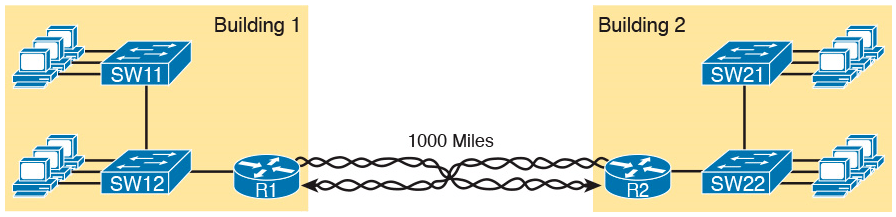
Conceptual View of the Leased-Line Service
Of course, leased lines have many differences compared to an Ethernet crossover cable.
To create such possibly long links, or circuits, a leased line does not actually exist as a single long cable between the two sites.
Instead, the Telco installs a large network of cables and specialized switching devices to create its own computer network. The Telco network creates a service that acts like a crossover cable between two points, but the physical reality is hidden from the customer.
Leased lines come with their own set of terminology as well.
First, the term leased line refers to the fact that the company using the leased line does not own the line, but instead pays a monthly lease fee to use it.
However, many people today use the generic term service provider to refer to a company that provides any form of WAN connectivity, including Internet services.
Given their long history, leased lines have had many names. The table below lists some of those names.
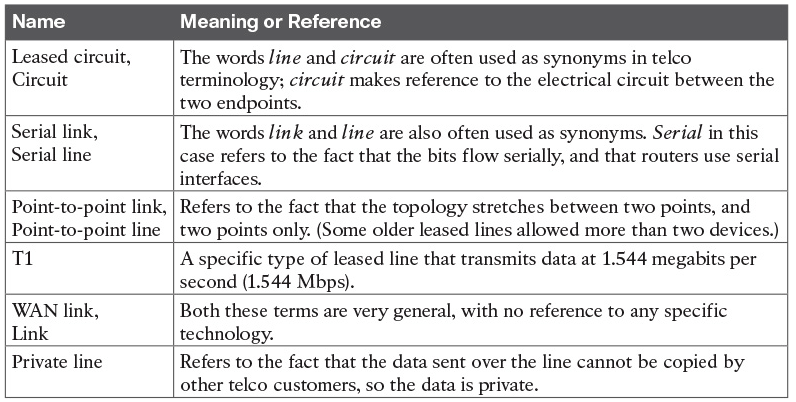
Different Names for a Leased Line
Leased-Line Cabling
To create a leased line, some physical path must exist between the two routers on the ends of the link.
The physical cabling must leave the buildings where each router sits.
However, the telco does not simply install one cable between the two buildings. Instead, it uses what is typically a large and complex network that creates the appearance of a cable between the two routers.
The diagram below gives a little insight into the cabling that could exist inside the telco for a short leased line.
Telcos put their equipment in buildings called central offices (CO). The telco installs cables from the CO to most every other building in the city, expecting to sell services to the people in those buildings one day.
The telco would then configure its switches to use some of the capacity on each cable to send data in both directions, creating the equivalent of a crossover cable between the two routers.
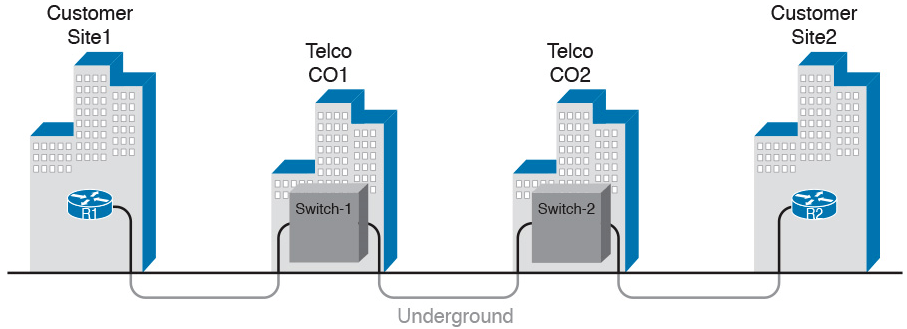
Possible Cabling Inside a Telco for a Short Leased Line
Although what happens inside the telco is completely hidden from the telco customer, enterprise engineers do need to know about the parts of the link that exist inside the customer’s building at the router.
First, each site has customer premises equipment (CPE), which includes the router, serial interface card, and CSU/DSU.
Each router uses a serial interface card that acts somewhat like an Ethernet NIC, sending and receiving data over the physical link.
The physical link requires a function called a channel service unit/data service unit (CSU/DSU). The CSU/DSU can either be integrated into the serial interface card in the router or sit outside the router as an external device.
The diagram below shows the CPE devices, along with the cabling.
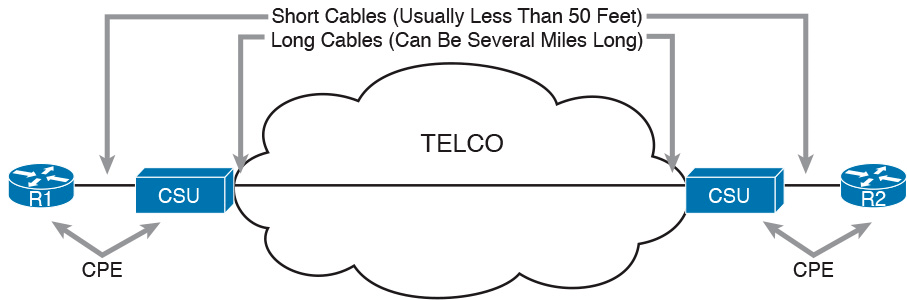
Point-to-Point Leased Line: Components and Terminology
The cabling includes a short serial cable (only if an external CSU/DSU is used) plus the cable installed by the telco for the leased line itself.
The serial cable connects the router serial interface to the external CSU/DSU. (Many cable options exist; the cable just needs to match the connector of the serial interface on one end and the CSU/DSU on the other end.)
The four-wire cable from the telco plugs in to the CSU/DSU, typically using an RJ-48 connector that has the same size and shape as an RJ-45 connector.
Telcos offer a wide variety of speeds for leased lines. However, you cannot pick the exact speed you want; instead, you must pick from a long list of predefined speeds.
Slower-speed links run at multiples of 64 kbps (kilobits per second), while faster links run at multiples of about 1.5 Mbps (megabits per second).
Building a WAN Link in a Lab
One can create the equivalent of a leased line without a real leased line from a telco, and without CSU/DSUs, just using a cabling trick.
First, the serial cables normally used between a router and an external CSU/DSU are called data terminal equipment (DTE) cables.
To create a physical WAN link in a lab, you need two serial cables: one serial DTE cable, plus a similar but slightly different matching data communications equipment (DCE) cable.
The DCE cable has a female connector, while the DTE cable has a male connector, which allows the two cables to be attached directly.
The DCE cable also does the equivalent task of an Ethernet crossover cable by swapping the transmit and receive wire pairs, as shown in the diagram below.
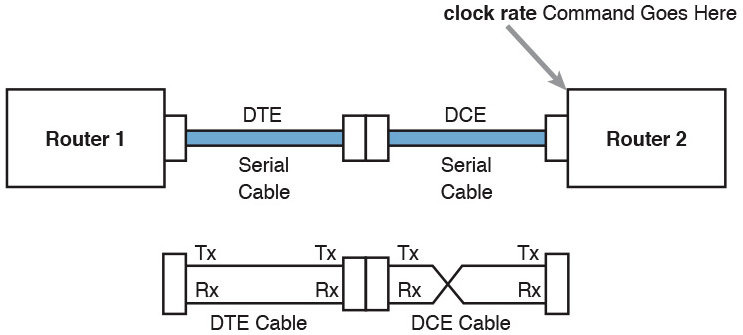
Serial Cabling Uses a DTE Cable and a DCE Cable
The diagram shows the cable details at the top, with the wiring details inside the cable at the bottom.
In particular, at the bottom of the figure, note that the DCE cable swaps the transmit and receive pairs, whereas the DTE serial cable does not, acting as a straight-through cable.
Finally, to make the link work, the router with the DCE cable installed must do one function normally done by the CSU/DSU. The CSU/DSU normally provides a function called clocking, in which it tells the router exactly when to send each bit through signaling over the serial cable.
A router serial interface can provide clocking, and the more recent router software versions automatically supply clocking when the router senses a DCE cable is plugged into the serial port.
Regardless of whether a router has an older or newer software version, you will want to know how to configure serial clocking using the clock rate command
Data-Link Details of Leased Lines
A leased line provides a Layer 1 service.
In other words, it promises to deliver bits between the devices connected to the leased line.
However, the leased line itself does not define a data link layer protocol to be used on the leased line.Because leased lines define only the Layer 1 transmission service, many companies and standards organizations have created data-link protocols to control and use leased lines.
Today, the two most popular data link layer protocols used for leased lines between two routers are High-Level Data Link Control (HDLC) and Point-to-Point Protocol (PPP).
HDLC Basics
All data-link protocols perform a similar role: to control the correct delivery of data over a physical link of a particular type.
For example, the Ethernet data-link protocol uses a destination address field to identify the correct device that should receive the data, and an FCS field that allows the receiving device to determine whether the data arrived correctly. HDLC provides similar functions.
HDLC has less work to do because of the simple point-to-point topology of a point-to-point leased line.
When one router sends an HDLC frame, it can go only one place: to the other end of the link.
So, while HDLC has an address field, the destination is implied.
HDLC has other fields and functions similar to Ethernet as well.
The table below lists the HDLC fields, with the similar Ethernet header/trailer field.
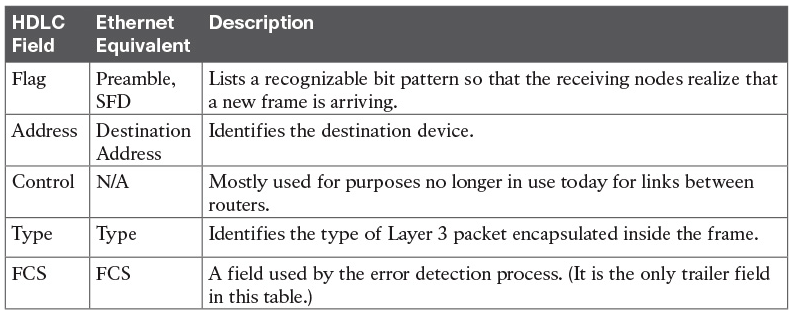
Comparing HDLC Header Fields to Ethernet
HDLC exists today as a standard of the International Organization for Standardization (ISO), the same organization that brought us the OSI model.
However, ISO standard HDLC does not have a Type field, and routers need to know the type of packet inside the frame. So, Cisco routers use a Cisco-proprietary variation of HDLC that adds a Type field, as shown in the diagram below.
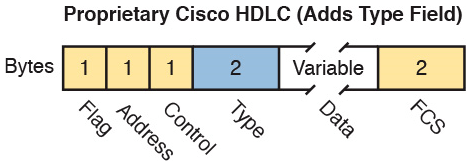
HDLC Framing
How Routers Use a WAN Data Link
Today, most leased lines connect to routers, and routers focus on delivering packets to a destination host.
However, routers physically connect to both LANs and WANs, with those LANs and WANs requiring that data be sent inside data-link frames.
So, now that you know a little about HDLC, it helps to think about how routers use the HDLC protocol when sending data.
First, the TCP/IP network layer focuses on forwarding IP packets from the sending host to the destination host. The underlying LANs and WANs just act as a way to move the packets to the next router or end-user device. The diagram below shows that network layer perspective.
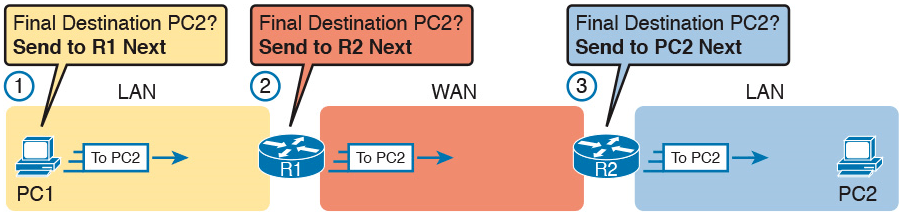
IP Routing Logic over LANs and WANs
Following the steps in the figure, for a packet sent by PC1 to PC2’s IP address:
- PC1’s network layer (IP) logic tells it to send the packet to a nearby router (R1).
- Router R1’s network layer logic tells it to forward (route) the packet out the leased line to Router R2 next.
- Router R2’s network layer logic tells it to forward (route) the packet out the LAN link to PC2 next.
While the diagram above shows the network layer logic, the PCs and routers must rely on the LANs and WANs in the diagram to actually move the bits in the packet.
The diagram below shows the same figure, with the same packet, but this time showing some of the data link layer logic used by the hosts and routers.
Basically, three separate data link layer steps encapsulate the packet, inside a data-link frame, over three hops through the internetwork: from PC1 to R1, from R1 to R2, and from R2 to PC2
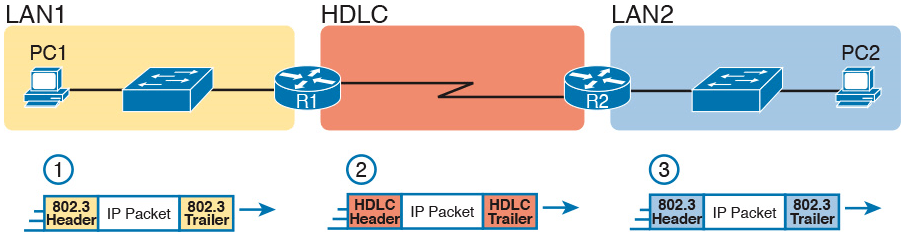
General Concept of Routers De-encapsulating and Re-encapsulating IP Packets
Following the steps in the diagram, again for a packet sent by PC1 to PC2’s IP address:
- To send the IP packet to Router R1 next, PC1 encapsulates the IP packet in an Ethernet frame that has the destination MAC address of R1.
- Router R1 de-encapsulates (removes) the IP packet from the Ethernet frame, encapsulates the packet into an HDLC frame using an HDLC header and trailer, and forwards the HDLC frame to Router R2 next.
- Router R2 de-encapsulates (removes) the IP packet from the HDLC frame, encapsulates the packet into an Ethernet frame that has the destination MAC address of PC2, and forwards the Ethernet frame to PC2.
In summary, a leased line with HDLC creates a WAN link between two routers so that they can forward packets for the devices on the attached LANs.
The leased line itself provides the physical means to transmit the bits, in both directions. The HDLC frames provide the means to encapsulate the network layer packet correctly so that it crosses the link between routers.
Leased lines have many benefits that have led to their relatively long life in the WAN marketplace. These lines are simple for the customer, are widely available, are of high quality, and are private.
However, they do have some negatives as well compared to newer WAN technologies, including a higher cost and typically longer lead times to get the service installed.
Ethernet as a WAN Technology
For the first several decades of the existence of Ethernet, Ethernet was only appropriate for LANs.
The restrictions on cable lengths and devices might allow a LAN that stretched a kilometer or two, to support a campus LAN, but that was the limit.
As time passed, the IEEE improved Ethernet standards in ways that made Ethernet a reasonable WAN technology.
For example, the 1000BASE-LX standard uses single-mode fiber cabling, with support for a 5-km cable length; the 1000BASE-ZX standard supports an even longer 70-km cable length.
As time went by, and as the IEEE improved cabling distances for fiber Ethernet links, Ethernet became a reasonable WAN technology.
Today, in this second decade of the twenty-first century, many WAN service providers (SP) offer WAN services that take advantage of Ethernet.
SPs offer a wide variety of these Ethernet WAN services, with many different names. But all of them use a similar model, with Ethernet used between the customer site and the SP’s network, as shown in the diagram below.
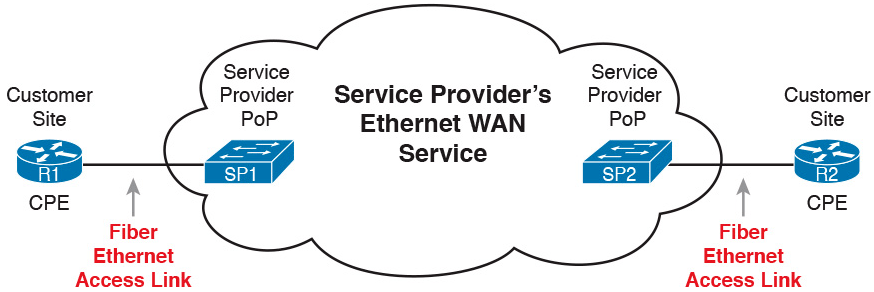
Fiber Ethernet Link to Connect a CPE Router to a Service Provider’s WAN
The customer connects to an Ethernet link using a router interface. The (fiber) Ethernet link leaves the customer building and connects to some nearby SP location called a point of presence (PoP).
Instead of a telco switch, the SP uses an Ethernet switch. Inside the SP’s network, the SP uses any technology that it wants to create the specific Ethernet WAN services.
Ethernet WANs that Create a Layer 2 Service
The WAN services implied by the previous diagram include a broad number of services, with a lot of complex networking concepts needed to understand those services.
The one Ethernet WAN service goes by two names: Ethernet emulation and Ethernet over MPLS (EoMPLS).
Ethernet emulation is a general term, meaning that the service acts like one Ethernet link.
EoMPLS refers to Multiprotocol Label Switching (MPLS), which is one technology that can be used inside the SP’s cloud.
The EoMPLS service provides:
- A point-to-point connection between two customer devices
- Behavior as if a fiber Ethernet link existed between the two devices
So, if you can imagine two routers, with a single Ethernet link between the two routers, you understand what this particular EoMPLS service does.
The diagram below shows the idea. In this case, the two routers, R1 and R2, connect with an EoMPLS service instead of a serial link. The routers use Ethernet interfaces, and they can send data in both directions at the same time. Physically, each router actually connects to some SP PoP, but logically, the two routers can send Ethernet frames to each other over the link.

EoMPLS Acting Like a Simple Ethernet Link Between Two Routers
How Routers Route IP Packets Using Ethernet Emulation
WANs, by their very nature, give IP routers a way to forward IP packets from a LAN at one site, over the WAN, and to another LAN at another site.
Routing over an EoMPLS WAN link still uses the WAN like a WAN, as a way to forward IP packets from one site to another.
However, the WAN link happens to use the same Ethernet protocols as the Ethernet LAN links at each site.
The EoMPLS link uses Ethernet for both Layer 1 and Layer 2 functions. That means the link uses the same familiar Ethernet header and trailer, as shown in the middle the diagram below.
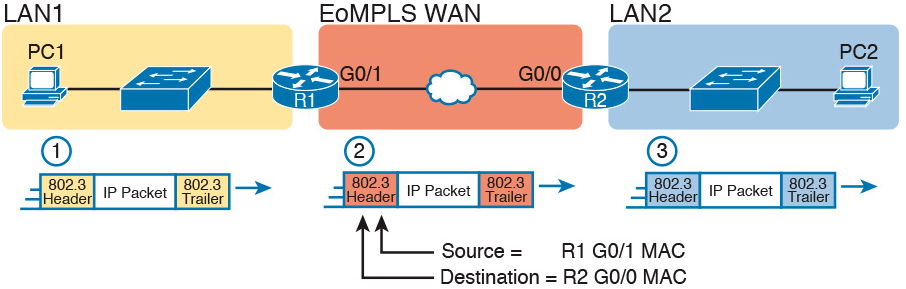
Routing over an EoMPLS Link
All three routing steps use the same Ethernet (802.3) protocol. However, note that each frame’s data-link header and trailer are different.
Each router discards the old data-link header/trailer and adds a new set, as described in these steps.
- To send the IP packet to Router R1 next, PC1 encapsulates the IP packet in an Ethernet frame that has the destination MAC address of R1.
- Router R1 de-encapsulates (removes) the IP packet from the Ethernet frame and encapsulates the packet into a new Ethernet frame, with a new Ethernet header and trailer. The destination MAC address is R2’s G0/0 MAC address, and the source MAC address is R1’s G0/1 MAC address. R1 forwards this frame over the EoMPLS service to R2 next.
- Router R2 de-encapsulates (removes) the IP packet from the Ethernet frame, encapsulates the packet into an Ethernet frame that has the destination MAC address of PC2, and forwards the Ethernet frame to PC2.
Accessing the Internet
Two other popular WAN technologies used to gain access to the Internet: digital subscriber line (DSL) and cable.
These two WAN technologies do not replace leased lines in all cases, but they do play an important role in the specific case of creating a WAN connection between a home or office and the Internet.
The Internet as a Large WAN
The Internet is an amazing cultural phenomenon. Most of us use it every day. We post messages on social media sites, we search for information using a search engine like Google, and we send emails.
We use apps on our phones to pull down information, like weather reports, maps, and movie reviews.
We use the Internet to purchase physical products and to buy and download digital products like music and videos. The Internet has created completely new things to do and changed the old ways of living life compared to a generation ago.
However, if you instead focus on the networking technology that creates the Internet, the Internet is simply one huge TCP/IP network.
In fact, the name “Internet” comes from the core network layer protocol: Internet Protocol. The Internet includes many LANs, and because the Internet spans the globe, it of course needs WAN links to connect different sites.
As a network of networks, the Internet is actually owned by countless companies and people.
The Internet includes most every enterprise TCP/IP network and a huge number of home-based networks, as well as a huge number of individuals from their phones and other wireless devices, as shown in the diagram below.
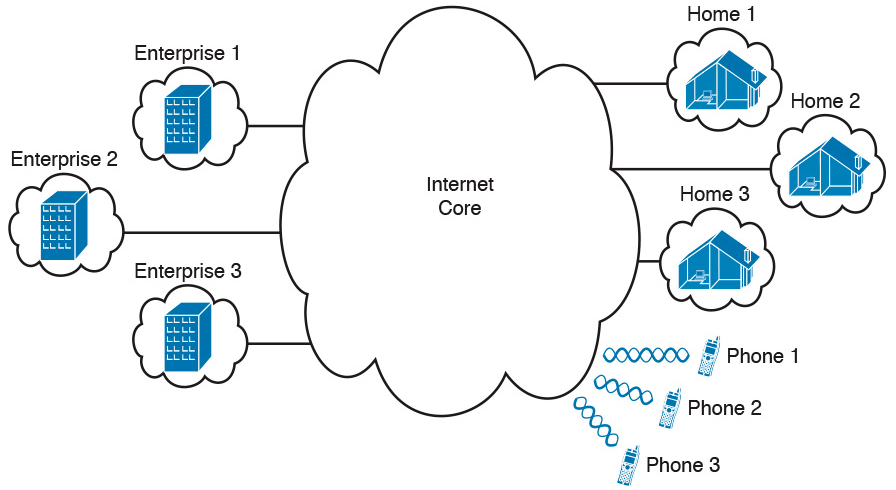
Internet with Enterprise, Home, and Phone Subscribers
The middle of the Internet, called the Internet core, exists as LANs and WANs owned and operated by Internet service providers (ISP).
(The diagram above shows the Internet core as a cloud, because network diagrams show a cloud when hiding the details of a part of the network.)
ISPs cooperate to create a mesh of links between each other in the Internet core, so that no matter through which ISP a particular company or person connects, some path exists to every device.
The diagram below shows a slightly different version, in this case showing the concept of the Internet core: ISP networks that connect to both their customers as well as each other, so that IP packets can flow from every customer of every ISP to every other customer of every other ISP.
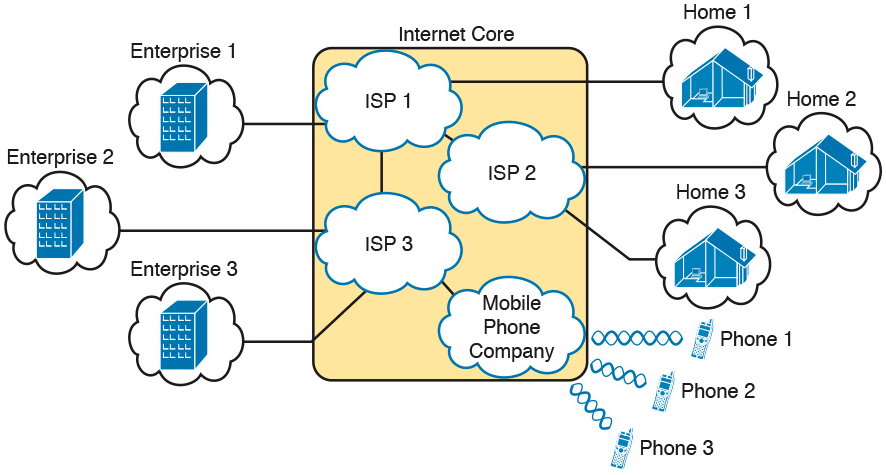
Internet Core with Multiple ISPs and Telcos
Internet Access (WAN) Links
The Internet also happens to use a huge number of WAN links.
All of those lines connecting an enterprise or home to one of the ISPs in above diagram represent some kind of WAN link that uses a cable, while the phones create their WAN link using wireless technology.
These links usually go by the name Internet access link.
Historically, businesses tend to use one set of WAN technologies as Internet access links, while home-based consumers use others.
Businesses often use leased lines, connecting a router at the business to a router at the ISP. The top of the diagram below shows just such an example.
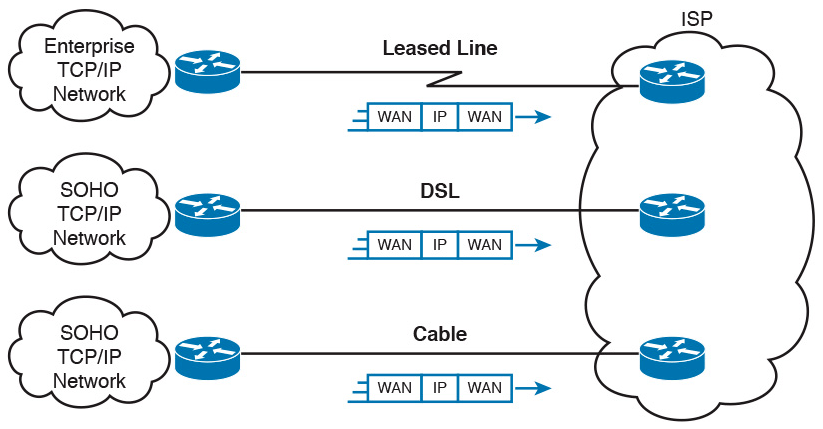
Three Examples of Internet Access Links
Consumers often use technologies like DSL and cable for Internet access links.
These technologies use cabling that is already installed in most homes, making these services somewhat inexpensive for home users.
DSL uses the analog phone lines that are already installed in homes, while cable Internet uses the cable TV (CATV) cable.
While DSL and cable are popular with consumers, many businesses use these technologies for Internet access.
All three of the Internet access technologies in the diagram above happen to use a pair of routers: one at the customer side of the WAN link and one at the ISP side.
The routers will continue to think about network layer logic, of sending IP packets to their destination by forwarding the packets to the next router.
However, the physical and data link layer details on the WAN link differ as compared to leased lines.
Digital Subscriber Line
Digital subscriber line (DSL) creates a relatively short (miles long, not tens of miles) high-speed link WAN between a telco customer and an ISP.
To do so, it uses the same single-pair telephone line used for a typical home phone line.
DSL, as a technology, does not try to replace leased lines, which run between any two sites, for potentially very long distances.
DSL instead just provides a short physical link from a home to the telco’s network, allowing access to the Internet.
First, to get an idea about the cabling, think of a typical home. Each home has one phone line that runs from a nearby telco CO to the home.
As shown on the left side of diagram below, the telephone wiring splits out and terminates at several wall plates, often with RJ-11 ports that are a slightly skinnier cousin of the RJ-45 connector.

Typical Voice Cabling Concepts in the United States
Next, think about the telephone line and the equipment at the CO.
Sometime in the past, the telco installed all the telephone lines from its local CO to each neighborhood, apartment, and so on.
At the CO, each line connects to a port on a telco switch. This switch supports the ability to set up voice calls, take them down, and forward the voice through the worldwide voice network, called the public switched telephone network, or PSTN.
To add DSL service at the home int the above diagram, two changes need to be made.
First, you need to add DSL-capable devices at the home.
Second, the telco has to add DSL equipment at the CO.
Together, the DSL equipment at each side of the local telephone line can send data while still supporting the same voice traffic.
The left side of below diagram shows the changes.

Wiring and Devices for a Home DSL Link
A new DSL modem now connects to a spare phone outlet.
The DSL modem follows the DSL physical and data link layer standards to send data to/from the telco.
The home now has a small LAN, implemented with a consumer-grade router, which often includes an Ethernet switch and possibly a wireless LAN access point.
(Note that the telephones may now also need a short extra cable with a filter in it, installed at the wall jack, to filter out the sounds of the higher electrical frequencies used for DSL.)
The home-based router on the left must be able to send data to/from the Internet.
To make that happen, the telco CO uses a product called a DSL access multiplexer (DSLAM).
The DSLAM splits out the data over to the router on the lower right, which completes the connection to the Internet. The DSLAM also splits out the voice signals over to the voice switch on the upper right.
DSL gives telcos a useful high-speed Internet service to offer their customers.
Telcos have had other offerings that happen to use the same telephone line for data, but these options ran much slower than DSL.
DSL supports asymmetric speeds, meaning that the transmission speed from the ISP toward the home (downstream) is much faster than the transmissions toward the ISP (upstream).
Asymmetric speeds work better for consumer Internet access from the home, because clicking a web page sends only a few hundred bytes upstream into the Internet, but can trigger many megabytes of data to be delivered downstream to the home.
Cable Internet
Cable Internet creates an Internet access service which, when viewed generally rather than specifically, has many similarities to DSL.
Like DSL, cable Internet takes full advantage of existing cabling, using the existing cable TV (CATV) cable to send data.
Like DSL, cable Internet uses asymmetric speeds, sending data faster downstream than upstream, which works better than symmetric speeds for most consumer locations.
And like DSL, cable Internet does not attempt to replace long leased lines between any two sites, instead focusing on the short WAN links from a customer to an ISP.
Cable Internet also uses the same basic in-home cabling concepts as does DSL.
The diagram below shows a diagram similar to DSL, but with the DSL details replaced with cable Internet details.
The telephone line has been replaced with coaxial cable from the CATV company, and the DSL modem has been replaced by a cable modem.
Otherwise, the details in the home follow the same overall plan.
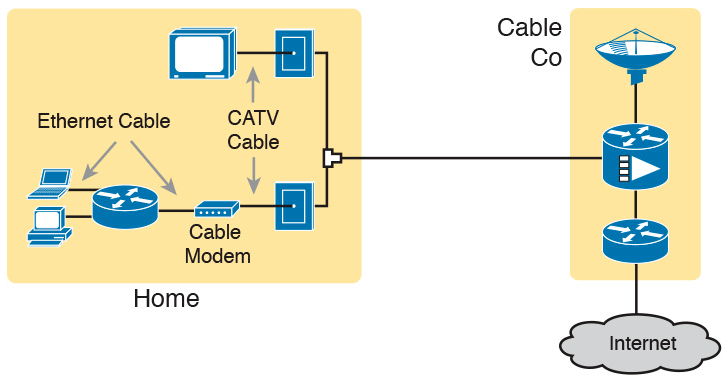
Wiring and Devices for a Home Cable Internet Link
On the CATV company side of the cable Internet service, the CATV company has to split out the data and video, as shown on the right side of the diagram.
Data flows to the lower right, through a router, while video comes in from video dishes for distribution out to the TVs in people’s homes.
Cable Internet service and DSL directly compete for consumer and small-business Internet access.
Generally speaking, while both offer high speeds, cable Internet typically runs at faster speeds than DSL, with DSL providers keeping their prices a little lower to compete.
Both support asymmetric speeds, and both provide an “always on” service, in that you can communicate with the Internet without the need to first take some action to start the Internet connection.
