

Numeric Reference Table
INTERNOLD NETWORKS CCNA LIVE WEBCLASS (INCLW)
NUMERIC REFERENCE TABLES
Decimal-Binary Cross Reference, Decimal 0–255


Hex-Binary Cross Reference

Powers of 2

All Subnet Masks



Week 8 Module
INTERNOLD NETWORKS CCNA LIVE WEBCLASS (INCLW)
week 3 module
Video Lessons
Video lessons will be activated here after the Live Webclass
Text Resources
Text resources will be activated here soon
Practice Labs
Practice labs will be activated here after the Live Webclass
Practice Quizzes
Practice quizzes will be activated here after the Live Webclass

INCLW01 Week 7 Module
INTERNOLD NETWORKS CCNA LIVE WEBCLASS (INCLW)
week 7 module
Contents
Video Recording
Table of Contents (video timeline)


INCLW01 Week 5 Module
INTERNOLD NETWORKS CCNA LIVE WEBCLASS (INCLW)
week 5 module
Contents
Video Lessons
Practice Labs
Troubleshooting Challenge

LabTop v2.0 Lab Challenge (plus RoaS and RIPv2 demo)

INCLW01 Week 4 Module
INTERNOLD NETWORKS CCNA LIVE WEBCLASS (INCLW)
week 4 module
Contents
Video Lessons
Video 1: Live Webclass (2hr 19min)
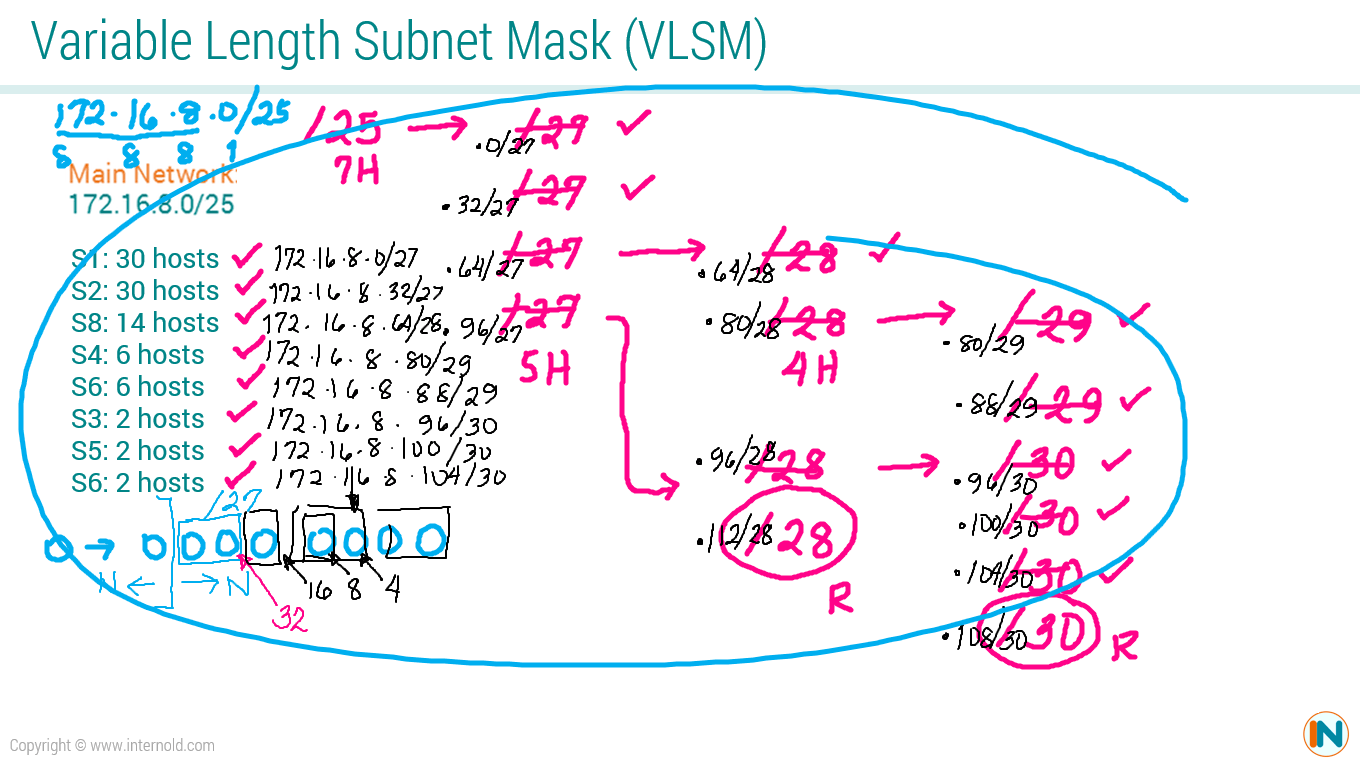
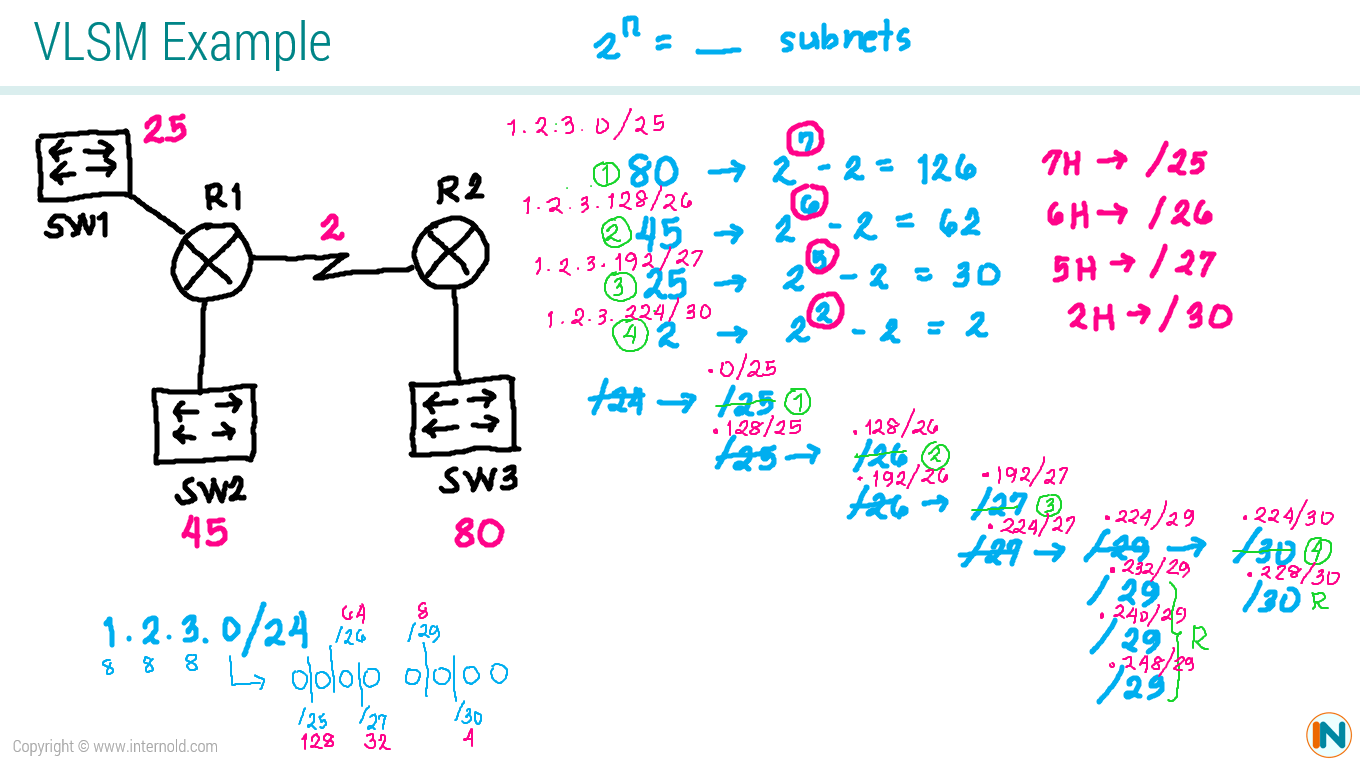
VLSM
Examples
Practice Labs
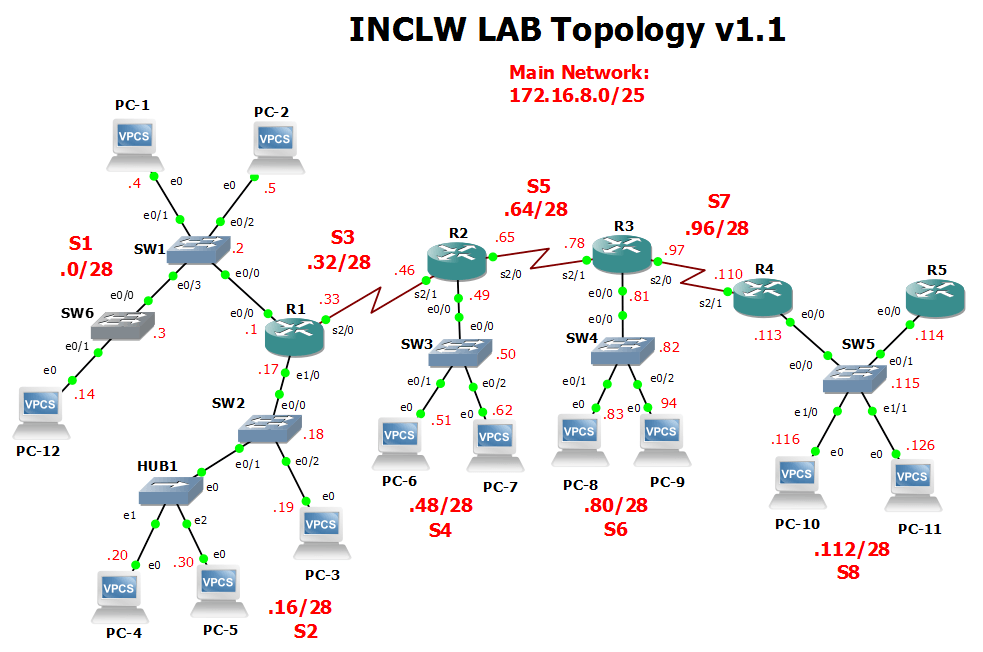
Lab Challenge 1 - Static Routing

INCLW01 Week 3 Module
INTERNOLD NETWORKS CCNA LIVE WEBCLASS (INCLW)
week 3 module
Video Lessons
Video 1: Introduction
Video 2: DNS, ARP, and Ping
Video 3: Multiplexing Using Port Numbers
Video 4: Three-Way Handshake
Video 5: Reliability and Error Recovery
Video 6: Flow Control Using Windowing
Video 7: UDP
Video 8: Finding Web Using DNS
Video 9: Accessing The Catalyst Switch
Video 10: Learning MAC Address
Subnetting
Video Lessons
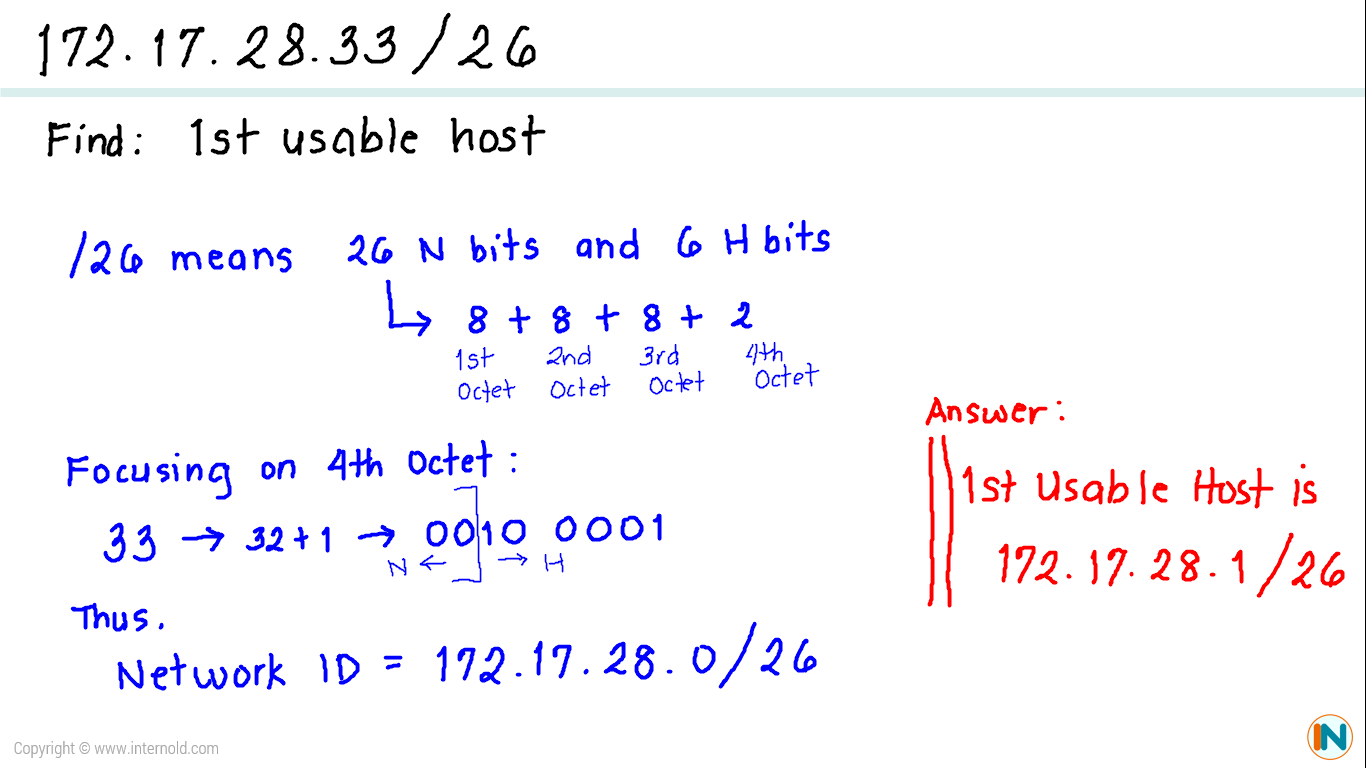
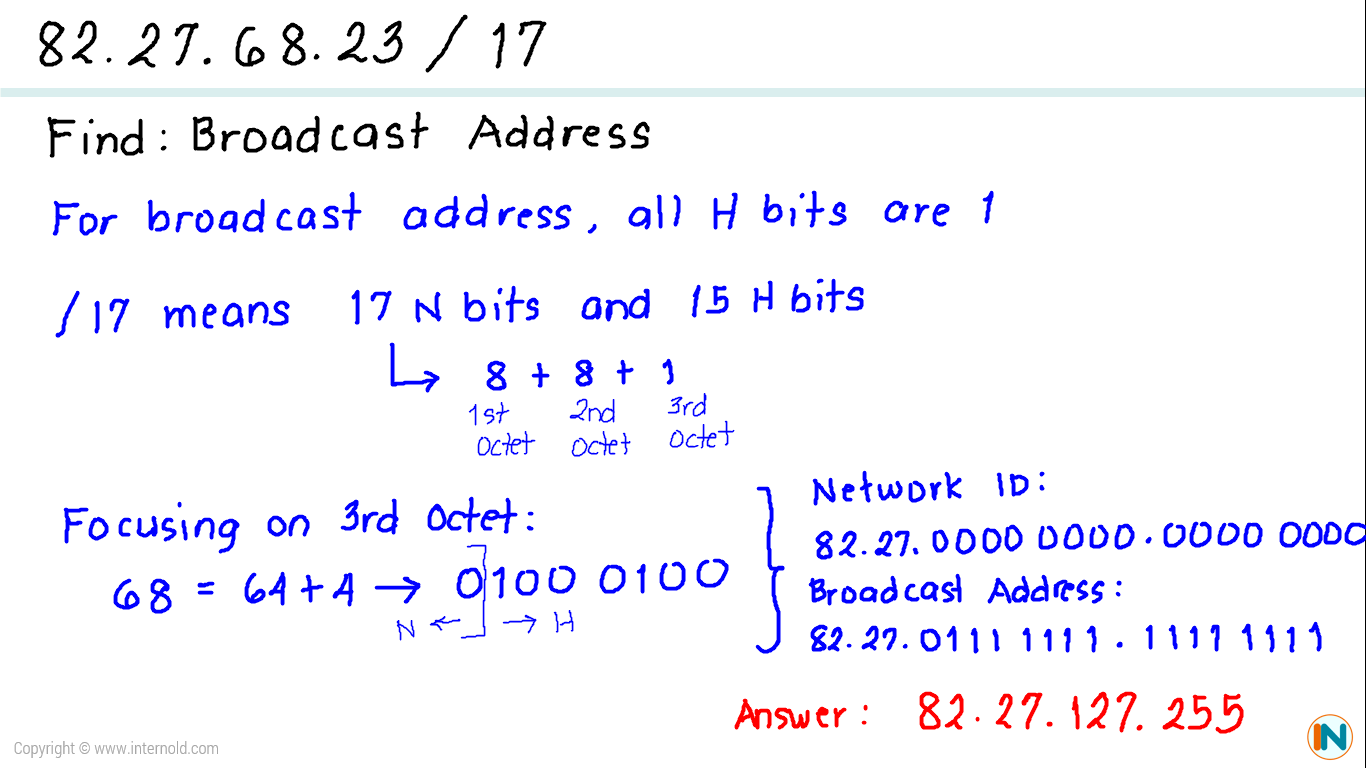
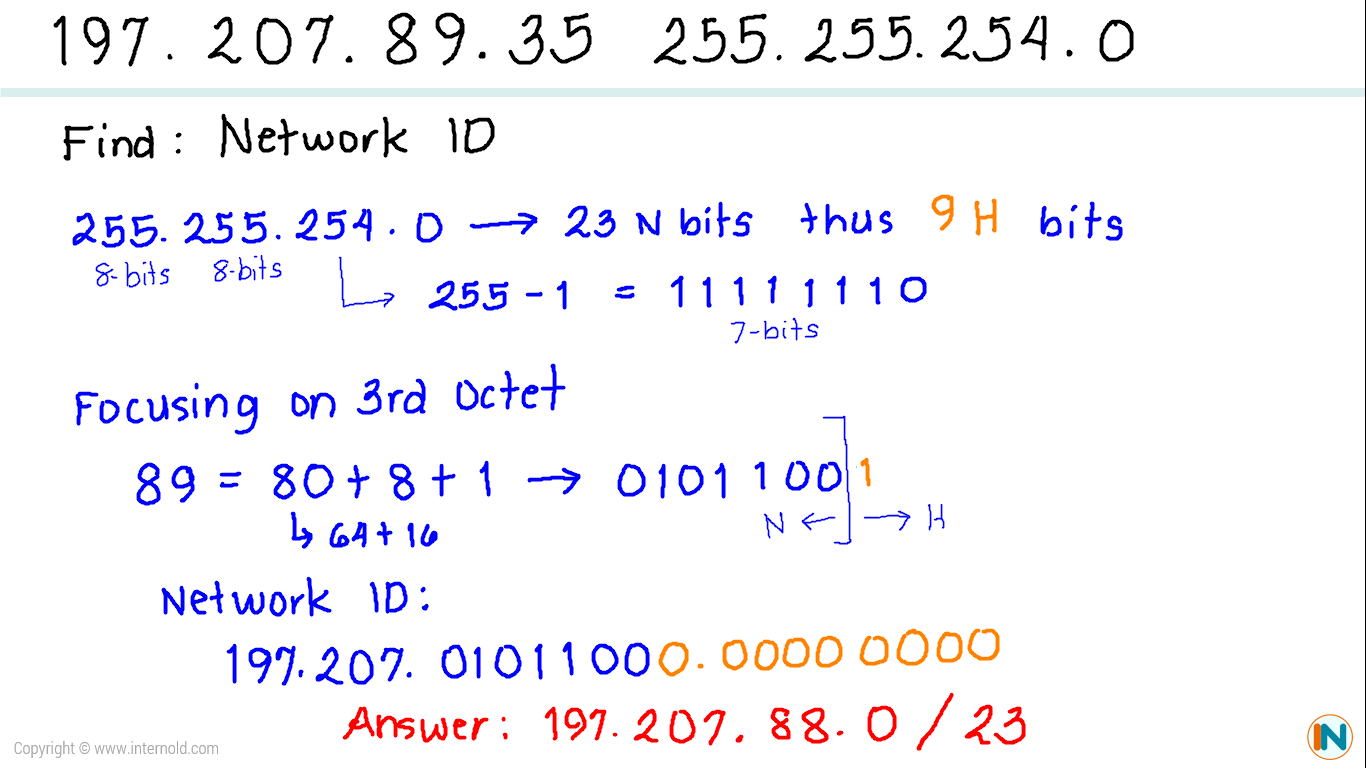
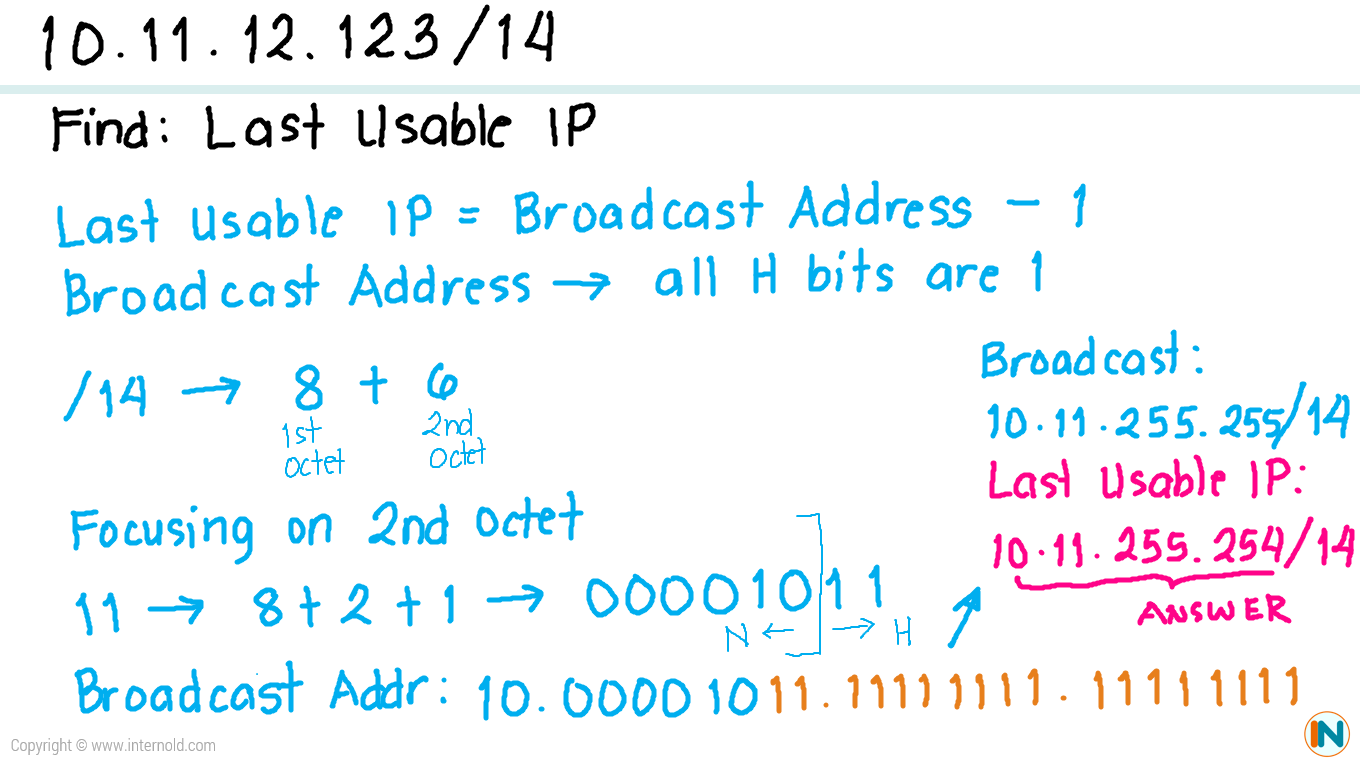
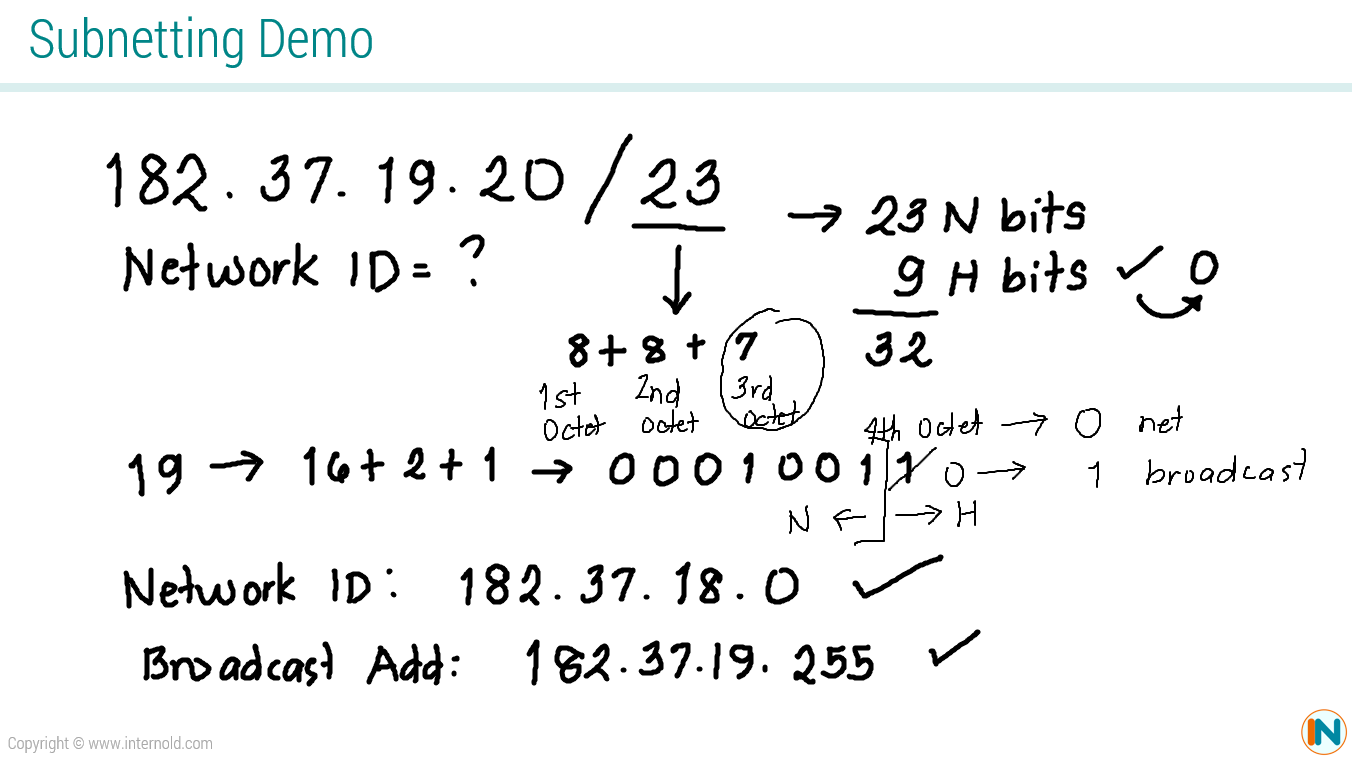
More Subnetting Examples
Practice Quizzes
Text Resources
Practice Labs
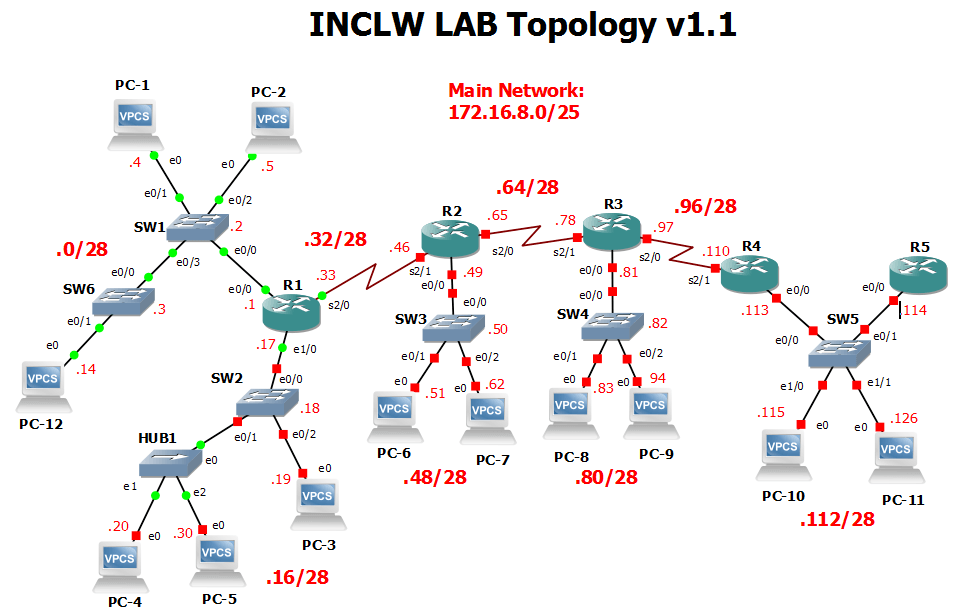
Topology and IP Addressing Scheme
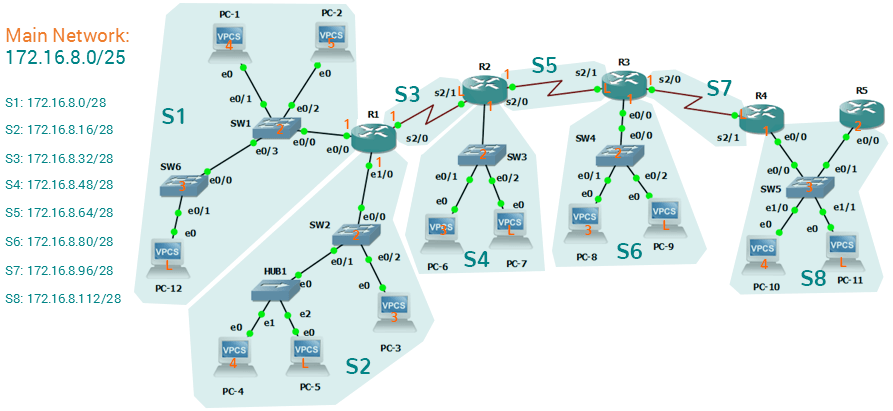
Video Discussion
Full Configurations
Practice Quizzes

Operating Cisco Routers
INTERNOLD NETWORKS CCNA LIVE WEBCLASS (INCLW)
Operating Cisco Routers
Operating Cisco Routers
Getting an IPv4 network up and working requires some basic steps: installing routers, configuring their IPv4 addresses, optionally configuring some static IPv4 routes, and then configuring a routing protocol to dynamically learn routes. This chapter focuses on Step 1: how to install an enterprise-class Cisco router, with just enough configuration to get the router working, ready for those next steps.
This chapter breaks the topics into two major headings. The first discusses the physical installation of an enterprise-class Cisco router. The second section looks at the command-line interface (CLI) on a Cisco router, which has the same look and feel as the Cisco switch CLI. This section first lists the similarities between a switch and router CLI, and then introduces the configuration required to make the router start forwarding IP packets on its interfaces.
Installing Cisco Routers
Routers collectively provide the main feature of the network layer—the capability to forward packets end to end through a network. As introduced in Chapter 4, “Fundamentals of IPv4 Addressing and Routing,” routers forward packets by connecting to various physical network links, like Ethernet, serial links, and Frame Relay, and then using Layer 3 routing logic to choose where to forward each packet. As a reminder, Chapter 2, “Fundamentals of Ethernet LANs,” covered the details of making those physical connections to Ethernet networks, while Chapter 3, “Fundamentals of WANs,” covered the basics of cabling with WAN links.
This section examines some of the details of router installation and cabling, first from the enterprise perspective and then from the perspective of connecting a typical small office/home office (SOHO) to an ISP using high-speed Internet.
Installing Enterprise Routers
A typical enterprise network has a few centralized sites as well as lots of smaller remote sites. To support devices at each site (the computers, IP phones, printers, and other devices), the network includes at least one LAN switch at each site. In addition, each site has a router, which connects to the LAN switch and to some WAN link. The WAN link provides connectivity from each remote site, back to the central site, and to other sites through the connection to the central site.
Figures 17-1 and 17-2 show contrasting ways to draw parts of an enterprise network. Both show a typical branch office on the left, with a router and some end-user PCs. The central site, on the right, has basically the same components, plus some servers. The sites connect using a point-to-point serial link connecting the two routers. The first figure omits many of the cabling details, making the figure more useful when you want to discuss general Layer 3 concepts; the second figure shows the cabling details.

Generic Enterprise Network Diagram

More Detailed Cabling Diagram for the Same Enterprise Network
The Ethernet cables in Figure 17-2 should be familiar. In particular, routers use the same Ethernet cabling pinouts as PCs, so each router uses a UTP cable with a straight-through pinout.
Next, consider the hardware on the ends of the serial link, in particular where the channel service unit/data service unit (CSU/DSU) hardware resides on each end of the serial link. It sits either outside the router as a separate device (as shown on the left) or integrated into the router’s serial interface hardware (as shown on the right). Most new installations today include the CSU/DSU in the router’s serial interface.
Finally, the serial link requires some cabling inside the same wiring closet or other space between where the telco serial line terminates and where the router sits on a shelf or in a rack. The WAN cable installed by the telco typically has an RJ-48 connector, which is the same size and shape as an RJ-45 connector. The telco cable with the RJ-48 connector inserts into the CSU/DSU. In the example of Figure 17-2, at the central site, the telco cable connects directly into the router’s serial interface. At the branch office router, the cable connects to the external CSU/DSU, which then connects to the router serial interface using some other serial cable. (As a reminder, Chapter 3’s section “Leased-Line Cabling” introduced the basics of this cabling.)
Cisco Integrated Services Routers
Product vendors, including Cisco, typically provide several different types of router hardware. Today, routers often do much more work than simply routing packets—in fact, they serve as a device or platform from which to provide many network services. Cisco even brands their enterprise routers not just as routers, but as “integrated services routers,” emphasizing the multi-purpose nature of the products.
As an example, consider the networking functions needed at a typical branch office. A typical enterprise branch office needs a router for WAN/LAN connectivity, and a LAN switch to provide a high-performance local network and connectivity into the router and WAN. Many branches also need Voice over IP (VoIP) services to support IP phones, and several security services as well. Plus, it is hard to imagine a site with users that does not have Wi-Fi access today. So, rather than require multiple separate devices at one site, as shown in Figure 17-2, Cisco offers single devices that act as both router and switch, and provide other functions as well.
For the sake of learning and understanding the different functions, the CCENT and CCNA Routing and Switching exams focus on using a separate switch and separate router, which provides a much cleaner path for learning the basics.
Figure 17-3 shows a couple of pictures of the Cisco 4321 ISR, with some of the more important features highlighted. The top part of the figure shows a full view of the back of the router. This model comes with two built-in Gigabit Ethernet interfaces and two modular slots that allow you to add small cards called Network Interface Modules (NIMs). The bottom of the figure shows one example NIM (a NIM that provides two serial interfaces). The router has other items as well, including both an RJ-45 and USB console port.

Photos of a Model 4321 Cisco Integrated Services Router (ISR)
Physical Installation
Armed with the cabling details in figures like Figure 17-2, and the router hardware details in figures like Figure 17-3, you can physically install a router. To install a router, follow these steps:
Step 1. Connect any LAN cables to the LAN ports.
Step 2. If using an external CSU/DSU, connect the router’s serial interface to the CSU/DSU and the CSU/DSU to the line from the telco.
Step 3. If using an internal CSU/DSU, connect the router’s serial interface to the line from the telco.
Step 4. Connect the router’s console port to a PC (using a rollover cable), as needed, to configure the router.
Step 5. Connect a power cable from a power outlet to the power port on the router.
Step 6. Power on the router.
Note that the steps for router installation match those for a switch, except that Cisco enterprise routers typically have an on/off switch, while switches do not.
Installing Internet Access Routers
Routers play a key role in SOHO networks, connecting the LAN-attached end-user devices to a high-speed Internet access service. However, most SOHO products go by the name router, but happen to include many networking functions in a single device. Because of that, when learning about networking, it can be difficult to appreciate the different functions the device performs.
To help you understand the features of a router product used in a SOHO environment, Figure 17-4 first shows an example in which the SOHO network uses separate devices for each function. The first shows the devices and cabling, with a connection to the Internet using cable TV (CATV) as the high-speed Internet service.

Devices in a SOHO Network with High-Speed CATV Internet
This figure has many similarities to Figure 17-2, which shows a typical enterprise branch office. Some end-user PCs still connect with cabling to a switch, and the switch still connects to a router’s Ethernet interface. Other end-user devices use a wireless LAN, with a wireless access point, that also connects to the Ethernet LAN. For both the wired and wireless devices, the router still provides routing services, forwarding IP packets.
The main differences between the SOHO connection in Figure 17-4 and the enterprise branch in Figure 17-2 relate to the connection into the Internet. An Internet connection that uses CATV or digital subscriber line (DSL) needs a device that converts between the Layer 1 and 2 standards used on the CATV cable or DSL line and the Ethernet used by the router. These devices, commonly called cable modems and DSL modems, respectively, convert between CATV Layer 1 and Layer 2 standards to Ethernet, and vice versa. Similarly, DSL modems convert between the DSL signals over a home telephone line and Ethernet.
To physically install a SOHO network with the devices shown in Figure 17-4, you basically need the correct UTP cables for the Ethernet connections, and either the CATV cable (for cable Internet services) or a phone line (for DSL services). Note that the router used in Figure 17-4 simply needs to have two Ethernet interfaces—one to connect to the LAN switch and one to connect to the cable modem.
Today, most new SOHO installations use an integrated device rather than the separate devices shown in Figure 17-4. Consumer-grade devices are often called cable routers or DSL routers, while in fact they do all the functions shown in Figure 17-4, including the roles of
Router
Switch
Cable or DSL modem
Wireless access point
Hardware-enabled encryption
A newly installed high-speed SOHO Internet connection today probably looks more like Figure 17-5, with an integrated device.

SOHO Network, Using Cable Internet and an Integrated Device
Enabling IPv4 Support on Cisco Router Interfaces
Routers support a relatively large number of features, with a large number of configuration and EXEC commands to support those features. You will learn about many of these features throughout the rest of this book.
NOTE: For perspective, the Cisco router documentation includes a command reference, with an index to every single router command. A quick informal count of a recent IOS version listed around 5000 CLI commands.
This second section of the chapter focuses on commands related to router interfaces. To make routers work—that is, to route IPv4 packets—the interfaces must be configured. This section introduces the most common commands that configure interfaces, make them work, and give the interfaces IP addresses and masks.
Accessing the Router CLI
Accessing a router’s command-line interface (CLI) works much like a switch. In fact, it works so much like accessing a Cisco switch CLI that this book relies on Chapter 6, “Using the Command-Line Interface,” instead of repeating the same details here. If the details from Chapter 6 are not fresh in your memory, it might be worthwhile to spend a few minutes briefly reviewing Chapter 6 as well as Chapter 9, “Configuring Switch Interfaces,” before reading further.
Cisco switches and routers share many of the same CLI navigation features, and many of the same configuration commands for management features. The following list mentions the highlights:
User and Enable (privileged) mode
Entering and exiting configuration mode, using the configure terminal, end, and exit commands and the Ctrl+Z key sequence
Configuration of console, Telnet (vty), and enable secret passwords
Configuration of Secure Shell (SSH) encryption keys and username/password login credentials
Configuration of the hostname and interface description
Configuration of Ethernet interfaces that can negotiate speed using the speed and duplex commands
Configuration of an interface to be administratively disabled (shutdown) and administratively enabled (no shutdown)
Navigation through different configuration mode contexts using commands like line console 0 and interface type number
CLI help, command editing, and command recall features
The meaning and use of the startup-config (in NVRAM), running-config (in RAM), and external servers (like TFTP), along with how to use the copy command to copy the configuration files and IOS images
At first glance, this list seems to cover most everything covered in Chapter 8—and it does cover most of the details; however, a couple of topics covered in Chapter 8 do work differently with the router CLI as compared to the switch CLI, as follows:
The configuration of IP addresses differs in some ways, with switches using a VLAN interface and routers using an IP address configured on each working interface.
Many Cisco router models have an auxiliary (Aux) port, intended to be connected to an external modem and phone line to allow remote users to dial in to the router, and access the CLI, by making a phone call. Cisco switches do not have auxiliary ports.
Router IOS defaults to disallow both Telnet and SSH into the router because of the default setting of transport input none in vty configuration mode. Chapter 8, “Configuring Basic Switch Management,” already discussed the various options on this command to enable Telnet (transport input telnet), SSH (transport input ssh), or both (transport input all or transport input telnet ssh).
The router CLI also differs from a switch CLI just because switches and routers do different things. For example, Cisco Layer 2 switches support the show mac address-table command, but these Layer 2–only devices do not support the show ip route command, which routers use to list IPv4 routes. Some Cisco routers can do IP routing but not Layer 2 switching, so they support the show ip route command but not the show mac address-table command.
NOTE: The book includes a video that shows how to navigate the router CLI; you can find this video on the DVD and on the companion website.
Router Interfaces
One minor difference between Cisco switches and routers is that routers support a much wider variety of interfaces. Today, LAN switches support Ethernet LAN interfaces of various speeds. Routers support a variety of other types of interfaces, including serial interfaces, cable TV, DSL, 3G/4G wireless, and others not mentioned in this book.
Most Cisco routers have at least one Ethernet interface of some type. Many of those Ethernet interfaces support multiple speeds and use autonegotiation, so for consistency, the router IOS refers to these interfaces based on the fastest speed. For example, a 10-Mbps-only Ethernet interface would be configured with the interface ethernet number configuration command, a 10/100 interface with the interface fastethernet number command, and a 10/100/1000 interface with the interface gigabitethernet number command.
Some Cisco routers have serial interfaces. As you might recall from Chapter 3, Cisco routers use serial interfaces to connect to a serial link. Each point-to-point serial link can then use High-Level Data Link Control (HDLC, the default) or Point-to-Point Protocol (PPP).
Routers refer to interfaces in many commands, first by the type of interface (Ethernet, Fast Ethernet, Serial, and so on) and then with a unique number of that router. On routers, the interface numbers might be a single number, two numbers separated by a slash, or three numbers separated by slashes. For example, all three of the following configuration commands are correct on at least one model of Cisco router:
interface ethernet 0
interface fastEthernet 0/1
interface gigabitethernet 0/0
interface serial 1/0/1
Two of the most common commands to display the interfaces, and their status, are the show ip interface brief and show interfaces commands. The first of these commands displays a list with one line per interface, with some basic information, including the interface IP address and interface status. The second command lists the interfaces, but with a large amount of information per interface. Example 17-1 shows a sample of each command.
Example 17-1 Listing the Interfaces in a Router

Listing the Interfaces in a Router
NOTE: Commands that refer to router interfaces can be significantly shortened by truncating the words. For example, sh int fa0/0 can be used instead of show interfaces fastethernet 0/0. In fact, many network engineers, when looking over someone’s shoulder, would say something like “just do a show int F-A-oh-oh command” in this case, rather than speaking the long version of the command.
Also, note that the show interfaces command lists a text interface description on about the third line, if configured. In this case, interface S0/0/0 had been previously configured with the description Link in lab to R2’s S0/0/1 command in interface configuration mode for interface S0/0/0. The description interface subcommand provides an easy way to keep small notes about what router interfaces connect to which neighboring devices, with the show interfaces command listing that information.
Interface Status Codes
Each interface has two interface status codes. To be usable, the two interface status codes must be in an “up” state. The first status code refers essentially to whether Layer 1 is working, and the second status code mainly (but not always) refers to whether the data link layer protocol is working. Table 17-2 summarizes these two status codes.

Interface Status Codes and Their Meanings
Several combinations of interface status codes exist, as summarized in Table 17-3. The table lists the status codes in order, from being disabled on purpose by the configuration to a fully working state.
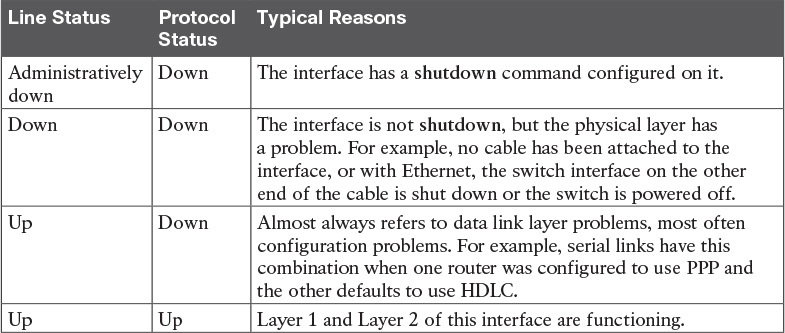
Typical Combinations of Interface Status Codes
For some examples, look back at Example 17-1’s show ip interface brief command, to the three interfaces in the following list. The interfaces in this list each have a different combination of interface status codes; the list details the specific reasons for this status code in the lab used to create this example for the book.
G0/0: The interface is down/down, in this case because no cable was connected to the interface.
G0/1: The interface is administratively down/down, because the configuration includes the shutdown command under the G0/1 interface.
S0/0/0: The interface is up/up because a serial cable is installed, connected to another router in a lab, and is working.
Router Interface IP Addresses
Cisco enterprise routers require at least some configuration beyond the default configuration before they will do their primary job: routing IP packets. The following facts tell us that to make a router ready to route IPv4 packets on an interface, you need to enable the interface and assign it an IPv4 address:
Most Cisco router interfaces default to a disabled (shutdown) state and should be enabled with the no shutdown interface subcommand.
Cisco routers do not route IP packets in or out an interface until an IP address and mask have been configured; by default, no interfaces have an IP address and mask.
Cisco routers attempt to route IP packets for any interfaces that are in an up/up state and that have an IP address/mask assigned.
To configure the address and mask, simply use the ip address address mask interface subcommand. Figure 17-6 shows a simple IPv4 network, the same network used in several of the subnetting examples in Part IV of this book. The figure shows the IPv4 addresses on Router R1, with Example 17-2 showing the matching configuration.

IPv4 Addresses Used in Example 17-2
Example 17-2 Configuring IP Addresses on Cisco Routers
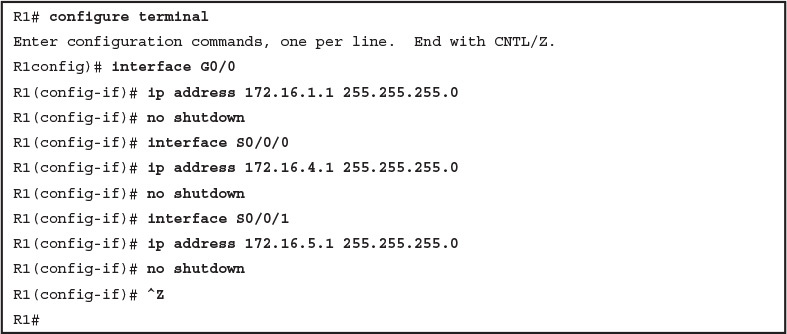
Configuring IP Addresses on Cisco Routers
Example 17-3 shows the output of the show protocols command. This command confirms the state of each of the three R1 interfaces in Figure 17-6 and the IP address and mask configured on those same interfaces.
Example 17-3 Verifying IP Addresses on Cisco Routers
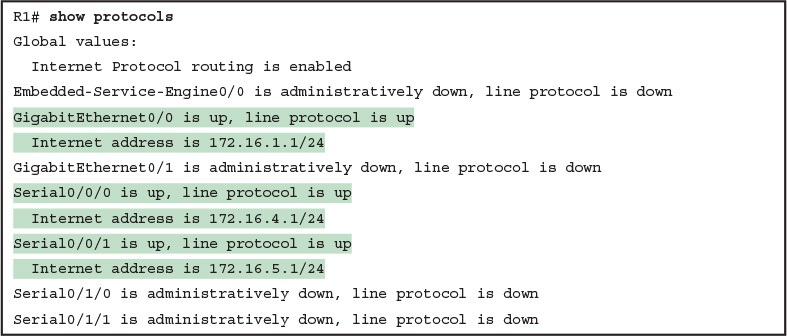
Verifying IP Addresses on Cisco Routers
One of the first actions to take when verifying whether a router is working is to find the interfaces, check the interface status, and check to see whether the correct IP addresses and masks are used. Examples 17-1 and 17-3 showed samples of the key show commands, while Table 17-4 summarizes those commands and the types of information they display.

Key Commands to List Router Interface Status
Bandwidth and Clock Rate on Serial Interfaces
Cisco happens to place more of the WAN technologies in the ICND2 half of CCNA Routing and Switching exam content; however, you also need to be able to practice router configurations for ICND1 exam preparation, which could include using serial interfaces on any routers you buy or borrow for your lab. If you decide to build your own study lab with real gear, you need to know just a little more information about serial links. This last topic in the chapter discusses those details.
As mentioned back in Chapter 3, WAN serial links can run at a wide variety of speeds. To deal with the wide range of speeds, routers physically slave themselves to the speed as dictated by the CSU/DSU through a process called clocking. As a result, routers can use serial links without the need for additional configuration or autonegotiation to sense the serial link’s speed. The CSU/DSU knows the speed, the CSU/DSU sends clock pulses over the cable to the router, and the router reacts to the clocking signal.
To build a serial link in a home lab, the routers can use serial interface cards that normally use an external CSU/DSU, and make a serial link, without requiring the expense of two CSU/DSUs. Chapter 3’s Figure 3-5 introduced this concept, and it is repeated here as Figure 17-7. To make it work, the link uses two serial cables—one a DTE cable and the other a DCE cable—which swap the transmit and receive pair on the cables.
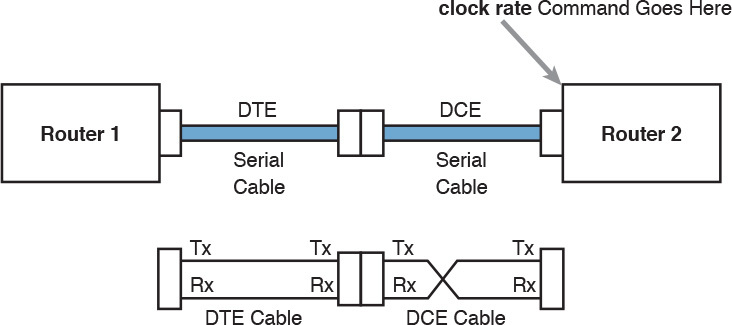
Serial Link in Lab
Using the correct cabling works, as long as you add one command: the clock rate interface subcommand. This command tells that router the speed at which to transmit bits on a serial link like the one shown in Figure 17-7. The clock rate command is not needed on real serial links, because the CSU/DSU provides the clocking. When you create a serial link in the lab using cables, without any real CSU/DSUs on the link, the router with the DCE cable must supply that clocking function, and the clock rate command tells the router to provide it.
NOTE: Newer router IOS versions automatically add a default clock rate 2000000 command on serial interfaces that have a DCE cable connected to them. While helpful, this speed might be too high for some types of back-to-back serial cables, so consider using a lower speed in lab.
Example 17-4 shows the configuration of the clock rate command using the same Router R1 used in the earlier Example 17-2. The end of the example verifies that this router can use the clock rate command with the show controllers command. This command confirms that R1 has a V.35 DCE cable connected.
Example 17-4 Router R1 Configuration with the clock rate Command

Router R1 Configuration with the clock rate Command
NOTE: The clock rate command does not allow just any speed to be configured. However, the list of speeds does vary from router to router.
Some people confuse the router bandwidth command with the clock rate command. The clock rate command sets the actual Layer 1 speed used on the link, if no CSU/DSU is used, as just described. Conversely, every router interface has a bandwidth setting, either by default or configured. The bandwidth of the interface is the documented speed of the interface, which does not have to match the actual Layer 1 speed used on the interface.
That bandwidth setting does not impact how fast the interface transmits data. Instead, routers use the interface bandwidth setting as both documentation and as input to some other processes. For instance, the Open Shortest Path First (OSPF) and Enhanced Interior Gateway Routing Protocol (EIGRP) routing protocols, discussed in the ICND2 part of the CCNA Routing and Switching material, base their routing protocol metrics on the bandwidth by default.
Example 17-5 highlights the bandwidth setting on Router R1’s S0/0/1 interface, as configured in the previous example. In that previous example, the clock rate 128000 command sets the clock rate to 128 kbps, but it leaves the bandwidth command unset. As a result, IOS uses the default serial bandwidth setting of 1544, which means 1544 kbps—which is the speed of a T1 serial link.
Example 17-5 Router Bandwidth Settings
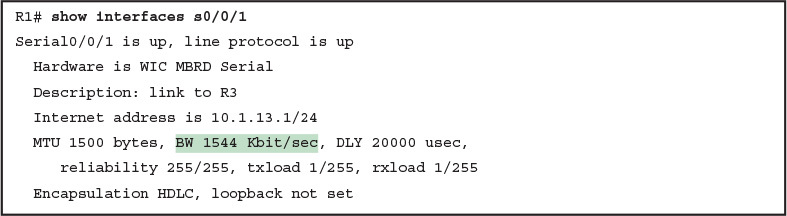
Router Bandwidth Settings
The common mistake people make is to know about clock rate, but mistakenly think that the bandwidth setting is just another term for “clock rate.” It is not. Follow these rules to find these two interface settings:
To see the clock rate, look for the clock rate interface subcommand in the configuration, or use the show controllers serial type number command (as shown in Example 17-4.)
To see the bandwidth setting on an interface, look for the bandwidth interface subcommand in the configuration, or use the show interfaces [type number] command (as shown in Example 17-5).
Note that using default bandwidth settings on most router interfaces makes sense, with the exception of serial interfaces. IOS defaults to a bandwidth of 1544 (meaning 1544 kbps, or 1.544 Mbps) for serial interfaces, regardless of the speed dictated by the provider or by a clock rate command in the lab. Most engineers set the bandwidth to match the actual speed, for example, using the bandwidth 128 interface subcommand on a link running at 128 kbps. On Ethernet 10/100 or 10/100/1000 interfaces, the router knows the speed used, and dynamically sets the Ethernet interface’s bandwidth to match.
Router Auxiliary Port
Both routers and switches have a console port to allow administrative access, but most Cisco routers have an extra physical port called an auxiliary (Aux) port. The Aux port typically serves as a means to make a phone call to connect into the router to issue commands from the CLI.
The Aux port works like the console port, except that the Aux port is typically connected through a cable to an external analog modem, which in turn connects to a phone line. Then, the engineer uses a PC, terminal emulator, and modem to call the remote router. After being connected, the engineer can use the terminal emulator to access the router CLI, starting in user mode as usual.
Aux ports can be configured beginning with the line aux 0 command to reach aux line configuration mode. From there, all the commands for the console line, covered mostly in Chapter 8, “Configuring Basic Switch Management,” can be used. For example, the login and password password subcommands on the aux line could be used to set up simple password checking when a user dials in.

Analyzing Existing Subnets
INTERNOLD NETWORKS CCNA LIVE WEBCLASS (INCLW)
Analyzing Existing Subnets
Contents
Analyzing Existing Subnets
Often, a networking task begins with the discovery of the IP address and mask used by some host. Then, to understand how the internetwork routes packets to that host, you must find key pieces of information about the subnet, specifically the following:
- Subnet ID
- Subnet broadcast address
- Subnet’s range of usable unicast IP addresses
This lesson discusses the concepts and math to take a known IP address and mask, and then fully describe a subnet by finding the values in this list. These specific tasks might well be the most important IP skills in the entire IP addressing and subnetting topics in this course, because these tasks might be the most commonly used tasks when operating and troubleshooting real networks.
Defining a Subnet
An IP subnet is a subset of a classful network, created by choice of some network engineer. However, that engineer cannot pick just any arbitrary subset of addresses; instead, the engineer must follow certain rules, such as the following:
- The subnet contains a set of consecutive numbers.
- The subnet holds 2H numbers, where H is the number of host bits defined by the subnet mask.
- Two special numbers in the range cannot be used as IP addresses:
- The first (lowest) number acts as an identifier for the subnet (subnet ID).
- The last (highest) number acts as a subnet broadcast address.
- The remaining addresses, whose values sit between the subnet ID and subnet broadcast address, are used as unicast IP addresses.
This section reviews and expands the basic concepts of the subnet ID, subnet broadcast address, and range of addresses in a subnet.
An Example with Network 172.16.0.0 and Four Subnets
Imagine that you work at the customer support center, where you receive all initial calls from users who have problems with their computer. You coach the user through finding her IP address and mask: 172.16.150.41, mask 255.255.192.0. One of the first and most common tasks you will do based on that information is to find the subnet ID of the subnet in which that address resides. (In fact, this subnet ID is sometimes called the resident subnet, because the IP address exists in or resides in that subnet.)
Before getting into the math, examine the mask (255.255.192.0) and classful network (172.16.0.0) for a moment. From the mask you can find the structure of the addresses in the subnet, including the number of host and subnet bits. That analysis tells you that two subnet bits exist, meaning that there should be four (22) subnets. Figure 1 shows the idea.

Figure 1: Address Structure: Class B Network, /18 Mask
NOTE: This lesson, like the others in this part of the course, assumes that one mask is used throughout an entire classful network.
Because each subnet uses a single mask, all subnets of this single IP network must be the same size, because all subnets have the same structure. In this example, all four subnets will have the structure shown in the figure, so all four subnets will have 214 – 2 host addresses.
Next, consider the big picture of what happens with this example subnet design: The one Class B network now has four subnets of equal size. Conceptually, if you represent the entire Class B network as a number line, each subnet consumes one-fourth of the number line, as shown in Figure 2. Each subnet has a subnet ID—the numerically lowest number in the subnet—so it sits on the left of the subnet. And each subnet has a subnet broadcast address—the numerically highest number in the subnet—so it sits on the right side of the subnet.

Figure 2: Network 172.16.0.0, Divided into Four Equal Subnets
The rest of this lesson focuses on how to take one IP address and mask and discover the details about that one subnet in which the address resides. In other words, you see how to find the resident subnet of an IP address. Again, using IP address 172.16.150.41 and mask 255.255.192.0 as an example, Figure 3 shows the resident subnet, along with the subnet ID and subnet broadcast address that bracket the subnet.

Figure 3: Resident Subnet for 172.16.150.41, 255.255.192.0
Subnet ID Concepts
A subnet ID is simply a number used to succinctly represent a subnet. When listed along with its matching subnet mask, the subnet ID identifies the subnet and can be used to derive the subnet broadcast address and range of addresses in the subnet. Rather than having to write down all these details about a subnet, you simply need to write down the subnet ID and mask, and you have enough information to fully describe the subnet.
The subnet ID appears in many places, but it is seen most often in IP routing tables. For example, when an engineer configures a router with its IP address and mask, the router calculates the subnet ID and puts a route into its routing table for that subnet. The router typically then advertises the subnet ID/mask combination to neighboring routers with some IP routing protocol. Eventually, all the routers in an enterprise learn about the subnet—again using the subnet ID and subnet mask combination—and display it in their routing tables. (You can display the contents of a router’s IP routing table using the show ip route command.)
Unfortunately, the terminology related to subnets can sometimes cause problems. First, the terms subnet ID, subnet number, and subnet address are synonyms. In addition, people sometimes simply say subnet when referring to both the idea of a subnet and the number that is used as the subnet ID. When talking about routing, people sometimes use the term prefix instead of subnet. The term prefix refers to the same idea as subnet; it just uses terminology from the classless addressing way to describe IP addresses.
The biggest terminology confusion arises between the terms network and subnet. In the real world, people often use these terms synonymously, and that is perfectly reasonable in some cases. In other cases, the specific meaning of these terms, and their differences, matter to what is being discussed.
For example, people often might say, “What is the network ID?” when they really want to know the subnet ID. In another case, they might want to know the Class A, B, or C network ID. So, when one engineer asks something like, “What’s the net ID for 172.16.150.41 slash 18?” use the context to figure out whether he wants the literal classful network ID (172.16.0.0, in this case) or the literal subnet ID (172.16.128.0, in this case).
For the exams, be ready to notice when the terms subnet and network are used, and then use the context to figure out the specific meaning of the term in that case.
Table 2 summarizes the key facts about the subnet ID, along with the possible synonyms, for easier review and study.

Table 2 Summary of Subnet ID Key Facts
Subnet Broadcast Address
The subnet broadcast address has two main roles: to be used as a destination IP address for the purpose of sending packets to all hosts in the subnet, and as a means to find the high end of the range of addresses in a subnet.
The original purpose for the subnet broadcast address was to give hosts a way to send one packet to all hosts in a subnet, and to do so efficiently. For example, a host in subnet A could send a packet with a destination address of subnet B’s subnet broadcast address. The routers would forward this one packet just like a packet sent to a host in subnet B. After the packet arrives at the router connected to subnet B, that last router would then forward the packet to all hosts in subnet B, typically by encapsulating the packet in a data link layer broadcast frame. As a result, all hosts in host B’s subnet would receive a copy of the packet.
The subnet broadcast address also helps you find the range of addresses in a subnet, because the broadcast address is the last (highest) number in a subnet’s range of addresses. To find the low end of the range, calculate the subnet ID; to find the high end of the range, calculate the subnet broadcast address.
Table 3 summarizes the key facts about the subnet broadcast address, along with the possible synonyms, for easier review and study.

Table 3 Summary of Subnet Broadcast Address Key Facts
Range of Usable Addresses
The engineers implementing an IP internetwork need to know the range of unicast IP addresses in each subnet. Before you can plan which addresses to use as statically assigned IP addresses, which to configure to be leased by the DHCP server, and which to reserve for later use, you need to know the range of usable addresses.
To find the range of usable IP addresses in a subnet, first find the subnet ID and the subnet broadcast address. Then, just add 1 to the fourth octet of the subnet ID to get the first (lowest) usable address, and subtract 1 from the fourth octet of the subnet broadcast address to get the last (highest) usable address in the subnet.
For example, Figure 3 showed subnet ID 172.16.128.0, mask /18. The first usable address is simply one more than the subnet ID (in this case, 172.16.128.1). That same figure showed a subnet broadcast address of 172.16.191.255, so the last usable address is one less, or 172.16.191.254.
Now that this section has described the concepts behind the numbers that collectively define a subnet, the rest of this lesson focuses on the math used to find these values.
Analyzing Existing Subnets: Binary
What does it mean to “analyze a subnet”? For this course, it means that you should be able to start with an IP address and mask and then define key facts about the subnet in which that address resides. Specifically, that means discovering the subnet ID, subnet broadcast address, and range of addresses. The analysis can also include the calculation of the number of addresses in the subnet but this lesson does not review those concepts.
Many methods exist to calculate the details about a subnet based on the address/mask. This section begins by discussing some calculations that use binary math, with the next section showing alternatives that use only decimal math. Although many people prefer the decimal method for going fast on the exams, the binary calculations ultimately give you a better understanding of IPv4 addressing. In particular, if you plan to move on to attain Cisco certifications beyond CCNA Routing and Switching, you should take the time to understand the binary methods discussed in this section, even if you use the decimal methods for the exams.
Finding the Subnet ID: Binary
To start this section that uses binary, first consider a simple decimal math problem. The problem: Find the smallest three-digit decimal number that begins with 4. The answer, of course, is 400. And although most people would not have to break down the logic into steps, you know that 0 is the lowest-value digit you can use for any digit in a decimal number. You know that the first digit must be a 4, and the number is a three-digit number, so you just use the lowest value (0) for the last two digits, and find the answer: 400.
This same concept, applied to binary IP addresses, gives you the subnet ID. You have seen all the related concepts in other lessons, so if you already intuitively know how to find the subnet ID in binary, great! If not, the following key facts should help you see the logic:
All numbers in the subnet (subnet ID, subnet broadcast address, and all usable IP addresses) have the same value in the prefix part of the numbers.
The subnet ID is the lowest numeric value in the subnet, so its host part, in binary, is all 0s.
To find the subnet ID in binary, you take the IP address in binary and change all host bits to binary 0. To do so, you need to convert the IP address to binary. You also need to identify the prefix and host bits, which can be easily done by converting the mask (as needed) to prefix format. Figure 4 shows the idea, using the same address/mask as in the earlier examples in this lesson: 172.16.150.41, mask /18.

Figure 4: Binary Concept: Convert the IP Address to the Subnet ID
Starting at the top of Figure 4, the format of the IP address is represented with 18 prefix (P) and 14 host (H) bits in the mask (Step 1). The second row (Step 2) shows the binary version of the IP address, converted from the dotted-decimal notation (DDN) value 172.16.150.41. (If you have not yet used the conversion table in Appendix A, it might be useful to double-check the conversion of all four octets based on the table.)
The next two steps show the action to copy the IP address’s prefix bits (Step 3) and give the host bits a value of binary 0 (Step 4). This resulting number is the subnet ID (in binary).
The last step, not shown in Figure 4, is to convert the subnet ID from binary to decimal. This course shows that conversion as a separate step, in Figure 5, mainly because many people make a mistake at this step in the process. When converting a 32-bit number (like an IP address or IP subnet ID) back to an IPv4 DDN, you must follow this rule:
Convert 8 bits at a time from binary to decimal, regardless of the line between the prefix and host parts of the number.

Figure 5: Converting the Subnet ID from Binary to DD
Figure 5 shows this final step. Note that the third octet (the third set of 8 bits) has 2 bits in the prefix and 6 bits in the host part of the number, but the conversion occurs for all 8 bits.
NOTE: To convert from DDN to binary, for each octet, find the decimal value in the table and then write down the 8-bit binary equivalent. To convert from binary back to DDN, for each octet of 8 bits, find the matching binary entry in the table and write down the corresponding decimal value. For example, 172 converts to binary 10101100, and 00010000 converts to decimal 16.
Finding the Subnet Broadcast Address: Binary
Finding the subnet broadcast address uses a similar process. To find the subnet broadcast address, use the same binary process used to find the subnet ID, but instead of setting all the host bits to the lowest value (all binary 0s), set the host part to the highest value (all binary 1s). Figure 6 shows the concept.
Figure 6: Finding a Subnet Broadcast Address: Binary
The process in Figure 6 demonstrates the same first three steps shown in Figure 4. Specifically, it shows the identification of the prefix and host bits (Step 1), the results of converting the IP address 172.16.150.41 to binary (Step 2), and the copying of the prefix bits (first 18 bits, in this case). The difference occurs in the host bits on the right, changing all host bits (the last 14, in this case) to the largest possible value (all binary 1s). The final step converts the 32-bit subnet broadcast address to DDN format. Also, remember that with any conversion from DDN to binary or vice versa, the process always converts using 8 bits at a time. In particular, in this case, the entire third octet of binary 10111111 is converted back to decimal 191.
Binary Practice Problems
Figures 4 and 5 demonstrate a process to find the subnet ID using binary math. The following process summarizes those steps in written form for easier reference and practice:
- Step 1. Convert the mask to prefix format to find the length of the prefix (/P) and the length of the host part (32 – P).
- Step 2. Convert the IP address to its 32-bit binary equivalent.
- Step 3. Copy the prefix bits of the IP address.
- Step 4. Write down 0s for the host bits.
- Step 5. Convert the resulting 32-bit number, 8 bits at a time, back to decimal.
The process to find the subnet broadcast address is exactly the same, except in Step 4, you set the bits to 1s, as shown in Figure 6.
Take a few moments and run through the following five practice problems on scratch paper. In each case, find both the subnet ID and subnet broadcast address. Also, record the prefix style mask:
- 1. 8.1.4.5, 255.255.0.0
- 2. 130.4.102.1, 255.255.255.0
- 3. 199.1.1.100, 255.255.255.0
- 4. 130.4.102.1, 255.255.252.0
- 5. 199.1.1.100, 255.255.255.224
Tables 4 through 8 show the results for the five different examples. The tables show the host bits in bold, and they include the binary version of the address and mask and the binary version of the subnet ID and subnet broadcast address.

Table 4 Subnet Analysis for Subnet with Address 8.1.4.5, Mask 255.255.0.0

Table 5 Subnet Analysis for Subnet with Address 130.4.102.1, Mask 255.255.255.0

Table 6 Subnet Analysis for Subnet with Address 199.1.1.100, Mask 255.255.255.0

Table 7 Subnet Analysis for Subnet with Address 130.4.102.1, Mask 255.255.252.0

Table 8 Subnet Analysis for Subnet with Address 199.1.1.100, Mask 255.255.255.224
Shortcut for the Binary Process
The binary process described in this section so far requires that all four octets be converted to binary and then back to decimal. However, you can easily predict the results in at least three of the four octets, based on the DDN mask. You can then avoid the binary math in all but one octet and reduce the number of binary conversions you need to do.
First, consider an octet, and that octet only, whose DDN mask value is 255. The mask value of 255 converts to binary 11111111, which means that all 8 bits are prefix bits. Thinking through the steps in the process, at Step 2, you convert the address to some number. At Step 3, you copy the number. At Step 4, you convert the same 8-bit number back to decimal. All you did in those three steps, in this one octet, is convert from decimal to binary and convert the same number back to the same decimal value!
In short, the subnet ID (and subnet broadcast address) are equal to the IP address in octets for which the mask is 255.
For example, the resident subnet ID for 172.16.150.41, mask 255.255.192.0 is 172.16.128.0. The first two mask octets are 255. Rather than think about the binary math, you could just start by copying the address’s value in those two octets: 172.16.
Another shortcut exists for octets whose DDN mask value is decimal 0, or binary 00000000. With a decimal mask value of 0, the math always results in a decimal 0 for the subnet ID, no matter the beginning value in the IP address. Specifically, just look at Steps 4 and 5 in this case: At Step 4, you would write down 8 binary 0s, and at Step 5, convert 00000000 back to decimal 0.
The following revised process steps take these two shortcuts into account. However, when the mask is neither 0 nor 255, the process requires the same conversions. At most, you have to do only one octet of the conversions. To find the subnet ID, apply the logic in these steps for each of the four octets:
- Step 1. If the mask = 255, copy the decimal IP address for that octet.
- Step 2. If the mask = 0, write down a decimal 0 for that octet.
- Step 3. If the mask is neither 0 nor 255 in this octet, use the same binary logic as shown in the section “Finding the Subnet ID: Binary,” earlier in this lesson.
Figure 7 shows an example of this process, again using 172.16.150.41, 255.255.192.0.

Figure 7 Binary Shortcut Example
To find the subnet broadcast address, you can use a decimal shortcut similar to the one used to find the subnet ID: For DDN mask octets equal to decimal 0, set the decimal subnet broadcast address value to 255 instead of 0, as noted in the following list:
- Step 1. If the mask = 255, copy the decimal IP address for that octet.
- Step 2. If the mask = 0, write down a decimal 255 for that octet.
- Step 3. If the mask is neither 0 nor 255 in this octet, use the same binary logic as shown in the section “Finding the Subnet Broadcast Address: Binary,” earlier in this lesson.
Brief Note About Boolean Math
So far, this lesson has described how humans can use binary math to find the subnet ID and subnet broadcast address. However, computers typically use an entirely different binary process to find the same values, using a branch of mathematics called Boolean algebra. Computers already store the IP address and mask in binary form, so they do not have to do any conversions to and from decimal. Then, certain Boolean operations allow the computers to calculate the subnet ID and subnet broadcast address with just a few CPU instructions.
You do not need to know Boolean math to have a good understanding of IP subnetting. However, in case you are interested, computers use the following Boolean logic to find the subnet ID and subnet broadcast address, respectively:
Perform a Boolean AND of the IP address and mask. This process converts all host bits to binary 0.
Invert the mask, and then perform a Boolean OR of the IP address and inverted subnet mask. This process converts all host bits to binary 1s.
Finding the Range of Addresses
Finding the range of usable addresses in a subnet, after you know the subnet ID and subnet broadcast address, requires only simple addition and subtraction. To find the first (lowest) usable IP address in the subnet, simply add 1 to the fourth octet of the subnet ID. To find the last (highest) usable IP address, simply subtract 1 from the fourth octet of the subnet broadcast address.
Analyzing Existing Subnets: Decimal
Analyzing existing subnets using the binary process works well. However, some of the math takes time for most people, particularly the decimal-binary conversions. And you need to do the math quickly for the Cisco CCNA Routing and Switching exams. For the exams, you really should be able to take an IP address and mask, and calculate the subnet ID and range of usable addresses within about 15 seconds. When using binary methods, most people require a lot of practice to be able to find these answers, even when using the abbreviated binary process.
This section discusses how to find the subnet ID and subnet broadcast address using only decimal math. Most people can find the answers more quickly using this process, at least after a little practice, as compared with the binary process. However, the decimal process does not tell you anything about the meaning behind the math. So, if you have not read the earlier section “Analyzing Existing Subnets: Binary,” it is worthwhile to read it for the sake of understanding subnetting. This section focuses on getting the right answer using a method that, after you have practiced, should be faster.
Analysis with Easy Masks
With three easy subnet masks in particular, finding the subnet ID and subnet broadcast address requires only easy logic and literally no math. Three easy masks exist:
- 255.0.0.0
- 255.255.0.0
- 255.255.255.0
These easy masks have only 255 and 0 in decimal. In comparison, difficult masks have one octet that has neither a 255 nor a 0 in the mask, which makes the logic more challenging.
NOTE: The terms easy mask and difficult mask are terms created for use in this course to describe the masks and the level of difficulty when working with each.
When the problem uses an easy mask, you can quickly find the subnet ID based on the IP address and mask in DDN format. Just use the following process for each of the four octets to find the subnet ID:
- Step 1. If the mask octet = 255, copy the decimal IP address.
- Step 2. If the mask octet = 0, write a decimal 0.
A similar simple process exists to find the subnet broadcast address, as follows:
- Step 1. If the mask octet = 255, copy the decimal IP address.
- Step 2. If the mask octet = 0, write a decimal 255.
Before moving to the next section, take some time to fill in the blanks in Table 9. Check your answers against Table 15 in the section “Answers to Earlier Practice Problems,” later in this lesson. Complete the table by listing the subnet ID and subnet broadcast address.

Table 9 Practice Problems: Find Subnet ID and Broadcast, Easy Masks
Predictability in the Interesting Octet
Although three masks are easier to work with (255.0.0.0, 255.255.0.0, and 255.255.255.0), the rest make the decimal math a little more difficult, so we call these masks difficult masks. With difficult masks, one octet is neither a 0 nor a 255. The math in the other three octets is easy and boring, so this course calls the one octet with the more difficult math the interesting octet.
If you take some time to think about different problems and focus on the interesting octet, you will begin to see a pattern. This section takes you through that examination so that you can learn how to predict the pattern, in decimal, and find the subnet ID.
First, the subnet ID value has a predictable decimal value because of the assumption that a single subnet mask is used for all subnets of a single classful network. The lessons in this part of the course assume that, for a given classful network, the design engineer chooses to use a single subnet mask for all subnets.
To see that predictability, consider some planning information written down by a network engineer, as shown in Figure 8. The figure shows four different masks the engineer is considering using in an IPv4 network, along with Class B network 172.16.0.0. The figure shows the third-octet values for the subnet IDs that would be created when using mask 255.255.128.0, 255.255.192.0, 255.255.224.0, and 255.255.240.0, from top to bottom in the figure.

Figure 8 Numeric Patterns in the Interesting Octet
First, to explain the figure further, look at the top row of the figure. If the engineer uses 255.255.128.0 as the mask, the mask creates two subnets, with subnet IDs 172.16.0.0 and 172.16.128.0. If the engineer uses mask 255.255.192.0, the mask creates four subnets, with subnet IDs 172.16.0.0, 172.16.64.0, 172.16.128.0, and 172.16.192.0.
If you take the time to look at the figure, the patterns become obvious. In this case:
- Mask: 255.255.128.0 Pattern: Multiples of 128
- Mask: 255.255.192.0 Pattern: Multiples of 64
- Mask: 255.255.224.0 Pattern: Multiples of 32
- Mask: 255.255.240.0 Pattern: Multiples of 16
To find the subnet ID, you just need a way to figure out what the pattern is. If you start with an IP address and mask, just find the subnet ID closest to the IP address, without going over, as discussed in the next section.
Finding the Subnet ID: Difficult Masks
The following written process lists all the steps to find the subnet ID, using only decimal math. This process adds to the earlier process used with easy masks. For each octet:
- Step 1. If the mask octet = 255, copy the decimal IP address.
- Step 2. If the mask octet = 0, write a decimal 0.
- Step 3. If the mask is neither, refer to this octet as the interesting octet:
- A. Calculate the magic number as 256 – mask.
- B. Set the subnet ID’s value to the multiple of the magic number that is closest to the IP address without going over.
The process uses two new terms created for this course: magic number and interesting octet. The term interesting octet refers to the octet identified at Step 3 in the process; in other words, it is the octet with the mask that is neither 255 nor 0. Step 3A then uses the term magic number, which is derived from the DDN mask. Conceptually, the magic number is the number you add to one subnet ID to get the next subnet ID in order, as shown in Figure 8. Numerically, it can be found by subtracting the DDN mask’s value, in the interesting octet, from 256, as mentioned in Step 3A.
The best way to learn this process is to see it happen. In fact, if you can, stop reading now, use the DVD accompanying this course, and watch the videos about finding the subnet ID with a difficult mask. These videos demonstrate this process. You can also use the examples on the next few pages that show the process being used on paper. Then, follow the practice opportunities outlined in the section “Practice Analyzing Existing Subnets,” later in this lesson.
Resident Subnet Example 1
For example, consider the requirement to find the resident subnet for IP address 130.4.102.1, mask 255.255.240.0. The process does not require you to think about prefix bits versus host bits, convert the mask, think about the mask in binary, or convert the IP address to and from binary. Instead, for each of the four octets, choose an action based on the value in the mask. Figure 9 shows the results; the circled numbers in the figure refer to the step numbers in the written process to find the subnet ID, as listed in the previous few pages.

Figure 9 Find the Subnet ID: 130.4.102.1, 255.255.240.0
First, examine the three uninteresting octets (1, 2, and 4, in this example). The process keys on the mask, and the first two octets have a mask value of 255, so simply copy the IP address to the place where you intend to write down the subnet ID. The fourth octet has a mask value of 0, so write down a 0 for the fourth octet of the subnet ID.
The most challenging logic occurs in the interesting octet, which is the third octet in this example, because of the mask value 240 in that octet. For this octet, Step 3A asks you to calculate the magic number as 256 – mask. That means you take the mask’s value in the interesting octet (240, in this case) and subtract it from 256: 256 – 240 = 16. The subnet ID’s value in this octet must be a multiple of decimal 16, in this case.
Step 3B then asks you to find the multiples of the magic number (16, in this case) and choose the one closest to the IP address without going over. Specifically, that means that you should mentally calculate the multiples of the magic number, starting at 0. (Do not forget to start at 0!) Count, starting at 0: 0, 16, 32, 48, 64, 80, 96, 112, and so on. Then, find the multiple closest to the IP address value in this octet (102, in this case), without going over 102. So, as shown in Figure 9, you make the third octet’s value 96 to complete the subnet ID of 130.4.96.0.
Resident Subnet Example 2
Consider another example: 192.168.5.77, mask 255.255.255.224. Figure 10 shows the results.

Figure 10 Resident Subnet for 192.168.5.77, 255.255.255.224
The three uninteresting octets (1, 2, and 3, in this case) require only a little thought. For each octet, each with a mask value of 255, just copy the IP address.
For the interesting octet, at Step 3A, the magic number is 256 – 224 = 32. The multiples of the magic number are 0, 32, 64, 96, and so on. Because the IP address value in the fourth octet is 77, in this case, the multiple must be the number closest to 77 without going over; therefore, the subnet ID ends with 64, for a value of 192.168.5.64.
Resident Subnet Practice Problems
Before moving to the next section, take some time to fill in the blanks in Table 10. Check your answers against Table 16 in the section “Answers to Earlier Practice Problems,” later in this lesson. Complete the table by listing the subnet ID in each case. The text following Table 16 also lists explanations for each problem.

Figure 10 10 Practice Problems: Find Subnet ID, Difficult Masks
Finding the Subnet Broadcast Address: Difficult Masks
To find a subnet’s broadcast address, a similar process can be used. For simplicity, this process begins with the subnet ID, rather than the IP address. If you happen to start with an IP address instead, use the processes in this lesson to first find the subnet ID, and then use the following process to find the subnet broadcast address for that same subnet. For each octet:
- Step 1. If the mask octet = 255, copy the subnet ID.
- Step 2. If the mask octet = 0, write 255.
- Step 3. If the mask is neither, identify this octet as the interesting octet:
- A. Calculate the magic number as 256 – mask.
- B. Take the subnet ID’s value, add the magic number, and subtract 1 (ID + magic – 1).
As with the similar process used to find the subnet ID, you have several options for how to best learn and internalize the process. If you can, stop reading now, use the DVD accompanying this course, and watch the videos about finding the subnet broadcast address with a difficult mask. Also, look at the examples in this section, which show the process being used on paper. Then, follow the practice opportunities outlined in the section “Additional Practice for This Lesson’s Processes.”
Subnet Broadcast Example 1
The first example continues the first example from the section “Finding the Subnet ID: Difficult Masks,” earlier in this lesson, as demonstrated in Figure 9. That example started with the IP address/mask of 130.4.102.1, 255.255.240.0, and showed how to find subnet ID 130.4.96.0. Figure 11 now begins with that subnet ID and the same mask.

Figure 11 Find the Subnet Broadcast: 130.4.96.0, 255.255.240.0
First, examine the three uninteresting octets (1, 2, and 4). The process keys on the mask, and the first two octets have a mask value of 255, so simply copy the subnet ID to the place where you intend to write down the subnet broadcast address. The fourth octet has a mask value of 0, so write down a 255 for the fourth octet.
The logic related to the interesting octet occurs in the third octet in this example, because of the mask value 240. First, Step 3A asks you to calculate the magic number, as 256 – mask. (If you had already calculated the subnet ID using the decimal process in this course, you should already know the magic number.) At Step 3B, you take the subnet ID’s value (96), add the magic number (16), and subtract 1, for a total of 111. That makes the subnet broadcast address 130.4.111.255.
Subnet Broadcast Example 2
Again, this example continues an earlier example, from the section “Resident Subnet Example 2,” as demonstrated in Figure 10. That example started with the IP address/mask of 192.168.5.77, mask 255.255.255.224 and showed how to find subnet ID 192.168.5.64. Figure 12 now begins with that subnet ID and the same mask.

Figure 12 Find the Subnet Broadcast: 192.168.5.64, 255.255.255.224
First, examine the three uninteresting octets (1, 2, and 3). The process keys on the mask, and the first three octets have a mask value of 255, so simply copy the subnet ID to the place where you intend to write down the subnet broadcast address.
The interesting logic occurs in the interesting octet, the fourth octet in this example, because of the mask value 224. First, Step 3A asks you to calculate the magic number, as 256 – mask. (If you had already calculated the subnet ID, it is the same magic number, because the same mask is used.) At Step 3B, you take the subnet ID’s value (64), add magic (32), and subtract 1, for a total of 95. That makes the subnet broadcast address 192.168.5.95.
Before moving to the next section, take some time to do several practice problems on a scratch piece of paper. Go back to Table 10, which lists IP addresses and masks, and practice by finding the subnet broadcast address for all the problems in that table. Then check your answers against Table 17 in the section “Answers to Earlier Practice Problems,” later in this lesson.
A Choice: Memorize or Calculate
As described in this lesson, the decimal processes to find the subnet ID and subnet broadcast address do require some calculation, including the calculation of the magic number (256 – mask). The processes also use a DDN mask, so if an exam question gives you a prefix-style mask, you need to convert to DDN format before using the process in this course.
Over the years, some people have told me they prefer to memorize a table to find the magic number. These tables could list the magic number for different DDN masks and prefix masks, so you avoid converting from the prefix mask to DDN. Table 12 shows an example of such a table. Feel free to ignore this table, use it, or make your own.

Table 12 Reference Table: DDN Mask Values, Binary Equivalent, Magic Numbers, and Prefixes

Analyzing Subnet Masks
INTERNOLD NETWORKS CCNA LIVE WEBCLASS (INCLW)
Analyzing Subnet Masks
Contents
Analyzing Subnet Masks
The subnet mask used in one or many subnets in an IP internetwork says a lot about the intent of the subnet design. First, the mask divides addresses into two parts: prefix and host, with the host part defining the size of the subnet. Then, the class (A, B, or C) further divides the structure of addresses in a subnet, breaking the prefix part into the network and subnet parts. The subnet part defines the number of subnets that could exist inside one classful IP network, assuming that one mask is used throughout the classful network.
The subnet mask holds the key to understanding several important subnetting design points. However, to analyze a subnet mask, you first need some basic math skills with masks. The math converts masks between the three different formats used to represent a mask:
- Binary
- Dotted-decimal notation (DDN)
- Prefix (also called classless interdomain routing [CIDR])
This lesson has two major sections. The first focuses totally on the mask formats and the math used to convert between the three formats. The second section explains how to take an IP address and its subnet mask and analyze those values. In particular, it shows how to determine the three-part format of the IPv4 address and describes the facts about the subnetting design that are implied by the mask.
Subnet Mask Conversion
This section describes how to convert between different formats for the subnet mask. You can then use these processes when you practice. If you already know how to convert from one format to the other, go ahead and move to the section “Practice Converting Subnet Masks,” later in this lesson.
Three Mask Formats
Subnet masks can be written as 32-bit binary numbers, but not just any binary number. In particular, the binary subnet mask must follow these rules:
- The value must not interleave 1s and 0s.
- If 1s exist, they are on the left.
- If 0s exist, they are on the right.
For example, the following values would be illegal. The first is illegal because the value interleaves 0s and 1s, and the second is illegal because it lists 0s on the left and 1s on the right:
10101010 01010101 11110000 00001111
00000000 00000000 00000000 11111111
The following two binary values meet the requirements, in that they have all 1s on the left, followed by all 0s, with no interleaving of 1s and 0s:
11111111 00000000 00000000 00000000
11111111 11111111 11111111 00000000
Two alternative subnet mask formats exist so that we humans do not have to work with 32-bit binary numbers. One format, dotted-decimal notation (DDN), converts each set of 8 bits into the decimal equivalent. For example, the two previous binary masks would convert to the following DDN subnet masks, because binary 11111111 converts to decimal 255, and binary 00000000 converts to decimal 0:
255.0.0.0
255.255.255.0
Although the DDN format has been around since the beginning of IPv4 addressing, the third mask format was added later, in the early 1990s: the prefix format. This format takes advantage of the rule that the subnet mask starts with some number of 1s, and then the rest of the digits are 0s. Prefix format lists a slash (/) followed by the number of binary 1s in the binary mask. Using the same two examples as earlier in this section, the prefix format equivalent masks are as follows:
/8
/24
Note that although the terms prefix or prefix mask can be used, the terms CIDR mask or slash mask can also be used. This newer prefix style mask was created around the same time as the classless interdomain routing (CIDR) specification back in the early 1990s, and the acronym CIDR grew to be used for anything related to CIDR, including prefix-style masks. In addition, the term slash mask is sometimes used because the value includes a slash mark (/).
You need to get comfortable working with masks in different formats. The rest of this section examines how to convert between the three formats.
Converting Between Binary and Prefix Masks
Converting between binary and prefix masks should be relatively intuitive after you know that the prefix value is simply the number of binary 1s in the binary mask. For the sake of completeness, the processes to convert in each direction are
Binary to prefix: Count the number of binary 1s in the binary mask, and write the total, in decimal, after a /.
Prefix to binary: Write P binary 1s, where P is the prefix value, followed by as many binary 0s as required to create a 32-bit number.
Tables 2 and 3 show some examples.

Table 2 Example Conversions: Binary to Prefix

Table 3 Example Conversions: Prefix to Binary
Converting Between Binary and DDN Masks
By definition, a dotted-decimal number (DDN) used with IPv4 addressing contains four decimal numbers, separated by dots. Each decimal number represents 8 bits. So, a single DDN shows four decimal numbers that together represent some 32-bit binary number.
Conversion from a DDN mask to the binary equivalent is relatively simple to describe, but can be laborious to perform. First, to do the conversion, the process is as follows:
For each octet, perform a decimal-to-binary conversion.
However, depending on your comfort level with doing decimal-to-binary conversions, that process can be difficult or time-consuming. If you want to think about masks in binary for the exam, consider picking one of the following methods to do the conversion and practicing until you can do it quickly and accurately:
Do the decimal-binary conversions, but practice your decimal-binary conversions to get fast. If you choose this path, consider the Cisco Binary Game, which you can find by searching its name at the Cisco Learning Network (CLN) (http://learningnetwork.cisco.com).
Use the decimal-binary conversion chart in Numeric Reference Tables. This lets you find the answer more quickly now, but you cannot use the chart on exam day.
Memorize the nine possible decimal values that can be in a decimal mask, and practice using a reference table with those values.
The third method, which is the method recommended in this course, takes advantage of the fact that any and every DDN mask octet must be one of only nine values. Why? Well, remember how a binary mask cannot interleave 1s and 0s, and the 0s must be on the right? It turns out that only nine different 8-bit binary numbers conform to these rules. Table 4 lists the values, along with other relevant information.
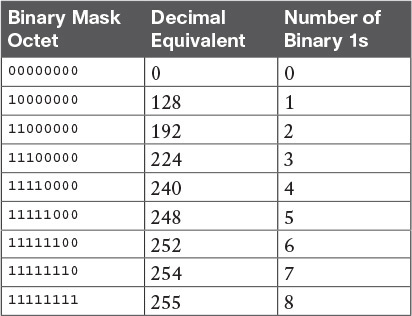
Table 4: Nine Possible Values in One Octet of a Subnet Mask
Many subnetting processes can be done with or without binary math. Some of those processes—mask conversion included—use the information in Table 4. You should plan to memorize the information in the table. I recommend making a copy of the table to keep handy while you practice. (You will likely memorize the contents of this table simply by practicing the conversion process enough to get both good and fast at the conversion.)
Using the table, the conversion processes in each direction with binary and decimal masks are as follows:
Binary to decimal: Organize the bits into four sets of eight. For each octet, find the binary value in the table and write down the corresponding decimal value.
Decimal to binary: For each octet, find the decimal value in the table and write down the corresponding 8-bit binary value.
Tables 5 and 6 show some examples

Table 5: Conversion Example: Binary to Decimal

Table 6: Conversion Examples: Decimal to Binar
Converting Between Prefix and DDN Masks
When learning, the best way to convert between the prefix and decimal formats is to first convert to binary. For example, to move from decimal to prefix, first convert decimal to binary and then from binary to prefix.
For the exams, set a goal to master these conversions doing the math in your head. While learning, you will likely want to use paper. To train yourself to do all this without writing it down, instead of writing each octet of binary, just write the number of binary 1s in that octet.
Figure 1 shows an example with a prefix-to-decimal conversion. The left side shows the conversion to binary as an interim step. For comparison, the right side shows the binary interim step in shorthand that just lists the number of binary 1s in each octet of the binary mask.

Figure 1: Conversion from Prefix to Decimal: Full Binary Versus Shorthand
Similarly, when converting from decimal to prefix, mentally convert to binary along the way, and as you improve, just think of the binary as the number of 1s in each octet. Figure 2 shows an example of such a conversion.

Figure 2: Conversion from Decimal to Prefix: Full Binary Versus Shorthand
Practice Converting Subnet Masks
Before moving to the second half of this lesson, and thinking about what these subnet masks mean, first do some practice. Practice the processes discussed in this lesson until you get the right answer most of the time. Later, before taking the exam, practice more until you master the topics in this lesson and can move pretty fast, as outlined in the right column of Table 7.

Table 7: Keep-Reading and Take-Exam Goals for This Lesson’s Topics
Table 8 lists eight practice problems. The table has three columns, one for each mask format. Each row lists one mask, in one format. Your job is to find the mask’s value in the other two formats for each row.

Table 8: Practice Problems: Find the Mask Values in the Other Two Formats
Identifying Subnet Design Choices Using Masks
Subnet masks have many purposes. In fact, if ten experienced network engineers were independently asked, “What is the purpose of a subnet mask?” the engineers would likely give a variety of true answers. The subnet mask plays several roles.
This lesson focuses on one particular use of a subnet mask: defining the prefix part of the IP addresses in a subnet. The prefix part must be the same value for all addresses in a subnet. In fact, a single subnet can be defined as all IPv4 addresses that have the same value in the prefix part of their IPv4 addresses.
While the previous paragraph might sound a bit formal, the idea is relatively basic, as shown in Figure 3. The figure shows a network diagram, focusing on two subnets: a subnet of all addresses that begin with 172.16.2 and another subnet made of all addresses that begin with 172.16.3. In this example, the prefix—the part that has the same value in all the addresses in the subnet—is the first three octets.

Figure 3: Simple Subnet Design, with Mask /24
While people can sit around a conference table and talk about how a prefix is three octets long, computers communicate that same concept using a subnet mask. In this case, the subnets use a subnet mask of /24, which means that the prefix part of the addresses is 24 bits (3 octets) long.
This section explains more about how to use a subnet mask to understand this concept of a prefix part of an IPv4 address, along with these other uses for a subnet mask. Note that this section discusses the first five items in the list.
- Defines the size of the prefix (combined network and subnet) part of the addresses in a subnet
- Defines the size of the host part of the addresses in the subnet
- Can be used to calculate the number of hosts in the subnet
- Provides a means for the network designer to communicate the design details—the number of subnet and host bits—to the devices in the network
- Under certain assumptions, can be used to calculate the number of subnets in the entire classful network
- Can be used in binary calculations of both the subnet ID and the subnet broadcast address
Masks Divide the Subnet’s Addresses into Two Parts
The subnet mask subdivides the IP addresses in a subnet into two parts: the prefix, or subnet part, and the host part.
The prefix part identifies the addresses that reside in the same subnet, because all IP addresses in the same subnet have the same value in the prefix part of their addresses. The idea is much like the postal code (ZIP codes in the United States) in mailing addresses. All mailing addresses in the same town have the same postal code. Likewise, all IP addresses in the same subnet have identical values in the prefix part of their addresses.
The host part of an address identifies the host uniquely inside the subnet. If you compare any two IP addresses in the same subnet, their host parts will differ, even though the prefix parts of their addresses have the same value. To summarize these key comparisons:
- Prefix (subnet) part: Equal in all addresses in the same subnet.
- Host part: Different in all addresses in the same subnet.
For example, imagine a subnet that, in concept, includes all addresses whose first three octets are 10.1.1. So, the following list shows several addresses in this subnet:
- 10.1.1.1
- 10.1.1.2
- 10.1.1.3
In this list, the prefix or subnet part (the first three octets of 10.1.1) are equal. The host part (the last octet [in bold]) is different. So, the prefix or subnet part of the address identifies the group, and the host part identifies the specific member of the group.
The subnet mask defines the dividing line between the prefix and the host part. To do so, the mask creates a conceptual line between the binary 1s in the binary mask and the binary 0s in the mask. In short, if a mask has P binary 1s, the prefix part is P bits long and the rest of the bits are host bits. Figure 4 shows the general concept.

Figure 4: Prefix (Subnet) and Host Parts Defined by Masks 1s and 0s
The next figure, Figure 5, shows a specific example using mask 255.255.255.0. Mask 255.255.255.0 (/24) has 24 binary 1s, for a prefix length of 24 bits.

Figure 5: Mask 255.255.255.0: P=24, H=8
Masks and Class Divide Addresses into Three Parts
In addition to the two-part view of IPv4 addresses, you can also think about IPv4 addresses as having three parts. To do so, just apply Class A, B, and C rules to the address format to define the network part at the beginning of the address. This added logic divides the prefix into two parts: the network part and the subnet part. The class defines the length of the network part, with the subnet part simply being the rest of the prefix. Figure 6 shows the idea.

Figure 6: Class Concepts Applied to Create Three Parts
The combined network and subnet parts act like the prefix because all addresses in the same subnet must have identical values in the network and subnet parts. The size of the host part remains unchanged, whether viewing the addresses as having two parts or three parts.
To be complete, Figure 7 shows the same example as in the previous section, with the subnet of “all addresses that begin with 10.1.1.” In that example, the subnet uses mask 255.255.255.0, and the addresses are all in Class A network 10.0.0.0. The class defines 8 network bits, and the mask defines 24 prefix bits, meaning that 24 – 8 = 16 subnet bits exist. The host part remains as 8 bits per the mask.

Figure 7: Subnet 10.1.1.0, Mask 255.255.255.0: N=8, S=16, H=8
Classless and Classful Addressing
The terms classless addressing and classful addressing refer to the two different ways to think about IPv4 addresses as described so far in this lesson. Classful addressing means that you think about Class A, B, and C rules, so the prefix is separated into the network and subnet parts, as shown in Figures 6 and 7. Classless addressing means that you ignore the Class A, B, and C rules and treat the prefix part as one part, as shown in Figures 4 and 5. The following more formal definitions are listed for reference and study:
- Classless addressing: The concept that an IPv4 address has two parts—the prefix part plus the host part—as defined by the mask, with no consideration of the class (A, B, or C).
- Classful addressing: The concept that an IPv4 address has three parts—network, subnet, and host—as defined by the mask and Class A, B, and C rules
NOTE: Unfortunately, the networking world uses the terms classless and classful in a couple of different ways. In addition to the classless and classful addressing described here, each routing protocol can be categorized as either a classless routing protocol or a classful routing protocol. In addition, the terms classless routing and classful routing refer to some details of how Cisco routers forward (route) packets using the default route in some cases. As a result, these terms can be easily confused and misused. So, when you see the words classless and classful, be careful to note the context: addressing, routing, or routing protocols.
Calculations Based on the IPv4 Address Format
After you know how to break an address down using both classless and classful addressing rules, you can easily calculate a couple of important facts using some basic math formulas.
First, for any subnet, after you know the number of host bits, you can calculate the number of host IP addresses in the subnet. Next, if you know the number of subnet bits (using classful addressing concepts) and you know that only one subnet mask is used throughout the network, you can also calculate the number of subnets in the network. The formulas just require that you know the powers of 2:
Hosts in the subnet: 2H – 2, where H is the number of host bits.
Subnets in the network: 2s, where S is the number of subnet bits. Only use this formula if only one mask is used throughout the network.
The sizes of the parts of IPv4 addresses can also be calculated. The math is basic, but the concepts are important. Keeping in mind that IPv4 addresses are 32 bits long, the two parts with classless addressing must add up to 32 (P + H = 32), and with classful addressing, the three parts must add up to 32 (N + S + H = 32). Figure 8 shows the relationships.

Figure 8: Relationship Between /P, N, S, and H
You often begin with an IP address and mask, both when answering questions on the CCNA Routing and Switching exams and when examining problems that occur in real networks. Based on the information in this lesson and earlier lessons, you should be able to find all the information in Figure 8 and then calculate the number of hosts/subnet and the number of subnets in the network. For reference, the following process spells out the steps:
- Step 1. Convert the mask to prefix format (/P) as needed. (See the earlier section “Practice Converting Subnet Masks” for review.)
- Step 2. Determine N based on the class.
- Step 3. Calculate S = P – N.
- Step 4. Calculate H = 32 – P.
- Step 5. Calculate hosts/subnet: 2H – 2.
- Step 6. Calculate number of subnet: 2s.
For example, consider the case of IP address 8.1.4.5 with mask 255.255.0.0. Following the process:
- Step 1. 255.255.0.0 = /16, so P=16.
- Step 2. 8.1.4.5 is in the range 1–126 in the first octet, so it is Class A; so N=8.
- Step 3. S = P – N = 16 – 8 = 8.
- Step 4. H = 32 – P = 32 – 16 = 16.
- Step 5. 216 – 2 = 65,534 hosts/subnet.
- Step 6. 28 = 256 subnets.
Figure 9 shows a visual analysis of the same problem.

Figure 9 Visual Representation of Problem: 8.1.4.5, 255.255.0.0
For another example, consider address 200.1.1.1, mask 255.255.255.252. Following the process:
- Step 1. 255.255.255.252 = /30, so P=30.
- Step 2. 200.1.1.1 is in the range 192–223 in the first octet, so it is Class C; so N=24.
- Step 3. S = P – N = 30 – 24 = 6.
- Step 4. H = 32 – P = 32 – 30 = 2.
- Step 5. 22 – 2 = 2 hosts/subnet
- Step 6. 26 = 64 subnets.
This example uses a popular mask for serial links, because serial links only require two host addresses, and the mask supports only two host addresses.
Practice Analyzing Subnet Masks
As with the other subnetting math in this course, using a two-phase approach may help. Take time now to practice until you feel like you understand the process. Then, before the exam, make sure you master the math. Table 9 summarizes the key concepts and suggestions for this two-phase approach.

Table 9 Keep-Reading and Take-Exam Goals for This Lesson’s Topics
On a piece of scratch paper, answer the following questions. In each case:
- Determine the structure of the addresses in each subnet based on the class and mask, using classful IP addressing concepts. In other words, find the size of the network, subnet, and host parts of the addresses.
- Calculate the number of hosts in the subnet.
- Calculate the number of subnets in the network, assuming that the same mask is used throughout.
- 8.1.4.5, 255.255.254.0
- 130.4.102.1, 255.255.255.0
- 199.1.1.100, 255.255.255.0
- 130.4.102.1, 255.255.252.0
- 199.1.1.100, 255.255.255.224
