

Fundamentals of Ethernet LANs
INTERNOLD NETWORKS CCNA LIVE WEBCLASS (INCLW)
Fundamentals of Ethernet LANs
Contents
Fundamentals of Ethernet LANs
Most enterprise computer networks can be separated into two general types of technology: local-area networks (LAN) and wide-area networks (WAN).
LANs typically connect nearby devices: devices in the same room, in the same building, or in a campus of buildings.
In contrast, WANs connect devices that are typically relatively far apart.
Together, LANs and WANs create a complete enterprise computer network, working together to do the job of a computer network: delivering data from one device to another
Many types of LANs have existed over the years, but today’s networks use two general types of LANs: Ethernet LANs and wireless LANs.
Ethernet LANs happen to use cables for the links between nodes, and because many types of cables use copper wires, Ethernet LANs are often called wired LANs.
In comparison, wireless LANs do not use wires or cables, instead using radio waves for the links between nodes.
Overview of LANs
The term Ethernet refers to a family of LAN standards that together define the physical and data link layers of the world’s most popular wired LAN technology.
The standards, defined by the Institute of Electrical and Electronics Engineers (IEEE), define the cabling, the connectors on the ends of the cables, the protocol rules, and everything else required to create an Ethernet LAN.
SOHO LANs
To begin, first think about a small office/home office (SOHO) LAN today, specifically a LAN that uses only Ethernet LAN technology.
First, the LAN needs a device called an Ethernet LAN switch, which provides many physical ports into which cables can be connected.
An Ethernet uses Ethernet cables, which is a general reference to any cable that conforms to any of several Ethernet standards.
The LAN uses Ethernet cables to connect different Ethernet devices or nodes to one of the switch’s Ethernet ports.
Below diagram shows a drawing of a SOHO Ethernet LAN. The figure shows a single LAN switch, five cables, and five other Ethernet nodes: three PCs, a printer, and one network device called a router. (The router connects the LAN to the WAN, in this case to the Internet.)

Small Ethernet-only SOHO LAN
Although above diagram shows a simple Ethernet LAN, many SOHO Ethernet LANs today combine the router and switch into a single device.
Vendors sell consumer-grade integrated networking devices that work as a router and Ethernet switch, as well as doing other functions.
These devices typically have “router” on the packaging, but many models also have four-port or eight-port Ethernet LAN switch ports built in to the device
Typical SOHO LANs today also support wireless LAN connections.
Ethernet defines wired LAN technology only; in other words, Ethernet LANs use cables.
However, you can build one LAN that uses both Ethernet LAN technology as well as wireless LAN technology, which is also defined by the IEEE.
Wireless LANs, defined by the IEEE using standards that begin with 802.11, use radio waves to send the bits from one node to the next.
Most wireless LANs rely on yet another networking device: a wireless LAN access point (AP).
The AP acts somewhat like an Ethernet switch, in that all the wireless LAN nodes communicate with the Ethernet switch by sending and receiving data with the wireless AP.
Of course, as a wireless device, the AP does not need Ethernet ports for cables, other than for a single Ethernet link to connect the AP to the Ethernet LAN, as shown below.

Small Wired and Wireless SOHO LAN
Note that this diagram shows the router, Ethernet switch, and wireless LAN access point as three separate devices so that you can better understand the different roles.
However, most SOHO networks today would use a single device, often labeled as a “wireless router,” that does all these functions.
Enterprise LANs
Enterprise networks have similar needs compared to a SOHO network, but on a much larger scale.
For example, enterprise Ethernet LANs begin with LAN switches installed in a wiring closet behind a locked door on each floor of a building.
The electricians install the Ethernet cabling from that wiring closet to cubicles and conference rooms where devices might need to connect to the LAN.
At the same time, most enterprises also support wireless LANs in the same space, to allow people to roam around and still work and to support a growing number of devices that do not have an Ethernet LAN interface.
Below is a conceptual view of a typical enterprise LAN in a three-story building.
Each floor has an Ethernet LAN switch and a wireless LAN AP.
To allow communication between floors, each per-floor switch connects to one centralized distribution switch.
For example, PC3 can send data to PC2, but it would first flow through switch SW3 to the first floor to the distribution switch (SWD) and then back up through switch SW2 on the second floor.

Single-Building Enterprise Wired and Wireless LAN
The figure also shows the typical way to connect a LAN to a WAN using a router. LAN switches and wireless access points work to create the LAN itself. Routers connect to both the LAN and the WAN.
To connect to the LAN, the router simply uses an Ethernet LAN interface and an Ethernet cable, as shown on the lower right of the diagram above.
Variety of Ethernet Physical Layer Standards
The term Ethernet refers to an entire family of standards.
Some standards define the specifics of how to send data over a particular type of cabling, and at a particular speed.
Other standards define protocols, or rules, that the Ethernet nodes must follow to be a part of an Ethernet LAN.
All these Ethernet standards come from the IEEE and include the number 802.3 as the beginning part of the standard name.
Ethernet supports a large variety of options for physical Ethernet links given its long history over the last 40 or so years.
Today, Ethernet includes many standards for different kinds of optical and copper cabling, and for speeds from 10 megabits per second (Mbps) up to 100 gigabits per second (Gbps).
The standards also differ as far as the types of cabling and the allowed length of the cabling.
The most fundamental cabling choice has to do with the materials used inside the cable for the physical transmission of bits: either copper wires or glass fibers.
The use of unshielded twisted-pair (UTP) cabling saves money compared to optical fibers, with Ethernet nodes using the wires inside the cable to send data over electrical circuits.
Fiber-optic cabling, the more expensive alternative, allows Ethernet nodes to send light over glass fibers in the center of the cable.
Although more expensive, optical cables typically allow longer cabling distances between nodes.
To be ready to choose the products to purchase for a new Ethernet LAN, a network engineer must know the names and features of the different Ethernet standards supported in Ethernet products. The IEEE defines Ethernet physical layer standards using a couple of naming conventions.
The formal name begins with 802.3 followed by some suffix letters.
The IEEE also uses more meaningful shortcut names that identify the speed, as well as a clue about whether the cabling is UTP (with a suffix that includes T) or fiber (with a suffix that includes X).
The table below lists a few Ethernet physical layer standards.

Types of Ethernet
First, the table lists enough names so that you get a sense of the IEEE naming conventions.
It also lists the four most common standards that use UTP cabling, because this book’s discussion of Ethernet focuses mainly on the UTP options.
Consistent Behavior over All Links Using the Ethernet Data Link Layer
While the physical layer standards focus on sending bits over a cable, the Ethernet data-link protocols focus on sending an Ethernet frame from source to destination Ethernet node. From a data-link perspective, nodes build and forward frames. The term frame specifically refers to the header and trailer of a data-link protocol, plus the data encapsulated inside that header and trailer.
The diagram below shows an example of the process. In this case, PC1 sends an Ethernet frame to PC3. The frame travels over a UTP link to Ethernet switch SW1, then over fiber links to Ethernet switches SW2 and SW3, and finally over another UTP link to PC3. Note that the bits actually travel at four different speeds in this example: 10 Mbps, 1 Gbps, 10 Gbps, and 100 Mbps, respectively.

So, what is an Ethernet LAN? It is a combination of user devices, LAN switches, and different kinds of cabling. Each link can use different types of cables, at different speeds. However, they all work together to deliver Ethernet frames from the one device on the LAN to some other device.
Building Physical Ethernet Networks with UTP
Before the Ethernet network as a whole can send Ethernet frames between user devices, each node must be ready and able to send data over an individual physical link.
The three most commonly used Ethernet standards: 10BASE-T (Ethernet), 100BASE-T (Fast Ethernet, or FE), and 1000BASE-T (Gigabit Ethernet, or GE) which respectively uses the cables for 10-Mbps, 100-Mbps, and 1000-Mbps Ethernet.
Transmitting Data Using Twisted Pairs
While it is true that Ethernet sends data over UTP cables, the physical means to send the data uses electricity that flows over the wires inside the UTP cable.
To better understand how Ethernet sends data using electricity, break the idea down into two parts: how to create an electrical circuit and then how to make that electrical signal communicate 1s and 0s.
First, to create one electrical circuit, Ethernet defines how to use the two wires inside a single twisted pair of wires, as shown on the diagram below.

Creating One Electrical Circuit over One Pair to Send in One Direction
The diagram does not show a UTP cable between two nodes, but instead shows two individual wires that are inside the UTP cable.
An electrical circuit requires a complete loop, so the two nodes, using circuitry on their Ethernet ports, connect the wires in one pair to complete a loop, allowing electricity to flow.
Note that in an actual UTP cable, the wires will be twisted together, instead of being parallel.
The twisting helps solve some important physical transmission issues.
When electrical current passes over any wire, it creates electromagnetic interference (EMI) that interferes with the electrical signals in nearby wires, including the wires in the same cable. (EMI between wire pairs in the same cable is called crosstalk.)
Twisting the wire pairs together helps cancel out most of the EMI, so most networking physical links that use copper wires use twisted pairs.
Breaking Down a UTP Ethernet Link
The term Ethernet link refers to any physical cable between two Ethernet nodes.
To learn about how a UTP Ethernet link works, it helps to break down the physical link into those basic pieces, as shown below: the cable itself, the connectors on the ends of the cable, and the matching ports on the devices into which the connectors will be inserted.

Basic Components of an Ethernet Link
First, think about the UTP cable itself. The cable holds some copper wires, grouped as twisted pairs.
The 10BASE-T and 100BASE-T standards require two pairs of wires, while the 1000BASE-T standard requires four pairs.
Each wire has a color-coded plastic coating, with the wires in a pair having a color scheme.
For example, for the blue wire pair, one wire’s coating is all blue, while the other wire’s coating is blue-and-white striped.
Many Ethernet UTP cables use an RJ-45 connector on both ends.
The RJ-45 connector has eight physical locations into which the eight wires in the cable can be inserted, called pin positions, or simply pins.
These pins create a place where the ends of the copper wires can touch the electronics inside the nodes at the end of the physical link so that electricity can flow.
To complete the physical link, the nodes each need an RJ-45 Ethernet port that matches the RJ-45 connectors on the cable so that the connectors on the ends of the cable can connect to each node.
Computers often include this RJ-45 Ethernet port as part of a network interface card (NIC), which can be an expansion card on the PC or can be built in to the system itself. Switches typically have many RJ-45 ports because switches give user devices a place to connect to the Ethernet LAN.

RJ-45 Connectors and Ports
The diagram above shows a connector on the left and ports on the right. The left shows the eight pin positions in the end of the RJ-45 connector. The upper right shows an Ethernet NIC that is not yet installed in a computer.
The lower-right part of the figure shows the side of a Cisco 2960 switch, with multiple RJ-45 ports, allowing multiple devices to easily connect to the Ethernet network.
Finally, while RJ-45 connectors with UTP cabling can be common, Cisco LAN switches often support other types of connectors as well. When you buy one of the many models of Cisco switches, you need to think about the mix and numbers of each type of physical ports you want on the switch.
To give its customers flexibility as to the type of Ethernet links, even after the customer has bought the switch, Cisco switches include some physical ports whose port hardware (the transceiver) can be changed later, after you purchase the switch.
For example, below shows a photo of a Cisco switch with one of the swappable transceivers. In this case, the figure shows an enhanced small form-factor pluggable (SFP+) transceiver, which runs at 10 Gbps, just outside two SFP+ slots on a Cisco 3560CX switch. The SFP+ itself is the silver colored part below the switch, with a black cable connected to it.

10Gbps SFP+ with Cable Sitting Just Outside a Catalyst 3560CX Switch
UTP Cabling Pinouts for 10BASE-T and 100BASE-T
Straight-Through Cable Pinout
10BASE-T and 100BASE-T use two pairs of wires in a UTP cable, one for each direction, as shown in diagram below.
The figure shows four wires, all of which sit inside a single UTP cable that connects a PC and a LAN switch. In this example, the PC on the left transmits using the top pair, and the switch on the right transmits using the bottom pair.

For correct transmission over the link, the wires in the UTP cable must be connected to the correct pin positions in the RJ-45 connectors.
For example, in the diagram above, the transmitter on the PC on the left must know the pin positions of the two wires it should use to transmit. Those two wires must be connected to the correct pins in the RJ-45 connector on the switch, so that the switch’s receiver logic can use the correct wires.
To understand the wiring of the cable—which wires need to be in which pin positions on both ends of the cable—you need to first understand how the NICs and switches work.
As a rule, Ethernet NIC transmitters use the pair connected to pins 1 and 2; the NIC receivers use a pair of wires at pin positions 3 and 6. LAN switches, knowing those facts about what Ethernet NICs do, do the opposite: Their receivers use the wire pair at pins 1 and 2, and their transmitters use the wire pair at pins 3 and 6.
To allow a PC NIC to communicate with a switch, the UTP cable must also use a straight-through cable pinout.
The term pinout refers to the wiring of which color wire is placed in each of the eight numbered pin positions in the RJ-45 connector.
An Ethernet straight-through cable connects the wire at pin 1 on one end of the cable to pin 1 at the other end of the cable; the wire at pin 2 needs to connect to pin 2 on the other end of the cable; pin 3 on one end connects to pin 3 on the other, and so on.
Also, it uses the wires in one wire pair at pins 1 and 2, and another pair at pins 3 and 6.

Ethernet LAN Forwards a Data-Link Frame over Many Types of Link
The diagram below shows one final perspective on the straight-through cable pinout.
In this case, PC Larry connects to a LAN switch.
Note that the diagram again does not show the UTP cable, but instead shows the wires that sit inside the cable, to emphasize the idea of wire pairs and pins.

Ethernet Straight-Through Cable Concept
Crossover Cable Pinout
A straight-through cable works correctly when the nodes use opposite pairs for transmitting data.
However, when two like devices connect to an Ethernet link, they both transmit on the same pins.
In that case, you then need another type of cabling pinout called a crossover cable.
The crossover cable pinout crosses the pair at the transmit pins on each device to the receive pins on the opposite device.
This concept is much clearer with a diagram below.

Crossover Ethernet Cable
The figure shows what happens on a link between two switches. The two switches both transmit on the pair at pins 3 and 6, and they both receive on the pair at pins 1 and 2. So, the cable must connect a pair at pins 3 and 6 on each side to pins 1 and 2 on the other side, connecting to the other node’s receiver logic. The top of the figure shows the literal pinouts, and the bottom half shows a conceptual diagram.
Choosing the Right Cable Pinouts
- Crossover cable: If the endpoints transmit on the same pin pair
- Straight-through cable: If the endpoints transmit on different pin pairs

10BASE-T and 100BASE-T Pin Pairs Used
The diagram below shows a LAN in a single building. In this case, several straight-through cables are used to connect PCs to switches. In addition, the cables connecting the switches require crossover cables.

Typical Uses for Straight-Through and Crossover Ethernet Cables
NOTE: If you have some experience with installing LANs, you might be thinking that you have used the wrong cable before (straight-through or crossover) but the cable worked. Cisco switches have a feature called auto-mdix that notices when the wrong cable is used and automatically changes its logic to make the link work.
However, for the exams, be ready to identify whether the correct cable is shown in the diagrams.
UTP Cabling Pinouts for 1000BASE-T
1000BASE-T (Gigabit Ethernet) differs from 10BASE-T and 100BASE-T as far as the cabling and pinouts.
First, 1000BASE-T requires four wire pairs.
Second, it uses more advanced electronics that allow both ends to transmit and receive simultaneously on each wire pair.
However, the wiring pinouts for 1000BASE-T work almost identically to the earlier standards, adding details for the additional two pairs.
The straight-through cable connects each pin with the same numbered pin on the other side, but it does so for all eight pins—pin 1 to pin 1, pin 2 to pin 2, up through pin 8.
It keeps one pair at pins 1 and 2 and another at pins 3 and 6, just like in the earlier wiring. It adds a pair at pins 4 and 5 and the final pair at pins 7 and 8 as shown in the diagram below.
Ethernet LAN Forwards a Data-Link Frame over Many Types of Link
The Gigabit Ethernet crossover cable crosses the same two-wire pairs as the crossover cable for the other types of Ethernet (the pairs at pins 1,2 and 3,6). It also crosses the two new pairs as well (the pair at pins 4,5 with the pair at pins 7,8).
Sending Data in Ethernet Networks
Although physical layer standards vary quite a bit, other parts of the Ethernet standards work the same way, regardless of the type of physical Ethernet link.
Ethernet Data-Link Protocols
One of the most significant strengths of the Ethernet family of protocols is that these protocols use the same data-link standard.
The Ethernet data-link protocol defines the Ethernet frame: an Ethernet header at the front, the encapsulated data in the middle, and an Ethernet trailer at the end as shown in the diagrams below with the description of each field.

Commonly Used Ethernet Frame Format

IEEE 802.3 Ethernet Header and Trailer Fields
Ethernet Addressing
The source and destination Ethernet address fields play a huge role in how Ethernet LANs work.
The general idea for each is relatively simple: The sending node puts its own address in the source address field and the intended Ethernet destination device’s address in the destination address field.
The sender transmits the frame, expecting that the Ethernet LAN, as a whole, will deliver the frame to that correct destination.
Ethernet addresses, also called Media Access Control (MAC) addresses, are 6-byte-long (48-bit-long) binary numbers.
MAC addresses as 12-digit hexadecimal numbers.
Cisco devices typically add some periods to the number for easier readability as well; for example, a Cisco switch might list a MAC address as 0000.0C12.3456.
Most MAC addresses represent a single NIC or other Ethernet port, so these addresses are often called a unicast Ethernet address.
The term unicast is simply a formal way to refer to the fact that the address represents one interface to the Ethernet LAN. (This term also contrasts with two other types of Ethernet addresses, broadcast and multicast, which will be defined later.)
The entire idea of sending data to a destination unicast MAC address works well, but it works only if all the unicast MAC addresses are unique.
If two NICs tried to use the same MAC address, there could be confusion.
If two PCs on the same Ethernet tried to use the same MAC address, to which PC should frames sent to that MAC address be delivered?
Ethernet solves this problem using an administrative process so that, at the time of manufacture, all Ethernet devices are assigned a universally unique MAC address.
Before a manufacturer can build Ethernet products, it must ask the IEEE to assign the manufacturer a universally unique 3-byte code, called the organizationally unique identifier (OUI).
The manufacturer agrees to give all NICs (and other Ethernet products) a MAC address that begins with its assigned 3-byte OUI.
The manufacturer also assigns a unique value for the last 3 bytes, a number that manufacturer has never used with that OUI. As a result, the MAC address of every device in the universe is unique.
The diagram below shows the structure of the unicast MAC address, with the OUI.

Structure of Unicast Ethernet Addresses
Ethernet addresses go by many names:
- LAN address
- Ethernet address
- hardware address
- burned-in address (BIA)
- physical address
- universal address
- MAC address.
The term burned-in address (BIA) refers to the idea that a permanent MAC address has been encoded (burned into) the ROM chip on the NIC.
As another example, the IEEE uses the term universal address to emphasize the fact that the address assigned to a NIC by a manufacturer should be unique among all MAC addresses in the universe.
Broadcast and Multicast Address
In addition to unicast addresses, Ethernet also uses group addresses.
Group addresses identify more than one LAN interface card. A frame sent to a group address might be delivered to a small set of devices on the LAN, or even to all devices on the LAN.
In fact, the IEEE defines two general categories of group addresses for Ethernet:
- Broadcast address: Frames sent to this address should be delivered to all devices on the Ethernet LAN. It has a value of FFFF.FFFF.FFFF.
- Multicast addresses: Frames sent to a multicast Ethernet address will be copied and forwarded to a subset of the devices on the LAN that volunteers to receive frames sent to a specific multicast address.
The diagram below summarizes most of the details about MAC addresses.

LAN MAC Address Terminology and Features
Identifying Network Layer Protocols with the Ethernet Type Field
While the Ethernet header’s address fields play an important and more obvious role in Ethernet LANs, the Ethernet Type field plays a much less obvious role.
The Ethernet Type field, or EtherType, sits in the Ethernet data link layer header, but its purpose is to directly help the network processing on routers and hosts.
Basically, the Type field identifies the type of network layer (Layer 3) packet that sits inside the Ethernet frame.
First, think about what sits inside the data part of the Ethernet frame shown in the diagram below.
Typically, it holds the network layer packet created by the network layer protocol on some device in the network.
Over the years, those protocols have included IBM Systems Network Architecture (SNA), Novell NetWare, Digital Equipment Corporation’s DECnet, and Apple Computer’s AppleTalk.
Today, the most common network layer protocols are both from TCP/IP: IP version 4 (IPv4) and IP version 6 (IPv6).
The original host has a place to insert a value (a hexadecimal number) to identify the type of packet encapsulated inside the Ethernet frame.
However, what number should the sender put in the header to identify an IPv4 packet as the type? Or an IPv6 packet?
As it turns out, the IEEE manages a list of EtherType values, so that every network layer protocol that needs a unique EtherType value can have a number.
The sender just has to know the list. (To view the complete list; just go to www.ieee.org and search for EtherType or click here.)
For example, a host can send one Ethernet frame with an IPv4 packet and the next Ethernet frame with an IPv6 packet.
Each frame would have a different Ethernet Type field value, using the values reserved by the IEEE, as shown in the diagram below.

Use of Ethernet Type Field
Error Detection with FCS
Ethernet also defines a way for nodes to find out whether a frame’s bits changed while crossing over an Ethernet link. (Usually, the bits could change because of some kind of electrical interference, or a bad NIC.)
Ethernet, like most data-link protocols, uses a field in the data-link trailer for the purpose of error detection.
The Ethernet Frame Check Sequence (FCS) field in the Ethernet trailer—the only field in the Ethernet trailer—gives the receiving node a way to compare results with the sender, to discover whether errors occurred in the frame.
The sender applies a complex math formula to the frame before sending it, storing the result of the formula in the FCS field.
The receiver applies the same math formula to the received frame. The receiver then compares its own results with the sender’s results. If the results are the same, the frame did not change; otherwise, an error occurred and the receiver discards the frame.
Note that error detection does not also mean error recovery.
Ethernet defines that the errored frame should be discarded, but Ethernet does not attempt to recover the lost frame.
Other protocols, notably TCP, recover the lost data by noticing that it is lost and sending the data again.
Sending Ethernet Frames with Switches and Hubs
Ethernet LANs behave slightly differently depending on whether the LAN has mostly modern devices, in particular, LAN switches instead of some older LAN devices called LAN hubs.
Basically, the use of more modern switches allows the use of full-duplex logic, which is much faster and simpler than half-duplex logic, which is required when using hubs.
Sending in Modern Ethernet LANs Using Full Duplex
Modern Ethernet LANs use a variety of Ethernet physical standards, but with standard Ethernet frames that can flow over any of these types of physical links.
Each individual link can run at a different speed, but each link allows the attached nodes to send the bits in the frame to the next node. They must work together to deliver the data from the sending Ethernet node to the destination node.
The process is relatively simple, on purpose; the simplicity lets each device send a large number of frames per second. The diagram below shows an example in which PC1 sends an Ethernet frame to PC2.

Example of Sending Data in a Modern Ethernet LAN
The steps in the diagram corresponds to below.
- PC1 builds and sends the original Ethernet frame, using its own MAC address as the source address and PC2’s MAC address as the destination address.
- Switch SW1 receives and forwards the Ethernet frame out its G0/1 interface (short for Gigabit interface 0/1) to SW2.
- Switch SW2 receives and forwards the Ethernet frame out its F0/2 interface (short for Fast Ethernet interface 0/2) to PC2.
- PC2 receives the frame, recognizes the destination MAC address as its own, and processes the frame.
The Ethernet network in the diagram uses full duplex on each link, but the concept might be difficult to see.
Full-duplex means that that the NIC or switch port has no half-duplex restrictions. So, to understand full duplex, you need to understand half duplex, as follows:
- Half duplex: The device must wait to send if it is currently receiving a frame; in other words, it cannot send and receive at the same time.
- Full duplex: The device does not have to wait before sending; it can send and receive at the same time.
So, with all PCs and LAN switches, and no LAN hubs, all the nodes can use full duplex.
All nodes can send and receive on their port at the same instant in time.
For example, in the above diagram, PC1 and PC2 could send frames to each other simultaneously, in both directions, without any half-duplex restrictions.
Using Half Duplex with LAN Hubs
To understand the need for half-duplex logic in some cases, you have to understand a little about an older type of networking device called a LAN hub.
When the IEEE first introduced 10BASE-T in 1990, the Ethernet did not yet include LAN switches.
Instead of switches, vendors created LAN hubs. The LAN hub provided a number of RJ-45 ports as a place to connect links to PCs, just like a LAN switch, but it used different rules for forwarding data.
LAN hubs forward data using physical layer standards, and are therefore considered to be Layer 1 devices.
When an electrical signal comes in one hub port, the hub repeats that electrical signal out all other ports (except the incoming port).
By doing so, the data reaches all the rest of the nodes connected to the hub, so the data hopefully reaches the correct destination.
The hub has no concept of Ethernet frames, of addresses, and so on.
The downside of using LAN hubs is that if two or more devices transmitted a signal at the same instant, the electrical signal collides and becomes garbled.
The hub repeats all received electrical signals, even if it receives multiple signals at the same time.
For example, the diagram below shows the idea, with PCs Archie and Bob sending an electrical signal at the same instant of time (at Steps 1A and 1B) and the hub repeating both electrical signals out toward Larry on the left (Step 2).

Collision Occurring Because of LAN Hub Behavior
If you replace the hub in diagram above with a LAN switch, the switch prevents the collision on the left.
The switch operates as a Layer 2 device, meaning that it looks at the data-link header and trailer.
A switch would look at the MAC addresses, and even if the switch needed to forward both frames to Larry on the left, the switch would send one frame and queue the other frame until the first frame was finished.
Now back to the issue created by the hub’s logic: collisions.
To prevent these collisions, the Ethernet nodes must use half-duplex logic instead of full-duplex logic.
A problem occurs only when two or more devices send at the same time; half-duplex logic tells the nodes that if someone else is sending, wait before sending.
In the diagram above, imagine that Archie began sending his frame early enough so that Bob received the first bits of that frame before Bob tried to send his own frame. Bob, at Step 1B, would notice that he was receiving a frame from someone else, and using half-duplex logic, would simply wait to send the frame listed at Step 1B.
Nodes that use half-duplex logic actually use a relatively well-known algorithm called carrier sense multiple access with collision detection (CSMA/CD).
The algorithm takes care of the obvious cases but also the cases caused by unfortunate timing.
For example, two nodes could check for an incoming frame at the exact same instant, both realize that no other node is sending, and both send their frames at the exact same instant, causing a collision.
CSMA/CD covers these cases as well, as follows:
- Step 1. A device with a frame to send listens until the Ethernet is not busy.
- Step 2. When the Ethernet is not busy, the sender begins sending the frame.
- Step 3. The sender listens while sending to discover whether a collision occurs; collisions might be caused by many reasons, including unfortunate timing. If a collision occurs, all currently sending nodes do the following:
- A. They send a jamming signal that tells all nodes that a collision happened.
- B. They independently choose a random time to wait before trying again, to avoid unfortunate timing.
- C. The next attempt starts again at Step 1.
Although most modern LANs do not often use hubs, and therefore do not need to use half duplex, enough old hubs still exist in enterprise networks so that you need to be ready to understand duplex issues.
Each NIC and switch port has a duplex setting. For all links between PCs and switches, or between switches, use full duplex.
However, for any link connected to a LAN hub, the connected LAN switch and NIC port should use half-duplex. Note that the hub itself does not use half-duplex logic, instead just repeating incoming signals out every other port.
The diagram below shows an example, with full-duplex links on the left and a single LAN hub on the right. The hub then requires SW2’s F0/2 interface to use half-duplex logic, along with the PCs connected to the hub.

Full and Half Duplex in an Ethernet LAN

Perspectives on IPv4 Subnetting
INTERNOLD NETWORKS CCNA LIVE WEBCLASS (INCLW)
Perspectives on IPv4 Subnetting
Contents
Perspectives on IPv4 Subnetting
Most entry-level networking jobs require you to operate and troubleshoot a network using a preexisting IP addressing and subnetting plan.
The CCNA Routing and Switching exams assess your readiness to use preexisting IP addressing and subnetting information to perform typical operations tasks, like monitoring the network, reacting to possible problems, and troubleshooting those problems.
However, you also need to understand how networks are designed and why.
The thought processes used when monitoring any network continually ask the question, “Is the network working as designed?”
If a problem exists, you must consider questions such as, “What happens when the network works normally, and what is different right now?”
Both questions require you to understand the intended design of the network, including details of the IP addressing and subnetting design.
This lesson provides some perspectives and answers for the bigger issues in IPv4 addressing.
What addresses can be used so that they work properly? What addresses should be used? When told to use certain numbers, what does that tell you about the choices made by some other network engineer?
How do these choices impact the practical job of configuring switches, routers, hosts, and operating the network on a daily basis?
This lesson hopes to answer these questions while revealing details of how IPv4 addresses work.
Introduction to Subnetting
Say you just happened to be at the sandwich shop when they were selling the world’s longest sandwich. You’re pretty hungry, so you go for it. Now you have one sandwich, but at over 2 kilometers long, you realize it’s a bit more than you need for lunch all by yourself.
To make the sandwich more useful (and more portable), you chop the sandwich into meal-size pieces, and give the pieces to other folks around you, who are also ready for lunch.
Huh? Well, subnetting, at least the main concept, is similar to this sandwich story. You start with one network, but it is just one large network.
As a single large entity, it might not be useful, and it is probably far too large. To make it useful, you chop it into smaller pieces, called subnets, and assign those subnets to be used in different parts of the enterprise internetwork.
This lesson introduces IP subnetting. First, it shows the general ideas behind a completed subnet design that indeed chops (or subnets) one network into subnets.
Subnetting Defined Through a Simple Example
An IP network—in other words, a Class A, B, or C network—is simply a set of consecutively numbered IP addresses that follows some preset rules.
These Class A, B, and C rules define that for a given network, all the addresses in the network have the same value in some of the octets of the addresses.
For example, Class B network 172.16.0.0 consists of all IP addresses that begin with 172.16: 172.16.0.0, 172.16.0.1, 172.16.0.2, and so on, through 172.16.255.255.
Another example: Class A network 10.0.0.0 includes all addresses that begin with 10.
An IP subnet is simply a subset of a Class A, B, or C network. If fact, the word subnet is a shortened version of the phrase subdivided network.
For example, one subnet of Class B network 172.16.0.0 could be the set of all IP addresses that begin with 172.16.1, and would include 172.16.1.0, 172.16.1.1, 172.16.1.2, and so on, up through 172.16.1.255.
Another subnet of that same Class B network could be all addresses that begin with 172.16.2.
To give you a general idea, Figure 1 shows some basic documentation from a completed subnet design that could be used when an engineer subnets Class B network 172.16.0.0.
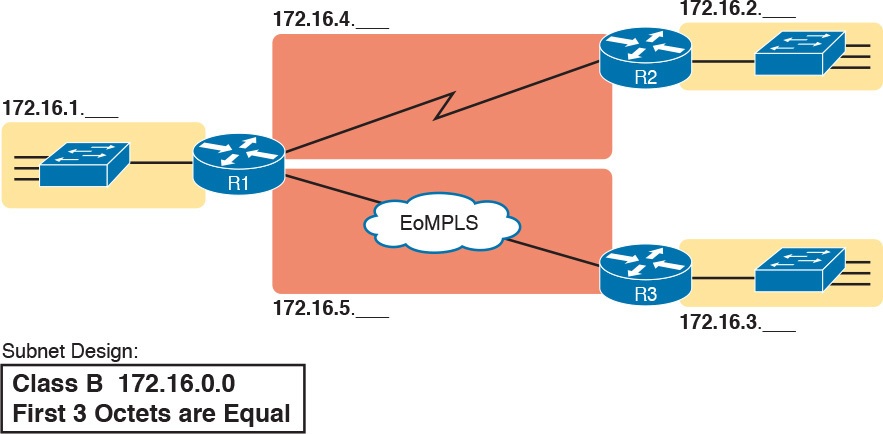
Figure 1: Subnet Plan Document
The design shows five subnets: one for each of the three LANs and one each for the two WAN links. The small text note shows the rationale used by the engineer for the subnets: Each subnet includes addresses that have the same value in the first three octets.
For example, for the LAN on the left, the number shows 172.16.1.__, meaning “all addresses that begin with 172.16.1.”
Also, note that the design, as shown, does not use all the addresses in Class B network 172.16.0.0, so the engineer has left plenty of room for growth.
Operational View Versus Design View of Subnetting
Most IT jobs require you to work with subnetting from an operational view. That is, someone else, before you got the job, designed how IP addressing and subnetting would work for that particular enterprise network. You need to interpret what someone else has already chosen.
To fully understand IP addressing and subnetting, you need to think about subnetting from both a design and operational perspective.
For example, Figure 1 simply states that in all these subnets, the first three octets must be equal. Why was that convention chosen? What alternatives exist? Would those alternatives be better for your internetwork today? All these questions relate more to subnetting design rather than to operation.
The remaining three main sections of this lesson examine each of the steps listed in Figure 2, in sequence.

Figure 2: Subnet Planning, Design, and Implementation Tasks
Analyze Subnetting and Addressing Needs
This section discusses the meaning of four basic questions that can be used to analyze the addressing and subnetting needs for any new or changing enterprise network:
- Which hosts should be grouped together into a subnet?
- How many subnets does this network require?
- How many host IP addresses does each subnet require?
- Will we use a single subnet size for simplicity, or not?
Rules About Which Hosts Are in Which Subnet
Every device that connects to an IP internetwork needs to have an IP address. These devices include computers used by end users, servers, mobile phones, laptops, IP phones, tablets, and networking devices like routers, switches, and firewalls. In short, any device that uses IP to send and receive packets needs an IP address.
NOTE: When discussing IP addressing, the term network has specific meaning: a Class A, B, or C IP network. To avoid confusion with that use of the term network, this lesson uses the terms internetwork and enterprise network when referring to a collection of hosts, routers, switches, and so on.
The IP addresses must be assigned according to some basic rules, and for good reasons. To make routing work efficiently, IP addressing rules group addresses into groups called subnets. The rules are as follows:
- Addresses in the same subnet are not separated by a router.
- Addresses in different subnets are separated by at least one router.
Figure 3 shows the general concept, with hosts A and B in one subnet and host C in another. In particular, note that hosts A and B are not separated from each other by any routers. However, host C, separated from A and B by at least one router, must be in a different subnet.
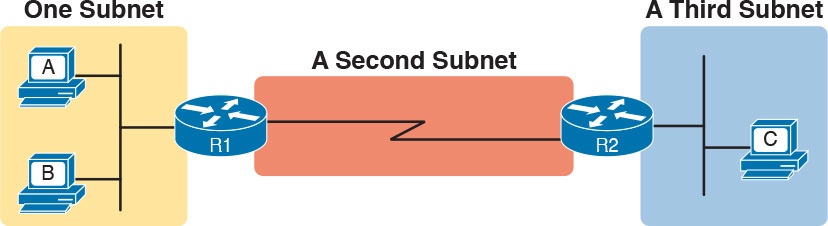
Figure 3: PC A and B in One Subnet, and PC C in a Different Subnet
The idea that hosts on the same link must be in the same subnet is much like the postal/zip code concept. All mailing addresses in the same town use the same postal code.
Addresses in another town, whether relatively nearby or on the other side of the country, have a different postal code. The postal code gives the postal service a better ability to automatically sort the mail to deliver it to the right location. For the same general reasons, hosts on the same LAN are in the same subnet, and hosts in different LANs are in different subnets.
Note that the point-to-point WAN link in the figure also needs a subnet. Figure 3 shows Router R1 connected to the LAN subnet on the left and to a WAN subnet on the right. Router R2 connects to that same WAN subnet. To do so, both R1 and R2 will have IP addresses on their WAN interfaces, and the addresses will be in the same subnet. (An Ethernet over MPLS [EoMPLS] WAN link has the same IP addressing needs, with each of the two routers having an IP address in the same subnet.)
The Ethernet LANs in Figure 3 also show a slightly different style of drawing, using simple lines with no Ethernet switch. Drawings of Ethernet LANs when the details of the LAN switches do not matter simply show each device connected to the same line, as shown in Figure 3. (This kind of drawing mimics the original Ethernet cabling before switches and hubs existed.)
Finally, because the routers’ main job is to forward packets from one subnet to another, routers typically connect to multiple subnets. For example, in this case, Router R1 connects to one LAN subnet on the left and one WAN subnet on the right. To do so, R1 will be configured with two different IP addresses, one per interface. These addresses will be in different subnets, because the interfaces connect the router to different subnets.
Determining the Number of Subnets
To determine the number of subnets required, the engineer must think about the internetwork as documented and count the locations that need a subnet. To do so, the engineer requires access to network diagrams, VLAN configuration details, and details about WAN links. For the types of links discussed in this course, you should plan for one subnet for every:
- VLAN
- Point-to-point serial link
- Ethernet emulation WAN link (EoMPLS)
NOTE: WAN technologies like MPLS allow subnetting options other than one subnet per pair of routers on the WAN, but this course only uses WAN technologies that have one subnet for each point-to-point WAN connection between two routers.
For example, imagine that the network planner has only Figure 4 on which to base the subnet design.
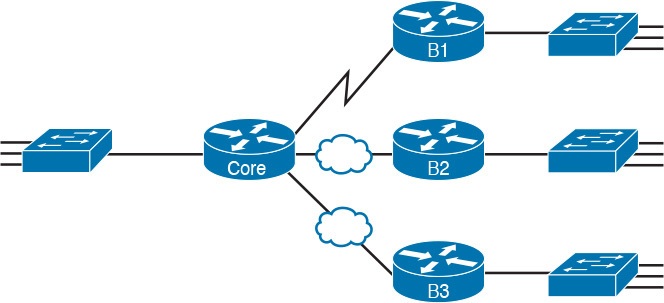
Figure 4: Four-Site Internetwork with Small Central Site
The number of subnets required cannot be fully predicted with only this figure. Certainly, three subnets will be needed for the WAN links, one per link. However, each LAN switch can be configured with a single VLAN, or with multiple VLANs. You can be certain that you need at least one subnet for the LAN at each site, but you might need more.
Next, consider the more detailed version of the same figure shown in Figure 5. In this case, the figure shows VLAN counts in addition to the same Layer 3 topology (the routers and the links connected to the routers). It also shows that the central site has many more switches, but the key fact on the left, regardless of how many switches exist, is that the central site has a total of 12 VLANs. Similarly, the figure lists each branch as having two VLANs. Along with the same three WAN subnets, this internetwork requires 21 subnets.

Figure 5: Four-Site Internetwork with Larger Central SiteFour-Site Internetwork with Larger Central Site
Finally, in a real job, you would consider the needs today as well as how much growth you expect in the internetwork over time. Any subnetting plan should include a reasonable estimate of the number of subnets you need to meet future needs.
Determining the Number of Hosts per Subnet
Determining the number of hosts per subnet requires knowing a few simple concepts and then doing a lot of research and questioning. Every device that connects to a subnet needs an IP address. For a totally new network, you can look at business plans—numbers of people at the site, devices on order, and so on—to get some idea of the possible devices. When expanding an existing network to add new sites, you can use existing sites as a point of comparison, and then find out which sites will get bigger or smaller. And don’t forget to count the router interface IP address in each subnet and the switch IP address used to remotely manage the switch.
Instead of gathering data for each and every site, planners often just use a few typical sites for planning purposes. For example, maybe you have some large sales offices and some small sales offices. You might dig in and learn a lot about only one large sales office and only one small sales office. Add that analysis to the fact that point-to-point links need a subnet with just two addresses, plus any analysis of more one-of-a-kind subnets, and you have enough information to plan the addressing and subnetting design.
For example, in Figure 6, the engineer has built a diagram that shows the number of hosts per LAN subnet in the largest branch, B1. For the two other branches, the engineer did not bother to dig to find out the number of required hosts. As long as the number of required IP addresses at sites B2 and B3 stays below the estimate of 50, based on larger site B1, the engineer can plan for 50 hosts in each branch LAN subnet and have plenty of addresses per subnet.
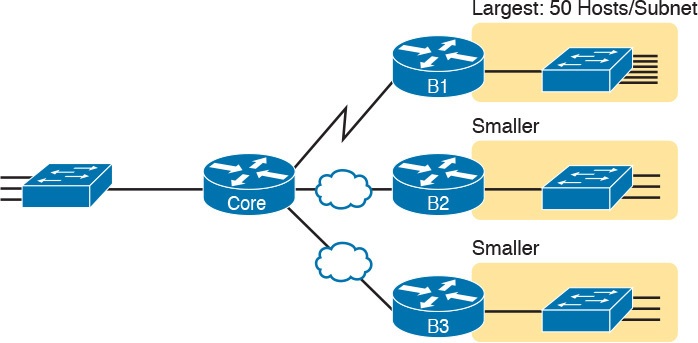
Figure 6: Large Branch B1 with 50 Hosts/Subnet
One Size Subnet Fits All—Or Not
The final choice in the initial planning step is to decide whether you will use a simpler design by using a one-size-subnet-fits-all philosophy. A subnet’s size, or length, is simply the number of usable IP addresses in the subnet. A subnetting design can either use one size subnet, or varied sizes of subnets, with pros and cons for each choice.
Defining the Size of a Subnet
Before you finish this course, you will learn all the details of how to determine the size of the subnet. For now, you just need to know a few specific facts about the size of subnets.
The engineer assigns each subnet a subnet mask, and that mask, among other things, defines the size of that subnet. The mask sets aside a number of host bits whose purpose is to number different host IP addresses in that subnet. Because you can number 2x things with x bits, if the mask defines H host bits, the subnet contains 2H – 2 unique numeric values.
However, the subnet’s size is not 2H. It’s 2H – 2, because two numbers in each subnet are reserved for other purposes. Each subnet reserves the numerically lowest value for the subnet number and the numerically highest value as the subnet broadcast address. As a result, the number of usable IP addresses per subnet is 2H – 2.
NOTE: The terms subnet number, subnet ID, and subnet address all refer to the number that represents or identifies a subnet.
Figure 7 shows the general concept behind the three-part structure of an IP address, focusing on the host part and the resulting subnet size.
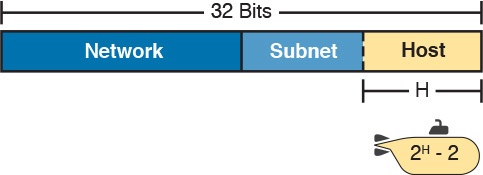
Figure 7: Subnet Size Concepts
One-Size Subnet Fits All
To choose to use a single-size subnet in an enterprise network, you must use the same mask for all subnets, because the mask defines the size of the subnet. But which mask?
One requirement to consider when choosing that one mask is this: That one mask must provide enough host IP addresses to support the largest subnet. To do so, the number of host bits (H) defined by the mask must be large enough so that 2H – 2 is larger than (or equal to) the number of host IP addresses required in the largest subnet.
For example, consider Figure 8. It shows the required number of hosts per LAN subnet. (The figure ignores the subnets on the WAN links, which require only two IP addresses each.) The branch LAN subnets require only 50 host addresses, but the main site LAN subnet requires 200 host addresses. To accommodate the largest subnet, you need at least 8 host bits. Seven host bits would not be enough, because 27 – 2 = 126. Eight host bits would be enough, because 28 – 2 = 254, which is more than enough to support 200 hosts in a subnet.
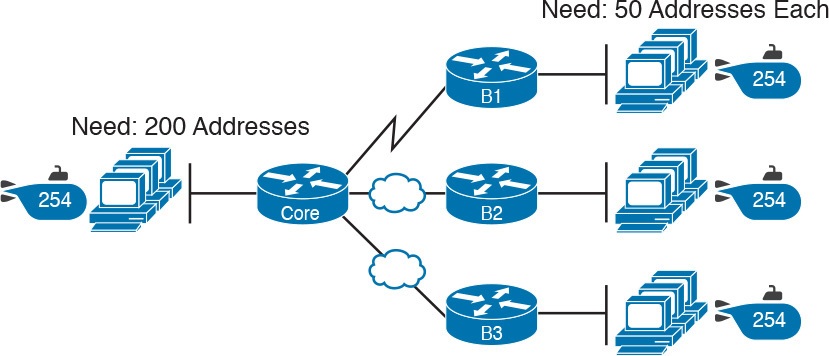
Figure 8: Network Using One Subnet Size
What’s the big advantage when using a single-size subnet? Operational simplicity. In other words, keeping it simple. Everyone on the IT staff who has to work with networking can get used to working with one mask—and one mask only. They will be able to answer all subnetting questions more easily, because everyone gets used to doing subnetting math with that one mask.
The big disadvantage for using a single-size subnet is that it wastes IP addresses. For example, in Figure 8, all the branch LAN subnets support 254 addresses, while the largest branch subnet needs only 50 addresses. The WAN subnets only need two IP addresses, but each supports 254 addresses, again wasting more IP addresses.
The wasted IP addresses do not actually cause a problem in most cases, however. Most organizations use private IP networks in their enterprise internetworks, and a single Class A or Class B private network can supply plenty of IP addresses, even with the waste.
Multiple Subnet Sizes (Variable-Length Subnet Masks)
To create multiple sizes of subnets in one Class A, B, or C network, the engineer must create some subnets using one mask, some with another, and so on. Different masks mean different numbers of host bits, and a different number of hosts in some subnets based on the 2H – 2 formula.
For example, consider the requirements listed earlier in Figure 8. It showed one LAN subnet on the left that needs 200 host addresses, three branch subnets that need 50 addresses, and three WAN links that need two addresses. To meet those needs, but waste fewer IP addresses, three subnet masks could be used, creating subnets of three different sizes, as shown in Figure 9.
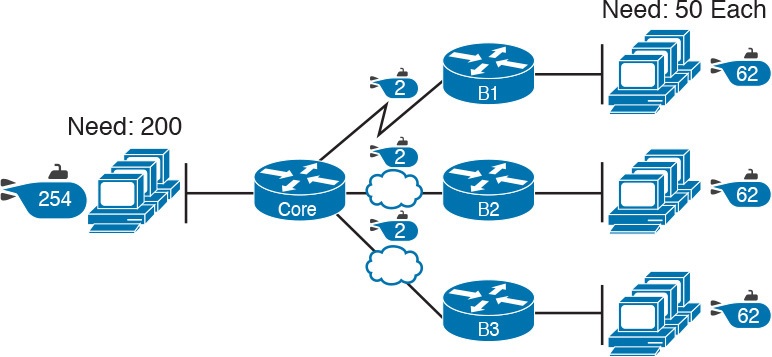
Figure 9: Three Masks, Three Subnet Sizes
The smaller subnets now waste fewer IP addresses compared to the design shown earlier in Figure 8. The subnets on the right that need 50 IP addresses have subnets with 6 host bits, for 26 – 2 = 62 available addresses per subnet. The WAN links use masks with 2 host bits, for 22 – 2 = 2 available addresses per subnet.
However, some are still wasted, because you cannot set the size of the subnet as some arbitrary size. All subnets will be a size based on the 2H – 2 formula, with H being the number of host bits defined by the mask for each subnet.
One-Size Subnet Fits All (Mostly)
For the most part, this course explains subnetting using designs that use a single mask, creating a single subnet size for all subnets. Why? First, it makes the process of learning subnetting easier. Second, some types of analysis that you can do about a network—specifically, calculating the number of subnets in the classful network—only make sense when a single mask is used.
However, you still need to be ready to work with variable-length subnet masks (VLSM), which is the practice of using different masks for different subnets in the same classful IP network. However, all the examples and discussion up until that lesson purposefully avoid VLSM just to keep the discussion simpler, for the sake of learning to walk before you run.
Make Design Choices
Now that you know how to analyze the IP addressing and subnetting needs, the next major step examines how to apply the rules of IP addressing and subnetting to those needs and make some choices. In other words, now that you know how many subnets you need and how many host addresses you need in the largest subnet, how do you create a useful subnetting design that meets those requirements? The short answer is that you need to do the three tasks shown on the right side of Figure 10.
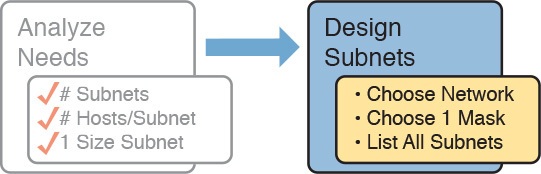
Figure 10: Input to the Design Phase, and Design Questions to Answer
Choose a Classful Network
In the original design for what we know of today as the Internet, companies used registered public classful IP networks when implementing TCP/IP inside the company. By the mid- 1990s, an alternative became more popular: private IP networks. This section discusses the background behind these two choices, because it impacts the choice of what IP network a company will then subnet and implement in its enterprise internetwork.
Public IP Networks
The original design of the Internet required that any company that connected to the Internet had to use a registered public IP network. To do so, the company would complete some paperwork, describing the enterprise’s internetwork and the number of hosts existing, plus plans for growth. After submitting the paperwork, the company would receive an assignment of either a Class A, B, or C network.
Public IP networks, and the administrative processes surrounding them, ensure that all the companies that connect to the Internet all use unique IP addresses. In particular, after a public IP network is assigned to a company, only that company should use the addresses in that network. That guarantee of uniqueness means that Internet routing can work well, because there are no duplicate public IP addresses.
For example, consider the example shown in Figure 11. Company 1 has been assigned public Class A network 1.0.0.0, and company 2 has been assigned public Class A network 2.0.0.0. Per the original intent for public addressing in the Internet, after these public network assignments have been made, no other companies can use addresses in Class A networks 1.0.0.0 or 2.0.0.0.
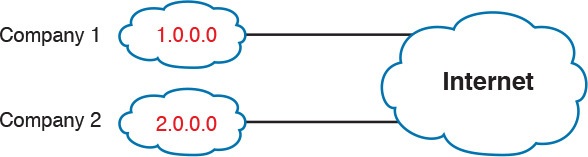
Figure 11: Two Companies with Unique Public IP Networks
This original address assignment process ensured unique IP addresses across the entire planet. The idea is much like the fact that your telephone number should be unique in the universe, your postal mailing address should also be unique, and your email address should also be unique. If someone calls you, your phone rings, but no one else’s phone rings. Similarly, if company 1 is assigned Class A network 1.0.0.0, and it assigns address 1.1.1.1 to a particular PC, that address should be unique in the universe. A packet sent through the Internet to destination 1.1.1.1 should only arrive at this one PC inside company 1, instead of being delivered to some other host.
Growth Exhausts the Public IP Address Space
By the early 1990s, the world was running out of public IP networks that could be assigned. During most of the 1990s, the number of hosts newly connected to the Internet was growing at a double-digit pace, per month. Companies kept following the rules, asking for public IP networks, and it was clear that the current address-assignment scheme could not continue without some changes. Simply put, the number of Class A, B, and C networks supported by the 32-bit address in IP version 4 (IPv4) was not enough to support one public classful network per organization, while also providing enough IP addresses in each company.
NOTE: The universe has run out of public IPv4 addresses in a couple of significant ways. IANA, which assigns public IPv4 address blocks to the five Regional Internet Registries (RIR) around the globe, assigned the last of the IPv4 address space in early 2011. By 2015, ARIN, the RIR for North America, exhausted its supply of IPv4 addresses, so that companies must return unused public IPv4 addresses to ARIN before they have more to assign to new companies. Try an online search for “ARIN depletion” to see pages about the current status of available IPv4 address space for just one RIR example.
The Internet community worked hard during the 1990s to solve this problem, coming up with several solutions, including the following:
- A new version of IP (IPv6), with much larger addresses (128 bit)
- Assigning a subset of a public IP network to each company, instead of an entire public IP network, to reduce waste
- Network Address Translation (NAT), which allows the use of private IP networks
These three solutions matter to real networks today. However, to stay focused on the topic of subnet design, this lesson focuses on the third option, and in particular, the private IP networks that can be used by an enterprise when also using NAT.
Focusing on the third item in the bullet list, NAT allows multiple companies to use the exact same private IP network, using the same IP addresses as other companies while still connecting to the Internet. For example, Figure 12 shows the same two companies connecting to the Internet as in Figure 11, but now with both using the same private Class A network 10.0.0.0.
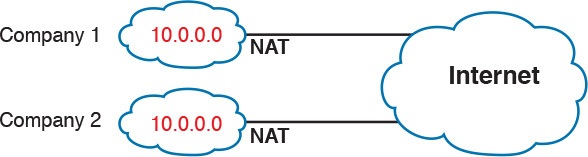
Figure 12: Reusing the Same Private Network 10.0.0.0 with NAT
Both companies use the same classful IP network (10.0.0.0). Both companies can implement their subnet design internal to their respective enterprise internetworks, without discussing their plans. The two companies can even use the exact same IP addresses inside network 10.0.0.0. And amazingly, at the same time, both companies can even communicate with each other through the Internet.
The technology called Network Address Translation makes it possible for companies to reuse the same IP networks, as shown in Figure 12. NAT does this by translating the IP addresses inside the packets as they go from the enterprise to the Internet, using a small number of public IP addresses to support tens of thousands of private IP addresses. For now, accept that most companies use NAT, and therefore, they can use private IP networks for their internetworks.
Private IP Networks
Request For Comments (RFC) 1918 defines the set of private IP networks, as listed in Table 1. By definition, these private IP networks
- Will never be assigned to an organization as a public IP network
- Can be used by organizations that will use NAT when sending packets into the Internet
- Can also be used by organizations that never need to send packets into the Internet
So, when using NAT—and almost every organization that connects to the Internet uses NAT—the company can simply pick one or more of the private IP networks from the list of reserved private IP network numbers. RFC 1918 defines the list, which is summarized in Table 1.

Table 1: RFC 1918 Private Address Space
NOTE: According to an informal survey I ran on my blog a few years back, about half of the respondents said that their networks use private Class A network 10.0.0.0, as opposed to other private networks or public networks.
Choosing an IP Network During the Design Phase
Today, some organizations use private IP networks along with NAT, and some use public IP networks. Most new enterprise internetworks use private IP addresses throughout the network, along with NAT, as part of the connection to the Internet. Those organizations that already have registered public IP networks—often obtained before the addresses started running short in the early 1990s—can continue to use those public addresses throughout their enterprise networks.
After the choice to use a private IP network has been made, just pick one that has enough IP addresses. You can have a small internetwork and still choose to use private Class A network 10.0.0.0. It might seem wasteful to choose a Class A network that has over 16 million IP addresses, especially if you only need a few hundred. However, there’s no penalty or problem with using a private network that is too large for your current or future needs.
For the purposes of this course, most examples use private IP network numbers. For the design step to choose a network number, just choose a private Class A, B, or C network from the list of RFC 1918 private networks.
Regardless, from a math and concept perspective, the methods to subnet a public IP network versus a private IP network are the same.
Choose the Mask
If a design engineer followed the topics in this lesson so far, in order, he would know the following:
- The number of subnets required
- The number of hosts/subnet required
- That a choice was made to use only one mask for all subnets, so that all subnets are the same size (same number of hosts/subnet)
- The classful IP network number that will be subnetted
This section completes the design process, at least the parts described in this lesson, by discussing how to choose that one mask to use for all subnets. First, this section examines default masks, used when a network is not subnetted, as a point of comparison. Next, the concept of borrowing host bits to create subnet bits is explored. Finally, this section ends with an example of how to create a subnet mask based on the analysis of the requirements.
Classful IP Networks Before Subnetting
Before an engineer subnets a classful network, the network is a single group of addresses. In other words, the engineer has not yet subdivided the network into many smaller subsets called subnets.
When thinking about an unsubnetted classful network, the addresses in a network have only two parts: the network part and host part. Comparing any two addresses in the classful network:
The addresses have the same value in the network part.
The addresses have different values in the host part.
The actual sizes of the network and host part of the addresses in a network can be easily predicted, as shown in Figure 13.
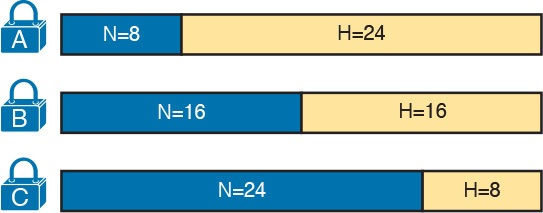
Figure 13: Format of Unsubnetted Class A, B, and C Networks
In Figure 13, N and H represent the number of network and host bits, respectively. Class rules define the number of network octets (1, 2, or 3) for Classes A, B, and C, respectively; the figure shows these values as a number of bits. The number of host octets is 3, 2, or 1, respectively.
Continuing the analysis of classful network before subnetting, the number of addresses in one classful IP network can be calculated with the same 2H – 2 formula previously discussed. In particular, the size of an unsubnetted Class A, B, or C network is as follows:
- Class A: 224 – 2 = 16,777,214
- Class B: 216 – 2 = 65,534
- Class C: 28 – 2 = 254
Borrowing Host Bits to Create Subnet Bits
To subnet a network, the designer thinks about the network and host parts, as shown in Figure 13, and then the engineer adds a third part in the middle: the subnet part. However, the designer cannot change the size of the network part or the size of the entire address (32 bits). To create a subnet part of the address structure, the engineer borrows bits from the host part. Figure 14 shows the general idea.
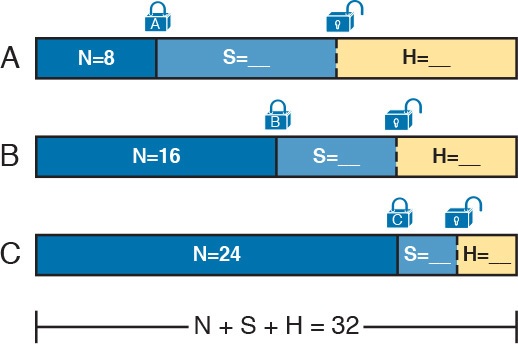
Figure 14: Concept of Borrowing Host Bits
Figure 14 shows a rectangle that represents the subnet mask. N, representing the number of network bits, remains locked at 8, 16, or 24, depending on the class. Conceptually, the designer moves a (dashed) dividing line into the host field, with subnet bits (S) between the network and host parts, and the remaining host bits (H) on the right. The three parts must add up to 32, because IPv4 addresses consist of 32 bits.
Choosing Enough Subnet and Host Bits
The design process requires a choice of where to place the dashed line shown in Figure 14. But what is the right choice? How many subnet and host bits should the designer choose? The answers hinge on the requirements gathered in the early stages of the planning process:
- Number of subnets required
- Number of hosts/subnet
The bits in the subnet part create a way to uniquely number the different subnets that the design engineer wants to create. With 1 subnet bit, you can number 21 or 2 subnets. With 2 bits, 22 or 4 subnets, with 3 bits, 23 or 8 subnets, and so on. The number of subnet bits must be large enough to uniquely number all the subnets, as determined during the planning process.
At the same time, the remaining number of host bits must also be large enough to number the host IP addresses in the largest subnet. Remember, in this lesson, we assume the use of a single mask for all subnets. This single mask must support both the required number of subnets and the required number of hosts in the largest subnet. Figure 15 shows the concept.
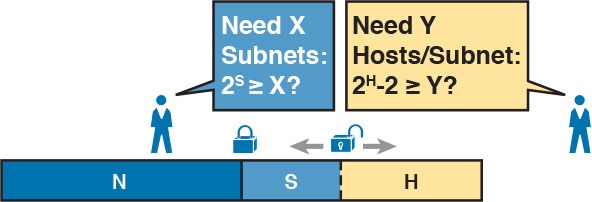
Figure 15: Borrowing Enough Subnet and Host Bits
Figure 15 shows the idea of the designer choosing a number of subnet (S) and host (H) bits and then checking the math. 2S must be more than the number of required subnets, or the mask will not supply enough subnets in this IP network. Also, 2H – 2 must be more than the required number of hosts/subnet.
NOTE: The idea of calculating the number of subnets as 2S applies only in cases where a single mask is used for all subnets of a single classful network, as is being assumed in this lesson.
To effectively design masks, or to interpret masks that were chosen by someone else, you need a good working memory of the powers of 2. Use Numeric Reference Tables for your reference.
Example Design: 172.16.0.0, 200 Subnets, 200 Hosts
To help make sense of the theoretical discussion so far, consider an example that focuses on the design choice for the subnet mask. In this case, the planning and design choices so far tell us the following
- Use a single mask for all subnets.
- Plan for 200 subnets.
- Plan for 200 host IP addresses per subnet.
- Use private Class B network 172.16.0.0.
To choose the mask, the designer asks this question:
How many subnet (S) bits do I need to number 200 subnets?
From Table 2, you can see that S = 7 is not large enough (27 = 128), but S = 8 is enough (28 = 256). So, you need at least 8 subnet bits.
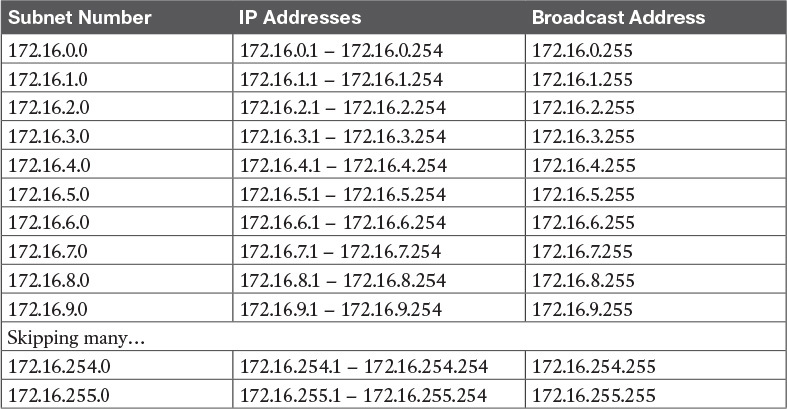
Table 2: First Ten Subnets, Plus the Last Few, from 172.16.0.0, 255.255.255.0
Next, the designer asks a similar question, based on the number of hosts per subnet:
How many host (H) bits do I need to number 200 hosts per subnet?
The math is basically the same, but the formula subtracts 2 when counting the number of hosts/subnet. From Table 2, you can see that H = 7 is not large enough (27 – 2 = 126), but H = 8 is enough (28 – 2 = 254).
Only one possible mask meets all the requirements in this case. First, the number of network bits (N) must be 16, because the design uses a Class B network. The requirements tell us that the mask needs at least 8 subnet bits, and at least 8 host bits. The mask only has 32 bits in it; Figure 16 shows the resulting mask.
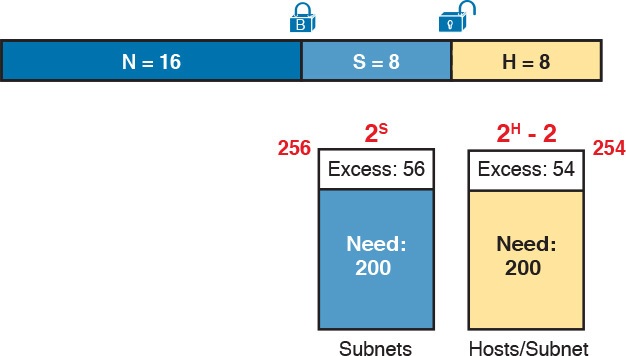
Figure 16: Example Mask Choice, N = 16, S = 8, H = 8
Masks and Mask Formats
Although engineers think about IP addresses in three parts when making design choices (network, subnet, and host), the subnet mask gives the engineer a way to communicate those design choices to all the devices in the subnet.
The subnet mask is a 32-bit binary number with a number of binary 1s on the left and with binary 0s on the right. By definition, the number of binary 0s equals the number of host bits; in fact, that is exactly how the mask communicates the idea of the size of the host part of the addresses in a subnet. The beginning bits in the mask equal binary 1, with those bit positions representing the combined network and subnet parts of the addresses in the subnet.
Because the network part always comes first, then the subnet part, and then the host part, the subnet mask, in binary form, cannot have interleaved 1s and 0s. Each subnet mask has one unbroken string of binary 1s on the left, with the rest of the bits as binary 0s.
After the engineer chooses the classful network and the number of subnet and host bits in a subnet, creating the binary subnet mask is easy. Just write down N 1s, S 1s, and then H 0s (assuming that N, S, and H represent the number of network, subnet, and host bits). Figure 17 shows the mask based on the previous example, which subnets a Class B network by creating 8 subnet bits, leaving 8 host bits.

Figure 17: Creating the Subnet Mask—Binary—Class B Network
In addition to the binary mask shown in Figure 17, masks can also be written in two other formats: the familiar dotted-decimal notation (DDN) seen in IP addresses and an even briefer prefix notation.
Build a List of All Subnets
This final task of the subnet design step determines the actual subnets that can be used, based on all the earlier choices. The earlier design work determined the Class A, B, or C network to use, and the (one) subnet mask to use that supplies enough subnets and enough host IP addresses per subnet. But what are those subnets? How do you identify or describe a subnet? This section answers these questions.
A subnet consists of a group of consecutive numbers. Most of these numbers can be used as IP addresses by hosts. However, each subnet reserves the first and last numbers in the group, and these two numbers cannot be used as IP addresses. In particular, each subnet contains the following:
Subnet number: Also called the subnet ID or subnet address, this number identifies the subnet. It is the numerically smallest number in the subnet. It cannot be used as an IP address by a host.
Subnet broadcast: Also called the subnet broadcast address or directed broadcast address, this is the last (numerically highest) number in the subnet. It also cannot be used as an IP address by a host.
IP addresses: All the numbers between the subnet ID and the subnet broadcast address can be used as a host IP address.
For example, consider the earlier case in which the design results were as follows:
- Network 172.16.0.0 (Class B)
- Mask 255.255.255.0 (for all subnets)
With some math, the facts about each subnet that exists in this Class B network can be calculated. In this case, Table 2 shows the first ten such subnets. It then skips many subnets and shows the last two (numerically largest) subnets.
After you have the network number and the mask, calculating the subnet IDs and other details for all subnets requires some math. In real life, most people use subnet calculators or subnet-planning tools.
Plan the Implementation
The next step, planning the implementation, is the last step before actually configuring the devices to create a subnet. The engineer first needs to choose where to use each subnet. For example, at a branch office in a particular city, which subnet from the subnet planning chart (Table 2) should be used for each VLAN at that site? Also, for any interfaces that require static IP addresses, which addresses should be used in each case? Finally, what range of IP addresses from inside each subnet should be configured in the DHCP server, to be dynamically leased to hosts for use as their IP address? Figure 18 summarizes the list of implementation planning tasks.

Figure 18: Facts Supplied to the Plan Implementation Step
Assigning Subnets to Different Locations
The job is simple: Look at your network diagram, identify each location that needs a subnet, and pick one from the table you made of all the possible subnets. Then, track it so that you know which ones you use where, using a spreadsheet or some other purpose-built subnet-planning tool. That’s it! Figure 19 shows a sample of a completed design using Table 2, which happens to match the initial design sample shown way back in Figure 1.
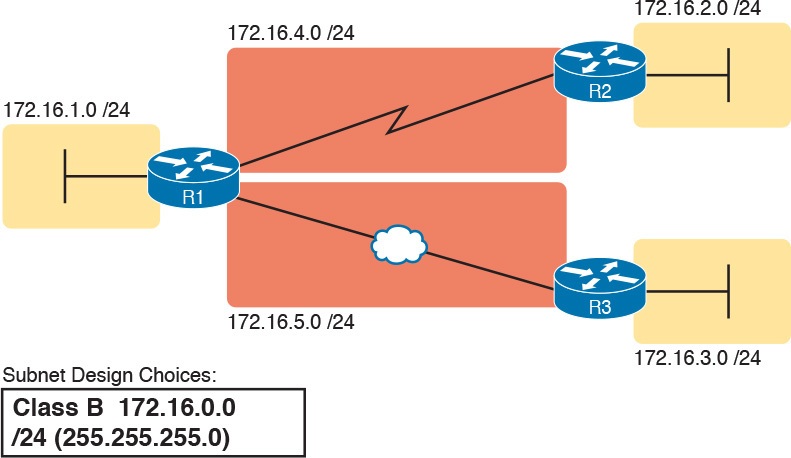
Figure 19: Example of Subnets Assigned to Different Locations
Although this design could have used any five subnets from Table 2, in real networks, engineers usually give more thought to some strategy for assigning subnets. For example, you might assign all LAN subnets lower numbers and WAN subnets higher numbers. Or you might slice off large ranges of subnets for different divisions of the company. Or you might follow that same strategy, but ignore organizational divisions in the company, paying more attention to geographies.
For example, for a U.S.-based company with a smaller presence in both Europe and Asia, you might plan to reserve ranges of subnets based on continent. This kind of choice is particularly useful when later trying to use a feature called route summarization.
Figure 20 shows the general benefit of placing addressing in the network for easier route summarization, using the same subnets from Table 2 again.
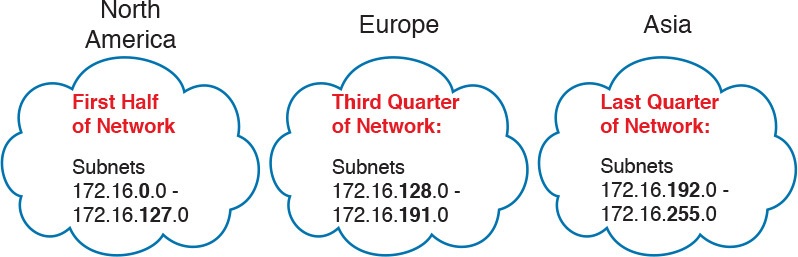
Figure 20: Reserving 50 Percent of Subnets for North America and 25 Percent Each for Europe and Asia
Choose Static and Dynamic Ranges per Subnet
Devices receive their IP address and mask assignment in one of two ways: dynamically by using Dynamic Host Configuration Protocol (DHCP) or statically through configuration. For DHCP to work, the network engineer must tell the DHCP server the subnets for which it must assign IP addresses. In addition, that configuration limits the DHCP server to only a subset of the addresses in the subnet. For static addresses, you simply configure the device to tell it what IP address and mask to use.
To keep things as simple as possible, most shops use a strategy to separate the static IP addresses on one end of each subnet, and the DHCP-assigned dynamic addresses on the other. It does not really matter whether the static addresses sit on the low end of the range of addresses or the high end.
For example, imagine that the engineer decides that, for the LAN subnets in Figure 19, the DHCP pool comes from the high end of the range, namely, addresses that end in .101 through .254. (The address that ends in .255 is, of course, reserved.) The engineer also assigns static addresses from the lower end, with addresses ending in .1 through .100. Figure 21 shows the idea.
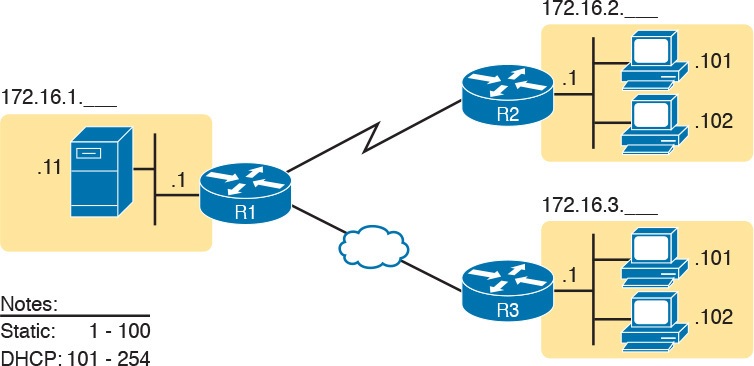
Figure 21: Static from the Low End and DHCP from the High End
Figure 21 shows all three routers with statically assigned IP addresses that end in .1. The only other static IP address in the figure is assigned to the server on the left, with address 172.16.1.11 (abbreviated simply as .11 in the figure).
On the right, each LAN has two PCs that use DHCP to dynamically lease their IP addresses. DHCP servers often begin by leasing the addresses at the bottom of the range of addresses, so in each LAN, the hosts have leased addresses that end in .101 and .102, which are at the low end of the range chosen by design.

Troubleshooting Ethernet LANs
INTERNOLD NETWORKS CCNA LIVE WEBCLASS (INCLW)
Troubleshooting Ethernet LANs
Contents
Troubleshooting Ethernet LANs
This lesson focuses on the processes of verification and troubleshooting.
Verification refers to the process of confirming whether a network is working as designed.
Troubleshooting refers to the follow-on process that occurs when the network is not working as designed, by trying to determine the real reason why the network is not working correctly, so that it can be fixed.
Sometimes, when people take their first Cisco exam, they are surprised at the number of verification and troubleshooting questions. Each of these questions requires you to apply networking knowledge to unique problems, rather than just being ready to answer questions about lists of facts that you’ve memorized. You need to have skills beyond simply remembering a lot of facts.
This lesson discusses a wide number of topics.
- Analyzing switch interfaces and cabling
- Predicting where switches will forward frames
- Troubleshooting port security
- Analyzing VLANs and VLAN trunks
Perspectives on Applying Troubleshooting Methodologies
This first section of the lesson takes a brief diversion for one particular big idea: what troubleshooting processes could be used to resolve networking problems? Most CCNA Routing and Switching exam topics list the word “troubleshoot” along with some technology, mostly with some feature that you configure on a switch or router. One exam topic makes mention of the troubleshooting process. This first section examines the troubleshooting process as an end to itself.
The first important perspective on the troubleshooting process is this: you can troubleshoot using any process or method that you want. However, all good methods have the same characteristics that result in faster resolution of the problem, and a better chance of avoiding that same problem in the future.
The one exam topic that mentions troubleshooting methods uses some pretty common terminology found in troubleshooting methods both inside IT and in other industries as well.
The ideas make good common sense. From the exam topics:
- Step 1. Problem isolation and documentation: Problem isolation refers to the process of taking what you know about a possible issue, confirming that there is a problem, and determining which devices and cables could be part of the problem, and which ones are not part of the problem. This step also works best when the person troubleshooting the problem documents what they find, typically in a problem tracking system.
- Step 2. Resolve or escalate: Problem isolation should eventually uncover the root cause of the problem—that is, the cause which, if fixed, will resolve the problem. In short, resolving the problem means finding the root cause of the problem and fixing that problem. Of course, what do you do if you cannot find the root cause, or fix (resolve) that root cause once found? Escalate the problem. Most companies have a defined escalation process, with different levels of technical support and management support depending on whether the next step requires more technical expertise or management decision making.
- Step 3. Verify or monitor: You hear of a problem, you isolate the problem, document it, determine a possible root cause, and you try to resolve it. Now you need to verify that it really worked. In some cases, that may mean that you just do a few show commands. In other cases, you may need to keep an eye on it over a period of time, especially when you do not know what caused the root problem in the first place.
Like most real-life processes, the real troubleshooting process is seldom as neat as the three troubleshooting steps listed here.
You move between them, you attempt to resolve the problem, it may or may not work, you work through the process over and over, get help from the escalation team as needed, and so on. But following these kinds of steps can help you resolve problems more consistently, more quickly, especially when the team must get involved in troubleshooting a problem
Troubleshooting on the Exams
The exams ask you questions that not only assess your knowledge, but they assess your troubleshooting skills. To do that, the exam does not require you to follow any particular troubleshooting methods.
On the exam, you should focus on isolating the root cause of the problem, after which you will either (a) fix the problem or (b) answer a multichoice question about the symptoms and the root cause of the problem.
The exam uses two question types as the primary means to test troubleshooting skills. Sim questions begin with a broken configuration; your job is to find the configuration problem, and answer the question by fixing or completing the configuration. These are straightforward configuration troubleshooting questions, and you can recognize them on the exam when the exam tells you to answer the question by changing the configuration.
Simlet questions also give you a simulator where you access the command-line interface (CLI).
However, instead of changing the configuration, these questions require you to verify the current operation of the network and then answer multichoice questions about the current operation. These questions make you do the same kinds of commands you would use when doing problem isolation and documentation, and then assess what you found by asking you several multichoice questions.
At some point, whether you stop now or sometime when you have 10 to 15 spare minutes, take the time to search Cisco.com for “exam tutorial.” Cisco’s exam tutorial shows all the question types, including Sim and Simlet types, and you can take over the user interface to get a better sense for how to navigate in the same user interface you will see on exam day.
A Deeper Look at Problem Isolation
On the exam, you may do 5–10 show commands in a Simlet question before finding all the answers to all the multichoice questions within that one Simlet question. So it sometimes helps to go through problem isolation like what you would do in a real network.
In some questions, it may be obvious that the problem will be something to do with the switches or VLANs, but in others, you may have to do extra problem isolation work to even determine whether the problem is a WAN or LAN or routing problem, and which part of the network has the problem.
For example, consider the following problem based on the network in Figure 1. PC1 and PC2 supposedly sit in the same VLAN (10). At one time, the ping 10.1.1.2 command on PC1 worked; now it does not.
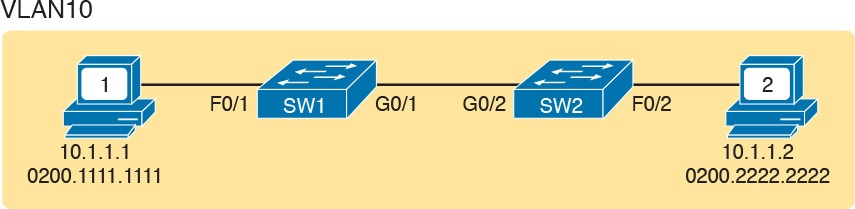
Figure 1: Network with a Ping Problem
NOTE: Ping command sends messages (inside IPv4 packets) that flow from one device to the other, and back, to test whether the IP network can deliver packets in both directions.
So, how do you attack this problem? If you doubt whether the figure is even correct, you could look at show command output to confirm the network topology. After it is confirmed, you could predict its normal working behavior based on your knowledge of LAN switching.
As a result, you could predict where a frame sent by PC1 to PC2 should flow. To isolate the problem, you could look in the switch MAC tables to confirm the interfaces out which the frame should be forwarded, possibly then finding that the interface connected to PC2 has failed.
This first problem showed a relatively small network, with only two networking devices (two Layer 2 switches). As a result, you would probably guess that the exam question focused on either interface issues or VLAN issues.
Other Simlet questions might instead begin with a larger network, but they might still require you to do problem isolation about the Ethernet topics. However, that problem isolation might need to start with Layer 3, just to decide where to begin looking for other problems.
For example, the user of PC1 in Figure 2 can usually connect to the web server on the right by entering www.example.com in PC1’s web browser. However, that web-browsing attempt fails right now. The user calls the help desk, and the problem is assigned to a network engineer to solve.
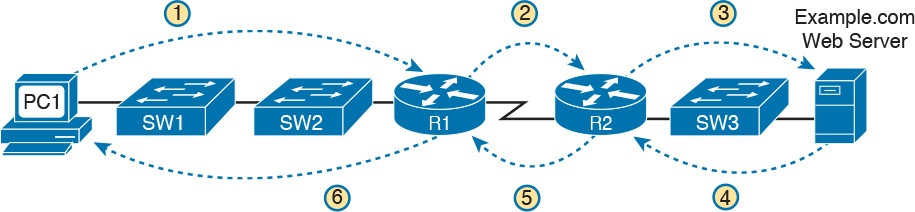
Figure 2: Layer 3 Problem Isolation
To begin the analysis, the network engineer can begin with the first tasks that would have to happen for a successful web-browsing session to occur.
For example, the engineer would try to confirm that PC1 can resolve the hostname (www.example.com) to the correct IP address used by the server on the right. At that point, the Layer 3 IP problem isolation process can proceed, to determine which of the six routing steps shown in the figure has failed.
The routing steps shown in Figure 2 are as follows:
- Step 1. PC1 sends the packet to its default gateway (R1) because the destination IP address (of the web server) is in a different subnet.
- Step 2. R1 forwards the packet to R2 based on R1’s routing table.
- Step 3. R2 forwards the packet to the web server based on R2’s routing table.
- Step 4. The web server sends a packet back toward PC1 based on the web server’s default gateway setting (R2).
- Step 5. R2 forwards the packet destined for PC1 by forwarding the packet to R1 according to R2’s routing table.
- Step 6. R1 forwards the packet to PC1 based on R1’s routing table.
Many engineers break down network problems as in this list, analyzing the Layer 3 path through the network, hop by hop, in both directions. This process helps you take the first attempt at problem isolation.
When the analysis shows which hop in the layer path fails, you can then look further at those details. And if in this case the Layer 3 problem isolation process discovers that Step 1, 3, 4, or 6 fails, the root cause might be related to Ethernet or other Layer 2 issues.
For example, imagine that the Layer 3 analysis determined that PC1 cannot even send a packet to its default gateway (R1), meaning that Step 1 in Figure 2 fails. To further isolate the problem and find the root causes, the engineer would need to determine the following:
- The MAC address of PC1 and of R1’s LAN interface
- The switch interfaces used on SW1 and SW2
- The interface status of each switch interface
- The VLANs that should be used
- The expected forwarding behavior of a frame sent by PC1 to R1 as the destination MAC address
By gathering and analyzing these facts, the engineer can most likely isolate the problem’s root cause and fix it.
Analyzing Switch Interface Status and Statistics
This section makes the transition from the process focus of the previous section to the first of four technology-focused sections of this lesson. That process begins with finding out whether each switch interface works, and if working, whether any statistics reveal any additional problems.
Unsurprisingly, Cisco switches do not use interfaces at all unless the interface is first considered to be in a functional or working state. In addition, the switch interface might be in a working state, but intermittent problems might still be occurring.
This section begins by looking at the Cisco switch interface status codes and what they mean so that you can know whether an interface is working. The rest of this section then looks at those more unusual cases in which the interface is working, but not working well, as revealed by different interface status codes and statistics.
Interface Status Codes and Reasons for Nonworking States
Cisco switches actually use two different sets of interface status codes—one set of two codes (words) that use the same conventions as do router interface status codes, and another set with a single code (word). Both sets of status codes can determine whether an interface is working.
The switch show interfaces and show interfaces description commands list the two-code status named the line status and protocol status. The line status generally refers to whether Layer 1 is working, with protocol status generally referring to whether Layer 2 is working.
NOTE: This section refers to these two status codes in shorthand by just listing the two codes with a slash between them, such as up/up.
The single-code interface status corresponds to different combinations of the traditional two-code interface status codes and can be easily correlated to those codes.
For example, the show interfaces status command lists a connected state for working interfaces, with the same meaning as the up/up state seen with the show interfaces and show interfaces description commands.
Table 1 lists the code combinations and some root causes that could have caused a particular interface status.
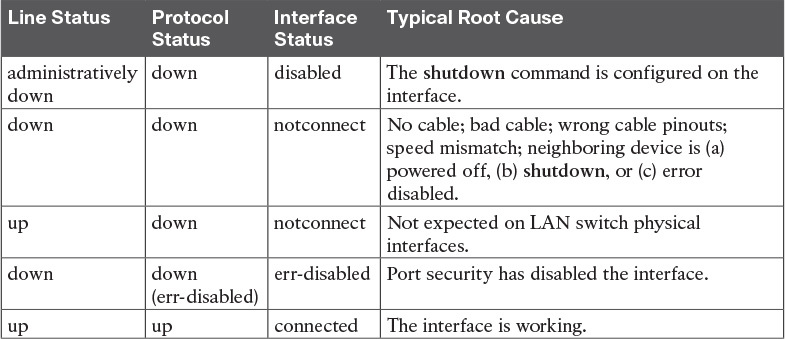
Table 1: LAN Switch Interface Status Codes
Examining the notconnect state for a moment, note that this state has many causes that have been mentioned through this section.
As you can see in the table, having a bad cable is just one of many reasons for the down/down state (or notconnect, per the show interfaces status command).
Some examples of the root causes of cabling problems include the following:
- The installation of any equipment that uses electricity, even non-IT equipment, can interfere with the transmission on the cabling, and make the link fail.
- The cable could be damaged, for example, if it lies under carpet. If the user’s chair keeps squashing the cable, eventually the electrical signal can degrade.
- Although optical cables do not suffer from electromagnetic interference (EMI), someone can try to be helpful and move a fiber-optic cable out of the way—bending it too much. A bend into too tight a shape can prevent the cable from transmitting bits (called macrobending).
For the other interface states listed in Table 1, only the up/up (connected) state needs more discussion. An interface can be in a working state, and it might really be working—or it might be working in a degraded state.
The next few topics discuss how to examine an up/up (connected) interface to find out whether it is working well or having problems.
Interface Speed and Duplex Issues
Many unshielded twisted-pair (UTP)-based Ethernet interfaces support multiple speeds, either full or half duplex, and support IEEE standard autonegotiation.
These same interfaces can also be configured to use a specific speed using the speed {10 | 100 | 1000} interface subcommand, and a specific duplex using the duplex {half | full} interface subcommand.
With both configured, a switch or router disables the IEEE-standard autonegotiation process on that interface.
The show interfaces and show interfaces status commands list both the actual speed and duplex settings on an interface, as demonstrated in Example 1.
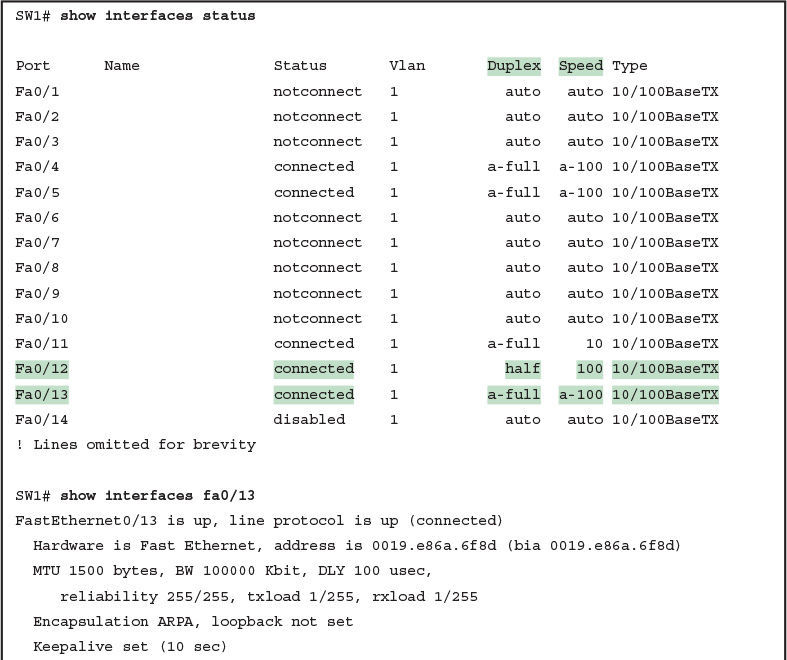
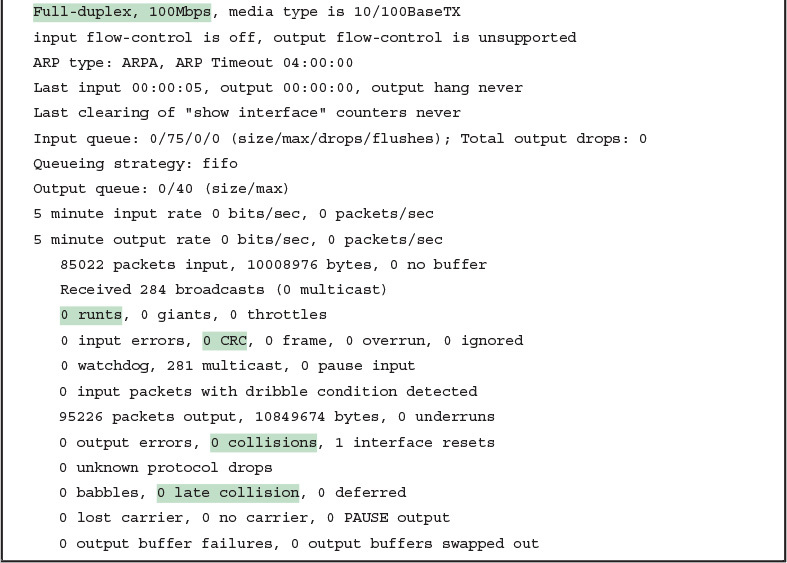
Example 1: Displaying Speed and Duplex Settings on Switch Interfaces
Although both commands in the example can be useful, only the show interfaces status command implies how the switch determined the speed and duplex settings. The command output lists autonegotiated settings with a prefix of a-.
For example, a-full means full duplex as autonegotiated, whereas full means full duplex but as manually configured. The example shades the command output that implies that the switch’s Fa0/12 interface’s speed and duplex were not found through autonegotiation, but Fa0/13 did use autonegotiation.
Note that the show interfaces fa0/13 command (without the status option) simply lists the speed and duplex for interface Fast Ethernet 0/13, with nothing implying that the values were learned through autonegotiation.
When the IEEE autonegotiation process works on both devices, both devices agree to the fastest speed supported by both devices. In addition, the devices use full duplex if it is supported by both devices, or half duplex if it is not. However, when one device has disabled autonegotiation, and the other device uses autonegotiation, the device using autonegotiation chooses the default duplex setting based on the current speed.
The defaults are as follows:
- If the speed is not known through any means, use 10 Mbps, half duplex.
- If the switch successfully senses the speed without IEEE autonegotiation, by just looking at the signal on the cable:
- If the speed is 10 or 100 Mbps, default to use half duplex.
- If the speed is 1,000 Mbps, default to use full duplex.
NOTE: Ethernet interfaces using speeds faster than 1 Gbps always use full duplex.
While autonegotiation works well, these defaults allow for the possibility of a difficult-to-troubleshoot problem called a duplex mismatch.
The “Autonegotiation” section in previous lesson explains how both devices could use the same speed, so the devices would consider the link to be up, but one side would use half-duplex and the other side would use full duplex.
The next example shows a specific case that causes a duplex mismatch.
In Figure 3, imagine that SW2’s Gi0/2 interface was configured with the speed 100 and duplex full commands (these settings are not recommended on a Gigabit-capable interface, by the way).
On Cisco switches, configuring both the speed and duplex commands disables IEEE autonegotiation on that port. If SW1’s Gi0/1 interface tries to use autonegotiation, SW1 would also use a speed of 100 Mbps, but default to use half duplex. Example 2 shows the results of this specific case on SW1.
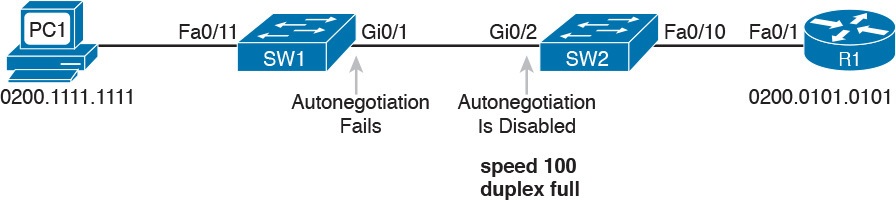
Figure 3: Conditions to Create a Duplex Mismatch Between SW1 and SW2

Example 2: Confirming Duplex Mismatch on Switch SW1
First, focusing on the command output, the command confirms SW1’s speed and duplex. It also lists a prefix of a- in the output, implying autonegotiation. Even with SW1 using autonegotiation defaults, the command still notes the values as being learned through autonegotiation.
Finding a duplex mismatch can be much more difficult than finding a speed mismatch, because if the duplex settings do not match on the ends of an Ethernet segment, the switch interface will still be in a connected (up/up) state. In this case, the interface works, but it might work poorly, with poor performance, and with symptoms of intermittent problems.
The reason is that the device using half-duplex uses carrier sense multiple access collision detect (CSMA/CD) logic, waiting to send when receiving a frame, believing collisions occur when they physically do not—and actually stopping sending a frame because the switch thinks a collision occurred. With enough traffic load, the interface could be in a connect state, but it’s extremely inefficient for passing traffic.
To identify duplex mismatch problems, check the duplex setting on each end of the link and watch for incrementing collision and late collision counters, as explained in the next section.
Common Layer 1 Problems on Working Interfaces
When the interface reaches the connect (up/up) state, the switch considers the interface to be working. The switch, of course, tries to use the interface, and at the same time, the switch keeps various interface counters.
These interface counters can help identify problems that can occur even though the interface is in a connect state. This section explains some of the related concepts and a few of the most common problems.
Whenever the physical transmission has problems, the receiving device might receive a frame whose bits have changed values.
These frames do not pass the error detection logic as implemented in the FCS field in the Ethernet trailer.
The receiving device discards the frame and counts it as some kind of input error. Cisco switches list this error as a CRC error, as highlighted in Example 3. (Cyclic redundancy check [CRC] is a term related to how the frame check sequence [FCS] math detects an error.)

Example 3: Interface Counters for Layer 1 Problems
The number of input errors, and the number of CRC errors, are just a few of the counters in the output of the show interfaces command. The challenge is to decide which counters you need to think about, which ones show that a problem is happening, and which ones are normal and of no concern.
The example highlights several of the counters as examples so that you can start to understand which ones point to problems and which ones are just counting normal events that are not problems. The following list shows a short description of each highlighted counter, in the order shown in the example:
- Runts: Frames that did not meet the minimum frame size requirement (64 bytes, including the 18-byte destination MAC, source MAC, type, and FCS). Can be caused by collisions.
- Giants: Frames that exceed the maximum frame size requirement (1518 bytes, including the 18-byte destination MAC, source MAC, type, and FCS).
- Input Errors: A total of many counters, including runts, giants, no buffer, CRC, frame, overrun, and ignored counts.
- CRC: Received frames that did not pass the FCS math; can be caused by collisions.
- Frame: Received frames that have an illegal format, for example, ending with a partial byte; can be caused by collisions.
- Packets Output: Total number of packets (frames) forwarded out the interface.
- Output Errors: Total number of packets (frames) that the switch port tried to transmit, but for which some problem occurred.
- Collisions: Counter of all collisions that occur when the interface is transmitting a frame.
- Late Collisions: The subset of all collisions that happen after the 64th byte of the frame has been transmitted. (In a properly working Ethernet LAN, collisions should occur within the first 64 bytes; late collisions today often point to a duplex mismatch.)
Note that many of these counters occur as part of the CSMA/CD process used when half duplex is enabled. Collisions occur as a normal part of the half-duplex logic imposed by CSMA/CD, so a switch interface with an increasing collisions counter might not even have a problem.
However, one problem, called late collisions, points to the classic duplex mismatch problem.
If a LAN design follows cabling guidelines, all collisions should occur by the end of the 64th byte of any frame. When a switch has already sent 64 bytes of a frame, and the switch receives a frame on that same interface, the switch senses a collision.
In this case, the collision is a late collision, and the switch increments the late collision counter in addition to the usual CSMA/CD actions to send a jam signal, wait a random time, and try again.
With a duplex mismatch, like the mismatch between SW1 and SW2 in Figure 3, the half-duplex interface will likely see the late collisions counter increment.
Why? The half-duplex interface sends a frame (SW1), but the full duplex neighbor (SW2) sends at any time, even after the 64th byte of the frame sent by the half-duplex switch.
So, just keep repeating the show interfaces command, and if you see the late collisions counter incrementing on a half-duplex interface, you might have a duplex mismatch problem.
A working interface (in an up/up state) can still suffer from issues related to the physical cabling as well. The cabling problems might not be bad enough to cause a complete failure, but the transmission failures result in some frames failing to pass successfully over the cable.
For example, excessive interference on the cable can cause the various input error counters to keep growing larger, especially the CRC counter. In particular, if the CRC errors grow, but the collisions counters do not, the problem might simply be interference on the cable. (The switch counts each collided frame as one form of input error as well.)
Predicting Where Switches Will Forward Frames
Predicting the Contents of the MAC Address Table
Switches learn MAC addresses and then use the entries in the MAC address table to make a forwarding/filtering decision for each frame.
To know exactly how a particular switch will forward an Ethernet frame, you need to examine the MAC address table on a Cisco switch.
The more formal troubleshooting process begins with a mental process where you predict where frames should flow in the LAN. As an exercise, review Figure 4 and try to create a MAC address table on paper for each switch. Include the MAC addresses for both PCs, as well as the Gi0/1 MAC address for R1. (Assume that all three are assigned to VLAN 10.) Then predict which interfaces would be used to forward a frame sent by Fred, Barney, and R1 to every other device.
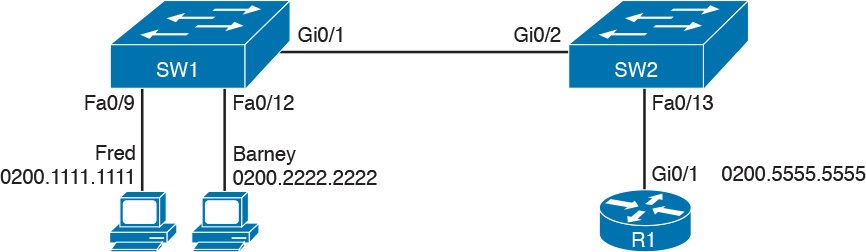
Sample Network Used in Switch MAC Learning Examples
The MAC table entries you predict in this case define where you think frames will flow. Even though this sample network in Figure 4 shows only one physical path through the Ethernet LAN, the exercise should be worthwhile, because it forces you to correlate what you’d expect to see in the MAC address table with how the switches forward frames. Figure 5 shows the resulting MAC table entries for PCs Fred and Barney, as well as for Router R1.
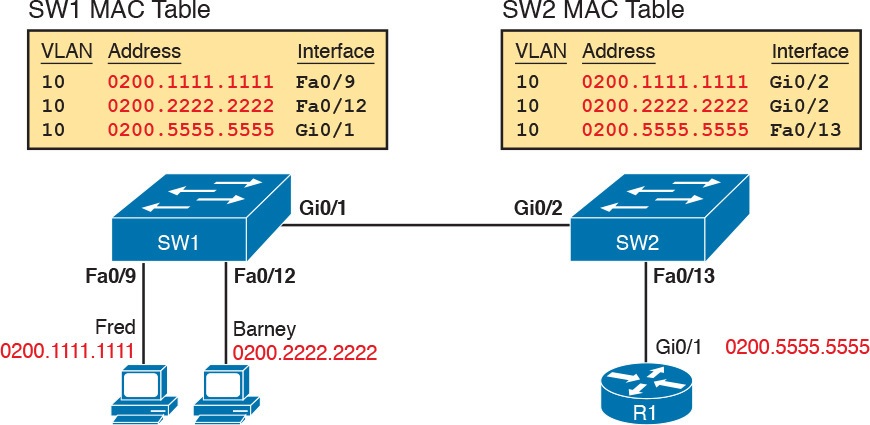
Predictions for MAC Table Entries on SW1 and SW2
While Figure 5 shows the concepts, Example 4 lists the same facts but in the form of the show mac address-table dynamic command on the switches. This command lists all dynamically learned MAC table entries on a switch, for all VLANs.
Example 4 Examining SW1 and SW2 Dynamic MAC Address Table Entries
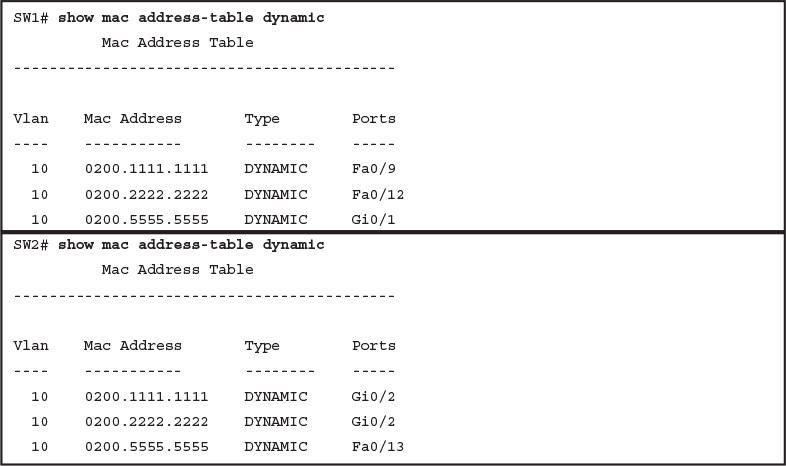
Examining SW1 and SW2 Dynamic MAC Address Table Entries
When predicting the MAC address table entries, you need to imagine a frame sent by a device to another device on the other side of the LAN and then determine which switch ports the frame would enter as it passes through the LAN. For example, if Barney sends a frame to Router R1, the frame would enter SW1’s Fa0/12 interface, so SW1 has a MAC table entry that lists Barney’s 0200.2222.2222 MAC address with Fa0/12. SW1 would forward Barney’s frame to SW2, arriving on SW2’s Gi0/2 interface, so SW2’s MAC table lists Barney’s MAC address (0200.2222.2222) with interface Gi0/2.
After you predict the expected contents of the MAC address tables, you can then examine what is actually happening on the switches, as described in the next section.
Analyzing the Forwarding Path
Troubleshooting revolves around three big ideas: predicting what should happen, determining what is happening that is different than what should happen, and figuring out why that different behavior is happening. This next section discusses how to look at what is actually happening in a VLAN based on those MAC address tables, first using a summary of switch forwarding logic and then showing an example.
The following list summarizes switch forwarding logic including the LAN switching features discussed in this study:
Step 1. Process functions on the incoming interface, if the interface is currently in an up/up (connected) state, as follows:
A. If configured, apply port security logic to filter the frame as appropriate.
B. If the port is an access port, determine the interface’s access VLAN.
C. If the port is a trunk, determine the frame’s tagged VLAN.
Step 2. Make a forwarding decision. Look for the frame’s destination MAC address in the MAC address table, but only for entries in the VLAN identified in Step 1. If the destination MAC is...
A. Found (unicast), forward the frame out the only interface listed in the matched address table entry.
B. Not found (unicast), flood the frame out all other access ports (except the incoming port) in that same VLAN, plus out trunks that have not restricted the VLAN from that trunk.
C. Broadcast, flood the frame, with the same rules as the previous step.
For an example of this process, consider a frame sent by Barney to its default gateway, R1 (0200.5555.5555). Using the steps just listed, the following occurs:
Step 1. Input interface processing:
A. The port does not happen to have port security enabled.
B. SW1 receives the frame on its Fa0/12 interface, an access port in VLAN 10.
Step 2. Make a forwarding decision: SW1 looks in its MAC address table for entries in VLAN 10:
A. SW1 finds an entry (known unicast) for 0200.5555.5555, associated with VLAN 10, outgoing interface Gi0/1, so SW1 forwards the frame only out interface Gi0/1. (This link is a VLAN trunk, so SW1 adds a VLAN 10 tag to the 802.1Q trunking header.)
At this point, the frame with source 0200.2222.2222 (Barney) and destination 0200.5555.5555 (R1) is on its way to SW2. You can then apply the same logic for SW2, as follows:
Step 1. Input interface processing:
A. The port does not happen to have port security enabled.
B. SW2 receives the frame on its Gi0/2 interface, a trunk; the frame lists a tag of VLAN 10. (SW2 will remove the 802.1Q header as well.)
Step 2. Make a forwarding decision: SW2 looks for its MAC table for entries in VLAN 10:
A. SW2 finds an entry (known unicast) for 0200.5555.5555, associated with VLAN 10, outgoing interface Fa0/13, so SW2 forwards the frame only out interface Fa0/13.
At this point, the frame should be on its way, over the Ethernet cable between SW2 and R1.
Analyzing Port Security Operations on an Interface
Generally speaking, any analysis of the forwarding process should consider any security features that might discard some frames or packets. For example, both routers and switches can be configured with access control lists (ACL) that examine the packets and frames being sent or received on an interface, with the router or switch discarding those packets/frames.
This study does not include coverage of switch ACLs, but the exams do cover a switch feature called port security. Port security feature can be used to cause the switch to discard some frames sent into and out of an interface. Port security has three basic features with which it determines which frames to filter:
Limit which specific MAC addresses can send and receive frames on a switch interface, discarding frames to/from other MAC addresses
Limit the number of MAC addresses using the interface, discarding frames to/from MAC addresses learned after the maximum limit is reached
A combination of the previous two points
The first port security troubleshooting step should be to find which interfaces have port security enabled, followed by a determination as to whether any violations are currently occurring. The trickiest part relates to the differences in what the IOS does in reaction to violations based on the switchport port-security violation violation-mode interface subcommand, which tells the switch what to do when a violation occurs. The general process to find port security issues is as follows:
Step 1. Identify all interfaces on which port security is enabled (show running-config or show port-security).
Step 2. Determine whether a security violation is currently occurring based in part on the violation mode of the interface’s port security configuration, as follows:
A. shutdown: The interface will be in an err-disabled state, and the port security port status will be secure-down.
B. restrict: The interface will be in a connected state, the port security port status will be secure-up, but the show port-security interface command will show an incrementing violations counter.
C. protect: The interface will be in a connected state, and the show port-security interface command will not show an incrementing violations counter.
Step 3. In all cases, compare the port security configuration to the diagram and to the Last Source Address field in the output of the show port-security interface command.
Because IOS reacts so differently with shutdown mode as compared to restrict and protect modes, the next few pages explain the differences—first for shutdown mode, then for the other two modes.
Troubleshooting Shutdown Mode and Err-disabled Recovery
Troubleshooting Step 2A refers to the interface err-disabled (error-disabled) state. This state verifies that the interface has been configured to use port security, that a violation has occurred, and that no traffic is allowed on the interface at the present time. This interface state implies that the shutdown violation mode is used, because it is the only one of the three port security modes that causes the interface to be disabled.
To recover from an err-disabled state, the interface must be shut down with the shutdown command, and then enabled with the no shutdown command. Example 5 lists an example in which the interface is in an err-disabled state.
Example 5 Using Port Security to Define Correct MAC Addresses of Particular Interfaces
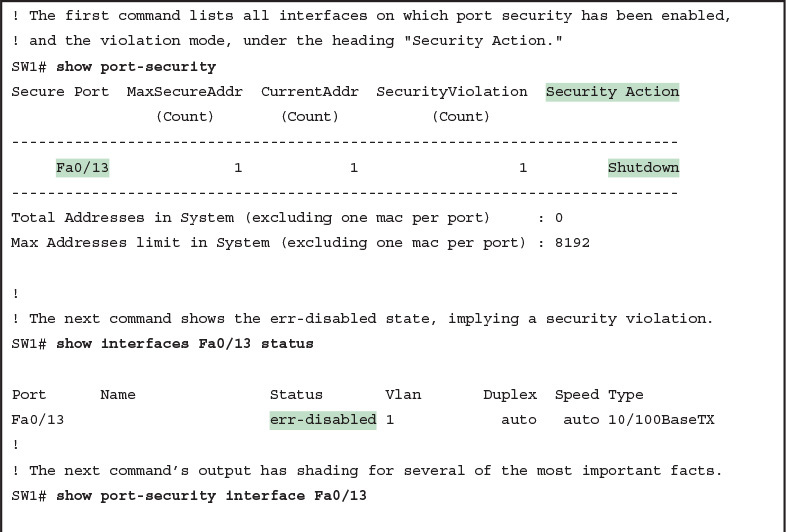
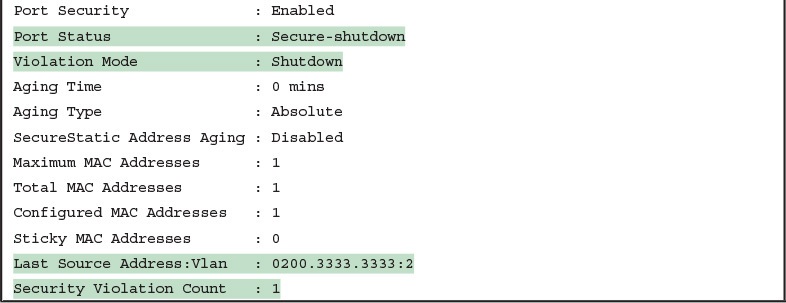
The output of the show port-security interface command lists a couple of items helpful in the troubleshooting process. The port status of secure-shutdown means that the interface is disabled for all traffic as a result of a violation while in port security shutdown mode; this state is not used by the protect and restrict modes. The port security port status of secure-shutdown also means that the interface state should be err-disabled.
Note that in shutdown mode, the violations counter (at the bottom of the output) does not keep incrementing. Basically, once the first violating frame triggers IOS to move the port to an err-disabled state, IOS ignores any other incoming frames (not even counting them) until the engineer uses the shutdown and no shutdown commands on the interface, in succession. Note that the process of recovering the interface also resets the violation counter back to 0. Finally, note that the second-to-last line lists the source MAC address of the last frame received on the interface. This value can prove useful in identifying the MAC address of the device that caused the violation.
Figure 6 summarizes these behaviors, assuming the same scenario shown in the example.
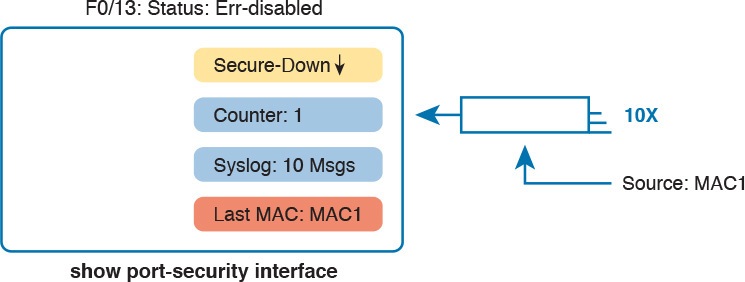
Summary of Actions: Port Security Violation Mode Shutdown
Troubleshooting Restrict and Protect Modes
The restrict and protect violation modes take a much different approach to securing ports. These modes still discard offending traffic, but the interface remains in a connected (up/up) state, and in a port security state of secure-up. As a result, the port continues to forward good traffic and discard offending traffic.
Having a port in a seemingly good state that also discards traffic can be a challenge when troubleshooting. Basically, you have to know about this possible pitfall, and then know how to tell when port security is discarding some traffic on a port even though the interface status looks good.
The show port-security interface command reveals whether protect mode has discarded frames using the “last source address” item in the output. Example 6 shows a sample configuration and show command when using protect mode. In this case, the port is configured to allow Fa0/13 to receive frames sent by 0200.1111.1111 only. Ten frames have arrived, with a variety of source MAC addresses, with the last frame’s source MAC address being 0200.3333.3333.
Example 6 Port Security Using Protect Mode
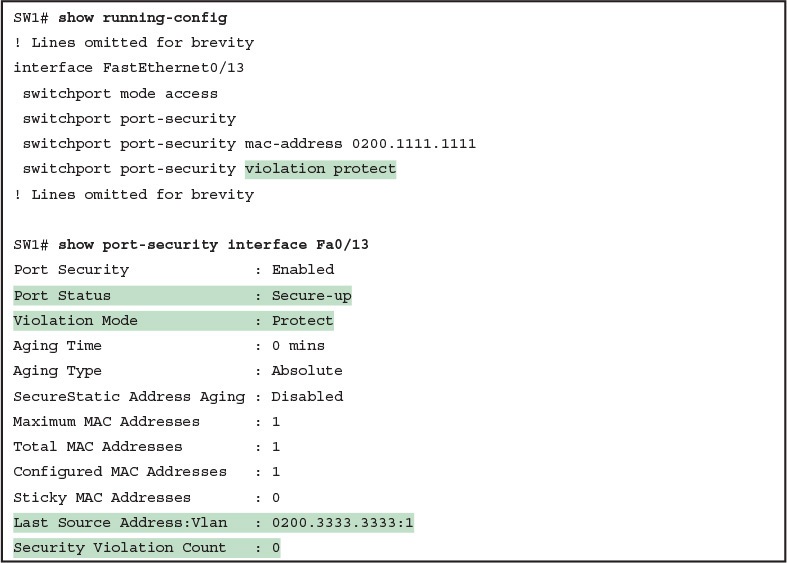
Port Security Using Protect Mode
In protect mode, the show port-security interface command reveals practically nothing about whether the interfaces happen to be discarding traffic or not. For instance, in this case, this show command output was gathered after many frames had been sent by a PC with MAC address 0200.3333.3333, with all the frames being discarded by the switch because of port security. The command output shows the disallowed PC’s 0200.3333.3333 MAC address as the last source MAC address in a received frame. However, if another frame with an allowed MAC address arrived (in this case, source MAC 0200.1111.1111), the next instance of the show command would list 0200.1111.1111 as the last source address. In particular, note that the interface remains in a secure-up state, and the violation counter does not increment.
Figure 7 summarizes the key points about the operation of Port Security protect mode, assuming a mix of frames with different source addresses. The figure emphasizes unpredictability of the last source MAC listed in the output, and the fact that the counter does not increment and that no syslog messages are generated for violating frames.
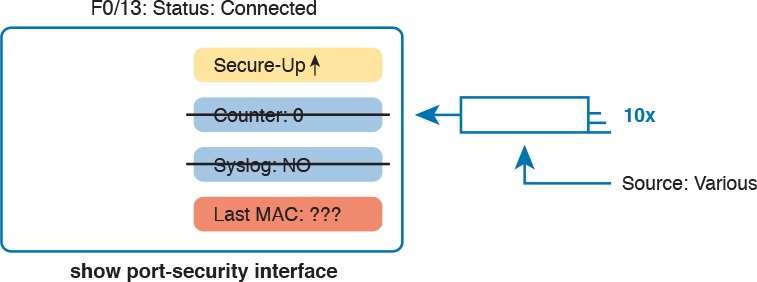
Summary of Actions: Port Security Violation Mode Protect
If this example had used violation mode restrict instead of protect, the port status would have also remained in a secure-up state; however, IOS would show some indication of port security activity, such as the incrementing violation counter as well as syslog messages. Example 7 shows an example of the violation counter and ends with an example port security syslog message. In this case, 97 incoming frames so far violated the rules, with the most recent frame having a source MAC address of 0200.3333.3333.
Example 7 Port Security Using Violation Mode Restrict
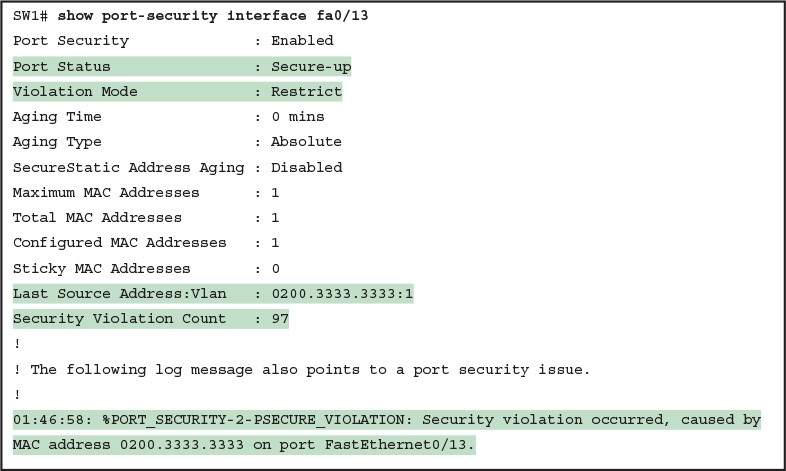
Port Security Using Violation Mode Restrict
Figure 8 summarizes the key points about the restrict mode for port security. In this case, the figure matches the same scenario as the example again, with 97 total violating frames arriving so far, with the most recent being from source MAC MAC3.
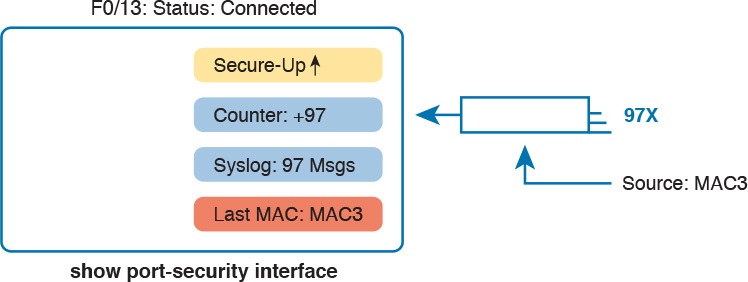
Summary of Actions: Port Security Violation Mode Restrict
For the exams, a port security violation might not be a problem; it might be the exact function intended. The question text might well explicitly state what port security should be doing. In these cases, it can be quicker to just immediately look at the port security configuration. Then, compare the configuration to the MAC addresses of the devices connected to the interface. The most likely problem on the exams is that the MAC addresses have been misconfigured or that the maximum number of MAC addresses has been set too low.
Analyzing VLANs and VLAN Trunks
A switch’s forwarding process, as discussed earlier in the section “Analyzing the Forwarding Path,” depends in part on VLANs and VLAN trunking. Before a switch can forward frames in a particular VLAN, the switch must know about a VLAN and the VLAN must be active. And before a switch can forward a frame over a VLAN trunk, the trunk must currently allow that VLAN to pass over the trunk. This final of the five major sections in this lesson focuses on VLAN and VLAN trunking issues, specifically issues that impact the frame switching process. The four potential issues are as follows:
Step 1. Identify all access interfaces and their assigned access VLANs and reassign into the correct VLANs as needed.
Step 2. Determine whether the VLANs both exist (configured or learned with VTP) and are active on each switch. If not, configure and activate the VLANs to resolve problems as needed.
Step 3. Check the allowed VLAN lists, on the switches on both ends of the trunk, and ensure that the lists of allowed VLANs are the same.
Step 4. Check for incorrect configuration settings that result in one switch operating as a trunk, with the neighboring switch not operating as a trunk.
Ensuring That the Right Access Interfaces Are in the Right VLANs
To ensure that each access interface has been assigned to the correct VLAN, engineers simply need to determine which switch interfaces are access interfaces instead of trunk interfaces, determine the assigned access VLANs on each interface, and compare the information to the documentation. The show commands listed in Table 2 can be particularly helpful in this process.
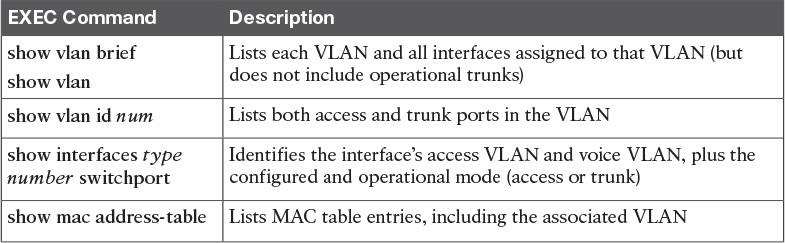
Commands That Can Find Access Ports and VLANs
If possible, start this step with the show vlan and show vlan brief commands, because they list all the known VLANs and the access interfaces assigned to each VLAN. Be aware, however, that these two commands do not list operational trunks. The output does list all other interfaces (those not currently trunking), no matter whether the interface is in a working or nonworking state.
If the show vlan and show interface switchport commands are not available in a particular exam question, the show mac address-table command can also help identify the access VLAN. This command lists the MAC address table, with each entry including a MAC address, interface, and VLAN ID. If the exam question implies that a switch interface connects to a single device PC, you should only see one MAC table entry that lists that particular access interface; the VLAN ID listed for that same entry identifies the access VLAN. (You cannot make such assumptions for trunking interfaces.)
After you determine the access interfaces and associated VLANs, if the interface is assigned to the wrong VLAN, use the switchport access vlan vlan-id interface subcommand to assign the correct VLAN ID.
Access VLANs Not Being Defined
Switches do not forward frames for VLANs that are (a) not configured or (b) configured but disabled (shut down). This section summarizes the best ways to confirm that a switch knows that a particular VLAN exists, and if it exists, determines the state of the VLAN.
First, on the issue of whether a VLAN is defined, a VLAN can be defined to a switch in two ways: using the vlan number global configuration command, or it can be learned from another switch using VTP. This study purposefully ignores VTP as much as possible, so for this discussion, consider that the only way for a switch to know about a VLAN is to have a vlan command configured on the local switch.
Next, the show vlan command always lists all VLANs known to the switch, but the show running-config command does not. Switches configured as VTP servers and clients do not list the vlan commands in the running-config nor the startup-config file; on these switches, you must use the show vlan command. Switches configured to use VTP transparent mode, or that disable VTP, list the vlan configuration commands in the configuration files. (Use the show vtp status command to learn the current VTP mode of a switch.)
After you determine that a VLAN does not exist, the problem might be that the VLAN simply needs to be defined.
Access VLANs Being Disabled
For any existing VLANs, also verify whether the VLAN is active. The show vlan command should list one of two VLAN state values, depending on the current state: either active or act/lshut. The second of these states means that the VLAN is shut down. Shutting down a VLAN disables the VLAN on that switch only, so that the switch will not forward frames in that VLAN.
Switch IOS gives you two similar configuration methods with which to disable (shutdown) and enable (no shutdown) a VLAN. Example 8 shows how, first by using the global command [no] shutdown vlan number and then using the VLAN mode subcommand [no] shutdown. The example shows the global commands enabling and disabling VLANs 10 and 20, respectively, and using VLAN subcommands to enable and disable VLANs 30 and 40 (respectively).
Example 8 Enabling and Disabling VLANs on a Switch
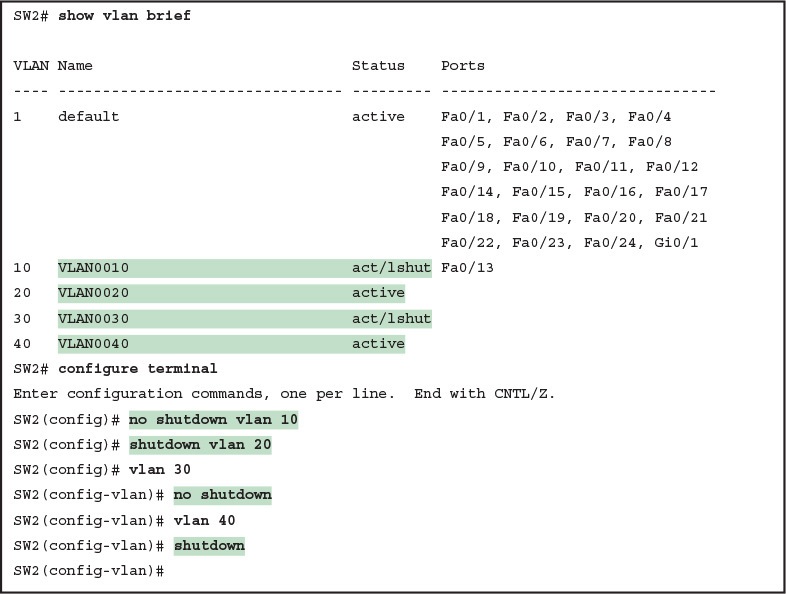
Enabling and Disabling VLANs on a Switch
Mismatched Trunking Operational States
Trunking can be configured correctly so that both switches forward frames for the same set of VLANs. However, trunks can also be misconfigured, with a couple of different results. In some cases, both switches conclude that their interfaces do not trunk. In other cases, one switch believes that its interface is correctly trunking, while the other switch does not.
The most common incorrect configuration—which results in both switches not trunking—is a configuration that uses the switchport mode dynamic auto command on both switches on the link. The word “auto” just makes us all want to think that the link would trunk automatically, but this command is both automatic and passive. As a result, both switches passively wait on the other device on the link to begin negotiations.
With this particular incorrect configuration, the show interfaces switchport command on both switches confirms both the administrative state (auto), as well as the fact that both switches operate as “static access” ports. Example 9 highlights those parts of the output from this command.
Example 9 Operational Trunking State
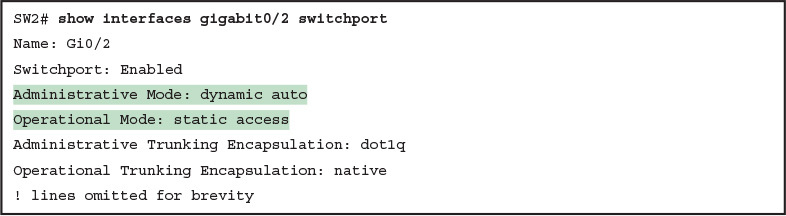
Operational Trunking State
A different incorrect trunking configuration results in one switch with an operational state of “trunk,” while the other switch has an operational state of “static access.” When this combination of events happens, the interface works a little. The status on each end will be up/up or connected. Traffic in the native VLAN will actually cross the link successfully. However, traffic in all the rest of the VLANs will not cross the link.
Figure 9 shows the incorrect configuration along with which side trunks and which does not. The side that trunks (SW1 in this case) enables trunking always, using the command switchport mode trunk. However, this command does not disable DTP negotiations. To cause this particular problem, SW1 also disables DTP negotiation using the switchport nonegotiate command. SW2’s configuration also helps create the problem, by using a trunking option that relies on DTP. Because SW1 has disabled DTP, SW2’s DTP negotiations fail, and SW2 does not trunk.
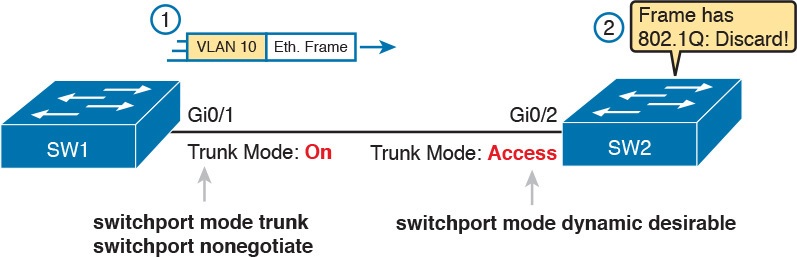
Mismatched Trunking Operational States
In this case, SW1 treats its G0/1 interface as a trunk, and SW2 treats its G0/2 interface as an access port (not a trunk). As shown in the figure at Step 1, SW1 could (for example) forward a frame in VLAN 10 (Step 1). However, SW2 would view any frame that arrives with an 802.1Q header as illegal, because SW2 treats its G0/2 port as an access port. So, SW2 discards any 802.1Q frames received on that port.
To deal with the possibility of this problem, always check the trunk’s operational state on both sides of the trunk. The best commands to check trunking-related facts are show interfaces trunk and show interfaces switchport.
NOTE: Frankly, in real life, just avoid this kind of configuration. However, the switches do not prevent you from making these types of mistakes, so you need to be ready.

Implementing Ethernet Virtual LANs
INTERNOLD NETWORKS CCNA LIVE WEBCLASS (INCLW)
Implementing Ethernet Virtual LANs
Contents
Implementing Ethernet Virtual LANs
At their heart, Ethernet switches receive Ethernet frames, make decisions, and then forward (switch) those Ethernet frames. That core logic revolves around MAC addresses, the interface in which the frame arrives, and the interfaces out which the switch forwards the frame.
Several switch features have some impact on an individual switch’s decisions about where to forward frames, virtual LANs (VLAN) easily have the biggest impact on those choices.
This lesson examines the concepts and configuration of VLANs.
The first major section of the lesson explains the core concepts. These concepts include how VLANs work on a single switch, how to use VLAN trunking to create VLANs that span across multiple switches, and how to forward traffic between VLANs using a router.
The second major section shows how to configure VLANs and VLAN trunks: how to statically assign interfaces to a VLAN.
Virtual LAN Concepts
Before understanding VLANs, you must first have a specific understanding of the definition of a LAN. For example, from one perspective, a LAN includes all the user devices, servers, switches, routers, cables, and wireless access points in one location. However, an alternative narrower definition of a LAN can help in understanding the concept of a virtual LAN:
A LAN includes all devices in the same broadcast domain.
A broadcast domain includes the set of all LAN-connected devices, so that when any of the devices sends a broadcast frame, all the other devices get a copy of the frame. So, from one perspective, you can think of a LAN and a broadcast domain as being basically the same thing.
Without VLANs, a switch considers all its interfaces to be in the same broadcast domain. That is, for one switch, when a broadcast frame entered one switch port, the switch forwarded that broadcast frame out all other ports. With that logic, to create two different LAN broadcast domains, you had to buy two different Ethernet LAN switches, as shown in Figure 1.

Figure 1: Creating Two Broadcast Domains with Two Physical Switches and No VLANs
With support for VLANs, a single switch can accomplish the same goals of the design in Figure 1—to create two broadcast domains—with a single switch. With VLANs, a switch can configure some interfaces into one broadcast domain and some into another, creating multiple broadcast domains. These individual broadcast domains created by the switch are called virtual LANs (VLAN).
For example, in Figure 2, the single switch creates two VLANs, treating the ports in each VLAN as being completely separate. The switch would never forward a frame sent by Dino (in VLAN 1) over to either Wilma or Betty (in VLAN 2).

Figure 2: Creating Two Broadcast Domains Using One Switch and VLANs
Designing campus LANs to use more VLANs, each with a smaller number of devices, often helps improve the LAN in many ways. For example, a broadcast sent by one host in a VLAN will be received and processed by all the other hosts in the VLAN—but not by hosts in a different VLAN. Limiting the number of hosts that receive a single broadcast frame reduces the number of hosts that waste effort processing unneeded broadcasts. It also reduces security risks, because fewer hosts see frames sent by any one host. These are just a few reasons for separating hosts into different VLANs. The following list summarizes the most common reasons for choosing to create smaller broadcast domains (VLANs):
To reduce CPU overhead on each device by reducing the number of devices that receive each broadcast frame
To reduce security risks by reducing the number of hosts that receive copies of frames that the switches flood (broadcasts, multicasts, and unknown unicasts)
To improve security for hosts that send sensitive data by keeping those hosts on a separate VLAN
To create more flexible designs that group users by department, or by groups that work together, instead of by physical location
To solve problems more quickly, because the failure domain for many problems is the same set of devices as those in the same broadcast domain
To reduce the workload for the Spanning Tree Protocol (STP) by limiting a VLAN to a single access switch
This lesson does not examine all the reasons for VLANs in more depth. However, know that most enterprise networks use VLANs quite a bit. The rest of this lesson looks closely at the mechanics of how VLANs work across multiple Cisco switches, including the required configuration. To that end, the next section examines VLAN trunking, a feature required when installing a VLAN that exists on more than one LAN switch.
Creating Multiswitch VLANs Using Trunking
Configuring VLANs on a single switch requires only a little effort: You simply configure each port to tell it the VLAN number to which the port belongs. With multiple switches, you have to consider additional concepts about how to forward traffic between the switches.
When using VLANs in networks that have multiple interconnected switches, the switches need to use VLAN trunking on the links between the switches. VLAN trunking causes the switches to use a process called VLAN tagging, by which the sending switch adds another header to the frame before sending it over the trunk. This extra trunking header includes a VLAN identifier (VLAN ID) field so that the sending switch can associate the frame with a particular VLAN ID, and the receiving switch can then know in what VLAN each frame belongs.
Figure 3 shows an example that demonstrates VLANs that exist on multiple switches, but it does not use trunking. First, the design uses two VLANs: VLAN 10 and VLAN 20. Each switch has two ports assigned to each VLAN, so each VLAN exists in both switches. To forward traffic in VLAN 10 between the two switches, the design includes a link between switches, with that link fully inside VLAN 10. Likewise, to support VLAN 20 traffic between switches, the design uses a second link between switches, with that link inside VLAN 20
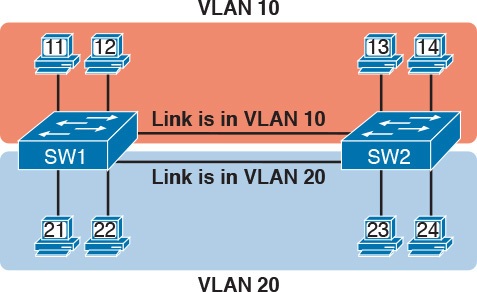
Figure 3: Multiswitch VLAN Without VLAN Trunking
VLAN Tagging Concepts
VLAN trunking creates one link between switches that supports as many VLANs as you need. As a VLAN trunk, the switches treat the link as if it were a part of all the VLANs. At the same time, the trunk keeps the VLAN traffic separate, so frames in VLAN 10 would not go to devices in VLAN 20, and vice versa, because each frame is identified by VLAN number as it crosses the trunk. Figure 4 shows the idea, with a single physical link between the two switches.
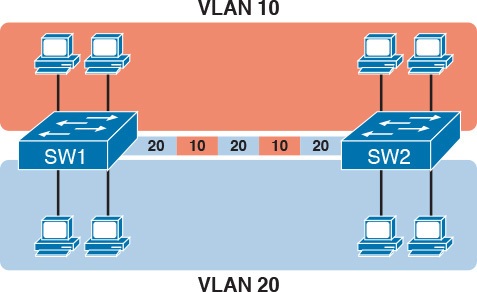
Figure 4: Multiswitch VLAN with Trunking
The use of trunking allows switches to pass frames from multiple VLANs over a single physical connection by adding a small header to the Ethernet frame. For example, Figure 5 shows PC11 sending a broadcast frame on interface Fa0/1 at Step 1. To flood the frame, switch SW1 needs to forward the broadcast frame to switch SW2. However, SW1 needs to let SW2 know that the frame is part of VLAN 10, so that after the frame is received, SW2 will flood the frame only into VLAN 10, and not into VLAN 20. So, as shown at Step 2, before sending the frame, SW1 adds a VLAN header to the original Ethernet frame, with the VLAN header listing a VLAN ID of 10 in this case.
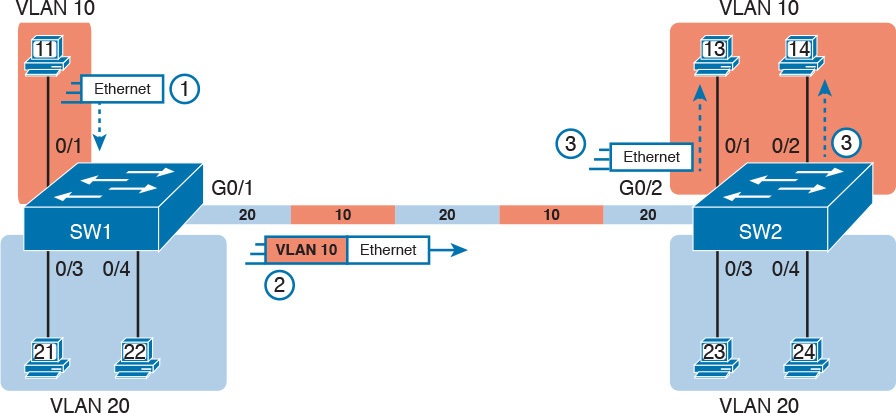
Figure 5: VLAN Trunking Between Two Switches
When SW2 receives the frame, it understands that the frame is in VLAN 10. SW2 then removes the VLAN header, forwarding the original frame out its interfaces in VLAN 10 (Step 3).
For another example, consider the case when PC21 (in VLAN 20) sends a broadcast. SW1 sends the broadcast out port Fa0/4 (because that port is in VLAN 20) and out Gi0/1 (because it is a trunk, meaning that it supports multiple different VLANs). SW1 adds a trunking header to the frame, listing a VLAN ID of 20. SW2 strips off the trunking header after determining that the frame is part of VLAN 20, so SW2 knows to forward the frame out only ports Fa0/3 and Fa0/4, because they are in VLAN 20, and not out ports Fa0/1 and Fa0/2, because they are in VLAN 10.
The 802.1Q and ISL VLAN Trunking Protocols
Cisco has supported two different trunking protocols over the years: Inter-Switch Link (ISL) and IEEE 802.1Q. Cisco created the ISL long before 802.1Q, in part because the IEEE had not yet defined a VLAN trunking standard. Years later, the IEEE completed work on the 802.1Q standard, which defines a different way to do trunking. Today, 802.1Q has become the more popular trunking protocol, with Cisco not even supporting ISL in some of its newer models of LAN switches, including the 2960 switches.
While both ISL and 802.1Q tag each frame with the VLAN ID, the details differ. 802.1Q inserts an extra 4-byte 802.1Q VLAN header into the original frame’s Ethernet header, as shown at the top of Figure 6. As for the fields in the 802.1Q header, only the 12-bit VLAN ID field inside the 802.1Q header matters. This 12-bit field supports a theoretical maximum of 212 (4096) VLANs, but in practice it supports a maximum of 4094. (Both 802.1Q and ISL use 12 bits to tag the VLAN ID, with two reserved values [0 and 4095].)
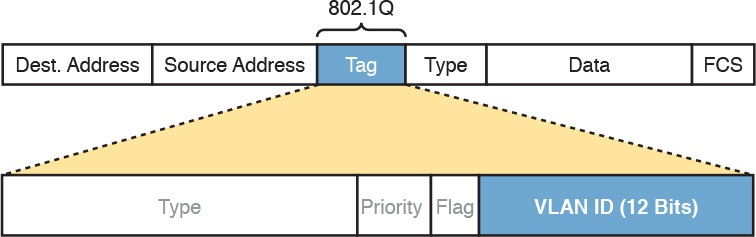
Fgiure 6: 802.1Q Trunking
Cisco switches break the range of VLAN IDs (1–4094) into two ranges: the normal range and the extended range. All switches can use normal-range VLANs with values from 1 to 1005. Only some switches can use extended-range VLANs with VLAN IDs from 1006 to 4094. The rules for which switches can use extended-range VLANs depend on the configuration of the VLAN Trunking Protocol (VTP), which is discussed briefly in the section “VLAN Trunking Configuration,” later in this lesson.
802.1Q also defines one special VLAN ID on each trunk as the native VLAN (defaulting to use VLAN 1). By definition, 802.1Q simply does not add an 802.1Q header to frames in the native VLAN. When the switch on the other side of the trunk receives a frame that does not have an 802.1Q header, the receiving switch knows that the frame is part of the native VLAN. Note that because of this behavior, both switches must agree on which VLAN is the native VLAN.
The 802.1Q native VLAN provides some interesting functions, mainly to support connections to devices that do not understand trunking. For example, a Cisco switch could be cabled to a switch that does not understand 802.1Q trunking. The Cisco switch could send frames in the native VLAN—meaning that the frame has no trunking header—so that the other switch would understand the frame. The native VLAN concept gives switches the capability of at least passing traffic in one VLAN (the native VLAN), which can allow some basic functions, like reachability to telnet into a switch.
Forwarding Data Between VLANs
If you create a campus LAN that contains many VLANs, you typically still need all devices to be able to send data to all other devices. This next topic discusses some concepts about how to route data between those VLANs.
First, it helps to know a few terms about some categories of LAN switches. All the Ethernet switch functions described so far use the details and logic defined by OSI Layer 2 protocols. For example, Chapter 7, “Analyzing Ethernet LAN Switching,” discussed how LAN switches receive Ethernet frames (a Layer 2 concept), look at the destination Ethernet MAC address (a Layer 2 address), and forward the Ethernet frame out some other interface. This lesson has already discussed the concept of VLANs as broadcast domains, which is yet another Layer 2 concept.
While some LAN switches work just as described so far, some LAN switches have even more functions. LAN switches that forward data based on Layer 2 logic, often go by the name Layer 2 switch. However, some other switches can do some functions like a router, using additional logic defined by Layer 3 protocols. These switches go by the name multilayer switch, or Layer 3 switch. This section first discusses how to forward data between VLANs when using Layer 2 switches and ends with a brief discussion of how to use Layer 3 switches.
Routing Packets Between VLANs with a Router
When including VLANs in a campus LAN design, the devices in a VLAN need to be in the same subnet. Following the same design logic, devices in different VLANs need to be in different subnets. For example, in Figure 7, the two PCs on the left sit in VLAN 10, in subnet 10. The two PCs on the right sit in a different VLAN (20), with a different subnet (20).

Figure 7: Layer 2 Switch Does Not Route Between the VLANs
NOTE:The figure refers to subnets somewhat generally, like “subnet 10,” just so the subnet numbers do not distract. Also, note that the subnet numbers do not have to be the same number as the VLAN numbers.
Figure 7 shows the switch as if it were two switches broken in two to emphasize the point that Layer 2 switches will not forward data between two VLANs. When configured with some ports in VLAN 10 and others in VLAN 20, the switch acts like two separate switches in which it will forward traffic. In fact, one goal of VLANs is to separate traffic in one VLAN from another, preventing frames in one VLAN from leaking over to other VLANs. For example, when Dino (in VLAN 10) sends any Ethernet frame, if SW1 is a Layer 2 switch, that switch will not forward the frame to the PCs on the right in VLAN 20.
The network as a whole needs to support traffic flowing into and out of each VLAN, even though the Layer 2 switch does not forward frames outside a VLAN. The job of forwarding data into and out of a VLAN falls to routers. Instead of switching Layer 2 Ethernet frames between the two VLANs, the network must route Layer 3 packets between the two subnets.
That previous paragraph has some very specific wording related to Layers 2 and 3, so take a moment to reread and reconsider it for a moment. The Layer 2 logic does not let the Layer 2 switch forward the Layer 2 protocol data unit (L2PDU), the Ethernet frame, between VLANs. However, routers can route Layer 3 PDUs (L3PDU) (packets) between subnets as their normal job in life.
For example, Figure 8 shows a router that can route packets between subnets 10 and 20. The figure shows the same Layer 2 switch as shown in Figure 7, with the same perspective of the switch being split into parts with two different VLANs, and with the same PCs in the same VLANs and subnets. Now Router R1 has one LAN physical interface connected to the switch and assigned to VLAN 10, and a second physical interface connected to the switch and assigned to VLAN 20. With an interface connected to each subnet, the Layer 2 switch can keep doing its job—forwarding frames inside a VLAN, while the router can do its job—routing IP packets between the subnets.
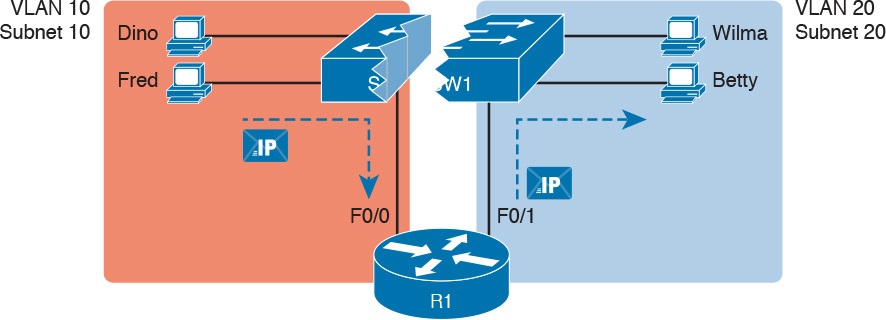
Figure 8: Routing Between Two VLANs on Two Physical Interfaces
The figure shows an IP packet being routed from Fred, which sits in one VLAN/subnet, to Betty, which sits in the other. The Layer 2 switch forwards two different Layer 2 Ethernet frames: one in VLAN 10, from Fred to R1’s F0/0 interface, and the other in VLAN 20, from R1’s F0/1 interface to Betty. From a Layer 3 perspective, Fred sends the IP packet to its default router (R1), and R1 routes the packet out another interface (F0/1) into another subnet where Betty resides.
While the design shown in Figure 8 works, it uses too many physical interfaces, one per VLAN. A much less expensive (and much preferred) option uses a VLAN trunk between the switch and router, requiring only one physical link between the router and switch, while supporting all VLANs. Trunking can work between any two devices that choose to support it: between two switches, between a router and a switch, or even between server hardware and a switch.
Figure 9 shows the same design idea as Figure 8, with the same packet being sent from Fred to Betty, except now R1 uses VLAN trunking instead of a separate link for each VLAN.
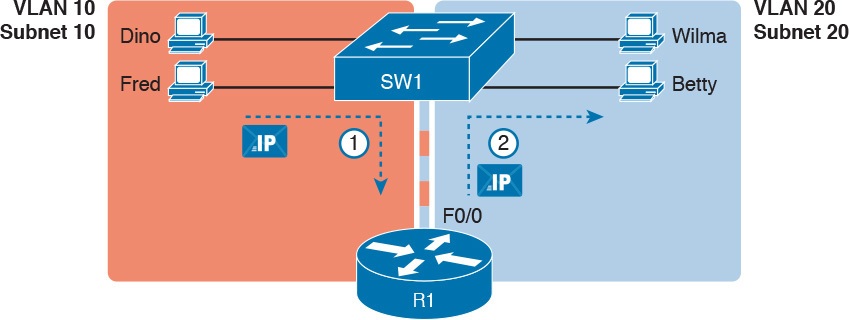
Figure 9: Routing Between Two VLANs Using a Trunk on the Router
NOTE: Because the router has a single physical link connected to the LAN switch, this design is sometimes called a router-on-a-stick
As a brief aside about terminology, many people describe the concept in Figures 11-8 and 11-9 as “routing packets between VLANs.” You can use that phrase, and people know what you mean. However, note that this phrase is not literally true, because it refers to routing packets (a Layer 3 concept) and VLANs (a Layer 2 concept). It just takes fewer words to say something like “routing between VLANs” rather than the literally true but long “routing Layer 3 packets between Layer 3 subnets, with those subnets each mapping to a Layer 2 VLAN.”
Routing Packets Between VLANs with a Router
Routing packets using a physical router, even with the VLAN trunk in the router-on-a-stick model shown in Figure 9, still has one significant problem: performance. The physical link puts an upper limit on how many bits can be routed, and less expensive routers tend to be less powerful, and might not be able to route a large enough number of packets per second (pps) to keep up with the traffic volumes.
The ultimate solution moves the routing functions inside the LAN switch hardware. Vendors long ago started combining the hardware and software features of their Layer 2 LAN switches, plus their Layer 3 routers, creating products called Layer 3 switches (also known as multilayer switches). Layer 3 switches can be configured to act only as a Layer 2 switch, or they can be configured to do both Layer 2 switching as well as Layer 3 routing.
Today, many medium- to large-sized enterprise campus LANs use Layer 3 switches to route packets between subnets (VLANs) in a campus.
In concept, a Layer 3 switch works a lot like the original two devices on which the Layer 3 switch is based: a Layer 2 LAN switch and a Layer 3 router. In fact, if you take the concepts and packet flow shown in Figure 8, with a separate Layer 2 switch and Layer 3 router, and then imagine all those features happening inside one device, you have the general idea of what a Layer 3 switch does. Figure 10 shows that exact concept, repeating many details of Figure 8, but with an overlay that shows the one Layer 3 switch doing the Layer 2 switch functions and the separate Layer 3 routing function.
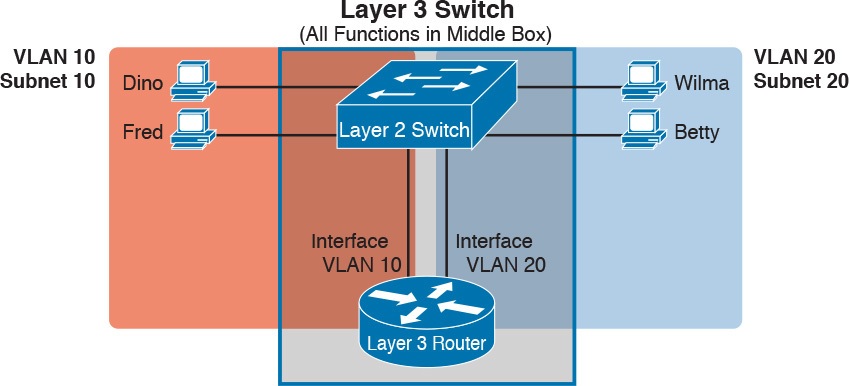
Figure 10: Multilayer Switch: Layer 2 Switching with Layer 3 Routing in One Device
This lesson introduces the core concepts of routing IP packets between VLANs (or more accurately, between the subnets on the VLANs). Chapter 18, “Configuring IPv4 Addresses and Static Routes,” shows how to configure designs that use an external router with router-on-a-stick. This lesson now turns its attention to configuration and verification tasks for VLANs and VLAN trunks.
VLAN and VLAN Trunking Configuration and Verification
Cisco switches do not require any configuration to work. You can purchase Cisco switches, install devices with the correct cabling, turn on the switches, and they work. You would never need to configure the switch, and it would work fine, even if you interconnected switches, until you needed more than one VLAN. But if you want to use VLANs—and most enterprise networks do—you need to add some configuration.
This lesson separates the VLAN configuration details into two major sections. The first section looks at how to configure access interfaces, which are switch interfaces that do not use VLAN trunking. The second part shows how to configure interfaces that do use VLAN trunking.
Creating VLANs and Assigning Access VLANs to an Interface
This section shows how to create a VLAN, give the VLAN a name, and assign interfaces to a VLAN. To focus on these basic details, this section shows examples using a single switch, so VLAN trunking is not needed.
For a Cisco switch to forward frames in a particular VLAN, the switch must be configured to believe that the VLAN exists. In addition, the switch must have nontrunking interfaces (called access interfaces) assigned to the VLAN, and/or trunks that support the VLAN. The configuration steps for access interfaces are as follows, with the trunk configuration shown later in the section “VLAN Trunking Configuration”:
Step 1. To configure a new VLAN, follow these steps:
A. From configuration mode, use the vlan vlan-id command in global configuration mode to create the VLAN and to move the user into VLAN configuration mode.
B. (Optional) Use the name name command in VLAN configuration mode to list a name for the VLAN. If not configured, the VLAN name is VLANZZZZ, where ZZZZ is the four-digit decimal VLAN ID.
Step 2. For each access interface (each interface that does not trunk, but instead belongs to a single VLAN), follow these steps:
A. Use the interface type number command in global configuration mode to move into interface configuration mode for each desired interface.
B. Use the switchport access vlan id-number command in interface configuration mode to specify the VLAN number associated with that interface.
C. (Optional) Use the switchport mode access command in interface configuration mode to make this port always operate in access mode (that is, to not trunk).
While the list might look a little daunting, the process on a single switch is actually pretty simple. For example, if you want to put the switch’s ports in three VLANs—11, 12, and 13—you just add three vlan commands: vlan 11, vlan 12, and vlan 13. Then, for each interface, add a switchport access vlan 11 (or 12 or 13) command to assign that interface to the proper VLAN.
NOTE: The term default VLAN (as shown in the exam topics) refers to the default setting on the switchport access vlan vlan-id command, and that default is VLAN ID 1. In other words, by default, each port is assigned to access VLAN 1.
VLAN Configuration Example 1: Full VLAN Configuration
Example 1 shows the configuration process of adding a new VLAN and assigning access interfaces to that VLAN. Figure 11 shows the network used in the example, with one LAN switch (SW1) and two hosts in each of three VLANs (1, 2, and 3). The example shows the details of the two-step process for VLAN 2 and the interfaces in VLAN 2, with the configuration of VLAN 3 deferred until the next example.
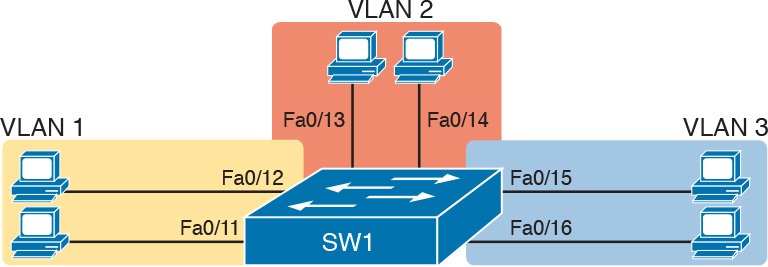
Figure 11: Network with One Switch and Three VLANs
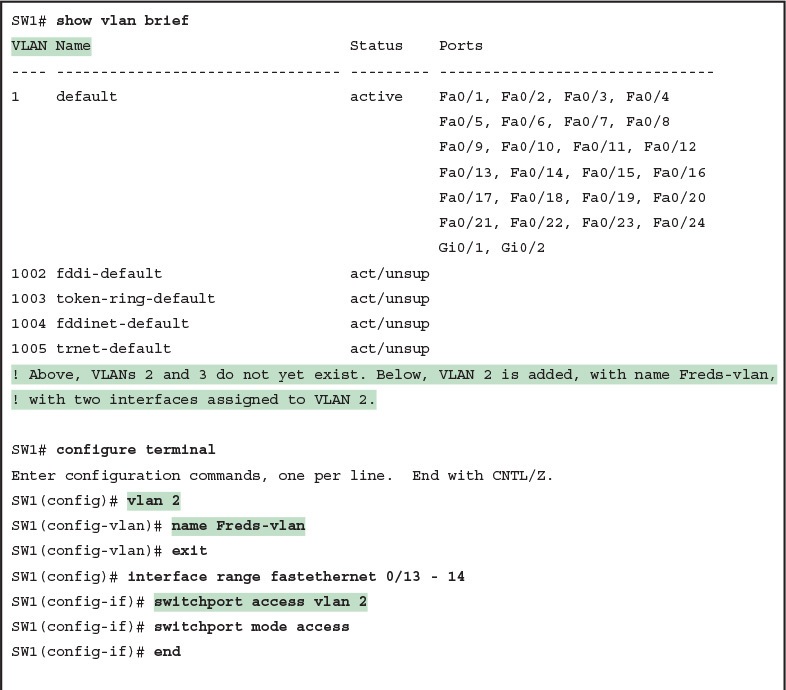
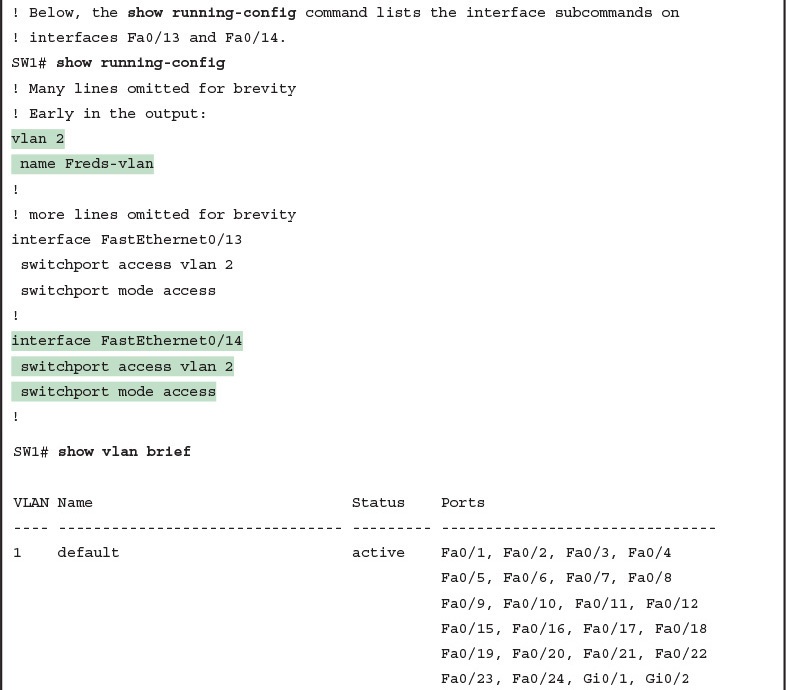
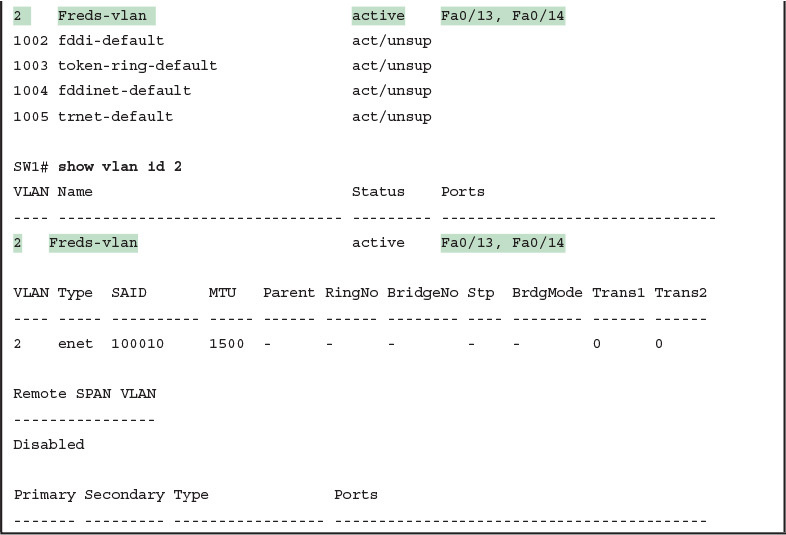
Example 1: Configuring VLANs and Assigning VLANs to Interfaces
The example begins with the show vlan brief command, confirming the default settings of five nondeletable VLANs, with all interfaces assigned to VLAN 1. (VLAN 1 cannot be deleted, but can be used. VLANs 1002–1005 cannot be deleted and cannot be used as access VLANs today.) In particular, note that this 2960 switch has 24 Fast Ethernet ports (Fa0/1–Fa0/24) and two Gigabit Ethernet ports (Gi0/1 and Gi0/2), all of which are listed as being in VLAN 1 per that first command’s output.
Next, the example shows the process of creating VLAN 2 and assigning interfaces Fa0/13 and Fa0/14 to VLAN 2. Note in particular that the example uses the interface range command, which causes the switchport access vlan 2 interface subcommand to be applied to both interfaces in the range, as confirmed in the show running-config command output at the end of the example.
After the configuration has been added, to list the new VLAN, the example repeats the show vlan brief command. Note that this command lists VLAN 2, name Freds-vlan, and the interfaces assigned to that VLAN (Fa0/13 and Fa0/14). The show vlan id 2 command that follows then confirms that ports Fa0/13 and Fa0/14 are assigned to VLAN 2.
The example surrounding Figure 11 uses six switch ports, all of which need to operate as access ports. That is, each port should not use trunking, but instead should be assigned to a single VLAN, as assigned by the switchport access vlan vlan-id command. However, as configured in Example 1, these interfaces could negotiate to later become trunk ports, because the switch defaults to allow the port to negotiate trunking and decide whether to act as an access interface or as a trunk interface.
For ports that should always act as access ports, add the optional interface subcommand switchport mode access. This command tells the switch to only allow the interface to be an access interface. The upcoming section “VLAN Trunking Configuration” discusses more details about the commands that allow a port to negotiate whether it should use trunking.
VLAN Configuration Example 2: Shorter VLAN Configuration
Example 1 shows several of the optional configuration commands, with a side effect of being a bit longer than is required. Example 2 shows a much briefer alternative configuration, picking up the story where Example 1 ended and showing the addition of VLAN 3 (as shown in Figure 11). Note that SW1 does not know about VLAN 3 at the beginning of this example.
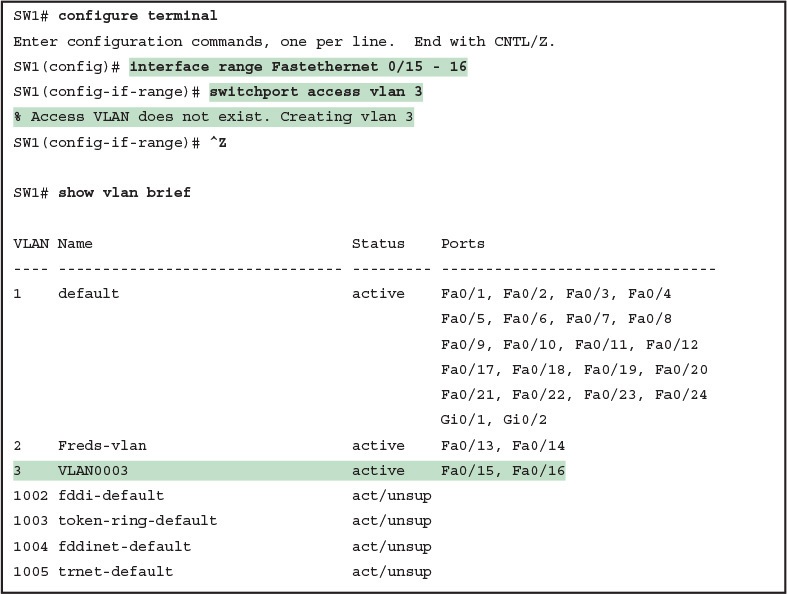
Example 2: Shorter VLAN Configuration Example (VLAN 3)
Example 2 shows how a switch can dynamically create a VLAN—the equivalent of the vlan vlan-id global config command—when the switchport access vlan interface subcommand refers to a currently unconfigured VLAN. This example begins with SW1 not knowing about VLAN 3. When the switchport access vlan 3 interface subcommand was used, the switch realized that VLAN 3 did not exist, and as noted in the shaded message in the example, the switch created VLAN 3, using a default name (VLAN0003). No other steps are required to create the VLAN. At the end of the process, VLAN 3 exists in the switch, and interfaces Fa0/15 and Fa0/16 are in VLAN 3, as noted in the shaded part of the show vlan brief command output.
VLAN Trunking Protocol
Before showing more configuration examples, you also need to know something about a Cisco protocol and tool called the VLAN Trunking Protocol (VTP). VTP is a Cisco proprietary tool on Cisco switches that advertises each VLAN configured in one switch (with the vlan number command) so that all the other switches in the campus learn about that VLAN. However, for various reasons, many enterprises choose not to use VTP.
However, VTP has some small impact on how every Cisco Catalyst switch works, even if you do not try to use VTP. This brief section introduces enough details of VTP so that you can see these small differences in VTP that cannot be avoided.
This study attempts to ignore VTP as much as is possible. To that end, all examples in this study use switches that have either been set to use VTP transparent mode (with the vtp mode transparent global command) or to disable it (with the vtp mode off global command). Both options allow the administrator to configure both standard- and extended-range VLANs, and the switch lists the vlan commands in the running-config file.
Finally, on a practical note, if you happen to do lab exercises with real switches or with simulators, and you see unusual results with VLANs, check the VTP status with the show vtp status command. If your switch uses VTP server or client mode, you will find:
The server switches can configure VLANs in the standard range only (1–1005).
The client switches cannot configure VLANs.
Both servers and clients may be learning new VLANs from other switches, and seeing their VLANs deleted by other switches, because of VTP.
The show running-config command does not list any vlan commands.
If possible in lab, switch to VTP transparent mode and ignore VTP for your switch configuration practice until you are ready to focus on how VTP works when studying for the ICND2 exam topics.
NOTE: Do not change VTP settings on any switch that also connects to the production network until you know how VTP works and you talk with experienced colleagues. If the switch you configure connects to other switches, which in turn connect to switches used in the production LAN, you could accidentally change the VLAN configuration in other switches with serious impact to the operation of the network. Be careful and never experiment with VTP settings on a switch unless it, and the other switches connected to it, have absolutely no physical links connected to the production LAN.
VLAN Trunking Configuration
Trunking configuration between two Cisco switches can be very simple if you just statically configure trunking. For example, if two Cisco 2960 switches connect to each other, they support only 802.1Q and not ISL. You could literally add one interface subcommand for the switch interface on each side of the link (switchport mode trunk), and you would create a VLAN trunk that supported all the VLANs known to each switch.
However, trunking configuration on Cisco switches includes many more options, including several options for dynamically negotiating various trunking settings. The configuration can either predefine different settings or tell the switch to negotiate the settings, as follows:
The type of trunking: IEEE 802.1Q, ISL, or negotiate which one to use
The administrative mode: Whether to always trunk, always not trunk, or negotiate
First, consider the type of trunking. Cisco switches that support ISL and 802.1Q can negotiate which type to use, using the Dynamic Trunking Protocol (DTP). If both switches support both protocols, they use ISL; otherwise, they use the protocol that both support. Today, many Cisco switches do not support the older ISL trunking protocol. Switches that support both types of trunking use the switchport trunk encapsulation {dot1q | isl | negotiate} interface subcommand to either configure the type or allow DTP to negotiate the type.
DTP can also negotiate whether the two devices on the link agree to trunk at all, as guided by the local switch port’s administrative mode. The administrative mode refers to the configuration setting for whether trunking should be used. Each interface also has an operational mode, which refers to what is currently happening on the interface, and might have been chosen by DTP’s negotiation with the other device. Cisco switches use the switchport mode interface subcommand to define the administrative trunking mode, as listed in Table 1.
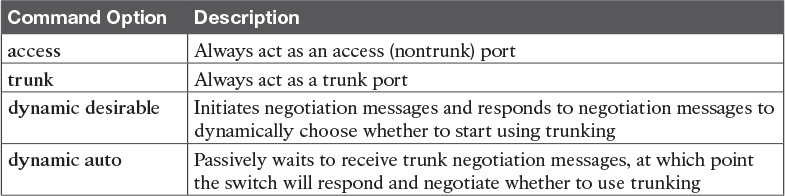
Table 1: Trunking Administrative Mode Options with the switchport mode Command
For example, consider the two switches shown in Figure 12. This figure shows an expansion of the network of Figure 11, with a trunk to a new switch (SW2) and with parts of VLANs 1 and 3 on ports attached to SW2. The two switches use a Gigabit Ethernet link for the trunk. In this case, the trunk does not dynamically form by default, because both (2960) switches default to an administrative mode of dynamic auto, meaning that neither switch initiates the trunk negotiation process. By changing one switch to use dynamic desirable mode, which does initiate the negotiation, the switches negotiate to use trunking, specifically 802.1Q because the 2960s support only 802.1Q.
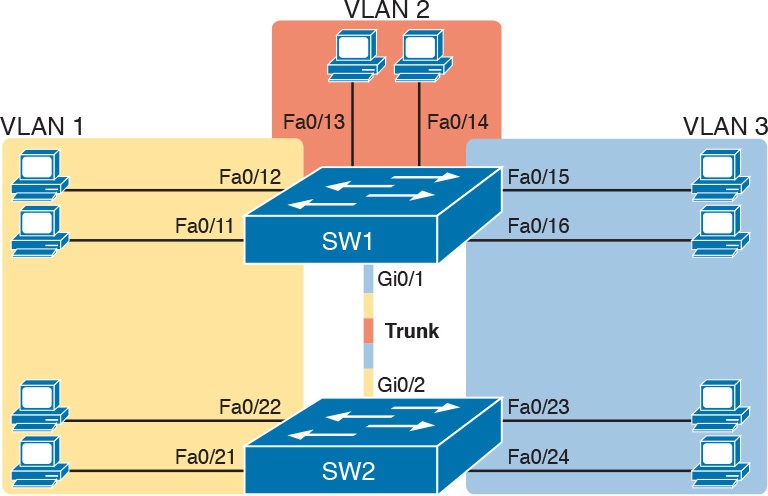
Figure 12: Network with Two Switches and Three VLANs
Example 3 begins by showing the two switches in Figure 12 with the default configuration so that the two switches do not trunk.
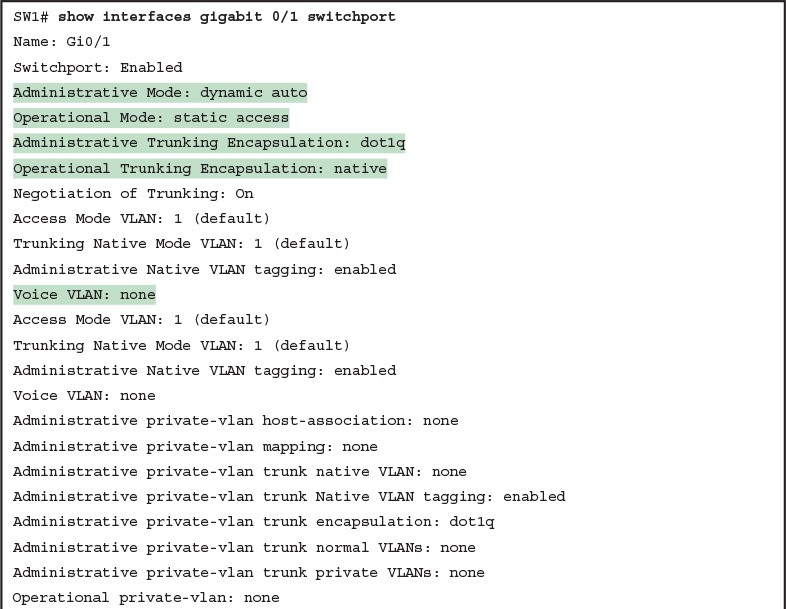
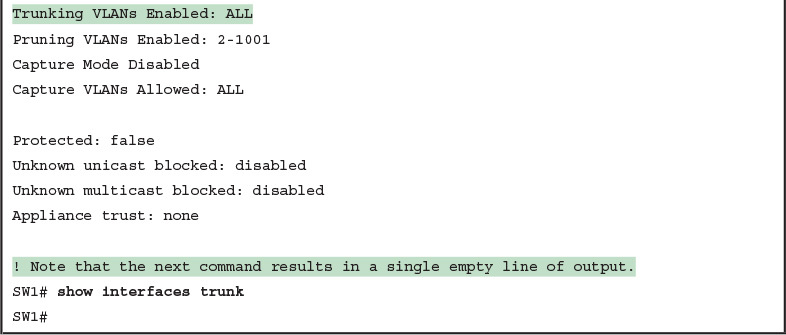
First, focus on the highlighted items from the output of the show interfaces switchport command at the beginning of Example 3. The output lists the default administrative mode setting of dynamic auto. Because SW2 also defaults to dynamic auto, the command lists SW1’s operational status as “access,” meaning that it is not trunking. (“Dynamic auto” tells both switches to sit there and wait on the other switch to start the negotiations.) The third shaded line points out the only supported type of trunking (802.1Q) on this 2960 switch. (On a switch that supports both ISL and 802.1Q, this value would by default list “negotiate,” to mean that the type of encapsulation is negotiated.) Finally, the operational trunking type is listed as “native,” which is a reference to the 802.1Q native VLAN.
The end of the example shows the output of the show interfaces trunk command, but with no output. This command lists information about all interfaces that currently operationally trunk; that is, it lists interfaces that currently use VLAN trunking. With no interfaces listed, this command also confirms that the link between switches is not trunking.
Next, consider Example 4, which shows the new configuration that enables trunking. In this case, SW1 is configured with the switchport mode dynamic desirable command, which asks the switch to both negotiate as well as to begin the negotiation process, rather than waiting on the other device. As soon as the command is issued, log messages appear showing that the interface goes down and then back up again, which happens when the interface transitions from access mode to trunk mode.
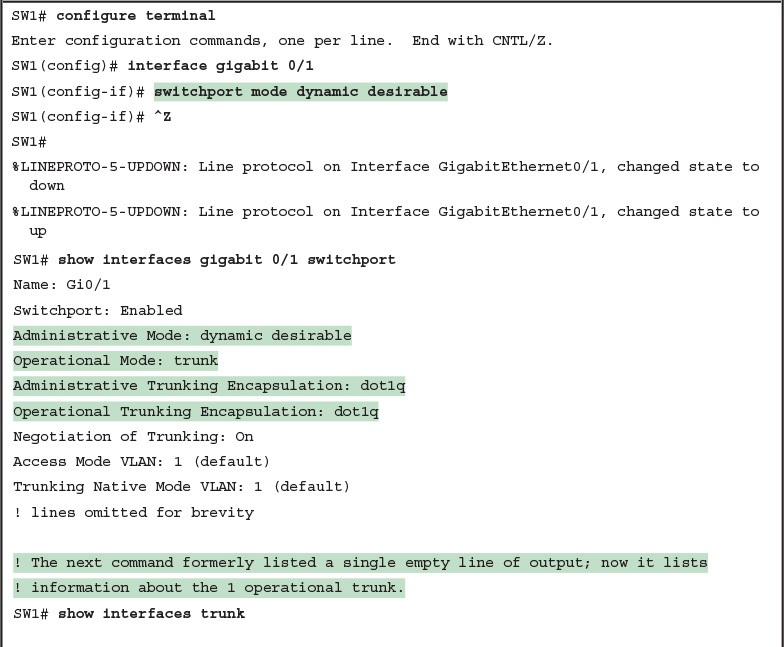
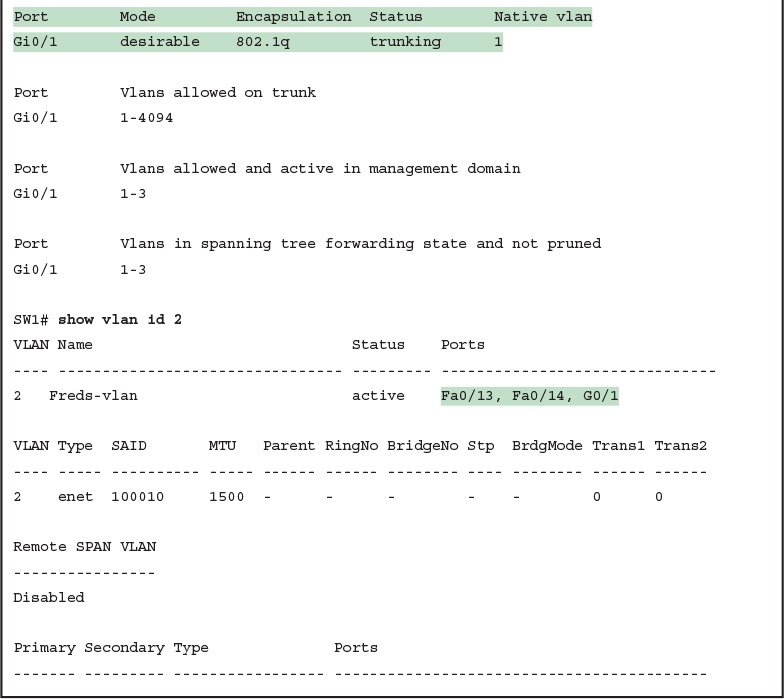
Example 4: SW1 Changes from Dynamic Auto to Dynamic Desirable
To verify whether trunking is working now, the middle of Example 4 lists the show interfaces switchport command. Note that the command still lists the administrative settings, which denote the configured values along with the operational settings, which list what the switch is currently doing. In this case, SW1 now claims to be in an operational mode of trunk, with an operational trunking encapsulation of dot1Q.
The end of the example shows the output of the show interfaces trunk command, which now lists G0/1, confirming that G0/1 is now operationally trunking. The next section discusses the meaning of the output of this command.
For the exams, you should be ready to interpret the output of the show interfaces switchport command, realize the administrative mode implied by the output, and know whether the link should operationally trunk based on those settings. Table 2 lists the combinations of the trunking administrative modes and the expected operational mode (trunk or access) resulting from the configured settings. The table lists the administrative mode used on one end of the link on the left, and the administrative mode on the switch on the other end of the link across the top of the table.
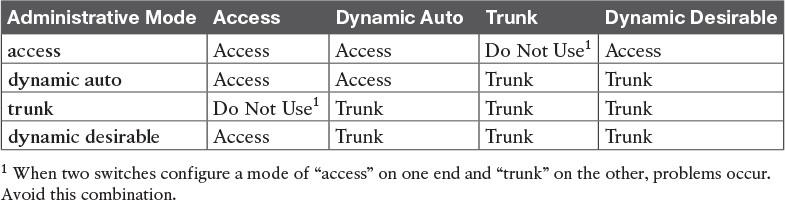
Table 2: Expected Trunking Operational Mode Based on the Configured Administrative Modes
Finally, before leaving the discussion of configuring trunks, Cisco recommends disabling trunk negotiation on most ports for better security. The majority of switch ports on most switches will be used to connect to users. As a matter of habit, you can disable DTP negotiations altogether using the switchport nonegotiate interface subcommand.
Implementing Interfaces Connected to Phones
This next topic is a strange topic, at least in the context of access links and trunk links. In the world of IP telephony, telephones use Ethernet ports to connect to an Ethernet network so they can use IP to send and receive voice traffic sent via IP packets. To make that work, the switch’s Ethernet port acts like an access port—but at the same time, the port acts like a trunk in some ways. This last topic of the lesson works through those main concepts.
Data and Voice VLAN Concepts
Before IP telephony, a PC could sit on the same desk as a phone. The phone happened to use UTP cabling, with that phone connected to some voice device (often called a voice switch or a private branch exchange [PBX]). The PC, of course, connected using a unshielded twisted-pair (UTP) cable to the usual LAN switch that sat in the wiring closet—sometimes in the same wiring closet as the voice switch. Figure 13 shows the idea.
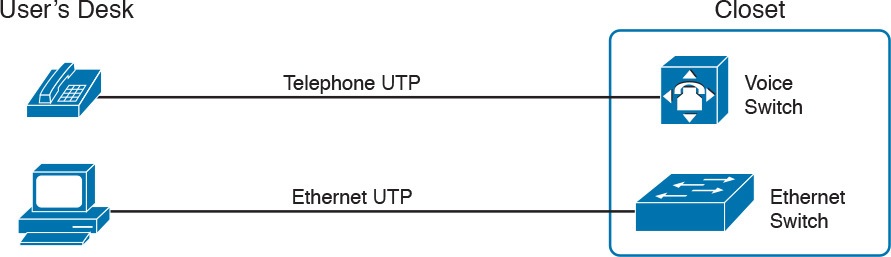
Figure 13: Before IP Telephony: PC and Phone, One Cable Each, Connect to Two Different Devices
The term IP telephony refers to the branch of networking in which the telephones use IP packets to send and receive voice as represented by the bits in the data portion of the IP packet. The phones connect to the network like most other end-user devices, using either Ethernet or Wi-Fi. These new IP phones did not connect via cable directly to a voice switch, instead connecting to the IP network using an Ethernet cable and an Ethernet port built in to the phone. The phones then communicated over the IP network with software that replaced the call setup and other functions of the PBX. (The current products from Cisco that perform this IP telephony control function are called Cisco Unified Communication Manager.)
The migration from using the already-installed telephone cabling, to these new IP phones that needed UTP cables that supported Ethernet, caused some problems in some offices. In particular:
The older non-IP phones used a category of UTP cabling that often did not support 100-Mbps or 1000-Mbps Ethernet.
Most offices had a single UTP cable running from the wiring closet to each desk, but now two devices (the PC and the new IP phone) both needed a cable from the desktop to the wiring closet.
Installing a new cable to every desk would be expensive, plus you would need more switch ports.
To solve this problem, Cisco embedded small three-port switches into each phone.
IP telephones have included a small LAN switch, on the underside of the phone, since the earliest IP telephone products. Figure 14 shows the basic cabling, with the wiring closet cable connecting to one physical port on the embedded switch, the PC connecting with a short patch cable to the other physical port, and the phone’s internal CPU connecting to an internal switch port.
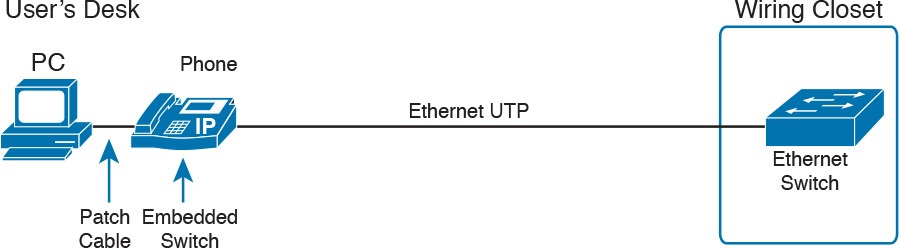
Figure 14: Cabling with an IP Phone, a Single Cable, and an Integrated Switch
Sites that use IP telephony, which includes most every company today, now have two devices off each access port. In addition, Cisco best practices for IP telephony design tell us to put the phones in one VLAN, and the PCs in a different VLAN. To make that happen, the switch port acts a little like an access link (for the PC’s traffic), and a little like a trunk (for the phone’s traffic). The configuration defines two VLANs on that port, as follows:
Data VLAN: Same idea and configuration as the access VLAN on an access port, but defined as the VLAN on that link for forwarding the traffic for the device connected to the phone on the desk (typically the user’s PC).
Voice VLAN: The VLAN defined on the link for forwarding the phone’s traffic. Traffic in this VLAN is typically tagged with an 802.1Q header.
Figure 15 illustrates this design with two VLANs on access ports that support IP telephones.
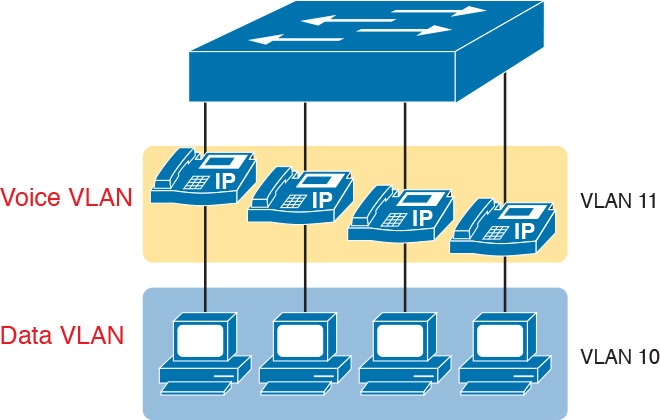
Figure 15: A LAN Design, with Data in VLAN 10 and Phones in VLAN 11
Data and Voice VLAN Configuration and Verification
Configuring a switch port to support IP phones, once you know the planned voice and data VLAN IDs, is easy. Making sense of the show commands once it is configured can be a challenge. The port acts like an access port in many ways. However, with most configuration options, the voice frames flow with an 802.1Q header, so that the link supports frames in both VLANs on the link. But that makes for some different show command output.
Example 5 shows an example. In this case, all four switch ports F0/1–F0/4 begin with default configuration. The configuration adds the new data and voice VLANs. The example then configures all four ports as access ports, and defines the access VLAN, which is also called the data VLAN when discussing IP telephony. Finally, the configuration includes the switchport voice vlan 11 command, which defines the voice VLAN used on the port. The example matches Figure 15, using ports F0/1–F0/4.
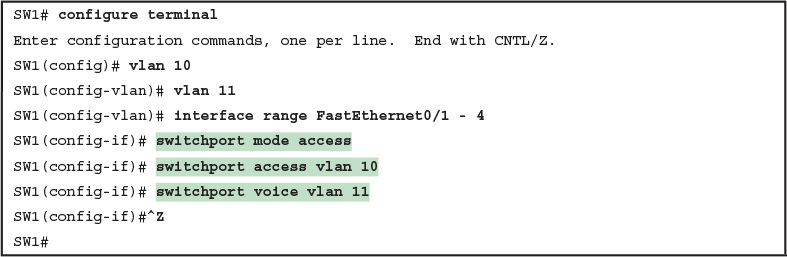
Example 5: Configuring the Voice and Data VLAN on Ports Connected to Phones
NOTE: CDP must be enabled on an interface for a voice access port to work with Cisco IP Phones. CDP is enabled by default, so its configuration is not shown here.
The following list details the configuration steps for easier review and study:
- Step 1. Use the vlan vlan-id command in global configuration mode to create the data and voice VLANs if they do not already exist on the switch.
- Step 2. Configure the data VLAN like an access VLAN, as usual:
- A. Use the interface type number command global configuration mode to move into interface configuration mode.
- B. Use the switchport access vlan id-number command in interface configuration mode to define the data VLAN.
- C. Use the switchport mode access command in interface configuration mode to make this port always operate in access mode (that is, to not trunk).
- Step 3. Use the switchport voice vlan id-number command in interface configuration mode to set the voice VLAN ID.
Verifying the status of a switch port configured like Example 5 shows some different output compared to the pure access port and pure trunk port configurations seen earlier in this lesson. For example, the show interfaces switchport command shows details about the operation of an interface, including many details about access ports. Example 6 shows those details for port F0/4 after the configuration in Example 5 was added.
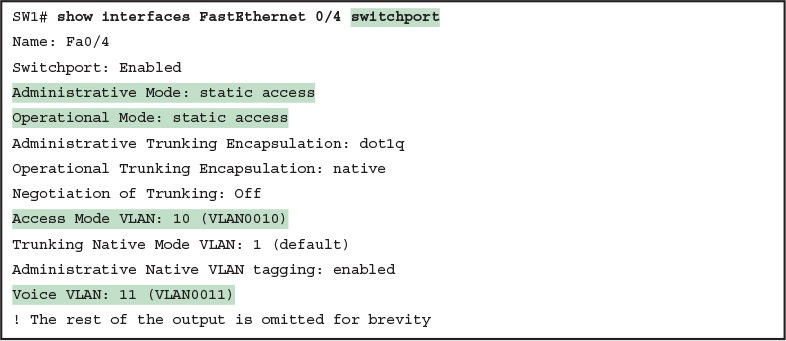
Example 6: Verifying the Data VLAN (Access VLAN) and Voice VLAN
Working through the first three highlighted lines in the output, all those details should look familiar for any access port. The switchport mode access configuration command statically configures the administrative mode to be an access port, so the port of course operates as an access port. Also, as shown in the third highlighted line, the switchport access vlan 10 configuration command defined the access mode VLAN as highlighted here.
The fourth highlighted line shows the one small new piece of information: the voice VLAN ID, as set with the switchport voice vlan 11 command in this case. This small line of output is the only piece of information in the output that differs from the earlier access port examples in this lesson.
These ports act more like access ports than trunk ports. In fact, the show interfaces type number switchport command boldly proclaims, “Operational Mode: static access.” However, one other show command reveals just a little more about the underlying operation with 802.1Q tagging for the voice frames.
As mentioned earlier, the show interfaces trunk command—that is, the command that does not include a specific interface in the middle of the command—lists the operational trunks on a switch. With IP telephony ports, the ports do not show up in the list of trunks either—providing evidence that these links are not treated as trunks. Example 7 shows just such an example.
However, the show interfaces trunk command with the interface listed in the middle of the command, as is also shown in Example 7, does list some additional information. Note that in this case, the show interfaces F0/4 trunk command lists the status as not-trunking, but with VLANs 10 and 11 allowed on the trunk. (Normally, on an access port, only the access VLAN is listed in the “VLANs allowed on the trunk” list in the output of this command.)
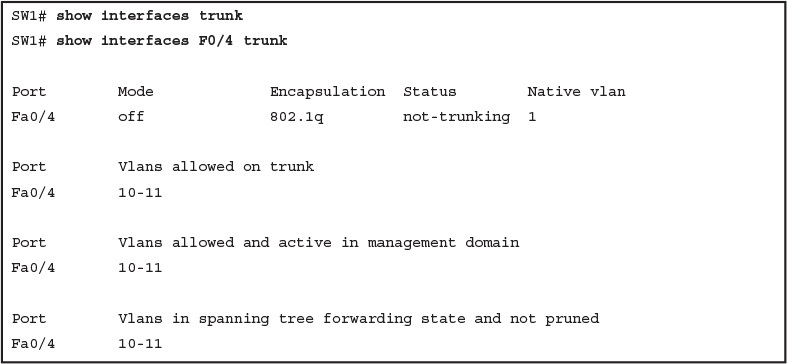
Example 7: Allowed VLAN List and the List of Active VLANs
Summary: IP Telephony Ports on Switches
It might seem like this short topic about IP telephony and switch configuration includes a lot of small twists and turns and trivia, and it does. The most important items to remember are as follows:
- Configure these ports like a normal access port to begin: Configure it as a static access port and assign it an access VLAN.
- Add one more command to define the voice VLAN (switchport voice vlan vlan-id).
- Look for the mention of the voice VLAN ID, but no other new facts, in the output of the show interfaces type number switchport command.
- Look for both the voice and data (access) VLAN IDs in the output of the show interfaces type number trunk command.
- Do not expect to see the port listed in the list of operational trunks as listed by the show interfaces trunk command.

Analyzing Ethernet LAN Designs
INTERNOLD NETWORKS CCNA LIVE WEBCLASS (INCLW)
Analyzing Ethernet LAN Designs
Contents
Analyzing Ethernet LAN Designs
Ethernet defines what happens on each Ethernet link, but the more interesting and more detailed work happens on the devices connected to those links: the network interface cards (NIC) inside devices and the LAN switches.
This lesson takes the Ethernet LAN basics introduced in “Fundamentals of Ethernet LANs,” and dives deeply into many aspects of a modern Ethernet LAN, while focusing on the primary device used to create these LANs: LAN switches.
This lesson breaks down the discussion of Ethernet and LAN switching into two sections.
The first major section looks at the logic used by LAN switches when forwarding Ethernet frames, along with the related terminology.
The second section considers design and implementation issues, as if you were building a new Ethernet LAN in a building or campus.
This second section considers design issues, including using switches for different purposes, when to choose different types of Ethernet links, and how to take advantage of Ethernet autonegotiation.
Analyzing Collision Domains and Broadcast Domains
Ethernet devices, and the logic they use, have a big impact on why engineers design modern LANs in a certain way.
Some of the terms used to describe key design features come from far back in the history of Ethernet, and because of their age, the meaning of each term may or may not be so obvious to someone learning Ethernet today.
This first section of the lesson looks at two of these older terms in particular: collision domain and broadcast domain. And to understand these terms and apply them to modern Ethernet LANs, this section needs to work back through the history of Ethernet a bit, to put some perspective on the meaning behind these terms.
Ethernet Collision Domains
The term collision domain comes from the far back history of Ethernet LANs. To be honest, sometimes people new to Ethernet can get a little confused about what this term really means in the context of a modern Ethernet LAN, in part because modern Ethernet LANs, done properly, can completely prevent collisions.
So to fully understand collision domains, we must first start with a bit of Ethernet history.
This next section of the lesson looks at a few of the historical Ethernet devices, for the purpose of defining a collision domain, and then closing with some comments about how the term applies in a modern Ethernet LAN that uses switches.
10BASE-T with Hub
10BASE-T, introduced in 1990, significantly changed the design of Ethernet LANs, more like the designs seen today. 10BASE-T introduced the cabling model similar to today’s Ethernet LANs, with each device connecting to a centralized device using an unshielded twisted-pair (UTP) cable.
However, 10BASE-T did not originally use LAN switches; instead, the early 10BASE-T networks used a device called an Ethernet hub. (The technology required to build even a basic LAN switch was not yet available at that time.)
Although both a hub and a switch use the same cabling star topology, an Ethernet hub does not forward traffic like a switch. Ethernet hubs use physical layer processing to forward data. A hub does not interpret the incoming electrical signal as an Ethernet frame, look at the source and destination MAC address, and so on.
Basically, a hub acts like a repeater, just with lots of ports. When a repeater receives an incoming electrical signal, it immediately forwards a regenerated signal out all the other ports except the incoming port. Physically, the hub just sends out a cleaner version of the same incoming electrical signal, as shown in Figure 1, with Larry’s signal being repeated out the two ports on the right.

Figure 1: 10BASE-T (with a Hub): The Hub Repeats Out All Other Ports
Because of the physical layer operation used by the hub, the devices attached to the network must use carrier sense multiple access with collision detection (CSMA/CD) to take turns (as introduced at the end of Fundamentals of Ethernet LANs lesson).
Note that the hub itself does not use CSMA/CD logic; the hub always receives an electrical signal and starts repeating a (regenerated) signal out all other ports, with no thought of CSMA/CD.
So, although a hub’s logic works well to make sure all devices get a copy of the original frame, that same logic causes frames to collide.
Figure 2 demonstrates that effect, when the two devices on the right side of the figure send a frame at the same time, and the hub physically transmits both electrical signals out the port to the left (toward Larry).

Figure 2: Hub Operation Causing a Collision
Because a hub makes no attempt to prevent collisions, the devices connected to it all sit within the same collision domain. A collision domain is the set of NICs and device ports for which if they sent a frame at the same time, the frames would collide.
In Figures 1 and Figure 2, all three PCs are in the same collision domain, as well as the hub. Summarizing the key points about hubs:
- The hub acts a multiport repeater, blindly regenerating and repeating any incoming electrical signal out all other ports, even ignoring CSMA/CD rules.
- When two or more devices send at the same time, the hub’s actions cause an electrical collision, making both signals corrupt.
- The connected devices must take turns by using carrier sense multiple access with collision detection (CSMA/CD) logic, so the devices share the bandwidth.
- Hubs create a physical star topology.
Ethernet Transparent Bridges
From a design perspective, the introduction of 10BASE-T was a great improvement over the earlier types of Ethernet. It reduced cabling costs and cable installation costs, and improved the availability percentages of the network.
But sitting here today, thinking of a LAN in which all devices basically have to wait their turn may seem like a performance issue, and it was. If Ethernet could be improved to allow multiple devices to send at the same time without causing a collision, Ethernet performance could be improved.
The first method to allow multiple devices to send at the same time was Ethernet transparent bridges. Ethernet transparent bridges, or simply bridges, made these improvements:
- Bridges sat between hubs and divided the network into multiple collision domains.
- Bridges increase the capacity of the entire Ethernet, because each collision domain is basically a separate instance of CSMA/CD, so each collision domain can have one sender at a time.
Figure 3 shows the effect of building a LAN with two hubs, each separated by a bridge. The resulting two collision domains each support at most 10 Mbps of traffic each, compared to at most 10 Mbps if a single hub were used.

Figure 3: Bridge Creates Two Collision Domains and Two Shared Ethernets
Bridges create multiple collision domains as a side effect of their forwarding logic. A bridge makes forwarding decisions just like a modern LAN switch; in fact, bridges were the predecessors of the modern LAN switch.
Like switches, bridges hold Ethernet frames in memory, waiting to send out the outgoing interface based on CSMA/CD rules. In other cases, the bridge does not even need to forward the frame.
For instance, if Fred sends a frame destined to Barney’s MAC address, then the bridge would never forward frames from the left to the right.
Ethernet Switches and Collision Domains
LAN switches perform the same basic core functions as bridges but at much faster speeds and with many enhanced features. Like bridges, switches segment a LAN into separate collision domains, each with its own capacity.
And if the network does not have a hub, each single link in a modern LAN is considered its own collision domain, even if no collisions can actually occur in that case.
For example, Figure 4 shows a simple LAN with a switch and four PCs. The switch creates four collision domains, with the ability to send at 100 Mbps in this case on each of the four links. And with no hubs, each link can run at full duplex, doubling the capacity of each link.

Figure 4: Switch Creates Four Collision Domains and Four Ethernet Segments
Now take a step back for a moment and think about some facts about modern Ethernet LANs. Today, you build Ethernet LANs with Ethernet switches, not with Ethernet hubs or bridges. The switches connect to each other. And every single link is a separate collision domain.
As strange as it sounds, each of those collision domains in a modern LAN may also never have a collision. Any link that uses full duplex—that is, both devices on the link use full duplex—does not have collisions.
In fact, running with full duplex is basically this idea: No collisions can occur between a switch and a single device, so we can turn off CSMA/CD by running full duplex.
NOTE: The routers in a network design also create separate collision domains, because frames entering or exiting one router LAN interface do not collide with frames on another of the router’s LAN interfaces.
The Impact of Collisions on LAN Design
So, what is the useful takeaway from this discussion about collision domains? A long time ago, collisions were normal in Ethernet, so analyzing an Ethernet design to determine where the collision domains were was useful.
On the other end of the spectrum, a modern campus LAN that uses only switches (and no hubs or transparent bridges), and full duplex on all links, has no collisions at all. So does the collision domain term still matter today? And do we need to think about collisions even still today?
In a word, the term collision domain still matters, and collisions still matter, in that network engineers need to be ready to understand and troubleshoot exceptions.
Whenever a port that could use full duplex (therefore avoiding collisions) happens to use half duplex—by incorrect configuration, by the result of autonegotiation, or any other reason—collisions can now occur. In those cases, engineers need to be able identify the collision domain.
Summarizing the key points about collision domains:
- LAN switches place each separate interface into a separate collision domain.
- LAN bridges, which use the same logic as switches, placed each interface into a separate collision domain.
- Routers place each LAN interface into a separate collision domain. (The term collision domain does not apply to WAN interfaces.)
- LAN hubs do not place each interface into a separate collision domain.
- A modern LAN, with all LAN switches and routers, with full duplex on each link, would not have collisions at all.
- In a modern LAN with all switches and routers, even though full duplex removes collisions, think of each Ethernet link as a separate collision domain when the need to troubleshoot arises.
Figure 5 shows an example with a design that includes hubs, bridges, switches, and routers—a design that you would not use today, but it makes a good backdrop to remind us about which devices create separate collision domains.

Figure 5: Example of a Hub Not Creating Multiple Collision Domains, While Others Do
Ethernet Broadcast Domains
Take any Ethernet LAN, and pick any device. Then think of that device sending an Ethernet broadcast. An Ethernet broadcast domain is the set of devices to which that broadcast is delivered.
To begin, think about a modern LAN for a moment, and where a broadcast frame flows. Imagine that all the switches still used the switch default to put each interface into VLAN 1.
As a result, a broadcast sent by any one device would be flooded to all devices connected to all switches (except for the device that sent the original frame).
For instance, in Figure 6, under the assumption that all ports are still assigned to VLAN 1, a broadcast would flow to all the devices shown in the figure.

Figure 6: A Single Large Broadcast Domain
Of all the common networking devices discussed in this lesson, only a router does not forward a LAN broadcast. Hubs of course forward broadcasts, because hubs do not even think about the electrical signal as an Ethernet frame. Bridges and switches use the same forwarding logic, flooding LAN broadcasts.
Routers, as a side effect of their routing logic, do not forward Ethernet broadcast frames, so they separate a network into separate broadcast domains.
Figure 7 collects those thoughts into a single example.

Figure 7: Broadcast Domains Separated by a Router
By definition, broadcasts sent by a device in one broadcast domain are not forwarded to devices in another broadcast domain. In this example, there are two broadcast domains. The router does not forward a LAN broadcast sent by a PC on the left to the network segment on the right.
Virtual LANs
Routers create multiple broadcast domains mostly as a side effect of how IP routing works. While a network designer might set about to use more router interfaces for the purpose of making a larger number of smaller broadcast domains, that plan quickly consumes router interfaces. But a better tool exists, one that is integrated into LAN switches and consumes no additional ports: virtual LANs (VLAN).
By far, VLANs give the network designer the best tool for designing the right number of broadcast domains, of the right size, with the right devices in each. To appreciate how VLANs do that, you must first think about one specific definition of what a LAN is:
A LAN consists of all devices in the same broadcast domain.
With VLANs, a switch configuration places each port into a specific VLAN. The switches create multiple broadcast domains by putting some interfaces into one VLAN and other interfaces into other VLANs.
The switch forwarding logic does not forward frames from a port in one VLAN out a port into another VLAN—so the switch separates the LAN into separate broadcast domains. Instead, routers must forward packets between the VLANs by using routing logic. So, instead of all ports on a switch forming a single broadcast domain, the switch separates them into many, based on configuration.
For perspective, think about how you would create two different broadcast domains with switches if the switches had no concept of VLANs. Without any knowledge of VLANs, a switch would receive a frame on one port and flood it out all the rest of its ports. Therefore, to make two broadcast domains, two switches would be used—one for each broadcast domain, as shown in Figure 8.

Figure 8: Sample Network with Two Broadcast Domains and No VLANs
Alternatively, with a switch that understands VLANs, you can create multiple broadcast domains using a single switch. All you do is put some ports in one VLAN and some in the other. (The Cisco Catalyst switch interface subcommand to do so is switchport access vlan 2, for instance, to place a port into VLAN 2.)
Figure 9 shows the same two broadcast domains as in Figure 8, now implemented as two different VLANs on a single switch.

Figure 9: Sample Network with Two VLANs Using One Switch
This section briefly introduces the concept of VLANs, but the lesson, “Implementing Ethernet Virtual LANs,” discusses VLANs in more depth, including the details of how to configure VLANs in campus LANs.
The Impact of Broadcast Domains on LAN Design
Modern LAN designs try to avoid collisions, because collisions make performance worse. There is no benefit to keeping collisions in the network. However, a LAN design cannot remove broadcasts, because broadcast frames play an important role in many protocols.
So when thinking about broadcast domains, the choices are more about tradeoffs rather than designing to remove broadcasts.
For just one perspective, just think about the size of a broadcast domain—that is, the number of devices in the same broadcast domain. A small number of large broadcast domains can lead to poor performance for the devices in that broadcast domain. However, moving in the opposite direction, to making a large number of broadcast domains each with just a few devices, leads to other problems.
Consider the idea of a too-large broadcast domain for a moment. When a host receives a broadcast, the host must process the received frame. All hosts need to send some broadcasts to function properly, so when a broadcast arrives, the NIC must interrupt the computer’s CPU to give the incoming message to the CPU. The CPU must spend time thinking about the received broadcast frame. (For example, IP Address Resolution Protocol [ARP] messages are LAN broadcasts, as mentioned in the lesson “Fundamentals of IPv4 Addressing and Routing.”)
So, broadcasts happen, which is good, but broadcasts do require all the hosts to spend time processing each broadcast frame. The more devices in the same broadcast domain, the more unnecessary interruptions of each device’s CPU.
This section does not try to give a sweeping review of all VLAN design tradeoffs. Instead, you can see that the size of a VLAN should be considered, but many other factors come in to play as well. How big are the VLANs? How are the devices grouped? Do VLANs span across all switches or just a few? Is there any apparent consistency to the VLAN design, or is it somewhat haphazard? Answering these questions helps reveal what the designer was thinking, as well as what the realities of operating a network may have required.
Summarizing the main points about broadcast domains:
- Broadcasts exists, so be ready to analyze a design to define each broadcast domain, that is, each set of devices whose broadcasts reach the other devices in that domain.
- VLANs by definition are broadcast domains created though configuration.
- Routers, because they do not forward LAN broadcasts, create separate broadcast domains off their separate Ethernet interfaces.
Analyzing Campus LAN Topologies
The term campus LAN refers to the LAN created to support the devices in a building or in multiple buildings in somewhat close proximity to one another. For example, a company might lease office space in several buildings in the same office park.
The network engineers can then build a campus LAN that includes switches in each building, plus Ethernet links between the switches in the buildings, to create a larger campus LAN.
When planning and designing a campus LAN, the engineers must consider the types of Ethernet available and the cabling lengths supported by each type. The engineers also need to choose the speeds required for each Ethernet segment.
In addition, some thought needs to be given to the idea that some switches should be used to connect directly to end-user devices, whereas other switches might need to simply connect to a large number of these end-user switches.
Finally, most projects require that the engineer consider the type of equipment that is already installed and whether an increase in speed on some segments is worth the cost of buying new equipment.
This second of three major sections discusses the topology of a campus LAN design.
Network designers do not just plug in devices to any port and connect switches to each other in an arbitrary way, like you might do with a few devices on the same table in a lab.
Instead, there are known better ways to design the topology of a campus LAN, and this section introduces some of the key points and terms.
The last major section of the lesson then looks at how to choose which Ethernet standard to use for each link in that campus LAN design, and why you might choose one versus another.
Two-Tier Campus Design (Collapsed Core)
To sift through all the requirements for a campus LAN, and then have a reasonable conversation about it with peers, most Cisco-oriented LAN designs use some common terminology to refer to the design. For this lesson’s purposes, you should be aware of some of the key campus LAN design terminology.
The Two-Tier Campus Design
Figure 10 shows a typical design of a large campus LAN, with the terminology included in the figure. This LAN has around 1000 PCs connected to switches that support around 25 ports each. Explanations of the terminology follow the figure.

Campus LAN with Design Terminology Listed
Cisco uses three terms to describe the role of each switch in a campus design: access, distribution, and core. The roles differ based on whether the switch forwards traffic from user devices and the rest of the LAN (access), or whether the switch forwards traffic between other LAN switches (distribution and core).
Access switches connect directly to end users, providing user device access to the LAN. Access switches normally send traffic to and from the end-user devices to which they are connected and sit at the edge of the LAN.
Distribution switches provide a path through which the access switches can forward traffic to each other. By design, each of the access switches connects to at least one distribution switch, typically to two distribution switches for redundancy.
The distribution switches provide the service of forwarding traffic to other parts of the LAN. Note that most designs use at least two uplinks to two different distribution switches (as shown in Figure 10) for redundancy.
The figure shows a two-tier design, with the tiers being the access tier (or layer) and the distribution tier (or layer). A two-tier design solves two major design needs:
- Provides a place to connect end-user devices (the access layer, with access switches)
- Connects the switches with a reasonable number of cables and switch ports by connecting all 40 access switches to two distribution switches
Topology Terminology Seen Within a Two-Tier Design
The exam topics happen to list a couple of terms about LAN and WAN topology and design, so this is a good place to pause to discuss those terms for a moment.
First, consider these more formal definitions of four topology terms:
- Star: A design in which one central device connects to several others, so that if you drew the links out in all directions, the design would look like a star with light shining in all directions.
- Full mesh: For any set of network nodes, a design that connects a link between each pair of nodes.
- Partial mesh: For any set of network nodes, a design that connects a link between some pairs of nodes, but not all. In other words, a mesh that is not a full mesh.
- Hybrid: A design that combines topology design concepts into a larger (typically more complex) design.
Armed with those formal definitions, note that the two-tier design is indeed a hybrid design that uses both a star topology at the access layer and a partial mesh at the distribution layer. To see why, consider Figure 11.
It redraws a typical access layer switch, but instead of putting the PCs all below the switch, it spreads them around the switch. Then on the right, a similar version of the same drawing shows why the term star might be used—the topology looks a little like a child’s drawing of a star.

Figure 11: The Star Topology Design Concept in Networking
The distribution layer creates a partial mesh. If you view the access and distribution switches as nodes in a design, some nodes have a link between them, and some do not. Just refer to Figure 10 and note that, by design, none of the access layer switches connect to each other.
Finally, a design could use a full mesh. However, for a variety of reasons beyond the scope of the design discussion here, a campus design typically does not need to use the number of links and ports required by a full mesh design. However, just to make the point, first consider how many links and switch ports would be required for a single link between nodes in a full mesh, with six nodes, as shown in Figure 12.

Figure 12: Using a Full Mesh at the Distribution Layer, 6 Switches, 15 Links
Even with only six switches, a full mesh would consume 15 links (and 30 switch ports—two per link).
Now think about a full mesh at the distribution layer for a design like Figure 10, with 40 access switches and two distribution switches. Rather than drawing it and counting it, the number of links is calculated with this old math formula from high school: N(N – 1) / 2, or in this case, 42 * 41 / 2 = 861 links, and 1722 switch ports consumed among all switches.
For comparison’s sake, the partial mesh design of Figure 10, with a pair of links from each access switch to each distribution switch, requires only 160 links and a total of 320 ports among all switches.
Three-Tier Campus Design (Core)
The two-tier design of Figure 10, with a partial mesh of links at the distribution layer, happens to be the most common campus LAN design. It also goes by two common names: a two-tier design (for obvious reasons), and a collapsed core (for less obvious reasons).
The term collapsed core refers to the fact that the two-tier design does not have a third tier, the core tier. This next topic examines a three-tier design that does have a core, for perspective.
Imagine your campus has just two or three buildings. Each building has a two-tier design inside the building, with a pair of distribution switches in each building and access switches spread around the building as needed. How would you connect the LANs in each building?
Well, with just a few buildings, it makes sense to simply cable the distribution switches together, as shown in Figure 13.

Figure 13: Two-Tier Building Design, No Core, Three Buildings
The design in Figure 13 works well, and many companies use this design. Sometimes the center of the network uses a full mesh, sometimes a partial mesh, depending on the availability of cables between the buildings.
However, a design with a third tier (a core tier) saves on switch ports and on cables in larger designs. And note that with the links between buildings, the cables run outside, are often more expensive to install, are almost always fiber cabling with more expensive switch ports, so conserving the number of cables used between buildings can help reduce costs.
A three-tier core design, unsurprisingly at this point, adds a few more switches (core switches), which provide one function: to connect the distribution switches. Figure 14 shows the migration of the Figure 13 collapsed core (that is, a design without a core) to a three-tier core design.

Figure 13: Three-Tier Building Design (Core Design), Three Buildings
NOTE:The core switches sit in the middle of the figure. In the physical world, they often sit in the same room as one of the distribution switches, rather than in some purpose-built room in the middle of the office park. The figure focuses more on the topology rather than the physical location.
By using a core design, with a partial mesh of links in the core, you still provide connectivity to all parts of the LAN, and to the routers that send packets over the WAN, just with fewer links between buildings.
The following list summarizes the terms that describe the roles of campus switches:
- Access: Provides a connection point (access) for end-user devices. Does not forward frames between two other access switches under normal circumstances.
- Distribution: Provides an aggregation point for access switches, providing connectivity to the rest of the devices in the LAN, forwarding frames between switches, but not connecting directly to end-user devices.
- Core: Aggregates distribution switches in very large campus LANs, providing very high forwarding rates for the larger volume of traffic due to the size of the network.
Topology Design Terminology
The CCNA exam topics specifically mention several network design terms related to topology. This next topic summarizes those key terms to connect the terms to the matching ideas.
First, consider Figure 15, which shows a few of the terms. First, on the left, drawings often show access switches with a series of cables, parallel to each other. However, an access switch and its access links is often called a star topology.
Why? Look at the redrawn access switch in the center of the figure, with the cables radiating out from the center. It does not look like a real star, but it looks a little like a child’s drawing of a star, hence the term star topology.

Figure 15: LAN Design Terminology
The right side of the figure repeats a typical two-tier design, focusing on the mesh of links between the access and distribution switches. Any group of nodes that connect with more links than a star topology is typically called a mesh.
In this case, the mesh is a partial mesh, because not all nodes have a direct link between each other.
A design that connects all nodes with a link would be a full mesh.
Real networks make use of these topology ideas, but often a network combines the ideas together.
For instance, the right side of Figure 14 combines the star topology of the access layer with the partial mesh of the distribution layer. So you might hear these designs that combine concepts called a hybrid design.
Analyzing LAN Physical Standard Choices
When you look at the design of a network designed by someone else, you can look at all the different types of cabling used, the different types of switch ports, and the Ethernet standards used in each case. Then ask yourself: Why did they choose a particular type of Ethernet link for each link in the network? Asking that question, and investigating the answer, starts to reveal much about building the physical campus LAN.
The IEEE has done an amazing job developing Ethernet standards that give network designers many options. Two themes in particular have helped Ethernet grow over the long term:
- The IEEE has developed many additional 802.3 standards for different types of cabling, different cable lengths, and for faster speeds.
- All the physical standards rely on the same consistent data-link details, with the same standard frame formats. That means that one Ethernet LAN can use many types of physical links to meet distance, budget, and cabling needs.
For example, think about the access layer of the generic design drawings, but now think about cabling and Ethernet standards. In practice, access layer switches sit in a locked wiring closet somewhere on the same floor as the end user devices.
Electricians have installed unshielded twisted-pair (UTP) cabling used at the access layer, running from that wiring closet to each wall plate at each office, cubicle, or any place where an Ethernet device might need to connect to the LAN. The type and quality of the cabling installed between the wiring closet and each Ethernet outlet dictate what Ethernet standards can be supported.
Certainly, whoever designed the LAN at the time the cabling was installed thought about what type of cabling was needed to support the types of Ethernet physical standards that were going to be used in that LAN.
Ethernet Standards
Over time, the IEEE has continued to develop and release new Ethernet standards, for new faster speeds and to support new and different cabling types and cable lengths. Figure 16 shows some insight into Ethernet speed improvements over the years.
The early standards up through the early 1990s ran at 10 Mbps, with steadily improving cabling and topologies. Then, with the introduction of Fast Ethernet (100 Mbps) in 1995, the IEEE began ramping up the speeds steadily over the next few decades, continuing even until today.

Figure 16: Ethernet Standards Timeline
NOTE: Often, the IEEE first introduces support for the next higher speed using some forms of fiber optic cabling, and later, sometimes many years later, the IEEE completes the work to develop standards to support the same speed on UTP cabling. Figure 16 shows the earliest standards for each speed, no matter what cabling.
When the IEEE introduces support for a new type of cabling, or a faster speed, they create a new standard as part of 802.3. These new standards have a few letters behind the name. So, when speaking of the standards, sometimes you might refer to the standard name (with letters).
For instance, the IEEE standardized Gigabit Ethernet support using inexpensive UTP cabling in standard 802.3ab. However, more often, engineers refer to that same standard as 1000BASE-T or simply Gigabit Ethernet. Table 1 lists some of the IEEE 802.3 physical layer standards and related names for perspective.

Table 1: IEEE Physical Layer Standards
Choosing the Right Ethernet Standard for Each Link
When designing an Ethernet LAN, you can and should think about the topology, with an access layer, a distribution layer, and possibly a core layer. But thinking about the topology does not tell you which specific standards to follow for each link. Ultimately, you need to pick which Ethernet standard to use for each link, based on the following kinds of facts about each physical standard:
- The speed
- The maximum distance allowed between devices when using that standard/cabling
- The cost of the cabling and switch hardware
- The availability of that type of cabling already installed at your facilities
Consider the three most common types of Ethernet today (10BASE-T, 100BASE-T, and 1000BASE-T). They all have the same 100-meter UTP cable length restriction. They all use UTP cabling.
However, not all UTP cabling meets the same quality standard, and as it turns out, the faster the Ethernet standard, the higher the required cable quality category needed to support that standard. As a result, some buildings might have better cabling that supports speeds up through Gigabit Ethernet, whereas some buildings may support only Fast Ethernet.
The Telecommunications Industry Association (TIA; tiaonline.org) defines Ethernet cabling quality standards. Each Ethernet UTP standard lists a TIA cabling quality (called a category) as the minimum category that the standard supports.
For example, 10BASE-T allows for Category 3 (CAT3) cabling or better. 100BASE-T requires higher-quality CAT5 cabling, and 1000BASE-T requires even higher-quality CAT5e cabling. (The TIA standards follow a general “higher number is better cabling” in their numbering.)
For instance, if an older facility had only CAT5 cabling installed between the wiring closets and each cubicle, the engineers would have to consider upgrading the cabling to fully support Gigabit Ethernet. Table 2 lists the more common types of Ethernet and their cable types and length limitations.

Ethernet Types, Media, and Segment Lengths (Per IEEE)
Ethernet defines standards for using fiber optic cables as well. Fiber optic cables include ultrathin strands of glass through which light can pass. To send bits, the switches can alternate between sending brighter and dimmer light to encode 0s and 1s on the cable.
Generally comparing optical cabling versus UTP cabling Ethernet standards, two obvious points stand out. Optical standards allow much longer cabling, while generally costing more for the cable and the switch hardware components. Optical cables experience much less interference from outside sources compared to copper cables, which allows for longer distances.
When considering optical Ethernet links, many standards exist, but with two general categories. Comparing the two, the cheaper options generally support distances into the hundreds of meters, using less expensive light-emitting diodes (LED) to transmit data. Other optical standards support much longer distances into multiple kilometers, using more expensive cabling and using lasers to transmit the data. The trade-off is basic: For a given link, how long does the cable need to run, what standards support that distance, and which is the least expensive to meet that need?
In reality, most engineers remember only the general facts from tables like Table 2: 100 meters for UTP, about 500 meters for multimode fiber, and about 5000 meters for some single mode fiber Ethernet standards. When it is time to get serious about designing the details of each link, the engineer must get into the details, calculating the length of each cable based on its path through the building, and so on.
Wireless LANs Combined with Wired Ethernet
Modern campus LANs include a large variety of wireless devices that connect to the access layer of the LAN. As it turns out, Cisco organizes wireless LANs into a separate certification track—CCNA, CCNP, and CCIE Wireless—so the CCNA R&S track has traditionally had only a little wireless LAN coverage. The current version of the exams are no different, with this one exam CCNA R&S topic mentioning wireless LANs:
Describe the impact of infrastructure components in an enterprise network: Access points and wireless controllers
Do not let that small mention of wireless technology make you think that wireless is less important than Ethernet. In fact, there may be more wireless devices than wired at the access layer of today’s enterprise networks. Both are important; Cisco just happens to keep the educational material for wireless in a separate certification track.
This last topic in the lesson examines that one exam topic that mentions two wireless terms.
Home Office Wireless LANs
First, the IEEE defines both Ethernet LANs and Wireless LANs. In case it was not obvious yet, all Ethernet standards use cables—that is, Ethernet defines wired LANs. The IEEE 802.11 working group defines Wireless LANs, also called Wi-Fi per a trademarked term from the Wi-Fi Alliance (wi-fi.org), a consortium that helps to encourage wireless LAN development in the marketplace.
Most of you have used Wi-Fi, and may use it daily. Some of you may have set it up at home, with a basic setup as shown in Figure 17. In a home, you probably used a single consumer device called a wireless router. One side of the device connects to the Internet, while the other side connects to the devices in the home. In the home, the devices can connect either with Wi-Fi or with a wired Ethernet cable.

Figure 17: A Typical Home Wired and Wireless LAN
While the figure shows the hardware as a single router icon, internally, that one wireless router acts like three separate devices you would find in an enterprise campus:
- An Ethernet switch, for the wired Ethernet connections
- A wireless access point (AP), to communicate with the wireless devices and forward the frames to/from the wired network
- A router, to route IP packets to/from the LAN and WAN (Internet) interfaces
Figure 18 repeats the previous figure, breaking out the internal components as if they were separate physical devices, just to make the point that a single consumer wireless router acts like several different devices.

Figure 18: A Representation of the Functions Inside a Consumer Wireless Routing Product
In a small office/home office (SOHO) wireless LAN, the wireless AP acts autonomously, doing all the work required to create and control the wireless LAN (WLAN). (In most enterprise WLANs, the AP does not act autonomously.) In other words, the autonomous AP communicates with the various wireless devices using 802.11 protocols and radio waves.
It uses Ethernet protocols on the wired side. It converts between the differences in header formats between 802.11 and 802.3 frames before forwarding to/from 802.3 Ethernet and 802.11 wireless frames.
Beyond those basic forwarding actions, the autonomous AP must perform a variety of control and management functions. The AP authenticates new devices, defines the name of the WLAN (called a service set ID, or SSID), and other details.
Enterprise Wireless LANs and Wireless LAN Controllers
If you connect to your WLAN at home from your tablet, phone, or laptop, and then walk down the street with that same device, you expect to lose your Wi-Fi connection at some point. You do not expect to somehow automatically connect to a neighbor’s Wi-Fi network, particularly if they did the right thing and set up security functions on their AP to prevent others from accessing their home Wi-Fi network. The neighborhood does not create one WLAN supported by the devices in all the houses and apartments; instead, it has lots of little autonomous WLANs.
However, in an enterprise, the opposite needs to happen. We want people to be able to roam around the building and office campus and keep connected to the Wi-Fi network. This requires many APs, which work together rather than autonomously to create one wireless LAN.
First, think about the number of APs an enterprise might need. Each AP can cover only a certain amount of space, depending on a large number of conditions and the wireless standard. (The size varies, but the distances sit in the 100 to 200 feet range.) At the same time, you might have the opposite problem; you may just need lots of APs in a small space, just to add capacity to the WLAN. Much of the time spent designing WLANs revolves around deciding how many APs to place in each space, and of what types, to handle the traffic.
NOTE: If you have not paid attention before, start looking around the ceilings of any new buildings you enter, even retail stores, and look for their wireless APs.
Each AP must then connect to the wired LAN, because most of the destinations that wireless users need to communicate with sit in the wired part of the network. In fact, the APs typically sit close to where users sit, for obvious reasons, so the APs connect to the same access switches as the end users, as shown in Figure 19.

Figure 19: Campus LAN, Multiple Lightweight APs, with Roaming
Now imagine that is you at the bottom of the figure. Your smartphone has Wi-Fi enabled, so that when you walk into work, your phone automatically connects to the company WLAN. You roam around all day, going to meetings, lunch, and so on. All day long you stay connected to the company WLAN, but your phone connects to and uses many different APs.
Supporting roaming and other enterprise WLAN features by using autonomous APs can be difficult at best. You could imagine that if you had a dozen APs per floor, you might have hundreds of APs in a campus—all of which need to know about that one WLAN.
The solution: remove all the control and management features from the APs, and put them in one centralized place, called a Wireless Controller, or Wireless LAN Controller (WLC). The APs no longer act autonomously, but instead act as lightweight APs (LWAPs), just forwarding data between the wireless LAN and the WLC. All the logic to deal with roaming, defining WLANs (SSIDs), authentication, and so on happens in the centralized WLC rather than on each AP. Summarizing:
- Wireless LAN controller: Controls and manages all AP functions (for example, roaming, defining WLANs, authentication)
- Lightweight AP (LWAP): Forwards data between the wired and wireless LAN, and specifically forwarding data through the WLC using a protocol like Control And Provisioning of Wireless Access Points (CAPWAP)
With the WLC and LWAP design, the combined LWAPs and WLC can create one big wireless network, rather than creating a multitude of disjointed wireless networks. The key to making it all work is that all wireless traffic flows through the WLC, as shown in Figure 20. (The LWAPs commonly use a protocol called CAPWAP, by the way.)

Figure 20: Campus LAN, Multiple Lightweight APs, with Roaming
By forwarding all the traffic through the WLC, the WLC can make the right decisions across the enterprise. For example, you might create a marketing WLAN, an engineering WLAN, and so on, and all the APs know about and support those multiple different WLANs.
Users that connect to the engineering WLAN should use the same authentication rules regardless of which AP they use—and the WLC makes that possible. Or consider roaming for a moment. If at one instant a packet arrives for your phone, and you are associated with AP1, and when the next packet arrives over the wired network you are now connected to AP4, how could that packet be delivered through the network?
Well, it always goes to the WLC, and because the WLC keeps in contact with the APs and knows that your phone just roamed to another AP, the WLC knows where to forward the packet.

Configuring Switch Interfaces
INTERNOLD NETWORKS CCNA LIVE WEBCLASS (INCLW)
Configuring Switch Interfaces
Contents
Configuring Switch Interfaces
So far, you have learned the skills to navigate the command-line interface (CLI) and use commands that configure and verify switch features.
You learned about the primary purpose of a switch—forwarding Ethernet frames—and learned how to see that process in action by looking at the switch MAC address table.
After learning about the switch data plane in the lesson, “Analyzing Ethernet LAN Switching,” you learned a few management plane features in the lesson, “Configuring Basic Switch Management,” like how to configure the switch to support Telnet and Secure Shell (SSH) by configuring IP address and login security.
In this lesson, you pick up tools that loosely fit in the switch control plane.
First, this lesson shows how you can configure and change the operation of switch interfaces: how to change the speed, duplex, or even disable the interface.
The second half then shows how to add a security feature called port security, which monitors the source MAC address of incoming frames, deciding which frames are allowed and which cause a security violation.
Configuring Switch Interfaces
IOS uses the term interface to refer to physical ports used to forward data to and from other devices. Each interface can be configured with several settings, each of which might differ from interface to interface. IOS uses interface subcommands to configure these settings.
Each of these settings may be different from one interface to the next, so you would first identify the specific interface, and then configure the specific setting.
This section begins with a discussion of three relatively basic per-interface settings: the port speed, duplex, and a text description. Following that, the text takes a short look at a pair of the most common interface subcommands: the shutdown and no shutdown commands, which administratively disable and enable the interface, respectively.
This section ends with a discussion about autonegotiation concepts, which in turn dictates what settings a switch chooses to use when using autonegotiation.
Configuring Speed, Duplex, and Description
Switch interfaces that support multiple speeds (10/100 and 10/100/1000 interfaces), by default, will autonegotiate what speed to use. However, you can configure the speed and duplex settings with the duplex {auto | full | half} and speed {auto | 10 | 100 | 1000} interface subcommands. Simple enough.
Most of the time, using autonegotiation makes good sense, so when you set the duplex and speed, you typically have a good reason to do so. For instance, maybe you want to set the speed to the fastest possible on links between switches just to avoid the chance that auto-negotiation chooses a slower speed.
The description text interface subcommand lets you add a text description to the interface. For instance, if you have good reason to configure the speed and duplex on a port, maybe add a description that says why you did. Example 1 shows how to configure duplex and speed, as well as the description command, which is simply a text description that can be configured by the administrator.
Image

Example 1: Configuring speed, duplex, and description on Switch Emma
First, focus on the mechanics of moving around in configuration mode again by looking closely at the command prompts. The various interface commands move the user from global mode into interface configuration mode for a specific interface. For instance, the example configures the duplex, speed, and description commands all just after the interface FastEthernet 0/1 command, which means that all three of those configuration settings apply to interface Fa0/1, and not to the other interfaces.
The show interfaces status command lists much of the detail configured in Example 1, even with only one line of output per interface. Example 2 shows an example, just after the configuration in Example 1 was added to the switch.


Example 2: Displaying Interface Status
Working through the output in the example:
FastEthernet 0/1 (Fa0/1): This output lists the first few characters of the configured description. It also lists the configured speed of 100 and duplex full per the speed and duplex commands in Example 1. However, it also states that Fa0/1 has a status of notconnect, meaning that the interface is not currently working. (That switch port did not have a cable connected when collecting this example, on purpose.)
FastEthernet 0/2 (Fa0/2): Example 1 did not configure this port at all. This port had all default configuration. Note that the “auto” text under the speed and duplex heading means that this port will attempt to autonegotiate both settings when the port comes up. However, this port also does not have a cable connected (again on purpose, for comparison).
FastEthernet 0/4 (Fa0/4): Like Fa0/2, this port has all default configuration, but was cabled to another working device to give yet another contrasting example. This device completed the autonegotiation process, so instead of “auto” under the speed and duplex headings, the output lists the negotiated speed and duplex (a-full and a-100). Note that the text includes the a- to mean that the listed speed and duplex values were autonegotiated.
Configuring Multiple Interfaces with the interface range Command
The bottom of the configuration in Example 1 shows a way to shorten your configuration work when making the same setting on multiple consecutive interfaces. To do so, use the interface range command. In the example, the interface range FastEthernet 0/11 - 20 command tells IOS that the next subcommand(s) apply to interfaces Fa0/11 through Fa0/20. You can define a range as long as all interfaces are the same type and are numbered consecutively.
NOTE: This lesson spells out all parameters fully to avoid confusion. However, most everyone abbreviates what they type in the CLI to the shortest unique abbreviation. For instance, the configuration commands int f0/1 and int ran f0/11 - 20 would also be acceptable.
IOS does not actually put the interface range command into the configuration. Instead, it acts as if you had typed the subcommand under every single interface in the specified range.
Example 3 shows an excerpt from the show running-config command, listing the configuration of interfaces F0/11–12 from the configuration in Example 1.
The example shows the same description command on both interfaces; to save space the example did not bother to show all 10 interfaces that have the same description text.

Example 3: How IOS Expands the Subcommands Typed After interface range
Administratively Controlling Interface State with shutdown
As you might imagine, network engineers need a way to bring down an interface without having to travel to the switch and remove a cable. In short, we need to be able to decide which ports should be enabled, and which should be disabled.
In an odd turn of phrase, Cisco uses two interface subcommands to configure the idea of administratively enabling and disabling an interface: the shutdown command (to disable), and the no shutdown command (to enable). While the no shutdown command might seem like an odd command to enable an interface at first, you will use this command a lot in lab, and it will become second nature. (Most people in fact use the abbreviations shut and no shut.)
Example 4 shows an example of disabling an interface using the shutdown interface subcommand. In this case, switch SW1 has a working interface F0/1. The user connects at the console and disables the interface. IOS generates a log message each time an interface fails or recovers, and log messages appear at the console, as shown in the example.

Example 4: Administratively Disabling an Interface with shutdown
To bring the interface back up again, all you have to do is follow the same process but use the no shutdown command instead.
Before leaving the simple but oddly named shutdown/no shutdown commands, take a look at two important show commands that list the status of a shutdown interface. The show interfaces status command lists one line of output per interface, and when shut down, lists the interface status as “disabled.” That makes logical sense to most people. The show interfaces command (without the status keyword) lists many lines of output per interface, giving a much more detailed picture of interface status and statistics. With that command, the interface status comes in two parts, with one part using the phrase “administratively down,” matching the highlighted log message in Example 4.
Example 5 shows an example of each of these commands. Note that both examples also use the F0/1 parameter (short for Fast Ethernet0/1), which limits the output to the messages about F0/1 only. Also note that F0/1 is still shut down at this point.


Example 5: The Different Status Information About Shutdown in Two Different show Commands
Removing Configuration with the no Command
In some cases, the commands are not the end goal, and the text is attempting to teach you something about how the CLI works. This next short topic is more about the process than about the commands.
With some IOS configuration commands (but not all), you can revert to the default setting by issuing a no version of the command. What does that mean? Let me give you a few examples:
- If you earlier had configured speed 100 on an interface, the no speed command on that same interface reverts to the default speed setting (which happens to be speed auto).
- Same idea with the duplex command: an earlier configuration of duplex half or duplex full, followed by no duplex on the same interface, reverts the configuration back to the default of duplex auto.
- If you had configured a description command with some text, to go back to the default state of having no description command at all for that interface, use the no description command.
Example 6 shows the process. In this case, switch SW1’s F0/2 port has been configured with speed 100, duplex half, description link to 2901-2, and shutdown. You can see evidence of all four settings in the command that begins the example. (This command lists the running-config, but only the part for that one interface.)
The example then shows the no versions of those commands, and closes with a confirmation that all the commands have reverted to default.


Example 6: Removing Various Configuration Settings Using the no Command
NOTE: The show running-config and show startup-config commands typically do not display default configuration settings, so the absence of commands listed under interface F0/2 at the end of the example means that those commands now use default values.
Autonegotiation
For any 10/100 or 10/100/1000 interfaces—that is, interfaces that can run at different speeds—Cisco Catalyst switches default to a setting of duplex auto and speed auto. As a result, those interfaces attempt to automatically determine the speed and duplex setting to use. Alternatively, you can configure most devices, switch interfaces included, to use a specific speed and/or duplex.
In practice, using autonegotiation is easy: just leave the speed and duplex at the default setting, and let the switch port negotiate what settings to use on each port. However, problems can occur due to unfortunate combinations of configuration. Therefore, this next topic walks through more detail about the concepts behind autonegotiation, so you know better how to interpret the meaning of the switch show commands and when to choose to use a particular configuration setting.
Autonegotiation Under Working Conditions
Ethernet devices on the ends of a link must use the same standard or they cannot correctly send data. For example, a NIC cannot use 100BASE-T, which uses a two-pair UTP cable with a 100-Mbps speed, while the switch port on the other end of the link uses 1000BASE-T. Even if you used a cable that works with Gigabit Ethernet, the link would not work with one end trying to send at 100 Mbps while the other tried to receive the data at 1000 Mbps.
Upgrading to new and faster Ethernet standards becomes a problem because both ends have to use the same standard. For example, if you replace an old PC with a new one, the old one might have been using 100BASE-T while the new one uses 1000BASE-T. The switch port on the other end of the link needs to now use 1000BASE-T, so you upgrade the switch. If that switch had ports that would use only 1000BASE-T, you would need to upgrade all the other PCs connected to the switch. So, having both PC network interface cards (NIC) and switch ports that support multiple standards/speeds makes it much easier to migrate to the next better standard.
The IEEE autonegotiation protocol helps makes it much easier to operate a LAN when NICs and switch ports support multiple speeds. IEEE autonegotiation (IEEE standard 802.3u) defines a protocol that lets the two UTP-based Ethernet nodes on a link negotiate so that they each choose to use the same speed and duplex settings. The protocol messages flow outside the normal Ethernet electrical frequencies as out-of-band signals over the UTP cable. Basically, each node states what it can do, and then each node picks the best options that both nodes support: the fastest speed and the best duplex setting, with full duplex being better than half duplex.
NOTE: Autonegotiation relies on the fact that the IEEE uses the same wiring pinouts for 10BASE-T and 100BASE-T, and that 1000BASE-T simply adds to those pinouts, adding two pairs.
Many networks use autonegotiation every day, particularly between user devices and the access layer LAN switches, as shown in Figure 1. The company installed four-pair cabling of the right quality to support 1000BASE-T, to be ready to support Gigabit Ethernet. As a result, the wiring supports 10-Mbps, 100-Mbps, and 1000-Mbps Ethernet options. Both nodes on each link send autonegotiation messages to each other. The switch in this case has all 10/100/1000 ports, while the PC NICs support different options.

Figure 1: IEEE Autonegotiation Results with Both Nodes Working Correctly
The following list breaks down the logic, one PC at a time:
- PC1: The switch port claims it can go as fast as 1000 Mbps, but PC1’s NIC claims a top speed of 10 Mbps. Both the PC and switch choose the best speed both support (10 Mbps) and the best duplex (full).
- PC2: PC2 claims a best speed of 100 Mbps, which means it can use 10BASE-T or 100BASE-T. The switch port and NIC negotiate to use the best speed of 100 Mbps and full duplex.
- PC3: It uses a 10/100/1000 NIC, supporting all three speeds and standards, so both the NIC and switch port choose 1000 Mbps and full duplex.
Autonegotiation Results When Only One Node Uses Autonegotiation
Figure 1 shows the IEEE autonegotiation results when both nodes use the process. However, most Ethernet devices can disable autonegotiation, so it is just as important to know what happens when a node tries to use autonegotiation but the node gets no response.
Disabling autonegotiation is not always a bad idea. For instance, many network engineers disable autonegotiation on links between switches and simply configure the desired speed and duplex on both switches. However, mistakes can happen when one device on an Ethernet predefines speed and duplex (and disables autonegotiation), while the device on the other end attempts autonegotiation. In that case, the link might not work at all, or it might just work poorly.
NOTE: Configuring both the speed and duplex on a Cisco switch interface disables autonegotiation.
IEEE autonegotiation defines some rules (defaults) that nodes should use as defaults when autonegotiation fails—that is, when a node tries to use autonegotiation but hears nothing from the device. The rules:
- Speed: Use your slowest supported speed (often 10 Mbps).
- Duplex: If your speed = 10 or 100, use half duplex; otherwise, use full duplex.
Cisco switches can make a better choice than that base IEEE logic, because Cisco switches can actually sense the speed used by other nodes, even without IEEE autonegotiation. As a result, Cisco switches use this slightly different logic to choose the speed when autonegotiation fails:
- Speed: Sense the speed (without using autonegotiation), but if that fails, use the IEEE default (slowest supported speed, often 10 Mbps).
- Duplex: Use the IEEE defaults: If speed = 10 or 100, use half duplex; otherwise, use full duplex.
Figure 2 shows three examples in which three users change their NIC settings and disable autonegotiation, while the switch (with all 10/100/1000 ports) attempts autonegotiation. That is, the switch ports all default to speed auto and duplex auto. The top of the figure shows the configured settings on each PC NIC, with the choices made by the switch listed next to each switch port.

Figure 2: IEEE Autonegotiation Results with Autonegotiation Disabled on One Side
Reviewing each link, left to right:
- PC1: The switch receives no autonegotiation messages, so it senses the electrical signal to learn that PC1 is sending data at 100 Mbps. The switch uses the IEEE default duplex based on the 100 Mbps speed (half duplex).
- PC2: The switch uses the same steps and logic as with the link to PC1, except that the switch chooses to use full duplex because the speed is 1000 Mbps.
- PC3: The user picks poorly, choosing the slower speed (10 Mbps) and the worse duplex setting (half). However, the Cisco switch senses the speed without using IEEE autonegotiation and then uses the IEEE duplex default for 10-Mbps links (half duplex).
PC1 shows a classic and unfortunately common end result: a duplex mismatch. The two nodes (PC1 and SW1’s port F0/1) both use 100 Mbps, so they can send data. However, PC1, using full duplex, does not attempt to use carrier sense multiple access with collision detection (CSMA/CD) logic and sends frames at any time. Switch port F0/1, with half duplex, does use CSMA/CD. As a result, switch port F0/1 will believe collisions occur on the link, even if none physically occur. The switch port will stop transmitting, back off, resend frames, and so on. As a result, the link is up, but it performs poorly.
Autonegotiation and LAN Hubs
LAN hubs also impact how autonegotiation works. Basically, hubs do not react to autonegotiation messages, and they do not forward the messages. As a result, devices connected to a hub must use the IEEE rules for choosing default settings, which often results in the devices using 10 Mbps and half duplex.
Figure 3 shows an example of a small Ethernet LAN that uses a 20-year-old 10BASE-T hub. In this LAN, all devices and switch ports are 10/100/1000 ports. The hub supports only 10BASE-T.

Figure 3: IEEE Autonegotiation with a LAN Hub
Note that the devices on the right need to use half duplex because the hub requires the use of the CSMA/CD algorithm to avoid collisions.
Port Security
If the network engineer knows what devices should be cabled and connected to particular interfaces on a switch, the engineer can use port security to restrict that interface so that only the expected devices can use it. This reduces exposure to attacks in which the attacker connects a laptop to some unused switch port. When that inappropriate device attempts to send frames to the switch interface, the switch can take different actions, ranging from simply issuing informational messages to effectively shutting down the interface.
Port security identifies devices based on the source MAC address of Ethernet frames the devices send. For example, in Figure 4, PC1 sends a frame, with PC1’s MAC address as the source address. SW1’s F0/1 interface can be configured with port security, and if so, SW1 would examine PC1’s MAC address and decide whether PC1 was allowed to send frames into port F0/1.

Figure 4: Source MAC Addresses in Frames as They Enter a Switch
Port security also has no restrictions on whether the frame came from a local device or was forwarded through other switches. For example, switch SW1 could use port security on its G0/1 interface, checking the source MAC address of the frame from PC2, when forwarded up to SW1 from SW2.
Port security has several flexible options, but all operate with the same core concepts. First, switches enable port security per port, with different settings available per port. Each port has a maximum number of allowed MAC addresses, meaning that for all frames entering that port, only that number of different source MAC addresses can be used in different incoming frames before port security thinks a violation has occurred. When a frame with a new source MAC address arrives, pushing the number of MAC addresses past the allowed maximum, a port security violation occurs. At that point, the switch takes action—by default, discarding all future incoming traffic on that port.
The following list summarizes these ideas common to all variations of port security:
- Define a maximum number of source MAC addresses allowed for all frames coming in the interface.
- Watch all incoming frames, and keep a list of all source MAC addresses, plus a counter of the number of different source MAC addresses.
- When adding a new source MAC address to the list, if the number of MAC addresses pushes past the configured maximum, a port security violation has occurred. The switch takes action (the default action is to shut down the interface).
Those rules define the basics, but port security allows other options as well, including letting you configure the specific MAC addresses allowed to send frames in an interface. For example, in Figure 4, switch SW1 connects through interface F0/1 to PC1, so the port security configuration could list PC1’s MAC address as the specific allowed MAC address. But predefining MAC addresses for port security is optional: You can predefine all MAC addresses, none, or a subset of the MAC addresses.
You might like the idea of predefining the MAC addresses for port security, but finding the MAC address of each device can be a bother. Port security provides an easy way to discover the MAC addresses used off each port using a feature called sticky secure MAC addresses. With this feature, port security learns the MAC addresses off each port and stores them in the port security configuration (in the running-config file). This feature helps reduce the big effort of finding out the MAC address of each device.
As you can see, port security has a lot of detailed options. The next few sections walk you through these options to pull the ideas together.
Configuring Port Security
Port security configuration involves several steps.
First, you need to disable the negotiation of a feature whether the port is an access or trunk port. This will be shown in next lesson.
For now, accept that port security requires a port to be configured to either be an access port or a trunking port.
The rest of the commands enable port security, set the maximum allowed MAC addresses per port, and configure the actual MAC addresses, as detailed in this list:
- Step 1. Make the switch interface either a static access or trunk interface using the switchport mode access or the switchport mode trunk interface subcommands, respectively.
- Step 2. Enable port security using the switchport port-security interface subcommand.
- Step 3. (Optional) Override the default maximum number of allowed MAC addresses associated with the interface (1) by using the switchport port-security maximum number interface subcommand.
- Step 4. (Optional) Override the default action to take upon a security violation (shutdown) using the switchport port-security violation {protect | restrict | shutdown} interface subcommand.
- Step 5. (Optional) Predefine any allowed source MAC addresses for this interface using the switchport port-security mac-address mac-address command. Use the command multiple times to define more than one MAC address.
- Step 6. (Optional) Tell the switch to “sticky learn” dynamically learned MAC addresses with the switchport port-security mac-address sticky interface subcommand.
Figure 5 and Example 7 show four examples of port security. Three ports operate as access ports, while port F0/4, connected to another switch, operates as a trunk. Note that port security allows either a trunk or an access port, but requires that the port be statically set as one or the other.

Figure 5: Port Security Configuration Example

Example 7: Variations on Port Security Configuration
First, scan the configuration for all four interfaces in Example 7, focusing on the first two interface subcommands. Note that the first three interfaces in the example use the same first two interface subcommands, matching the first two configuration steps noted before Figure 5. The switchport port-security command enables port security, with all defaults, with the switchport mode access command meeting the requirement to configure the port as either an access or trunk port. The final port, F0/4, has a similar configuration, except that it has been configured as a trunk rather than as an access port.
Next, scan all four interfaces again, and note that the configuration differs on each interface after those first two interface subcommands. Each interface simply shows a different example for perspective.
The first interface, FastEthernet 0/1, adds one optional port security subcommand: switchport port-security mac-address 0200.1111.1111, which defines a specific source MAC address. With the default maximum source address setting of 1, only frames with source MAC 0200.1111.1111 will be allowed in this port. When a frame with a source other than 0200.1111.1111 enters F0/1, the switch will take the default violation action and disable the interface.
As a second example, FastEthernet 0/2 uses the same logic as FastEthernet 0/1, except that it uses the sticky learning feature. For port F0/2, the configuration the switchport port-security mac-address sticky command, which tells the switch to dynamically learn source MAC addresses and add port-security commands to the running-config. The end of upcoming Example 8 shows the running-config file that lists the sticky-learned MAC address in this case.
NOTE: Port security does not save the configuration of the sticky addresses, so use the copy running-config startup-config command if desired.
The other two interfaces do not predefine MAC addresses, nor do they sticky-learn the MAC addresses. The only difference between these two interfaces’ port security configuration is that FastEthernet 0/4 supports eight MAC addresses, because it connects to another switch and should receive frames with multiple source MAC addresses. Interface F0/3 uses the default maximum of one MAC address.
Verifying Port Security
Example 8 lists the output of two examples of the show port-security interface command. This command lists the configuration settings for port security on an interface, plus it lists several important facts about the current operation of port security, including information about any security violations. The two commands in the example show interfaces F0/1 and F0/2, based on Example 7’s configuration.

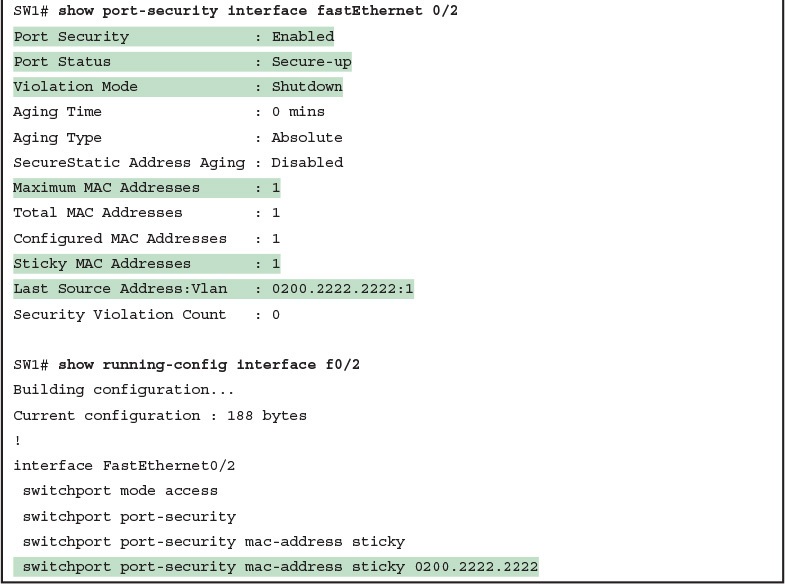
Example 8: Using Port Security to Define Correct MAC Addresses of Particular Interfaces
The first two commands in Example 8 confirm that a security violation has occurred on FastEthernet 0/1, but no violations have occurred on FastEthernet 0/2. The show port-security interface fastethernet 0/1 command shows that the interface is in a secure-shutdown state, which means that the interface has been disabled because of port security. In this case, another device connected to port F0/1, sending a frame with a source MAC address other than 0200.1111.1111, is causing a violation. However, port Fa0/2, which used sticky learning, simply learned the MAC address used by Server 2.
The bottom of Example 8, as compared to the configuration in Example 7, shows the changes in the running-config because of sticky learning, with the switchport port-security mac-address sticky 0200.2222.2222 interface subcommand.
Port Security Violation Actions
Finally, the switch can be configured to use one of three actions when a violation occurs. All three options cause the switch to discard the offending frame, but some of the options make the switch take additional actions. The actions include the sending of syslog messages to the console, sending SNMP trap messages to the network management station, and disabling the interface. Table 1 lists the options of the switchport port-security violation {protect | restrict | shutdown} command and their meanings.

Table 1: Actions When Port Security Violation Occurs
Note that the shutdown option does not actually add the shutdown subcommand to the interface configuration. Instead, IOS puts the interface in an error disabled (err-disabled) state, which makes the switch stop all inbound and outbound frames. To recover from this state, someone must manually disable the interface with the shutdown interface command and then enable the interface with the no shutdown command.
Port Security MAC Addresses as Static and Secure but Not Dynamic
To complete this lesson, take a moment to think about Analyzing Ethernet LAN Switching’s discussions about switching, along with all those examples of output from the show mac address-table dynamic EXEC command.
Once a switch port has been configured with port security, the switch no longer considers MAC addresses associated with that port as being dynamic entries as listed with the show mac address-table dynamic EXEC command. Even if the MAC addresses are dynamically learned, once port security has been enabled, you need to use one of these options to see the MAC table entries associated with ports using port security:
- show mac address-table secure: Lists MAC addresses associated with ports that use port security
- show mac address-table static: Lists MAC addresses associated with ports that use port security, as well as any other statically defined MAC addresses
Example 9 proves the point. It shows two commands about interface F0/2 from the port security example shown in Figure 5 and Example 7. In that example, port security was configured on F0/2 with sticky learning, so from a literal sense, the switch learned a MAC address off that port (0200.2222.2222). However, the show mac address-table dynamic command does not list the address and port, because IOS considers that MAC table entry to be a static entry. The show mac address-table secure command does list the address and port.

Example 9: Using the secure Keyword to See MAC Table Entries When Using Port Security

Configuring Basic Switch Management
INTERNOLD NETWORKS CCNA LIVE WEBCLASS (INCLW)
Configuring Basic Switch Management
Contents
Configuring Basic Switch Management
The work related to what a networking device does can be broken into three broad categories.
The first and most obvious, called the data plane, is the work a switch does to forward frames generated by the devices connected to the switch. In other words, the data plane is the main purpose of the switch.
Second, the control plane refers to the configuration and processes that control and change the choices made by the switch’s data plane. The network engineer can control which interfaces are enabled and disabled, which ports run at which speeds, how Spanning Tree blocks some ports to prevent loops, and so on.
The third category, the management plane, is the topic of this chapter. The management plane deals with managing the device itself, rather than controlling what the device is doing.
In particular, this lesson looks at the most basic management features that can be configured in a Cisco switch.
The first section of the lesson works through the configuration of different kinds of login security. The second section shows how to configure IPv4 settings on a switch so it can be remotely managed.
The last (short) section then explains a few practical matters that can make your life in lab a little easier.
Securing the Switch CLI
By default, a Cisco Catalyst switch allows anyone to connect to the console port, access user mode, and then move on to enable and configuration modes without any kind of security.
That default makes sense, given that if you can get to the console port of the switch, you already have control over the switch physically.
However, everyone needs to operate switches remotely, and the first step in that process is to secure the switch so that only the appropriate users can access the switch command-line interface (CLI).
This first topic in the lesson examines how to configure login security for a Cisco Catalyst switch.
Securing the CLI includes protecting access to enable mode, because from enable mode, an attacker could reload the switch or change the configuration.
Protecting user mode is also important, because attackers can see the status of the switch, learn about the network, and find new ways to attack the network.
Note that all remote access and management protocols require that the switch IP configuration be completed and working.
A switch’s IPv4 configuration has nothing to do with how a Layer 2 switch forwards Ethernet frames (as discussed in the lesson, “Analyzing Ethernet LAN Switching”), but to Telnet and Secure Shell (SSH) to a switch, the switch needs to be configured with an IP address.
In particular, this section covers the following login security topics:
- Securing user mode and privileged mode with simple passwords
- Securing user mode access with local usernames
- Securing user mode access with external authentication servers
- Securing remote access with Secure Shell (SSH)
Securing User Mode and Privileged Mode with Simple Passwords
Although the default switch configuration allows a console user to move into user mode and then privileged mode with no passwords required, unsurprisingly, the default settings prevent Telnet and SSH users from even accessing user mode.
And while the defaults work well to prevent unwanted access when you first install the switch, you need to add some configuration to then be able to sit at your desk and log in to all the switches in the LAN. In addition, of course, you should not allow just anyone to log in and change the configuration, so some type of secure login should be used.
The first option most people learn to secure access to user mode, one best used in a lab rather than in production, is a simple shared password. This method uses a password only—with no username—with one password for console users and a different password for Telnet users.
Console users must supply the console password, as configured in console line configuration mode. Telnet users must supply the Telnet password, also called the vty password, so called because the configuration sits in vty line configuration mode. Figure 1 summarizes these options for using shared passwords from the perspective of the user logging into the switch.

Figure 1: Simple Password Security Concepts
NOTE: This section refers to several passwords as shared passwords. These passwords are shared in the sense that when a new worker comes to the company, others must tell them (share) what the password is. In other words, each user does not have a unique username/password to use, but rather, all the appropriate staff knows the passwords.
In addition, Cisco switches protect enable mode (also called privileged mode) with yet another shared password called the enable password.
From the perspective of the network engineer connecting to the CLI of the switch, once in user mode, the user types the enable EXEC command. This command prompts the user for this enable password; if the user types the correct password, IOS moves the user to enable mode.
Example 1 shows an example of the user experience of logging into a switch from the console when the shared console password and the enable password have both been set.
Note that before this example began, the user started their terminal emulator, physically connected their laptop to the console cable, and then pressed the return key to make the switch respond as shown at the top of the example.

Example 1: Configuring Basic Passwords and a Hostname
Note that the example shows the password text as if typed (hope and love), along with the enable command that moves the user from user mode to enable mode. In reality, the switch hides the passwords when typed, to prevent someone from reading over your shoulder to see the password.
To configure the shared passwords for the console, Telnet, and for enable mode, you need to configure several commands. However, the parameters of the commands can be pretty intuitive. Figure 2 shows the configuration of all three of these passwords.

Figure 2: Simple Password Security Configuration
The configuration for these three passwords does not require a lot of work. First, the console and vty password configuration sets the password based on the context: console mode for the console (line con 0), and vty line configuration mode for the Telnet password (line vty 0 15). Then inside console mode and vty mode, respectively, the two commands in each mode are:
- login: Tells IOS to enable the use of a simple shared password (with no username) on this line (console or vty), so that the switch asks the user for a password
- password password-value: Defines the actual password used on the console or vty
The configured enable password, shown on the right side of the figure, applies to all users, no matter whether they connect to user mode via the console, Telnet, or otherwise. The command to configure the enable password is a global configuration command: enable secret password-value.
NOTE: Older IOS versions used the command enable password password-value to set the enable password, and that command still exists in IOS. However, the enable secret command is much more secure. In real networks, use enable secret. When we reach the devices security features lesson, we'll explain more about the security levels of various password mechanisms, including a comparison of the enable secret and enable password commands.
To help you follow the process, use the configuration checklist before the example.
The configuration checklist collects the required and optional steps to configure a feature. The configuration checklist for shared passwords for the console, Telnet, and enable passwords is:
- Step 1. Configure the enable password with the enable secret password-value command.
- Step 2. Configure the console password:
- A. Use the line con 0 command to enter console configuration mode.
- B. Use the login subcommand to enable console password security using a simple password.
- C. Use the password password-value subcommand to set the value of the console password.
- Step 3. Configure the Telnet (vty) password:
- A. Use the line vty 0 15 command to enter vty configuration mode for all 16 vty lines (numbered 0 through 15).
- B. Use the login subcommand to enable password security for vty sessions using a simple password.
- C. Use the password password-value subcommand to set the value of the vty password.
Example 2 shows the configuration process as noted in the configuration checklist, along with setting the enable secret password.
Note that the lines which begin with a ! are comment lines; they are there to guide you through the configuration.

Example 2: Configuring Basic Passwords
Example 3 shows the resulting configuration in the switch per the show running-config command. The gray lines highlight the new configuration. Note that many unrelated lines of output have been deleted from the output to keep focused on the password configuration.


Example 3: Resulting Running-Config File (Subset) Per Example 2 Configuration
Securing User Mode Access with Local Usernames and Passwords
Cisco switches support two other login security methods that both use per-user username/password pairs instead of a shared password with no username.
One method, referred to as local usernames and passwords, configures the username/password pairs locally—that is, in the switch’s configuration.
Switches support this local username/password option for the console, for Telnet, and even for SSH, but do not replace the enable password used to reach enable mode.
The configuration to migrate from using the simple shared passwords to instead use local usernames/passwords requires only some small configuration changes, as shown in Figure 3.

Figure 3: Configuring Switches to Use Local Username Login Authentication
Working through the configuration in the figure, first, the switch of course needs to know the list of username/password pairs. To create these, repeatedly use the username name secret password global configuration command.
Then, to enable this different type of console or Telnet security, simply enable this login security method with the login local line.
Basically, this command means “use the local list of usernames for login.”
You can also use the no password command (without even typing in the password) to clean up any remaining password subcommands from console or vty mode, because these commands are not needed when using local usernames and passwords.
The following checklist details the commands to configure local username login, mainly as a method for easier study and review:
- Step 1. Use the username name secret password global configuration command to add one or more username/password pairs on the local switch.
- Step 2. Configure the console to use locally configured username/password pairs:
- A. Use the line con 0 command to enter console configuration mode.
- B. Use the login local subcommand to enable the console to prompt for both username and password, checked versus the list of local usernames/passwords.
- C. (Optional) Use the no password subcommand to remove any existing simple shared passwords, just for good housekeeping of the configuration file.
- Step 3. Configure Telnet (vty) to use locally configured username/password pairs.
- A. Use the line vty 0 15 command to enter vty configuration mode for all 16 vty lines (numbered 0 through 15).
- B. Use the login local subcommand to enable the switch to prompt for both username and password for all inbound Telnet users, checked versus the list of local usernames/passwords.
- C. (Optional) Use the no password subcommand to remove any existing simple shared passwords, just for good housekeeping of the configuration file.
When a Telnet user connects to the switch configured as shown in Figure 3, the user will be prompted first for a username and then for a password, as shown in Example 4.
The username/password pair must be from the list of local usernames or the login is rejected.

Example 4: Telnet Login Process After Applying Configuration in Figure 3
NOTE: Example 4 does not show the password value as having been typed because Cisco switches do not display the typed password for security reasons.
NOTE: The username secret command has an older less-secure cousin, the username password command. Today, use the more secure username secret command.
Securing User Mode Access with External Authentication Servers
The end of Example 4 points out one of the many security improvements when requiring each user to log in with their own username. The end of the example shows the user entering configuration mode (configure terminal), and then immediately leaving (end). Note that when a user exits configuration mode, the switch generates a log message. If the user logged in with a username, the log message identifies that username; note the “wendell” in the log message.
However, using a username/password configured directly on the switch causes some administrative headaches. For instance, every switch and router needs the configuration for all users who might need to log in to the devices. Then, when any changes need to happen, like an occasional change to the passwords for good security practices, the configuration of all devices must be changed.
A better option would be to use tools like those used for many other IT login functions. Those tools allow for a central place to securely store all username/password pairs, with tools to make the user change their passwords regularly, tools to revoke users when they leave their current jobs, and so on.
Cisco switches allow exactly that option using an external server called an authentication, authorization, and accounting (AAA) server. These servers hold the usernames/passwords. Typically, these servers allow users to do self service and forced maintenance to their passwords. Many production networks use AAA servers for their switches and routers today.
The underlying login process requires some additional work on the part of the switch for each user login, but once set up, the username/password administration is much less. When using a AAA server for authentication, the switch (or router) simply sends a message to the AAA server asking whether the username and password are allowed, and the AAA server replies.
Figure 4 shows an example, with the user first supplying his username/password, the switch asking the AAA server, and the server replying to the switch stating that the username/password is valid.

Figure 4: Basic Authentication Process with an External AAA Server
While the figure shows the general idea, note that the information flows with a couple of different protocols. On the left, the connection between the user and the switch or router uses Telnet or SSH. On the right, the switch and AAA server typically use either the RADIUS or TACACS+ protocol, both of which encrypt the passwords as they traverse the network.
Securing Remote Access with Secure Shell
So far, this lesson has focused on the console and on Telnet, mostly ignoring SSH. Telnet has one serious disadvantage: all data in the Telnet session flows as clear text, including the password exchanges. So, anyone that can capture the messages between the user and the switch (in what is called a man-in-the-middle attack) can see the passwords. SSH encrypts all data transmitted between the SSH client and server, protecting the data and passwords.
SSH can use the same local login authentication method as Telnet, with the locally configured username and password. (SSH cannot rely on a password only.) So, the configuration to support local usernames for Telnet, as shown previously in Figure 3, also enables local username authentication for incoming SSH connections.
Figure 5 shows one example configuration of what is required to support SSH. The figure repeats the local username configuration as shown earlier in Figure 3, as used for Telnet.
Figure 5 shows three additional commands required to complete the configuration of SSH on the switch.

Figure 5: Adding SSH Configuration to Local Username Configuration
IOS uses the three SSH-specific configuration commands in the figure to create the SSH encryption keys. The SSH server uses the fully qualified domain name (FQDN) of the switch as input to create that key. The term FQDN combines the hostname of a host and its domain name, in this case the hostname and domain name of the switch.
Figure 5 begins by setting both values (just in case they are not already configured). Then the third command, the crypto key generate rsa command, generates the SSH encryption keys.
The configuration in Figure 5 relies on two default settings that the figure therefore conveniently ignored. IOS runs an SSH server by default. In addition, IOS allows SSH connections into the vty lines by default.
Seeing the configuration happen in configuration mode, step by step, can be particularly helpful with SSH configuration. Note in particular that in this example, the crypto key command prompts the user for the key modulus; you could also add the parameters modulus modulus-value to the end of the crypto key command to add this setting on the command.
Example 5 shows the commands in Figure 5 being configured, with the encryption key as the final step.


Example 5: SSH Configuration Process to Match Figure 5
Earlier, I mentioned that one useful default was that the switch defaults to support both SSH and Telnet on the vty lines. However, because Telnet is a security risk, you could disable Telnet to enforce a tighter security policy. (For that matter, you can disable SSH support and allow Telnet on the vty lines as well.)
To control which protocols a switch supports on its vty lines, use the transport input {all | none | telnet | ssh} vty subcommand in vty mode, with the following options:
- transport input all or transport input telnet ssh: Support both Telnet and SSH
- transport input none: Support neither
- transport input telnet: Support only Telnet
- transport input ssh: Support only SSH
To complete this section about SSH, the following configuration checklist details the steps for one method to configure a Cisco switch to support SSH using local usernames. (SSH support in IOS can be configured in several ways; this checklist shows one simple way to configure it.)
The process shown here ends with a comment to configure local username support on vty lines, as was discussed earlier in the section titled “Securing User Mode Access with Local Usernames and Passwords.”
- Step 1. Configure the switch to generate a matched public and private key pair to use for encryption:
- A. If not already configured, use the hostname name in global configuration mode to configure a hostname for this switch.
- B. If not already configured, use the ip domain-name name in global configuration mode to configure a domain name for the switch, completing the switch’s FQDN.
- C. Use the crypto key generate rsa command in global configuration mode (or the crypto key generate rsa modulus modulus-value command to avoid being prompted for the key modulus) to generate the keys. (Use at least a 768-bit key to support SSH version 2.)
- Step 2. (Optional) Use the ip ssh version 2 command in global configuration mode to override the default of supporting both versions 1 and 2, so that only SSHv2 connections are allowed.
- Step 3. (Optional) If not already configured with the setting you want, configure the vty lines to accept SSH and whether to also allow Telnet:
- A. Use the transport input ssh command in vty line configuration mode to allow SSH only.
- B. Use the transport input all command (default) or transport input telnet ssh command in vty line configuration mode to allow both SSH and Telnet.
- Step 4. Use various commands in vty line configuration mode to configure local username login authentication as discussed earlier in this chapter.
NOTE: Cisco routers default to transport input none, so that you must add the transport input line subcommand to enable Telnet and/or SSH into a router.
Two key commands give some information about the status of SSH on the switch. First, the show ip ssh command lists status information about the SSH server itself.
The show ssh command then lists information about each SSH client currently connected into the switch. Example 6 shows samples of each, with user Wendell currently connected to the switch.

Example 6: Displaying SSH Status
Enabling IPv4 for Remote Access
To allow Telnet or SSH access to the switch, and to allow other IP-based management protocols (for example, Simple Network Management Protocol, or SNMP) to function as intended, the switch needs an IP address, as well as a few other related settings. The IP address has nothing to do with how switches forward Ethernet frames; it simply exists to support overhead management traffic.
This next topic begins by explaining the IPv4 settings needed on a switch, followed by the configuration. Note that although switches can be configured with IPv6 addresses with commands similar to those shown in this chapter, this lesson focuses solely on IPv4. All references to IP in this lesson imply IPv4.
Host and Switch IP Settings
A switch needs the same kind of IP settings as a PC with a single Ethernet interface. For perspective, a PC has a CPU, with the operating system running on the CPU. It has an Ethernet network interface card (NIC). The OS configuration includes an IP address associated with the NIC, either configured or learned dynamically with DHCP.
A switch uses the same ideas, except that the switch needs to use a virtual NIC inside the switch. Like a PC, a switch has a real CPU, running an OS (called IOS). The switch obviously has lots of Ethernet ports, but instead of assigning its management IP address to any of those ports, the switch then uses a NIC-like concept called a switched virtual interface (SVI), or more commonly, a VLAN interface, that acts like the switch’s own NIC.
Then the settings on the switch look something like a host, with the switch configuration assigning IP settings, like an IP address, to this VLAN interface, as shown in Figure 6.

Figure 6: Switch Virtual Interface (SVI) Concept Inside a Switch
By using interface VLAN 1 for the IP configuration, the switch can then send and receive frames on any of the ports in VLAN 1. In a Cisco switch, by default, all ports are assigned to VLAN 1.
In most networks, switches configure many VLANs, so the network engineer has a choice of where to configure the IP address. That is, the management IP address does not have to be configured on the VLAN 1 interface (as configured with the interface vlan 1 command seen in Figure 6).
A Layer 2 Cisco LAN switch often uses a single VLAN interface at a time, although multiple VLAN interfaces can be configured. The switch only needs one IP address for management purposes. But you can configure VLAN interfaces and assign them IP addresses for any working VLAN.
For example, Figure 7 shows a Layer 2 switch with some physical ports in two different VLANs (VLANs 1 and 2).
The figure also shows the subnets used on those VLANs. The network engineer could choose to create a VLAN 1 interface, a VLAN 2 interface, or both. In most cases, the engineer plans which VLAN to use when managing a group of switches, and creates a VLAN interface for that VLAN only.

Figure 7: Choosing One VLAN on Which to Configure a Switch IP Address
Note that you should not try to use a VLAN interface for which there are no physical ports assigned to the same VLAN. If you do, the VLAN interface will not reach an up/up state, and the switch will not have the physical ability to communicate outside the switch.
NOTE: Some Cisco switches can be configured to act as either a Layer 2 switch or a Layer 3 switch. When acting as a Layer 2 switch, a switch forwards Ethernet frames as discussed in depth in the lesson, “Analyzing Ethernet LAN Switching.” Alternatively, a switch can also act as a multilayer switch or Layer 3 switch, which means the switch can do both Layer 2 switching and Layer 3 IP routing of IP packets, using the Layer 3 logic normally used by routers. This lesson assumes all switches are Layer 2 switches.
Configuring the IP address (and mask) on one VLAN interface allows the switch to send and receive IP packets with other hosts in a subnet that exists on that VLAN; however, the switch cannot communicate outside the local subnet without another configuration setting called the default gateway. The reason a switch needs a default gateway setting is the same reason that hosts need the same setting—because of how hosts think when sending IP packets. Specifically:
- To send IP packets to hosts in the same subnet, send them directly
- To send IP packets to hosts in a different subnet, send them to the local router; that is, the default gateway
Figure 8 shows the ideas. In this case, the switch (on the right) will use IP address 192.168.1.200 as configured on interface VLAN 1. However, to communicate with host A, on the far left of the figure, the switch must use Router R1 (the default gateway) to forward IP packets to host A. To make that work, the switch needs to configure a default gateway setting, pointing to Router R1’s IP address (192.168.1.1 in this case). Note that the switch and router both use the same mask, 255.255.255.0, which puts the addresses in the same subnet.

Figure 8: The Need for a Default Gateway
Configuring IPv4 on a Switch
A switch configures its IPv4 address and mask on this special NIC-like VLAN interface. The following steps list the commands used to configure IPv4 on a switch, assuming that the IP address is configured to be in VLAN 1, with Example 7 that follows showing an example configuration.
- Step 1. Use the interface vlan 1 command in global configuration mode to enter interface VLAN 1 configuration mode.
- Step 2. Use the ip address ip-address mask command in interface configuration mode to assign an IP address and mask.
- Step 3. Use the no shutdown command in interface configuration mode to enable the VLAN 1 interface if it is not already enabled.
- Step 4. Add the ip default-gateway ip-address command in global configuration mode to configure the default gateway.
- Step 5. (Optional) Add the ip name-server ip-address1 ip-address2 ... command in global configuration mode to configure the switch to use Domain Name System (DNS) to resolve names into their matching IP address.

Example 7: Switch Static IP Address Configuration
On a side note, this example shows a particularly important and common command: the [no] shutdown command. To administratively enable an interface on a switch, use the no shutdown interface subcommand; to disable an interface, use the shutdown interface subcommand.
This command can be used on the physical Ethernet interfaces that the switch uses to switch Ethernet messages in addition to the VLAN interface shown here in this example.
Also, pause long enough to look at the messages that appear just below the no shutdown command in Example 7. Those messages are syslog messages generated by the switch stating that the switch did indeed enable the interface. Switches (and routers) generate syslog messages in response to a variety of events, and by default, those messages appear at the console.
Configuring a Switch to Learn Its IP Address with DHCP
The switch can also use Dynamic Host Configuration Protocol (DHCP) to dynamically learn its IPv4 settings. Basically, all you have to do is tell the switch to use DHCP on the interface, and enable the interface. Assuming that DHCP works in this network, the switch will learn all its settings. The following list details the steps, again assuming the use of interface VLAN 1, with Example 8 that follows showing an example:
Step 1. Enter VLAN 1 configuration mode using the interface vlan 1 global configuration command, and enable the interface using the no shutdown command as necessary.
Step 2. Assign an IP address and mask using the ip address dhcp interface subcommand.

Example 8: Switch Dynamic IP Address Configuration with DHCP
Verifying IPv4 on a Switch
The switch IPv4 configuration can be checked in several places.
First, you can always look at the current configuration using the show running-config command.
Second, you can look at the IP address and mask information using the show interfaces vlan x command, which shows detailed status information about the VLAN interface in VLAN x.
Finally, if using DHCP, use the show dhcp lease command to see the (temporarily) leased IP address and other parameters. (Note that the switch does not store the DHCP-learned IP configuration in the running-config file.)
Example 9 shows sample output from these commands to match the configuration in Example 8.

Example 9: Verifying DHCP-Learned Information on a Switch
The output of the show interfaces vlan 1 command lists two very important details related to switch IP addressing.
First, this show command lists the interface status of the VLAN 1 interface—in this case, “up and up.” If the VLAN 1 interface is not up, the switch cannot use its IP address to send and receive management traffic. Notably, if you forget to issue the no shutdown command, the VLAN 1 interface remains in its default shutdown state and is listed as “administratively down” in the show command output.
Second, note that the output lists the interface’s IP address on the third line. If you statically configure the IP address, as in Example 7, the IP address will always be listed; however, if you use DHCP and DHCP fails, the show interfaces vlan x command will not list an IP address here. When DHCP works, you can see the IP address with the show interfaces vlan 1 command, but that output does not remind you whether the address is either statically configured or DHCP leased. So it does take a little extra effort to make sure you know whether the address is statically configured or DHCP-learned on the VLAN interface.
Miscellaneous Settings Useful in Lab
This last short section of the lesson touches on a couple of commands that can help you be a little more productive when practicing in a lab.
History Buffer Commands
When you enter commands from the CLI, the switch saves the last several commands in the history buffer. Then, as mentioned in Chapter 6, “Using the Command-Line Interface,” you can use the up-arrow key or press Ctrl+P to move back in the history buffer to retrieve a command you entered a few commands ago. This feature makes it very easy and fast to use a set of commands repeatedly. Table 1 lists some of the key commands related to the history buffer.

Table 1: Commands Related to the History Buffer
The logging synchronous, exec-timeout, and no ip domain-lookup Commands
These next three configuration commands have little in common, other than the fact that they can be useful settings to reduce your frustration when using the console of a switch or router.
The console automatically receives copies of all unsolicited syslog messages on a switch. The idea is that if the switch needs to tell the network administrator some important and possibly urgent information, the administrator might be at the console and might notice the message.
Unfortunately, IOS (by default) displays these syslog messages on the console’s screen at any time—including right in the middle of a command you are entering, or in the middle of the output of a show command. Having a bunch of text show up unexpectedly can be a bit annoying.
You could simply disable the feature that sends these messages to the console, and then re-enable the feature later, using the no logging console and logging console global commands. For example, when working from the console, if you want to temporarily not be bothered by log messages, you can disable the display of these messages with the no logging console global configuration command, and then when finished, enable them again.
However, IOS supplies a reasonable compromise, telling the switch to display syslog messages only at more convenient times, such as at the end of output from a show command. To do so, just configure the logging synchronous console line subcommand, which basically tells IOS to synchronize the syslog message display with the messages requested using show commands.
Another way to improve the user experience at the console is to control timeouts of the login session from the console or when using Telnet or SSH. By default, the switch automatically disconnects console and vty (Telnet and SSH) users after 5 minutes of inactivity. The exec-timeout minutes seconds line subcommand enables you to set the length of that inactivity timer. In lab (but not in production), you might want to use the special value of 0 minutes and 0 seconds meaning “never time out.”
Finally, IOS has an interesting combination of features that can make you wait for a minute or so when you mistype a command. First, IOS tries to use DNS name resolution on IP hostnames—a generally useful feature. If you mistype a command, however, IOS thinks you want to Telnet to a host by that name. With all default settings in the switch, the switch tries to resolve the hostname, cannot find a DNS server, and takes about a minute to timeout and give you control of the CLI again.
To avoid this problem, configure the no ip domain-lookup global configuration command, which disables IOS’s attempt to resolve the hostname into an IP address.
Example 10 collects all these commands into a single example, as a template for some good settings to add in a lab switch to make you more productive.

Example 10: Commands Often Used in Lab to Increase Productivity

Analyzing Ethernet LAN Switching
INTERNOLD NETWORKS CCNA LIVE WEBCLASS (INCLW)
Analyzing Ethernet LAN Switching
Contents
Analyzing Ethernet LAN Switching
When you buy a Cisco Catalyst Ethernet switch, the switch is ready to work.
All you have to do is take it out of the box, power on the switch by connecting the power cable to the switch and a power outlet, and connect hosts to the switch using the correct unshielded twisted-pair (UTP) cables.
You do not have to configure anything else, you do not have to connect to the console and login, or do anything: the switch just starts forwarding Ethernet frames.
In later lessons, you will learn how to build, configure, and verify the operation of Ethernet LANs.
In the lesson, “Using the Command-Line Interface,” you learned some skills so you know how to connect to a switch’s CLI, move around in the CLI, issue commands, and configure the switch.
The next step—this lesson—takes a short but important step in that journey by explaining the logic a switch uses when forwarding Ethernet frames.
This lesson has two major sections. The first reviews the concepts behind LAN switching, which were first introduced back in previous lesson, “Fundamentals of Ethernet LANs.”
The second section of this lesson then uses IOS show commands to verify that Cisco switches actually learned the MAC addresses, built its MAC address table, and forwarded frames.
LAN Switching Concepts
A modern Ethernet LAN connects user devices as well as servers into some switches, with the switches then connecting to each other, sometimes in a design like Figure 1.
Part of the LAN, called a campus LAN, supports the end user population as shown on the left of the figure. End user devices connect to LAN switches, which in turn connect to other switches so that a path exists to the rest of the network.
The campus LAN switches sit in wiring closets close to the end users. On the right, the servers used to provide information to the users also connects to the LAN.
Those servers and switches often sit in a closed room called a data center, with connections to the campus LAN to support traffic to/from the users.

Figure 1: Campus LAN and Data Center LAN, Conceptual Drawing
To forward traffic from a user device to a server and back, each switch performs the same kind of logic, independently from each other.
The first half of this lesson examines the logic: how a switch chooses to forward an Ethernet frame, when the switch chooses to not forward the frame, and so on.
Overview of Switching Logic
Ultimately, the role of a LAN switch is to forward Ethernet frames.
LANs exist as a set of user devices, servers, and other devices that connect to switches, with the switches connected to each other. The LAN switch has one primary job: to forward frames to the correct destination (MAC) address.
And to achieve that goal, switches use logic—logic based on the source and destination MAC address in each frame’s Ethernet header.
LAN switches receive Ethernet frames and then make a switching decision: either forward the frame out some other ports or ignore the frame. To accomplish this primary mission, switches perform three actions:
- Deciding when to forward a frame or when to filter (not forward) a frame, based on the destination MAC address.
- Preparing to forward frames by learning MAC addresses by examining the source MAC address of each frame received by the switch.
- Preparing to forward only one copy of the frame to the destination by creating a (Layer 2) loop-free environment with other switches by using Spanning Tree Protocol (STP).
The first action is the switch’s primary job, whereas the other two items are overhead functions.
NOTE: Throughout our discussion of LAN switches, the terms switch port and switch interface are synonymous.
Although previous lessons already discussed the frame format, this discussion of Ethernet switching is pretty important, so reviewing the Ethernet frame at this point might be helpful.
Figure 2 shows one popular format for an Ethernet frame.
Basically, a switch would take the frame shown in the figure, make a decision of where to forward the frame, and send the frame out that other interface.

Figure 2: IEEE 802.3 Ethernet Frame (One Variation)
Most of the upcoming discussions and figures about Ethernet switching focuses on the use of the destination and source MAC address fields in the header.
All Ethernet frames have both a destination and source MAC address.
Both are 6-bytes long (represented as 12 hex digits), and are a key part of the switching logic discussed in this section.
Forwarding Known Unicast Frames
To decide whether to forward a frame, a switch uses a dynamically built table that lists MAC addresses and outgoing interfaces. Switches compare the frame’s destination MAC address to this table to decide whether the switch should forward a frame or simply ignore it.
For example, consider the simple network shown in Figure 3, with Fred sending a frame to Barney.

Figure 3: Sample Switch Forwarding and Filtering Decision
In this figure, Fred sends a frame with destination address 0200.2222.2222 (Barney’s MAC address).
The switch compares the destination MAC address (0200.2222.2222) to the MAC address table, matching the bold table entry.
That matched table entry tells the switch to forward the frame out port F0/2, and only port F0/2.
NOTE: A switch’s MAC address table is also called the switching table, or bridging table, or even the Content-Addressable Memory (CAM) table, in reference to the type of physical memory used to store the table.
A switch’s MAC address table lists the location of each MAC relative to that one switch. In LANs with multiple switches, each switch makes an independent forwarding decision based on its own MAC address table. Together, they forward the frame so that it eventually arrives at the destination.
For example, Figure 4 shows the first switching decision in a case in which Fred sends a frame to Wilma, with destination MAC 0200.3333.3333.
The topology has changed versus the previous figure, this time with two switches, and Fred and Wilma connected to two different switches.
Figure 3 shows the first switch’s logic, in reaction to Fred sending the original frame. Basically, the switch receives the frame in port F0/1, finds the destination MAC (0200.3333.3333) in the MAC address table, sees the outgoing port of G0/1, so SW1 forwards the frame out its G0/1 port.

Figure 4: Forwarding Decision with Two Switches: First Switch
That same frame next arrives at switch SW2, entering SW2’s G0/2 interface.
As shown in Figure 5, SW2 uses the same logic steps, but using SW2’s table. The MAC table lists the forwarding instructions for that switch only. In this case, switch SW2 forwards the frame out its F0/3 port, based on SW2’s MAC address table.

Figure 5: Forwarding Decision with Two Switches: Second Switch
NOTE: The forwarding choice by a switch was formerly called a forward-versus-filter decision, because the switch also chooses to not forward (to filter) frames, not sending the frame out some ports.
The examples so far use switches that happen to have a MAC table with all the MAC addresses listed.
As a result, the destination MAC address in the frame is known to the switch. The frames are called known unicast frames, or simply known unicasts, because the destination address is a unicast address, and the destination is known.
As shown in these examples, switches forward known unicast frames out one port: the port as listed in the MAC table entry for that MAC address.
Learning MAC Addresses
Thankfully, the networking staff does not have to type in all those MAC table entries. Instead, the switches do their second main function: to learn the MAC addresses and interfaces to put into its address table.
With a complete MAC address table, the switch can make accurate forwarding and filtering decisions as just discussed.
Switches build the address table by listening to incoming frames and examining the source MAC address in the frame. If a frame enters the switch and the source MAC address is not in the MAC address table, the switch creates an entry in the table. That table entry lists the interface from which the frame arrived. Switch learning logic is that simple.
Figure 6 depicts the same single-switch topology network as Figure 3, but before the switch has built any address table entries.
The figure shows the first two frames sent in this network—first a frame from Fred, addressed to Barney, and then Barney’s response, addressed to Fred.

Figure 6: Switch Learning: Empty Table and Adding Two Entries
(Figure 6 depicts the MAC learning process only, and ignores the forwarding process and therefore ignores the destination MAC addresses.)
Focus on the learning process and how the MAC table grows at each step as shown on the right side of the figure.
The switch begins with an empty MAC table, as shown in the upper right part of the figure. Then Fred sends his first frame (labeled “1”) to Barney, so the switch adds an entry for 0200.1111.1111, Fred’s MAC address, associated with interface F0/1.
Why F0/1? The frame sent by Fred entered the switch’s F0/1 port. SW1’s logic runs something like this: “The source is MAC 0200.1111.1111, the frame entered F0/1, so from my perspective, 0200.1111.1111 must be reachable out my port F0/1.”
Continuing the example, when Barney replies in Step 2, the switch adds a second entry, this one for 0200.2222.2222, Barney’s MAC address, along with interface F0/2. Why F0/2? The frame Barney sent entered the switch’s F0/2 interface. Learning always occurs by looking at the source MAC address in the frame, and adds the incoming interface as the associated port.
Flooding Unknown Unicast and Broadcast Frames
Now again turn your attention to the forwarding process, using the topology in Figure 5. What do you suppose the switch does with Fred’s first frame, the one that occurred when there were no entries in the MAC address table?
As it turns out, when there is no matching entry in the table, switches forward the frame out all interfaces (except the incoming interface) using a process called flooding. And the frame whose destination address is unknown to the switch is called an unknown unicast frame, or simply an unknown unicast.
Switches flood unknown unicast frames. Flooding means that the switch forwards copies of the frame out all ports, except the port on which the frame was received.
The idea is simple: if you do not know where to send it, send it everywhere, to deliver the frame. And, by the way, that device will likely then send a reply—and then the switch can learn that device’s MAC address, and forward future frames out one port as a known unicast frame.
Switches also flood LAN broadcast frames (frames destined to the Ethernet broadcast address of FFFF.FFFF.FFFF), because this process helps deliver a copy of the frame to all devices in the LAN.
For example, Figure 7 shows the same first frame sent by Fred, when the switch’s MAC table is empty. At step 1, Fred sends the frame. At step 2, the switch sends a copy of the frame out all three of the other interfaces.

Figure 7: Switch Flooding: Unknown Unicast Arrives, Floods out Other Ports
Avoiding Loops Using Spanning Tree Protocol
The third primary feature of LAN switches is loop prevention, as implemented by Spanning Tree Protocol (STP). Without STP, any flooded frames would loop for an indefinite period of time in Ethernet networks with physically redundant links.
To prevent looping frames, STP blocks some ports from forwarding frames so that only one active path exists between any pair of LAN segments.
The result of STP is good: Frames do not loop infinitely, which makes the LAN usable. However, STP has negative features as well, including the fact that it takes some work to balance traffic across the redundant alternate links.
A simple example makes the need for STP more obvious. Remember, switches flood unknown unicast frames and broadcast frames.
Figure 8 shows an unknown unicast frame, sent by Larry to Bob, which loops forever because the network has redundancy but no STP. Note that the figure shows one direction of the looping frame only, just to reduce clutter, but a copy of the frame would also loop the other direction as well.

Figure 8: Network with Redundant Links but Without STP: The Frame Loops Forever
The flooding of this frame would cause the frame to rotate around the three switches, because none of the switches list Bob’s MAC address in their address tables, each switch floods the frame.
And while the flooding process is a good mechanism for forwarding unknown unicasts and broadcasts, the continual flooding of traffic frames as in the figure can completely congest the LAN to the point of making it unusable.
A topology like Figure 8, with redundant links, is good, but we need to prevent the bad effect of those looping frames. To avoid Layer 2 loops, all switches need to use STP. STP causes each interface on a switch to settle into either a blocking state or a forwarding state.
Blocking means that the interface cannot forward or receive data frames, while forwarding means that the interface can send and receive data frames. If a correct subset of the interfaces is blocked, only a single currently active logical path exists between each pair of LANs.
NOTE: STP behaves identically for a transparent bridge and a switch. Therefore, the terms bridge, switch, and bridging device all are used interchangeably when discussing STP.
LAN Switching Summary
Switches use Layer 2 logic, examining the Ethernet data-link header to choose how to process frames. In particular, switches make decisions to forward and filter frames, learn MAC addresses, and use STP to avoid loops, as follows:
- Step 1. Switches forward frames based on the destination MAC address:
- A. If the destination MAC address is a broadcast, multicast, or unknown destination unicast (a unicast not listed in the MAC table), the switch floods the frame.
- B. If the destination MAC address is a known unicast address (a unicast address found in the MAC table):
- i. If the outgoing interface listed in the MAC address table is different from the interface in which the frame was received, the switch forwards the frame out the outgoing interface.
- ii. If the outgoing interface is the same as the interface in which the frame was received, the switch filters the frame, meaning that the switch simply ignores the frame and does not forward it.
- Step 2. Switches use the following logic to learn MAC address table entries:
- A. For each received frame, examine the source MAC address and note the interface from which the frame was received.
- B. If it is not already in the table, add the MAC address and interface it was learned on.
- Step 3. Switches use STP to prevent loops by causing some interfaces to block, meaning that they do not send or receive frames.
Verifying and Analyzing Ethernet Switching
A Cisco Catalyst switch comes from the factory ready to switch frames. All you have to do is connect the power cable, plug in the Ethernet cables, and the switch starts switching incoming frames.
Connect multiple switches together, and they are ready to forward frames between the switches as well. And the big reason behind this default behavior has to do with the default settings on the switches.
Cisco Catalyst switches come ready to get busy switching frames because of settings like these:
- The interfaces are enabled by default, ready to start working once a cable is connected.
- All interfaces are assigned to VLAN 1.
- 10/100 and 10/100/1000 interfaces use autonegotiation by default.
- The MAC learning, forwarding, flooding logic all works by default.
- STP is enabled by default.
This second section of the lesson examines how switches will work with these default settings, showing how to verify the Ethernet learning and forwarding process.
Demonstrating MAC Learning
To see a switches MAC address table, use the show mac address-table command.
With no additional parameters, this command lists all known MAC addresses in the MAC table, including some overhead static MAC addresses that you can ignore.
To see all the dynamically learned MAC addresses only, instead use the show mac address-table dynamic command.
The examples in this lesson use almost no configuration, as if you just unboxed the switch when you first purchased it.
For the examples, the switches have no configuration other than the hostname command to set a meaningful hostname.
Note that to do this in lab:
- Image Use the erase startup-config EXEC command to erase the startup-config file
- Image Use the delete vlan.dat EXEC command to delete the VLAN configuration details
- Image Use the reload EXEC command to reload the switch (thereby using the empty startup-config, with no VLAN information configured)
- Image Configure the hostname SW1 command to set the switch hostname
Once done, the switch starts forwarding and learning MAC address, as demonstrated in Example 1.

Example 1: show mac address-table dynamic
First, focus on two columns of the table: the Mac Address and Ports columns of the table. The values should look familiar: they match the earlier single-switch example, as repeated here as Figure 9.
Note the four MAC addresses listed, along with their matching ports, as shown in the figure.

Figure 9: Single Switch Topology Used in Verification Section
Next, look at the Type field in the header. The column tells us whether the MAC address was learned by the switch as described earlier in this lesson.
You can also statically predefine MAC table entries using a couple of different features, including port security, and those would appear as Static in the Type column.
Finally, the VLAN column of the output gives us a chance to briefly discuss how VLANs impact switching logic. LAN switches forward Ethernet frames inside a VLAN.
What that means is if a frame enters via a port in VLAN 1, then the switch will forward or flood that frame out other ports in VLAN 1 only, and not out any ports that happen to be assigned to another VLAN.
Details of VLANs will be discuss in other lessons.
Switch Interfaces
The first example assumes that you installed the switch and cabling correctly, and that the switch interfaces work. Once you do the installation and connect to the Console, you can easily check the status of those interfaces with the show interfaces status command, as shown in Example 2.


Example 2: show interfaces status on Switch SW1
Focus on the port column for a moment.
As a reminder, Cisco Catalyst switches name their ports based on the fastest specification supported, so in this case, the switch has 24 interfaces named Fast Ethernet, and two named Gigabit Ethernet.
Many commands abbreviate those terms, this time as Fa for Fast Ethernet and Gi for Gigabit Ethernet. (The example happens to come from a Cisco Catalyst switch that has 24 10/100 ports and two 10/100/1000 ports.)
The Status column of course tells us the status or state of the port. In this case, the lab switch had cables and devices connected to ports F0/1–F0/4 only, with no other cables connected. As a result, those first four ports have a state of connected, meaning that the ports have a cable and are functional.
The notconnect state means that the port is not yet functioning. It may mean that there is no cable installed, but other problems may exist as well.
NOTE: You can see the status for a single interface in a couple of ways. For instance, for F0/1, the command show interfaces f0/1 status lists the status in a single line of output as in Example 2. The show interfaces f0/1 command (without the status keyword) displays a detailed set of messages about the interface.
The show interfaces command has a large number of options. One particular option, the counters option, lists statistics about incoming and outgoing frames on the interfaces. In particular, it lists the number of unicast, multicast, and broadcast frames both the in and out direction, and a total byte count for those frames.
Example 3 shows an example, again for interface F0/1.

Example 3: show interfaces f0/1 counters on Switch SW1
Finding Entries in the MAC Address Table
With a single switch and only four hosts connected to them, you can just read the details of the MAC address table and find the information you want to see.
However, in real networks, with lots of interconnected hosts and switches, just reading the output to find one MAC address can be hard to do. You might have hundreds of entries—page after page of output—with each MAC address looking like a random string of hex characters.
Thankfully, Cisco IOS supplies several more options on the show mac address-table command to make it easier to find individual entries.
First, if you know the MAC address, you can search for it—just type in the MAC address at the end of the command, as shown in Example 4.
All you have to do is include the address keyword, followed by the actual MAC address. If the address exists, the output lists the address. Note that the output lists the exact same information in the exact same format, but it lists only the line for the matching MAC address.

Example 4: show mac address-table dynamic with the address keyword
While useful, often times the engineer troubleshooting a problem does not know the MAC addresses of the devices connected to the network. Instead, the engineer has a topology diagram, knowing which switch ports connect to other switches and which connect to endpoint devices.
Sometimes you might be troubleshooting while looking at a network topology diagram, and want to look at all the MAC addresses learned off a particular port. IOS supplies that option with the show mac address-table dynamic interface command.
Example 5 shows one example, for switch SW1’s F0/1 interface.

Example 5: show mac address-table dynamic with the interface Keyword
Finally, you may also want to find the MAC address table entries for one VLAN. You guessed it—you can add the vlan parameter, followed by the VLAN number. Example 6 shows two such examples from the same switch SW1 from Figure 7—one for VLAN 1, where all four devices reside, and one for a non-existent VLAN 2.

Example 6: The show mac address-table vlan command
Managing the MAC Address Table (Aging, Clearing)
This lesson closes with a few comments about how switches manage their MAC address tables.
Switches do learn MAC addresses, but those MAC addresses do not remain in the table indefinitely. The switch will remove the entries due to age, due to the table filling, and you can remove entries using a command.
First, for aging out MAC table entries, switches remove entries that have not been used for a defined number of seconds (default of 300 seconds on many switches). To do that, switches look at every incoming frame, every source MAC address, and does something related to learning.
If it is a new MAC address, the switch adds the correct entry to the table of course. However, if that entry already exists, the switch still does something: it resets the inactivity timer back to 0 for that entry. Each entry’s timer counts upward over time to measure how long the entry has been in the table. The switch times out (removes) any entries whose timer reaches the defined aging time.
Example 7 shows the aging timer setting for the entire switch. The aging time can be configured to a different time, globally and per-vlan.

Example 7: The MAC Address Default Aging Timer Displayed
Each switch also removes the oldest table entries, even if they are younger than the aging time setting, if the table fills. The MAC address table uses content-addressable memory (CAM), a physical memory that has great table lookup capabilities.
However, the size of the table depends on the size of the CAM in a particular model of switch. When a switch tries to add a new table entry, and finds the table full, the switch times out (removes) the oldest table entry to make space.
For perspective, the end of Example 7 lists the size of a Cisco Catalyst switch’s MAC table at about 8000 entries—the same four existing entries from the earlier examples, with space for 7299 more.
Finally, you can remove the dynamic entries from the MAC address table with the clear mac address-table dynamic command. Note that the show commands in this lesson can be executed from user and enable mode, but the clear command happens to be a privileged mode command.
MAC Address Tables with Multiple Switches
Finally, to complete the discussion, it helps to think about an example with multiple switches, just to emphasize how MAC learning, forwarding, and flooding happens independently on each LAN switch.
Consider the topology in Figure 10, and pay close attention to the port numbers. The ports were purposefully chosen so that neither switch used any of the same ports for this example. That is, switch SW2 does have a port F0/1 and F0/2, but I did not plug any devices into those ports when making this example.
Also note that all ports are in VLAN 1, and as with the other examples in this lesson, all default configuration is used other than the hostname on the switches.

Figure 10: Two-Switch Topology Example
Think about a case in which both switches learn all four MAC addresses. For instance, that would happen if the hosts on the left communicate with the hosts on the right.
SW1’s MAC address table would list SW1’s own port numbers (F0/1, F0/2, and G0/1), because SW1 uses that information to decide where SW1 should forward frames. Similarly, SW2’s MAC table lists SW2’s port numbers (F0/3, F0/4, G0/2 in this example).
Example 8 shows the MAC address tables on both switches for that scenario.
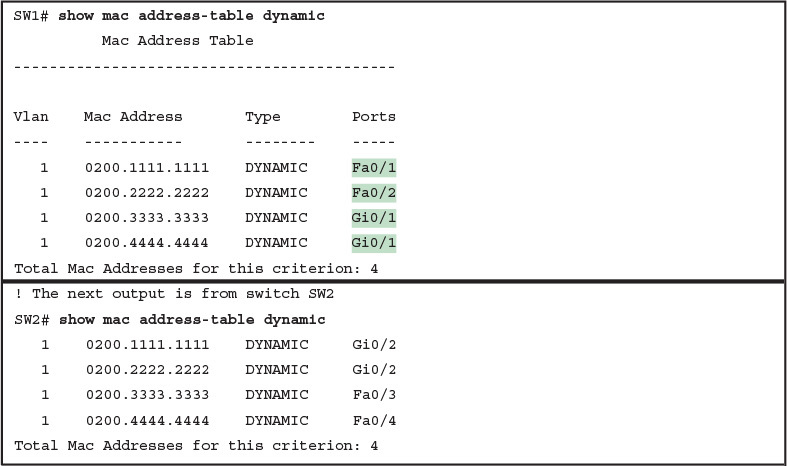
Example 8: The MAC Address Table on Two Switches

Using the Command-Line Interface
INTERNOLD NETWORKS CCNA LIVE WEBCLASS (INCLW)
Using the Command-Line Interface
Contents
Using the Command-Line Interface
To create an Ethernet LAN, a network engineer starts by planning. They consider the requirements, create a design, buy the switches, contract to install cables, and configure the switches to use the right features.
The CCNA Routing and Switching exams focus on skills like understanding how LANs work, configuring different switch features, verifying that those features work correctly, and finding the root cause of the problem when a feature is not working correctly.
The first skill you need to learn before doing all the configuration, verification, and troubleshooting tasks is to learn how to access and use the user interface of the switch, called the command-line interface (CLI).
This lesson begins that process by showing the basics of how to access the switch’s CLI. These skills include how to access the CLI and how to issue verification commands to check on the status of the LAN. This lesson also includes the processes of how to configure the switch and how to save that configuration.
Accessing the Cisco Catalyst Switch CLI
Cisco uses the concept of a command-line interface (CLI) with its router products and most of its Catalyst LAN switch products.
The CLI is a text-based interface in which the user, typically a network engineer, enters a text command and presses Enter.
Pressing Enter sends the command to the switch, which tells the device to do something. The switch does what the command says, and in some cases, the switch replies with some messages stating the results of the command.
Cisco Catalyst switches also support other methods to both monitor and configure a switch.
For example, a switch can provide a web interface, so that an engineer can open a web browser to connect to a web server running in the switch. Switches also can be controlled and operated using network management software.
This material discusses only Cisco Catalyst enterprise-class switches, and in particular, how to use the Cisco CLI to monitor and control these switches.
This first major section of the lesson first examines these Catalyst switches in more detail, and then explains how a network engineer can get access to the CLI to issue commands.
Cisco Catalyst Switches
Within the Cisco Catalyst brand of LAN switches, Cisco produces a wide variety of switch series or families.
Each switch series includes several specific models of switches that have similar features, similar price-versus-performance trade-offs, and similar internal components.
For example, the Cisco 2960-X series of switches. Cisco positions the 2960-X series (family) of switches as full-featured, low-cost wiring closet switches for enterprises. That means that you would expect to use 2960-X switches as access switches in a typical campus LAN design.
Figure 1 shows a photo of 10 different models from the 2960-X switch model series from Cisco.
Each switch series includes several models, with a mix of features.
For example, some of the switches have 48 RJ-45 unshielded twisted-pair (UTP) 10/100/1000 ports, meaning that these ports can autonegotiate the use of 10BASE-T (10 Mbps), 100BASE-T (100 Mbps), or 1000BASE-T (1 Gbps) Ethernet.

Figure 1: Cisco 2960-X Catalyst Switch Series
Accessing the Cisco IOS CLI
Like any other piece of computer hardware, Cisco switches need some kind of operating system software.
Cisco calls this OS the Internetwork Operating System (IOS).
Cisco IOS Software for Catalyst switches implements and controls logic and functions performed by a Cisco switch.
Besides controlling the switch’s performance and behavior, Cisco IOS also defines an interface for humans called the CLI.
The Cisco IOS CLI allows the user to use a terminal emulation program, which accepts text entered by the user. When the user presses Enter, the terminal emulator sends that text to the switch. The switch processes the text as if it is a command, does what the command says, and sends text back to the terminal emulator.
The switch CLI can be accessed through three popular methods—the console, Telnet, and Secure Shell (SSH).
Two of these methods (Telnet and SSH) use the IP network in which the switch resides to reach the switch. The console is a physical port built specifically to allow access to the CLI.
Figure 2 depicts the options.

Figure 2: CLI Access Options
Console access requires both a physical connection between a PC (or other user device) and the switch’s console port, as well as some software on the PC.
Telnet and SSH require software on the user’s device, but they rely on the existing TCP/IP network to transmit data.
The next few topics detail how to connect the console and set up the software for each method to access the CLI.
Cabling the Console Connection
The physical console connection, both old and new, uses three main components: the physical console port on the switch, a physical serial port on the PC, and a cable that works with the console and serial ports.
However, the physical cabling details have changed slowly over time, mainly because of advances and changes with serial interfaces on PC hardware.
For this next topic, the text looks at three cases: newer connectors on both the PC and the switch, older connectors on both, and a third case with the newer (USB) connector on the PC but with an older connector on the switch.
More modern PC and switch hardware use a familiar standard USB cable for the console connection. Cisco has been including USB ports as console ports in newer routers and switches as well.
All you have to do is look at the switch to make sure you have the correct style of USB cable end to match the USB console port. In the simplest form, you can use any USB port on the PC, with a USB cable, connected to the USB console port on the switch or router, as shown on the far right side of Figure 3.

Figure 3: Console Connection to a Switch
Older console connections use a PC serial port that pre-dates USB, a UTP cable, and an RJ-45 console port on the switch, as shown on the left side of Figure 3.
The PC serial port typically has a D-shell connector (roughly rectangular) with nine pins (often called a DB-9). The console port looks like any Ethernet RJ-45 port (but is typically colored in blue and with the word “console” beside it on the switch).
The cabling for this older-style console connection can be simple or require some effort, depending on what cable you use. You can use the purpose-built console cable that ships with new Cisco switches and routers and not think about the details.
However, you can make your own cable with a standard serial cable (with a connector that matches the PC), a standard RJ-45 to DB-9 converter plug, and a UTP cable.
However, the UTP cable does not use the same pinouts as Ethernet; instead, the cable uses rollover cable pinouts rather than any of the standard Ethernet cabling pinouts.
The rollover pinout uses eight wires, rolling the wire at pin 1 to pin 8, pin 2 to pin 7, pin 3 to pin 6, and so on.
As it turns out, USB ports became common on PCs before Cisco began commonly using USB for its console ports. So, you also have to be ready to use a PC that has only a USB port and not an old serial port, but a router or switch that has the older RJ-45 console port (and no USB console port).
The center of Figure 3 shows that case. To connect such a PC to a router or switch console, you need a USB converter that converts from the older console cable to a USB connector, and a rollover UTP cable, as shown in the middle of Figure 3.
NOTE: When using the USB options, you typically also need to install a software driver so that your PC’s OS knows that the device on the other end of the USB connection is the console of a Cisco device. Also, you can easily find photos of these cables and components online, with searches like “cisco console cable,” “cisco usb console cable,” or “console cable converter.”
The newer 2960-X series, for instance, supports both the older RJ-45 console port and a USB console port.
Figure 4 points to the two console ports; you would use only one or the other. Note that the USB console port uses a mini-B port rather than the more commonly seen rectangular standard USB port.

Figure 4: A Part of a 2960-X Switch with Console Ports Shown
After the PC is physically connected to the console port, a terminal emulator software package must be installed and configured on the PC.
The terminal emulator software treats all data as text. It accepts the text typed by the user and sends it over the console connection to the switch. Similarly, any bits coming into the PC over the console connection are displayed as text for the user to read.
The emulator must be configured to use the PC’s serial port to match the settings on the switch’s console port settings. The default console port settings on a switch are as follows.
Note that the last three parameters are referred to collectively as 8N1:
- 9600 bits/second
- No hardware flow control
- 8-bit ASCII
- No parity bits
- 1 stop bit
Figure 5 shows one such terminal emulator. The image shows the window created by the emulator software in the background, with some output of a show command.
The foreground, in the upper left, shows a settings window that lists the default console settings as listed just before this paragraph.

Figure 5: Terminal Settings for Console Access
Accessing the CLI with Telnet and SSH
For many years, terminal emulator applications have supported far more than the ability to communicate over a serial port to a local device (like a switch’s console).
Terminal emulators support a variety of TCP/IP applications as well, including Telnet and SSH.
Telnet and SSH both allow the user to connect to another device’s CLI, but instead of connecting through a console cable to the console port, the traffic flows over the same IP network that the networking devices are helping to create.
Telnet uses the concept of a Telnet client (the terminal application) and a Telnet server (the switch in this case). A Telnet client, the device that sits in front of the user, accepts keyboard input and sends those commands to the Telnet server.
The Telnet server accepts the text, interprets the text as a command, and replies back. Telnet is a TCP-based application layer protocol that uses well-known port 23.
Cisco Catalyst switches enable a Telnet server by default, but switches need a few more configuration settings before you can successfully use Telnet to connect to a switch. Chapter 8 covers switch configuration to support Telnet and SSH in detail.
Using Telnet in a lab today makes sense, but Telnet poses a significant security risk in production networks. Telnet sends all data (including any username and password for login to the switch) as clear-text data. SSH gives us a much better option.
Think of SSH as the much more secure Telnet cousin. Outwardly, you still open a terminal emulator, connect to the switch’s IP address, and see the switch CLI, no matter whether you use Telnet or SSH.
The differences exist behind the scenes: SSH encrypts the contents of all messages, including the passwords, avoiding the possibility of someone capturing packets in the network and stealing the password to network devices. Like Telnet, SSH uses TCP, just using well-known port 22 instead of Telnet’s 23.
User and Enable (Privileged) Modes
All three CLI access methods covered so far (console, Telnet, and SSH) place the user in an area of the CLI called user EXEC mode.
User EXEC mode, sometimes also called user mode, allows the user to look around but not break anything.
The “EXEC mode” part of the name refers to the fact that in this mode, when you enter a command, the switch executes the command and then displays messages that describe the command’s results.
Password Security for CLI Access from the Console
Cisco IOS supports a more powerful EXEC mode called enable mode (also known as privileged mode or privileged EXEC mode).
Enable mode gets its name from the enable command, which moves the user from user mode to enable mode, as shown in Figure 6.
The other name for this mode, privileged mode, refers to the fact that powerful (or privileged) commands can be executed there. For example, you can use the reload command, which tells the switch to reinitialize or reboot Cisco IOS, only from enable mode.

Figure 6: User and Privileged Modes
NOTE: If the command prompt lists the hostname followed by a >, the user is in user mode; if it is the hostname followed by the #, the user is in enable mode.
Example 1 demonstrates the differences between user and enable modes.
The example shows the output that you could see in a terminal emulator window, for instance, when connecting from the console.
In this case, the user sits at the user mode prompt (“Certskills1>”) and tries the reload command.
The reload command tells the switch to reinitialize or reboot Cisco IOS, so IOS allows this powerful command to be used only from enable mode.
IOS rejects the reload command when used in user mode. Then the user moves to enable mode—also called privileged mode—(using the enable EXEC command).
At that point, IOS accepts the reload command now that the user is in enable mode.

Example 1: Privileged Mode Commands Being Rejected in User Mode
NOTE:
The commands that can be used in either user (EXEC) mode or enable (EXEC) mode are called EXEC commands.
This example is the first instance of this lesson showing you the output from the CLI, so it is worth noting a few conventions.
The bold text represents what the user typed, and the nonbold text is what the switch sent back to the terminal emulator.
Also, the typed passwords do not show up on the screen for security purposes.
Finally, note that this switch has been preconfigured with a hostname of Certskills1, so the command prompt on the left shows that hostname on each line.
Password Security for CLI Access from the Console
A Cisco switch, with default settings, remains relatively secure when locked inside a wiring closet, because by default, a switch allows console access only.
By default, the console requires no password at all, and no password to reach enable mode for users that happened to connect from the console.
The reason is that if you have access to the physical console port of the switch, you already have pretty much complete control over the switch.
You could literally get out your screwdriver and walk off with it, or you could unplug the power, or follow well-published procedures to go through password recovery to break into the CLI and then configure anything you want to configure.
However, many people go ahead and set up simple password protection for console users.
Simple passwords can be configured at two points in the login process from the console: when the user connects from the console, and when any user moves to enable mode (using the enable EXEC command).
You may have noticed that back in Example 1, the user saw a password prompt at both points.
Example 2 shows the additional configuration commands that were configured prior to collecting the output in Example 1. The output holds an excerpt from the EXEC command show running-config, which lists the current configuration in the switch.

Example 2: Nondefault Basic Configuration
Working from top to bottom, note that the first configuration command listed by the show running-config command sets the switch’s hostname to Certskills1.
You might have noticed that the command prompts in Example 1 all began with Certskills1, and that’s why the command prompt begins with the hostname of the switch.
Next, note that the lines with a ! in them are comment lines, both in the text of this book and in the real switch CLI.
The enable secret love configuration command defines the password that all users must use to reach enable mode. So, no matter whether a user connects from the console, Telnet, or SSH, they would use password love when prompted for a password after typing the enable EXEC command.
Finally, the last three lines configure the console password. The first line (line console 0) is the command that identifies the console, basically meaning “these next commands apply to the console only.” The login command tells IOS to perform simple password checking (at the console).
Remember, by default, the switch does not ask for a password for console users. Finally, the password faith command defines the password the console user must type when prompted.
This example just scratches the surface of the kinds of security configuration you might choose to configure on a switch, but it does give you enough detail to configure switches in your lab and get started.
Note that there will be lesson that shows the configuration steps to add support for Telnet and SSH (including password security).
CLI Help Features
If you printed the Cisco IOS Command Reference documents, you would end up with a stack of paper several feet tall.
No one should expect to memorize all the commands—and no one does. You can use several very easy, convenient tools to help remember commands and save time typing.
As you progress through your Cisco certifications, the exams will cover progressively more commands. However, you should know the methods of getting command help.
Table 1 summarizes command-recall help options available at the CLI.
Note that, in the first column, command represents any command. Likewise, parm represents a command’s parameter.
For example, the third row lists command ?, which means that commands such as show ? and copy ? would list help for the show and copy commands, respectively.

Table 1: Cisco IOS Software Command Help
When you enter the ?, the Cisco IOS CLI reacts immediately; that is, you don’t need to press the Enter key or any other keys.
The device running Cisco IOS also redisplays what you entered before the ? to save you some keystrokes. If you press Enter immediately after the ?, Cisco IOS tries to execute the command with only the parameters you have entered so far.
The information supplied by using help depends on the CLI mode. For example, when ? is entered in user mode, the commands allowed in user mode are displayed, but commands available only in enable mode (not in user mode) are not displayed.
Also, help is available in configuration mode, which is the mode used to configure the switch. In fact, configuration mode has many different subconfiguration modes, as explained in the section “Configuration Submodes and Contexts,” later in this chapter.
So, you can get help for the commands available in each configuration submode as well.
Cisco IOS stores the commands that you enter in a history buffer, storing ten commands by default. The CLI allows you to move backward and forward in the historical list of commands and then edit the command before reissuing it.
These key sequences can help you use the CLI more quickly on the exams.
Table 2 lists the commands used to manipulate previously entered commands.

Table 2: Key Sequences for Command Edit and Recall
The debug and show Commands
By far, the single most popular Cisco IOS command is the show command.
The show command has a large variety of options, and with those options, you can find the status of almost every feature of Cisco IOS.
Essentially, the show command lists the currently known facts about the switch’s operational status. The only work the switch does in reaction to show commands is to find the current status and list the information in messages sent to the user.
For example, consider the output from the show mac address-table dynamic command listed in Example 3.
This show command, issued from user mode, lists the table the switch uses to make forwarding decisions. A switch’s MAC address table basically lists the data a switch uses to do its primary job.

Example 3: Nondefault Basic Configuration
The debug command also tells the user details about the operation of the switch. However, while the show command lists status information at one instant of time—more like a photograph—the debug command acts more like a live video camera feed.
Once you issue a debug command, IOS remembers, issuing messages that any switch user can choose to see. The console sees these messages by default.
Most of the commands used throughout this book to verify operation of switches and routers are show commands.
Configuring Cisco IOS Software
You will want to configure every switch in an Enterprise network, even though the switches will forward traffic even with default configuration.
This section covers the basic configuration processes, including the concept of a configuration file and the locations in which the configuration files can be stored.
Although this section focuses on the configuration process, and not on the configuration commands themselves, you should know all the commands covered in this chapter for the exams, in addition to the configuration processes.
Configuration mode is another mode for the Cisco CLI, similar to user mode and privileged mode. User mode lets you issue non-disruptive commands and displays some information.
Privileged mode supports a superset of commands compared to user mode, including commands that might disrupt switch operations.
However, none of the commands in user or privileged mode changes the switch’s configuration. Configuration mode accepts configuration commands—commands that tell the switch the details of what to do and how to do it.
Figure 7 illustrates the relationships among configuration mode, user EXEC mode, and privileged EXEC mode.

Figure 7: CLI Configuration Mode Versus EXEC Modes
Commands entered in configuration mode update the active configuration file. These changes to the configuration occur immediately each time you press the Enter key at the end of a command. Be careful when you enter a configuration command!
Configuration Submodes and Contexts
Configuration mode itself contains a multitude of commands. To help organize the configuration, IOS groups some kinds of configuration commands together.
To do that, when using configuration mode, you move from the initial mode—global configuration mode—into subcommand modes. Context-setting commands move you from one configuration subcommand mode, or context, to another.
These context-setting commands tell the switch the topic about which you will enter the next few configuration commands.
More importantly, the context tells the switch the topic you care about right now, so when you use the ? to get help, the switch gives you help about that topic only.
NOTE: Context-setting is not a Cisco term. It is just a description used here to help make sense of configuration mode.
The best way to learn about configuration submodes is to use them, but first, take a look at these upcoming examples.
For instance, the interface command is one of the most commonly used context-setting configuration commands.
For example, the CLI user could enter interface configuration mode by entering the interface FastEthernet 0/1 configuration command. Asking for help in interface configuration mode displays only commands that are useful when configuring Ethernet interfaces.
Commands used in this context are called subcommands—or, in this specific case, interface subcommands.
When you begin practicing with the CLI with real equipment (or simulation), the navigation between modes can become natural. For now, consider Example 4, which shows the following:
- Movement from enable mode to global configuration mode by using the configure terminal EXEC command.
- Using a hostname Fred global configuration command to configure the switch’s name.
- Movement from global configuration mode to console line configuration mode (using the line console 0 command).
- Setting the console’s simple password to hope (using the password hope line subcommand).
- Movement from console configuration mode to interface configuration mode (using the interface type number command).
- Setting the speed to 100 Mbps for interface Fa0/1 (using the speed 100 interface subcommand).
- Movement from interface configuration mode back to global configuration mode (using the exit command).

Example 4: Navigating Between Different Configuration Modes
The text inside parentheses in the command prompt identifies the configuration mode. For example, the first command prompt after you enter configuration mode lists (config), meaning global configuration mode.
After the line console 0 command, the text expands to (config-line), meaning line configuration mode. Each time the command prompt changes within config mode, you have moved to another configuration mode.
Table 3 shows the most common command prompts in configuration mode, the names of those modes, and the context-setting commands used to reach those modes.

Table 3: Common Switch Configuration Modes
You should practice until you become comfortable moving between the different configuration modes, back to enable mode, and then back into the configuration modes.
However, you can learn these skills just doing labs about the topics in later lessons.
For now, Figure 8 shows most of the navigation between global configuration mode and the four configuration submodes listed in Table 3.

Figure 8: Navigation In and Out of Switch Configuration Modes
NOTE: You can also move directly from one configuration submode to another, without first using the exit command to move back to global configuration mode. Just use the commands listed in bold in the center of the figure.
You really should stop and try navigating around these configuration modes.
No set rules exist for what commands are global commands or subcommands.
Generally, however, when multiple instances of a parameter can be set in a single switch, the command used to set the parameter is likely a configuration subcommand.
Items that are set once for the entire switch are likely global commands. For example, the hostname command is a global command because there is only one hostname per switch.
Conversely, the speed command is an interface subcommand that applies to each switch interface that can run at different speeds, so it is a subcommand, applying to the particular interface under which it is configured.
Storing Switch Configuration Files
When you configure a switch, it needs to use the configuration. It also needs to be able to retain the configuration in case the switch loses power.
Cisco switches contain random-access memory (RAM) to store data while Cisco IOS is using it, but RAM loses its contents when the switch loses power or is reloaded.
To store information that must be retained when the switch loses power or is reloaded, Cisco switches use several types of more permanent memory, none of which has any moving parts.
By avoiding components with moving parts (such as traditional disk drives), switches can maintain better uptime and availability.
The following list details the four main types of memory found in Cisco switches, as well as the most common use of each type:
- RAM: Sometimes called DRAM, for dynamic random-access memory, RAM is used by the switch just as it is used by any other computer: for working storage. The running (active) configuration file is stored here.
- Image Flash memory: Either a chip inside the switch or a removable memory card, flash memory stores fully functional Cisco IOS images and is the default location where the switch gets its Cisco IOS at boot time. Flash memory also can be used to store any other files, including backup copies of configuration files.
- ROM: Read-only memory (ROM) stores a bootstrap (or boothelper) program that is loaded when the switch first powers on. This bootstrap program then finds the full Cisco IOS image and manages the process of loading Cisco IOS into RAM, at which point Cisco IOS takes over operation of the switch.
- NVRAM: Nonvolatile RAM (NVRAM) stores the initial or startup configuration file that is used when the switch is first powered on and when the switch is reloaded.
Figure 9 summarizes this same information in a briefer and more convenient form for memorization and study.

Figure 9: Cisco Switch Memory Types
Cisco IOS stores the collection of configuration commands in a configuration file. In fact, switches use multiple configuration files—one file for the initial configuration used when powering on, and another configuration file for the active, currently used running configuration as stored in RAM.
Table 4 lists the names of these two files, their purpose, and their storage location.

Table 4: Names and Purposes of the Two Main Cisco IOS Configuration Files
Essentially, when you use configuration mode, you change only the running-config file. This means that the configuration example earlier in this chapter (Example 4) updates only the running-config file.
However, if the switch lost power right after that example, all that configuration would be lost. If you want to keep that configuration, you have to copy the running-config file into NVRAM, overwriting the old startup-config file.
Example 5 demonstrates that commands used in configuration mode change only the running configuration in RAM. The example shows the following concepts and steps:
- Step 1. The example begins with both the running and startup-config having the same hostname, per the hostname hannah command.
- Step 2. The hostname is changed in configuration mode using the hostname jessie command.
- Step 3. The show running-config and show startup-config commands show the fact that the hostnames are now different, with the hostname jessie command found only in the running-config.

Example 5: How Configuration Mode Commands Change the Running-Config File, Not the Startup-Config File
Copying and Erasing Configuration Files
The configuration process updates the running-config file, which is lost if the router loses power or is reloaded.
Clearly, IOS needs to provide us a way to copy the running configuration so that it will not be lost, so it will be used the next time the switch reloads or powers on.
For instance, Example 5 ended with a different running configuration (with the hostname jessie command) versus the startup configuration.
In short, the EXEC command copy running-config startup-config backs up the running-config to the startup-config file. This command overwrites the current startup-config file with what is currently in the running-configuration file.
In addition, in lab, you may want to just get rid of all existing configuration and start over with a clean configuration. To do that, you can erase the startup-config file using three different commands:
write erase
erase startup-config
erase nvram:
Once the startup-config file is erased, you can reload or power off/on the switch, and it will boot with the now-empty startup configuration.
Note that Cisco IOS does not have a command that erases the contents of the running-config file. To clear out the running-config file, simply erase the startup-config file, and then reload the switch, and the running-config will be empty at the end of the process.
NOTE: Cisco uses the term reload to refer to what most PC operating systems call rebooting or restarting. In each case, it is a re-initialization of the software. The reload EXEC command causes a switch to reload.

How To
INTERNOLD NETWORKS CCNA LIVE WEBCLASS (INCLW)
HOW TO
